
Approval Guide
Use this chapter when you are assigned to review a document. You may review reimbursements, payment batches, Cash Advance requests, Cash Advance settlements, or several of these. Each context requires its own approval access; a job title or an assignment alone does not grant it.
Approval Menus
| Menu Under Approvals | What You Decide |
|---|---|
| Reimbursement Approvals | Whether a submitted expense claim can continue. |
| Payment Batch Approvals | Whether a group of approved reimbursements is ready for payment processing. |
| Cash Advance Request Approvals | Whether the requested funds can be disbursed by the company. |
| Cash Advance Settlement Approvals | Whether the reported actual expenses and resulting balance can be accepted. |
| Reassign Approvals | Monitoring and reassignment, not an approval decision. See Delegation And Reassign Approval. |
Use the queue for your task, or a dashboard task link. If the menu is missing, check the company and ask the administrator about the corresponding approval access.
Review Your First Document
- Open the relevant approval queue and find the document number.
- Open its detail action. Read the business purpose and identify the requester.
- Compare the amounts and expense details with receipts, invoices, or other evidence.
- Check Approval List and the current Pending step. Earlier decisions and later planned steps are not the same as a task you can act on now.
- Choose Approve if the document is acceptable, or Reject with a clear explanation of what must be corrected.
Only the assigned user with current access can decide the current pending step. Viewing the document does not itself authorize a decision. If the page says it changed, refresh and check whether a decision is still needed before retrying.
Reimbursement Approvals
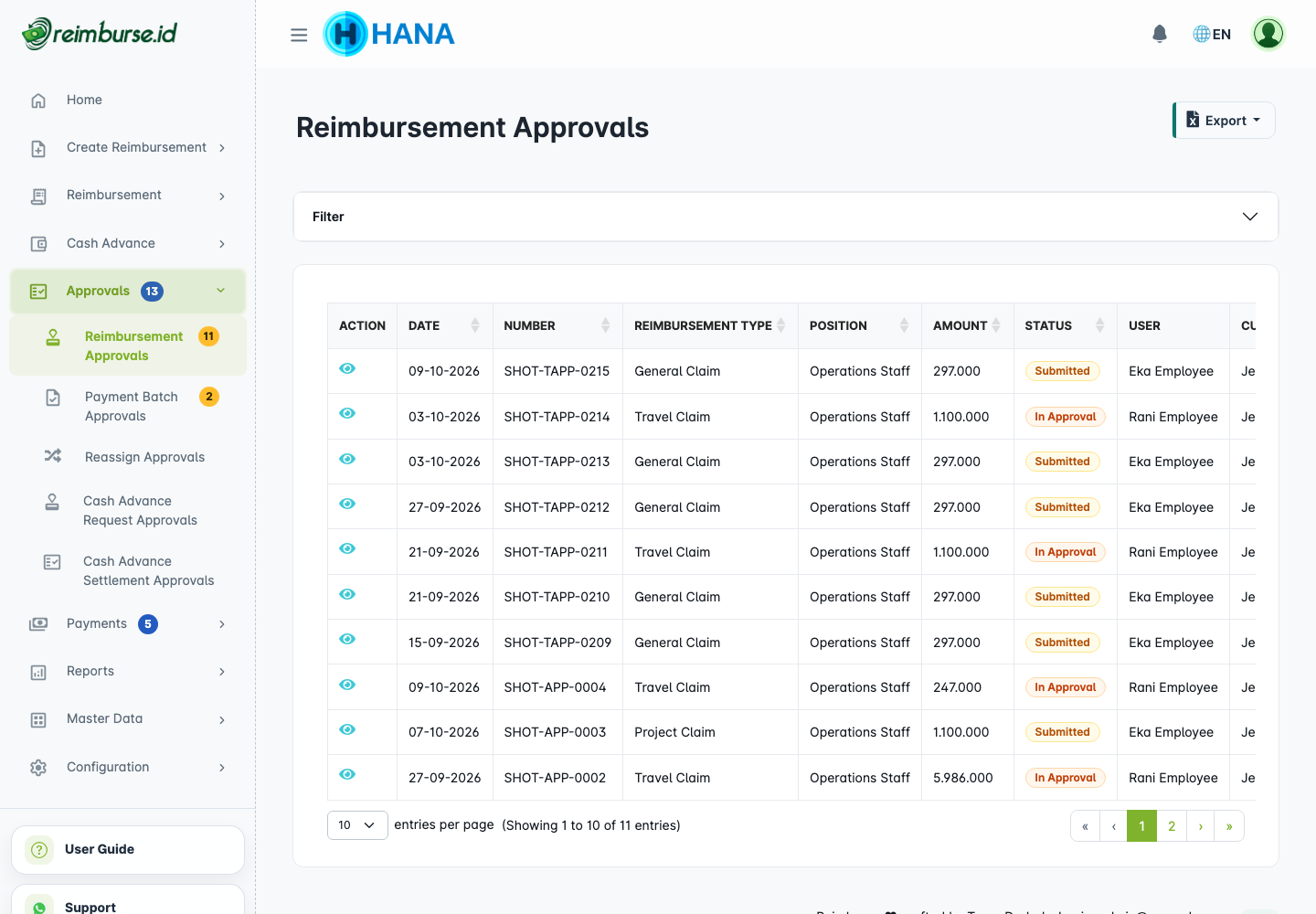
Open Approvals > Reimbursement Approvals. Filter by the available claim information, such as number/keyword, form, position, date, amount, or requester. Open the claim rather than deciding from the list amount alone.
Open A Reimbursement In Review Mode
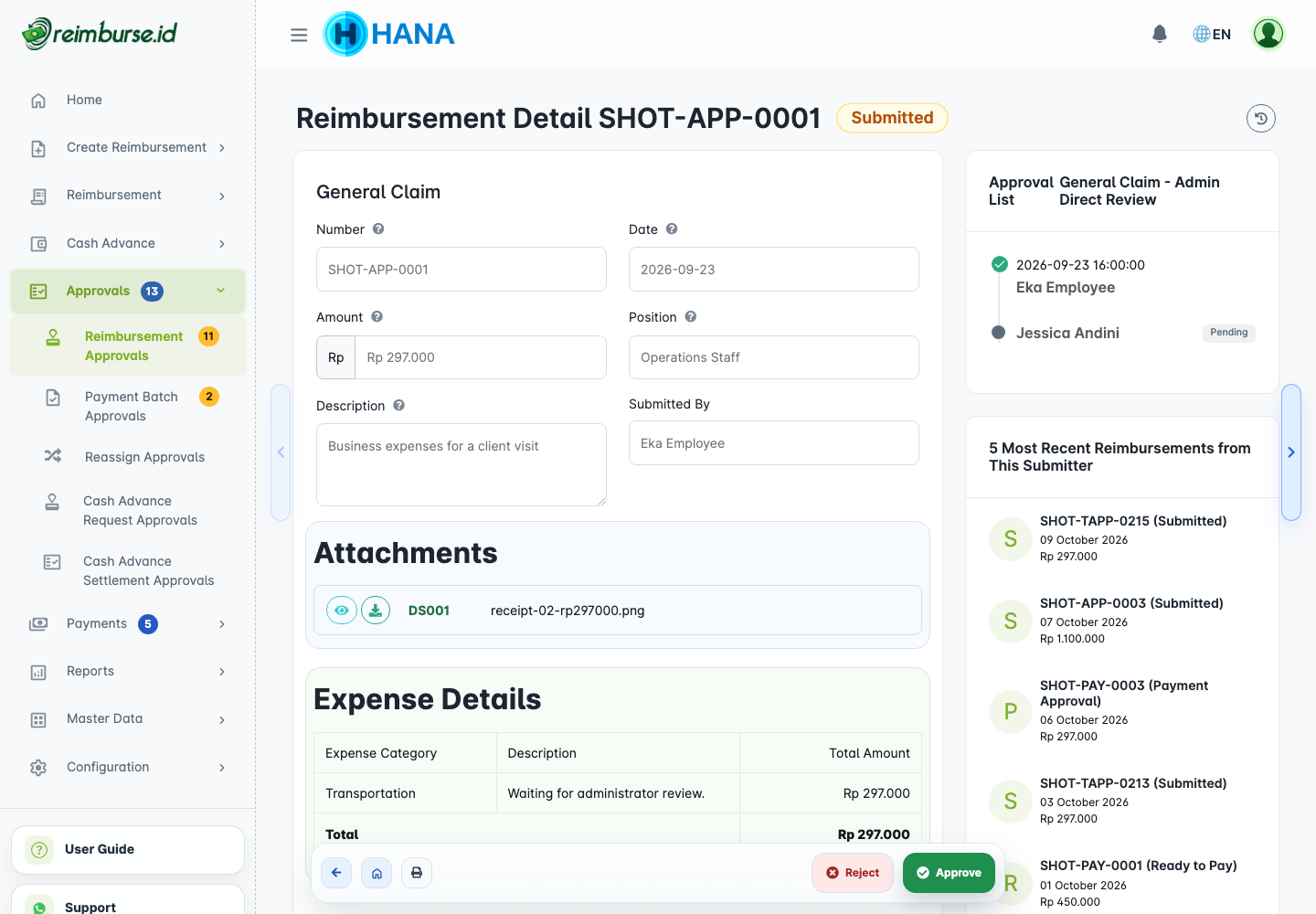
Check the claim date, position, description, expense categories and amounts, custom fields, attachments, and approval history. The recent-claims information can help you identify items that merit a closer check; similar amounts do not prove a duplicate.
Approve Or Reject A Reimbursement
Approve completes your decision. If other required decisions remain, the claim continues through approval; when all required steps finish, it becomes Ready for Payment. Approval is not a bank transfer.
Reject requires a meaningful reason of at least three characters. An approval note is optional. Explain the correction the requester needs to make, not just that the claim is wrong.
Approval Timeline And History
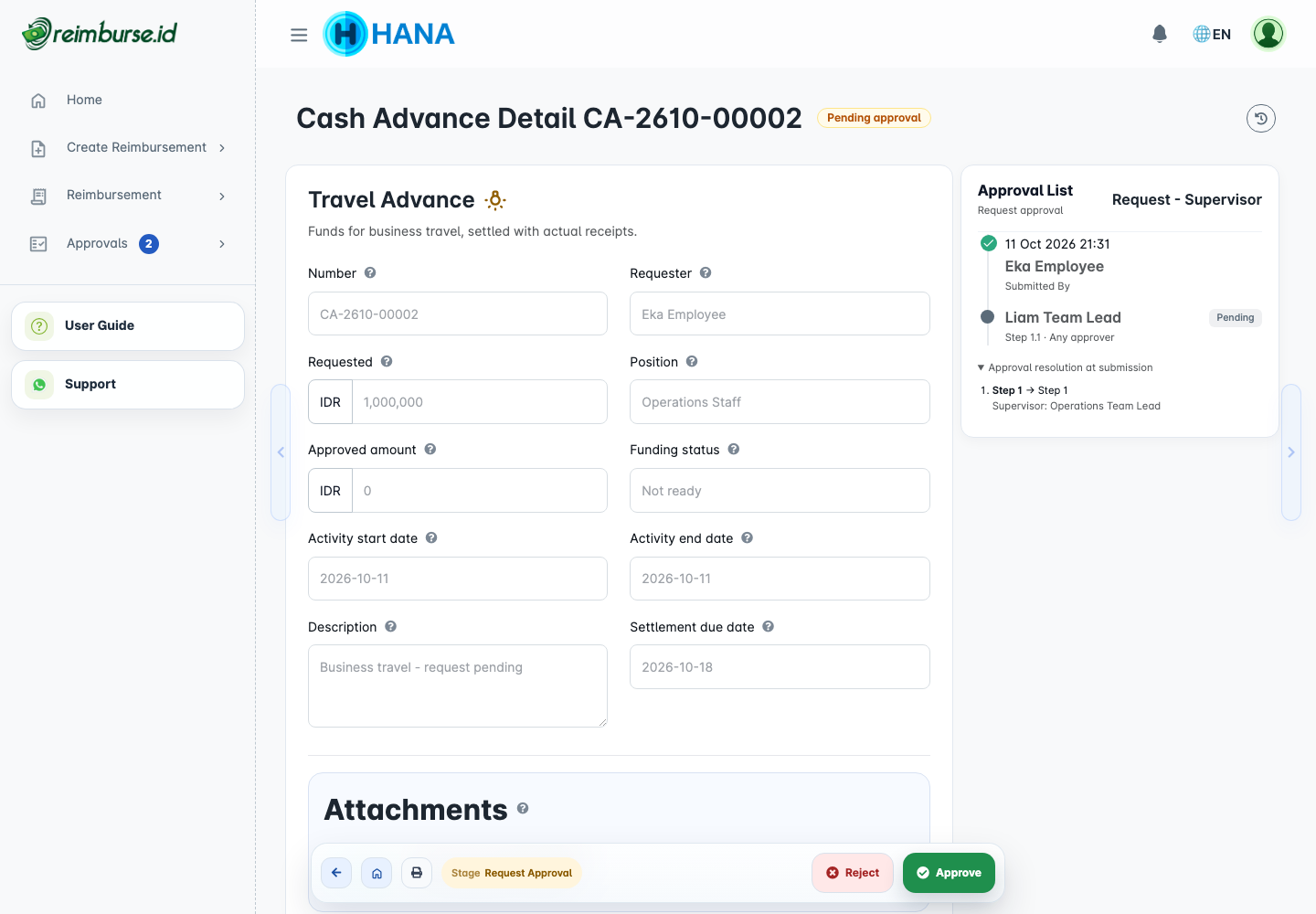
Approval List shows who submitted the document, completed decisions, the current pending step, comments, and subsequent stages. A rule name may also appear when the company enables it.
Expand Approval resolution at submission when available to see how configured dynamic selections, such as Supervisor or PIC Top Position, were resolved when the document was submitted. This trace explains the saved routing; it is not a rule editor and does not replace checking current permissions.
Users without approval access can remain assigned with a warning; ask the administrator to resolve access rather than assuming the step is automatically approved. Rule setup and simulation belong in Reimbursement Configuration and Cash Advance Configuration.
For Reimbursement, a skipped stage may have had no approver left after excluding the requester or repeated recipients. It does not record a decision by the requester. In a stage configured as requester OR another approver, that other approver must still decide. Read the saved assignment and current Pending stage; a change to the routing rules does not itself rebuild older pending documents. Cash Advance's explicit self-approver checks are different, as explained in its configuration chapter.
Payment Batch Approvals
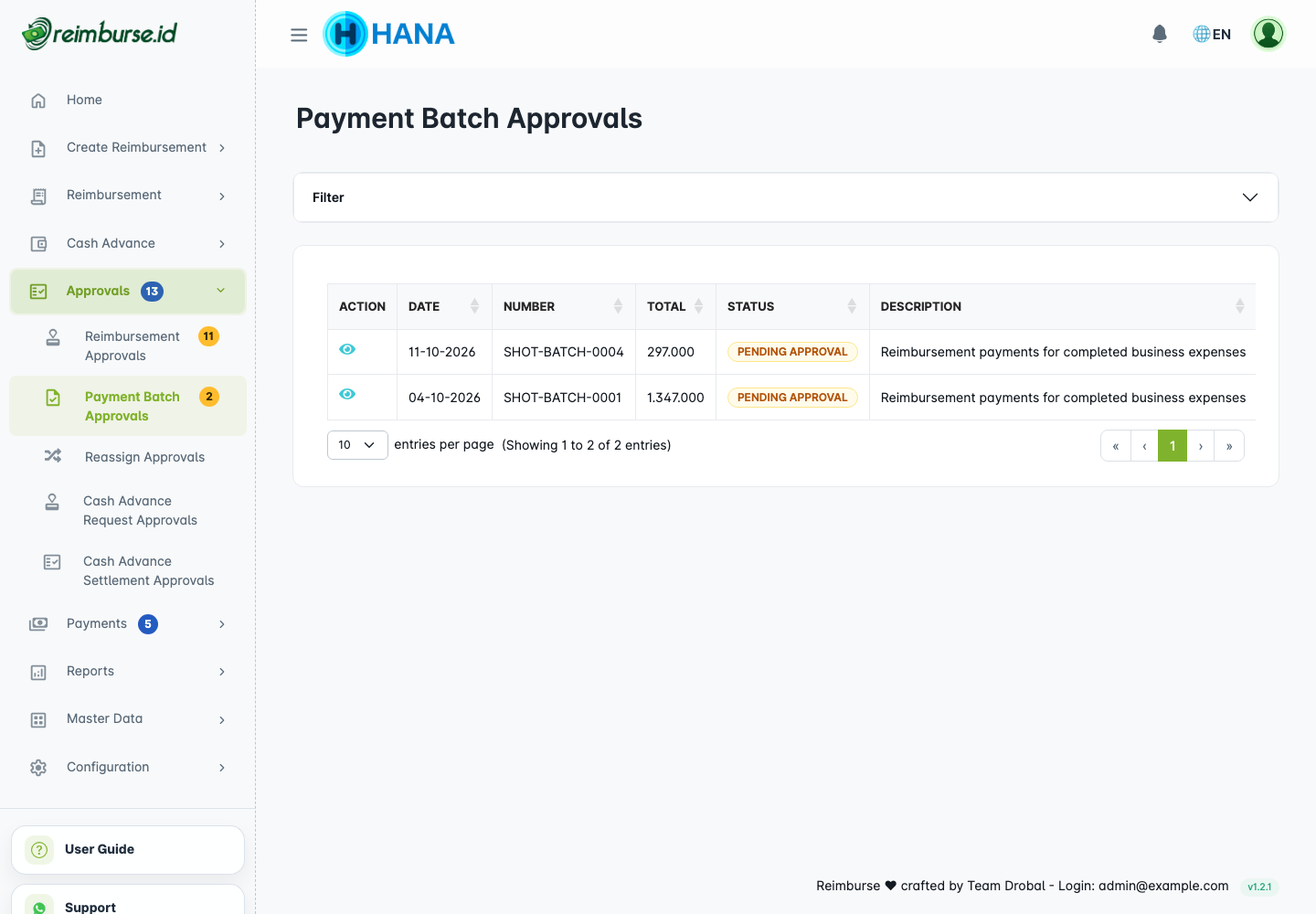
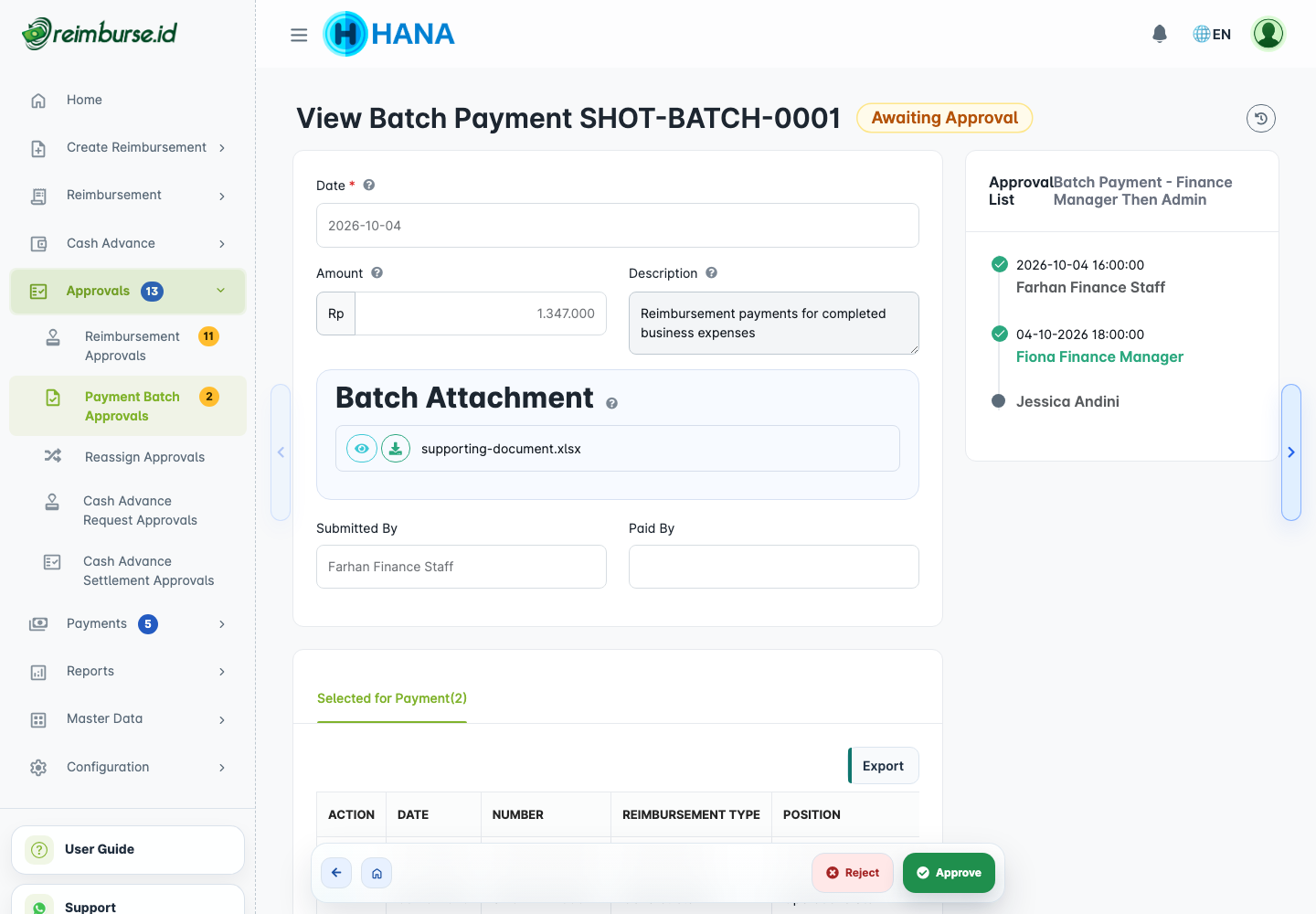
Open Approvals > Payment Batch Approvals. Inspect the batch total, purpose, included reimbursements, attachment evidence, and bank information before deciding.
Approve Or Reject A Batch Payment
Approve advances the required batch approval process. Final approval makes the batch Ready to Pay: ready for the payment team to process through the company's external bank/payment channel, not automatically transferred.
Reject requires a meaningful reason of at least three characters. The authorized batch creator/payment team can correct the rejected batch and resubmit it. See Payment Operations And Batch Payment for processing, export, and recording payment.
Cash Advance Request Approvals
Open Approvals > Cash Advance Request Approvals. Check the activity dates, business purpose, requested amount, estimates, request attachments, and current request approval step.
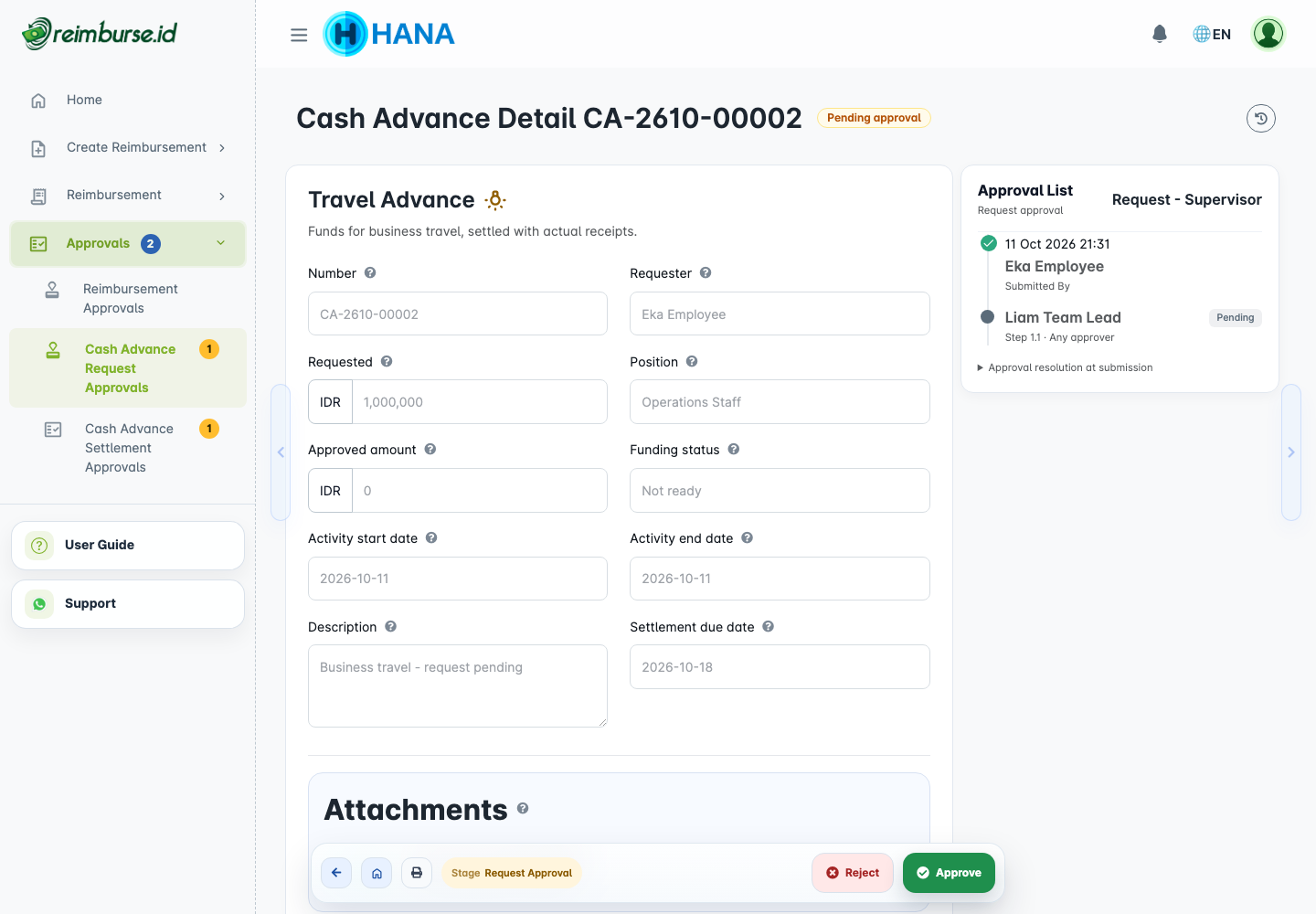
Approve accepts your current request step. After final approval, the request is ready for the company to disburse funds. Reject requires an explanation and returns the request for correction/resubmission. An approval comment is optional.
Request approval does not approve later actual expenses or record disbursement. The requester follows Cash Advance User Guide; the authorized team records funds in Cash Advance Fund Management.
Cash Advance Settlement Approvals
Open Approvals > Cash Advance Settlement Approvals. Check the active settlement revision, actual expense dates/categories/amounts, receipts, and projected reconciliation against net disbursement. Do not treat projected figures as confirmed obligations before the settlement is approved.
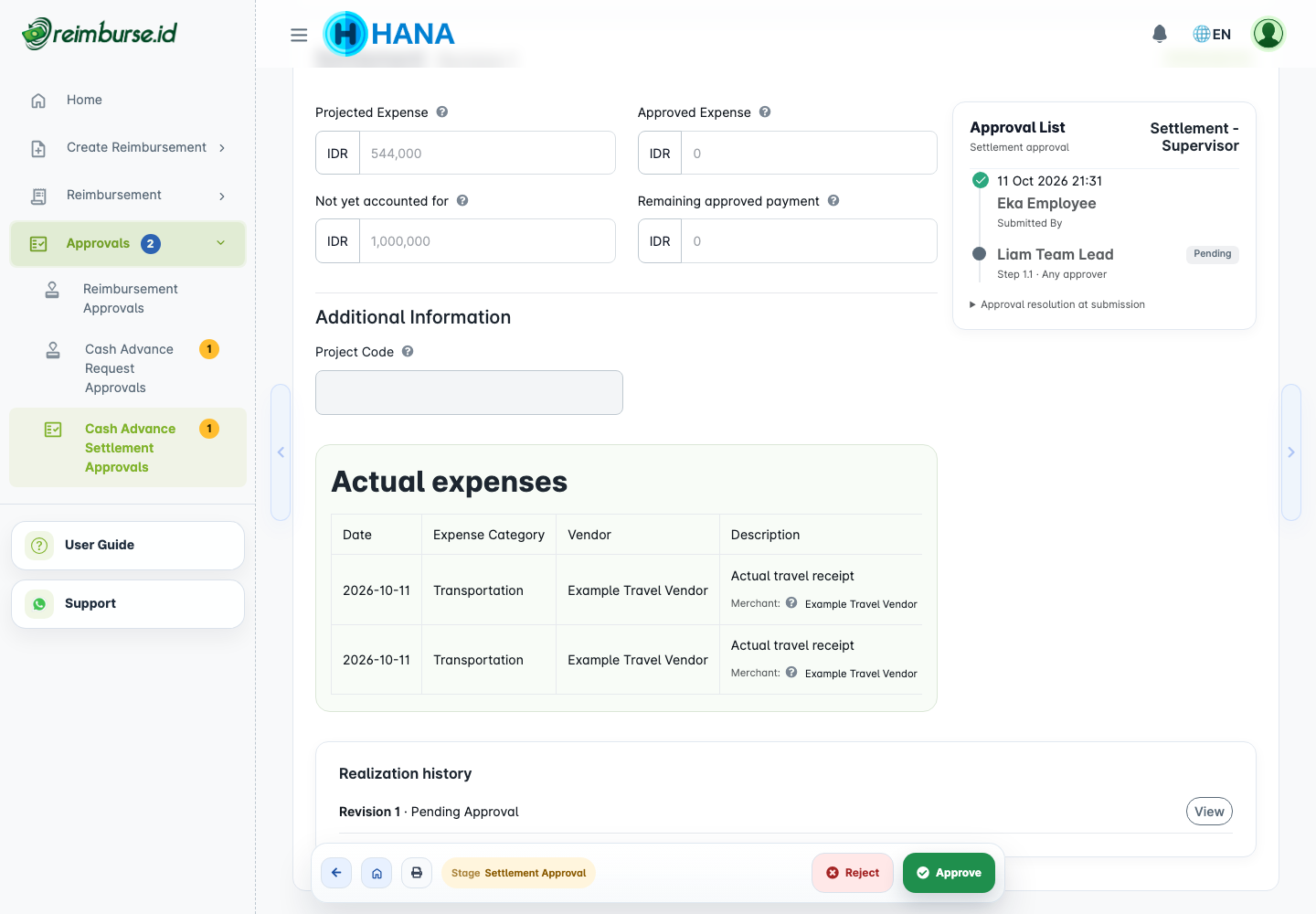
Approve accepts the actual expenses through the remaining required stages. When approval finishes, the result can require an employee return, an additional company payment, or become settled with no balance. Reject requires an explanation; the requester can correct and resubmit the active settlement.
Only the current active revision is actionable. Reviewing an earlier revision does not authorize decisions on it. Cash Advance rejection comments must be nonempty; write a useful explanation rather than relying on a minimum length.
Review Queue Navigation
Opening a document from an approval queue keeps that queue context. Use the left/right controls when present to review neighboring items. Reimbursement and payment-batch decision flows continue to the next pending item, then a previous item if needed, or return to the queue when it is empty. Cash Advance screens also provide context-aware neighboring-document navigation; after a decision, use the remaining queue or dashboard task to continue.
Do not assume the arrows follow My Reimbursements or a general company list when you opened an approval queue. Filters and your access determine the available context.
Email Links And Changed Assignments
An approval email link is a shortcut to a particular task, not permanent permission. It may stop working after expiration, a decision, reassignment, resubmission, cancellation, or access changes.
If a link is no longer valid, sign in to your company and open the relevant approval queue. Check the latest document and assignment. Do not use an old link to repeat a decision or ask another user to act through your link. Request access assistance if the task is still assigned to you but inaccessible.
Common Problems
| Problem | What To Do |
|---|---|
| No Approve/Reject action | Check current pending stage, assignment, active revision, and approval access. |
| A date or close period blocks the decision | Check the indicated date and contact the administrator. |
| A person is assigned but has no access | Ask the administrator to grant the relevant approval access or reassign appropriately. |
| A batch is approved but unpaid | Ready to Pay is preparation for external payment, not execution. |
| Cash Advance is approved but still needs work | Distinguish request approval, disbursement, settlement approval, and financial resolution. |
| You will be absent | Use Delegation And Reassign Approval rather than sharing credentials. |
Next: follow the payment or Cash Advance fund-management chapter only if your role also performs those tasks.