
Reimbursement Configuration
Use this chapter to prepare a reimbursement form employees can actually use. Complete the positions, users, and role access in Initial Setup first. An Expense Category classifies each expense line; a Reimbursement Form controls the whole claim.
When To Use Reimbursement Forms
Use separate forms only when claim types need different fields, instructions, numbering, or approval rules. For example, General Claim covers ordinary expenses and Travel Claim needs travel information and receipts. An active form is available for new claims only when the requester also has the required access.
Form Priority In The Create Menu
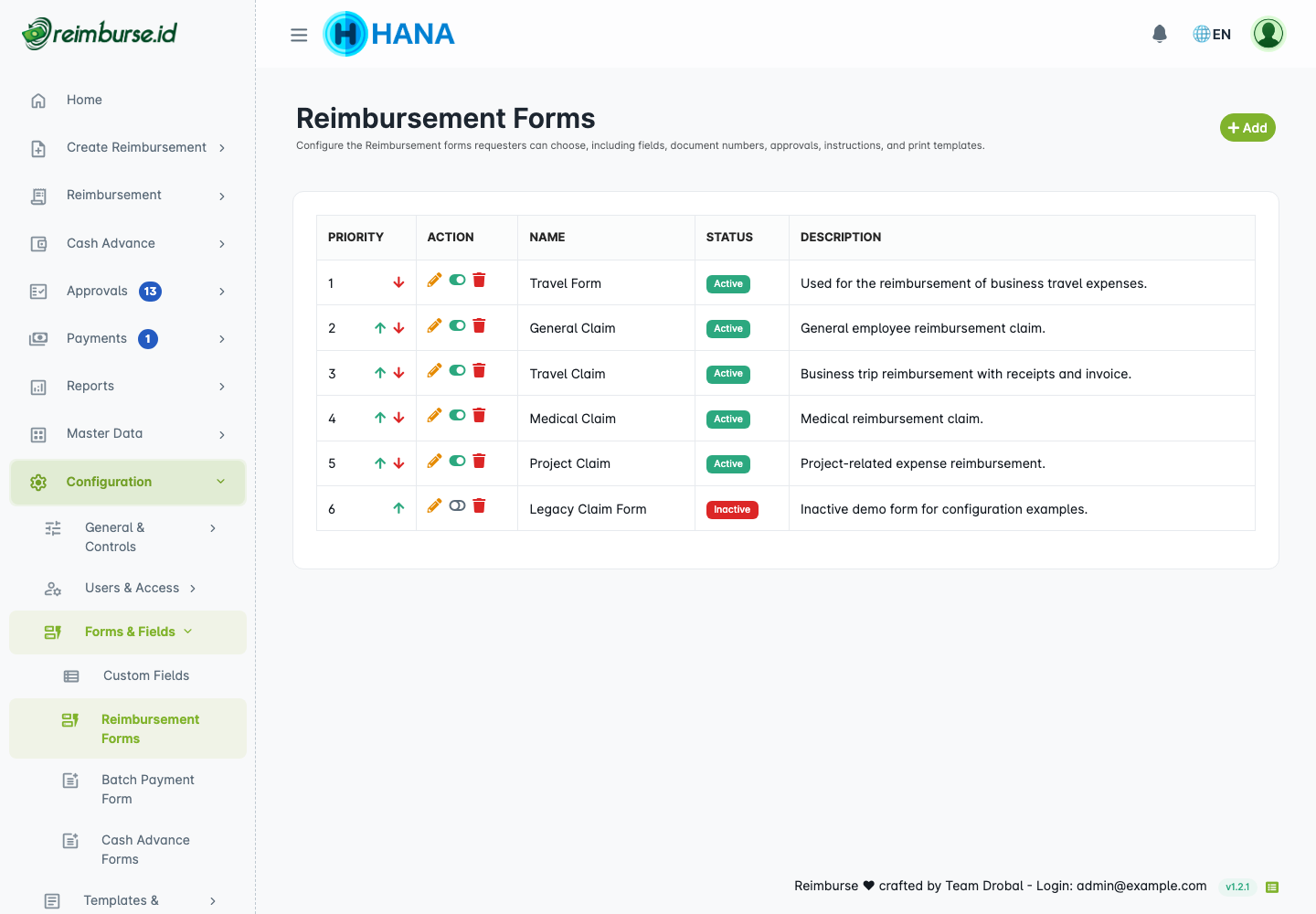
The list's Priority determines the order in the Create Reimbursement menu. Use the up/down actions to move a form. The order is saved automatically after a successful move; there is no separate Save Priority step. Check the refreshed order before leaving the page.
A smaller priority appears higher. An inactive form is not made available by moving it higher. This priority is not the priority used to select an approval rule.
Open A Reimbursement Form
- Open Configuration → Forms & Fields → Reimbursement Forms.
- Add a form or choose an existing form's Edit action.
- Select the relevant tab, make changes, and click Save. For rule changes, save the rule in its dialog.
| Tab | Purpose |
|---|---|
| General | Name, description, behavior, icon, and numbering. |
| Access & Fields | Requester roles, header custom fields, and detail custom fields. |
| Approval Rules | Conditions, approval stages, ordering, and Test Workflow. |
| Instructions | Guidance employees can open on document pages. |
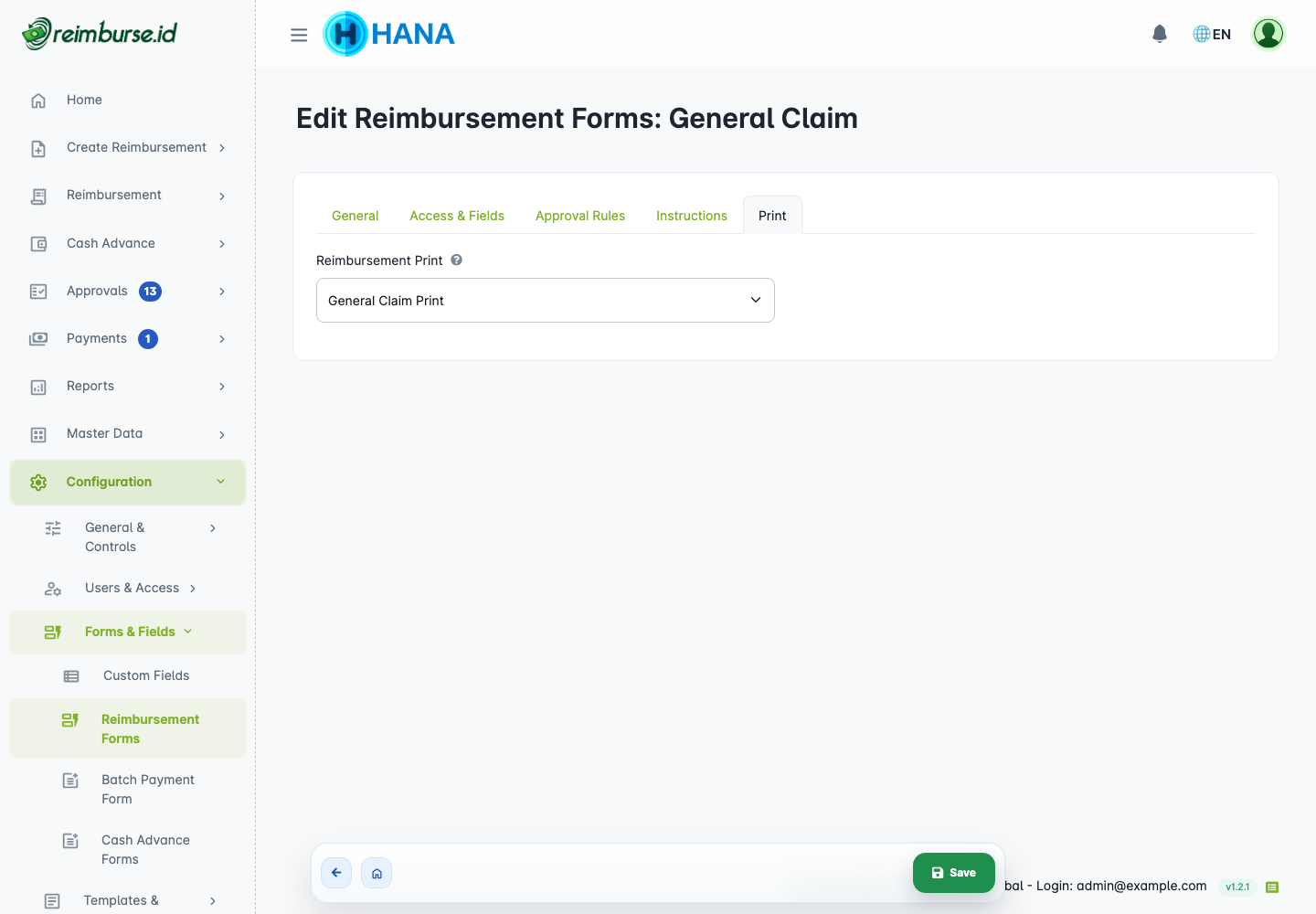
| Optional print-template assignment. |
1. General Form Settings
Open General.

Choose a clear Name and Description. Select a stock icon or upload an image in the supported format. The icon identifies the form in the submission menu; it does not change permissions. Use the list's active-status action when you want to enable or retire a form.
Access Rights
Open Access & Fields.
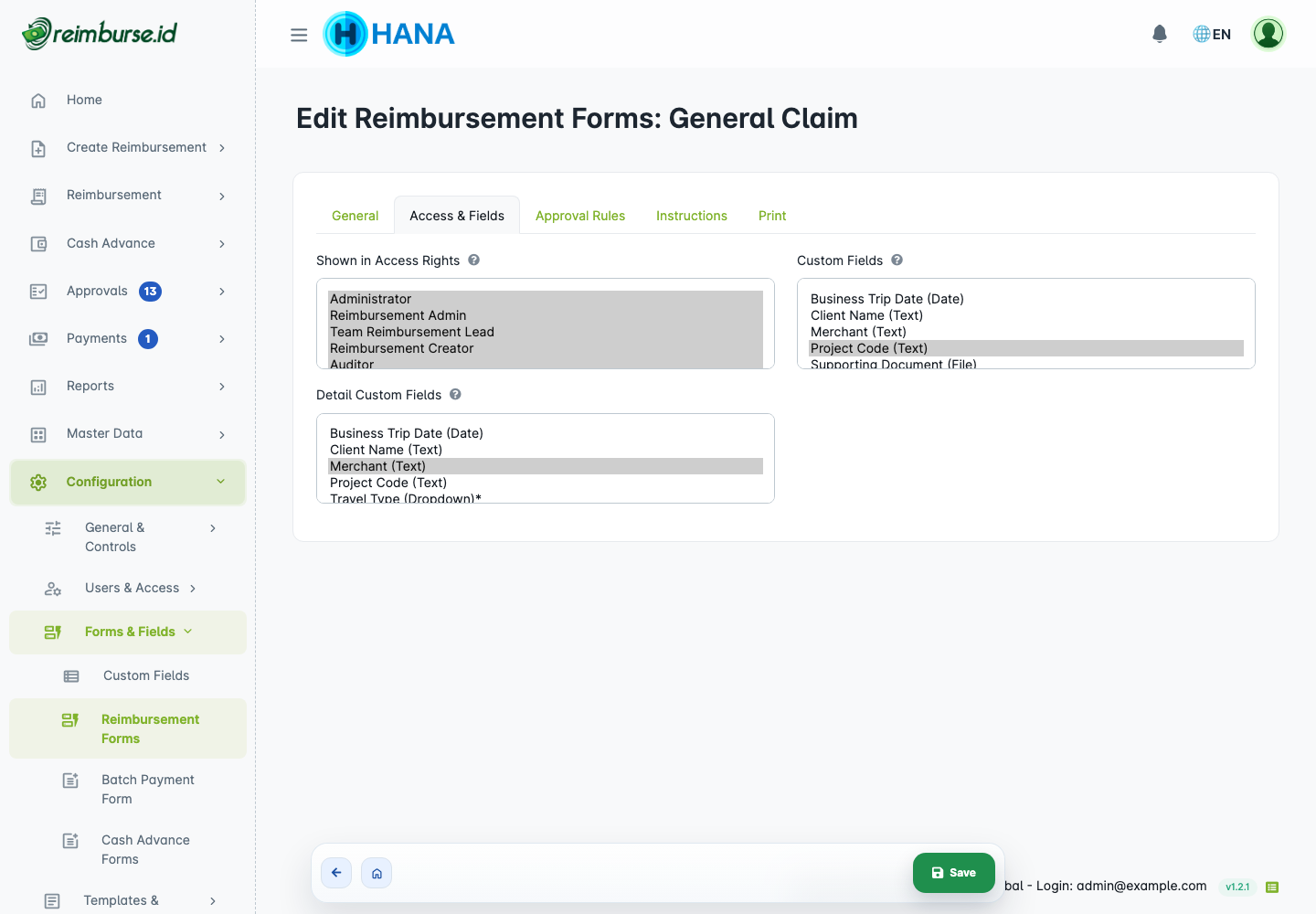
Shown in Access Rights restricts which requester roles can use the form. Leaving it empty allows all roles; it does not give users submission permission they do not otherwise have. Select specific roles when the form is limited to a group.
If a requester cannot see the form, check its active status, its role selection, and that user's create access. A role's permission to manage forms is different from permission to submit a claim.
Header Custom Fields Vs Detail Custom Fields
In Access & Fields, choose active fields created in the custom-field library:
| Area | Use It For |
|---|---|
| Custom Fields | One value per claim, such as project code or trip purpose. |
| Detail Custom Fields | A value for each expense line, such as receipt date or merchant. |
The selection order controls display order; the last selected field appears at the bottom. Check type, required status, options, and Help Text in the library before attaching the field. A field can serve a different purpose at header and detail level; do not require duplicate information without a reason.
Form Behavior Flags
These controls are in General:
| Flag | What Users Experience |
|---|---|
| Readonly Position | Uses the user's position when creating the claim and prevents manual selection. Useful for consistent hierarchy-based routing. |
| Readonly Date | Prevents changing the date on the create form. Use it only when company policy does not allow choosing a date manually. |
| Main Reimburse Attachment Required | Evidence must be attached before submitting. |
| Enable Qty & Price | Expense rows use quantity × unit price rather than amount-only entry. |
These options do not replace approval rules or permission checks. Choose Qty & Price for claims such as mileage or room nights, not simply to change the visual layout.
2. Document Numbering
Numbering is also in General.
| Setting | Purpose |
|---|---|
| Document Prefix / Document Suffix | Text and date variables before/after the running number. |
| Next Number | Next running number to allocate; not a way to rename an existing document. |
| Length of Number | Padding width: five digits displays 00001. |
| Reset Number Every | Continue, Month, or Year. |
| Document Number Preview | Example of the resulting number. |
For example, prefix GC-{year2}{month}-, length 5, and monthly reset can produce GC-2610-00001 in October 2026. Available date tokens include {year4}, {year2}, and {month}.
Tokens and reset periods use the company timezone, not the claim's backdated expense date or your device clock. Existing documents, including drafts that already have a number, are not renumbered by changing the form. If the company period moves backwards and numbering is blocked, ask the administrator to review the timezone/period; do not reduce the counter to bypass the warning.
Review the preview, save, and change numbering only through an agreed company process.
3. Instructions
Open Instructions, enable Show Reimbursement Procedure Instructions, write practical guidance, and save.
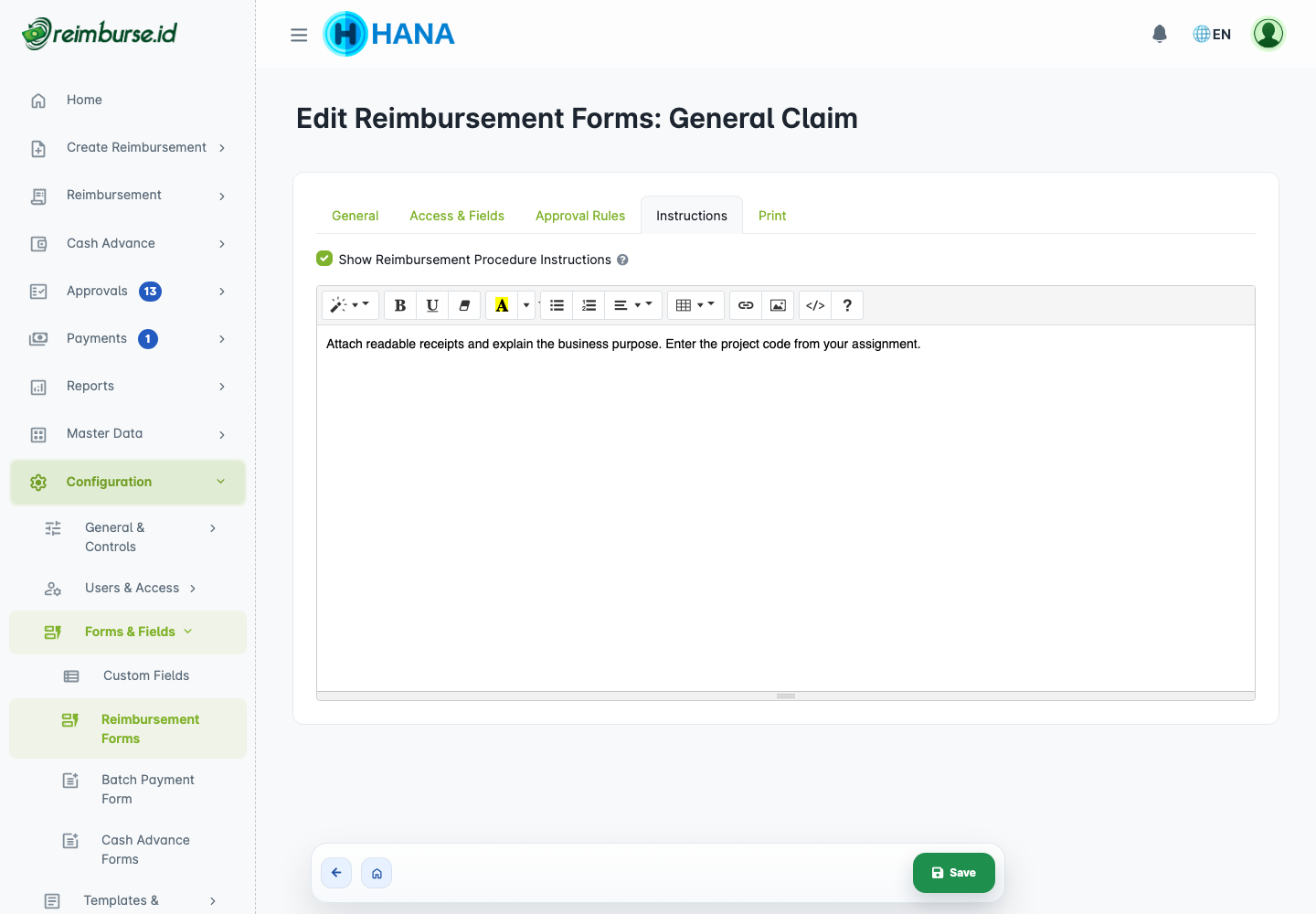
Examples: “Attach a readable receipt”, “Explain the business purpose”, or “Include trip approval where required”. Keep long policies in a separate document and link to them if appropriate.
Users open instructions through the instruction icon beside the form name on the create/document page. The latest saved content is used when pages are reopened, including existing documents; disabling instructions hides the icon. See the Reimbursement User Guide for the employee view. This is form guidance, not an IF condition or an extra approval stage.
4. Approval Rules
Open Approval Rules.
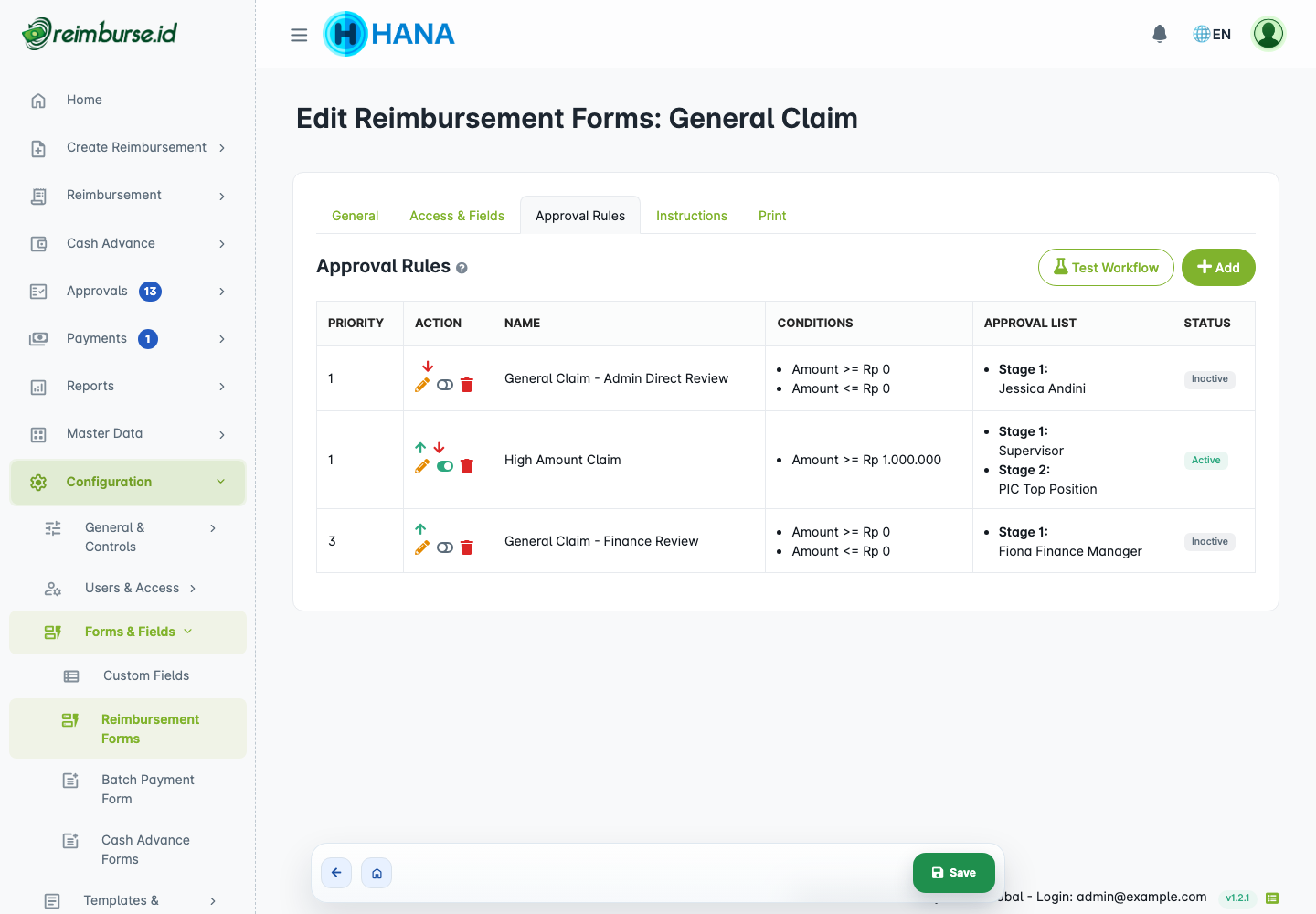
A rule has a Name, an IF condition, and THEN approval stages. Click Add, fill the dialog, and save. Active rules are evaluated in priority order; only the first matching rule is used. The next rule does not add another approval chain.
IF Conditions
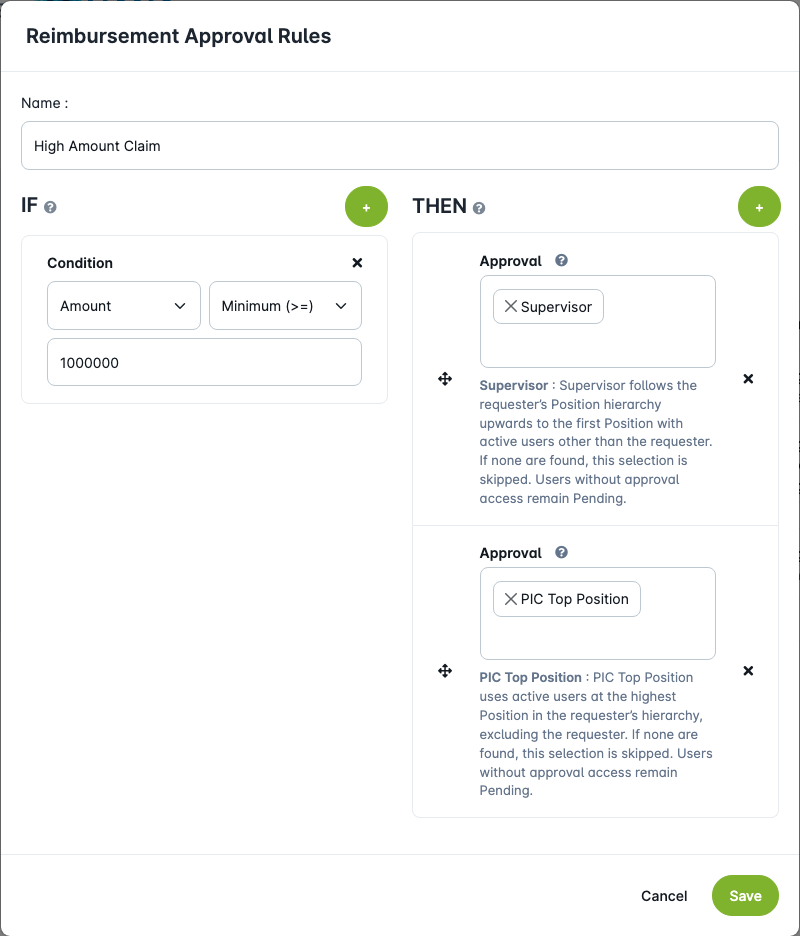
- Click + in IF.
- Choose Amount, Position, Description, or an available header custom field.
- Select an operator supported by that field.
- Enter the comparison value or select the positions/options.
- Add another condition only if both requirements must apply.
| Field | Example And Meaning |
|---|---|
| Amount | Minimum (>=) 1000000 includes exactly one million; Maximum (<=) also includes its boundary. |
| Position | Select the position values offered by the condition control; confirm the result in Test Workflow. |
| Description | Equal, Contains, or Empty, according to the requirement. |
| Header custom field | Operators follow the field type, such as numeric minimum/maximum or date comparison. |
All IF conditions in one rule use AND: every condition must match. An empty IF applies to every reimbursement on that form. The condition field is separate from a THEN step's OR/AND approval choice. Enter values using the control's expected format; do not write a sentence such as “above one million” into an amount value.
THEN Approvers
Add stages in the required order. Later stages wait for earlier stages to complete.
| Selection | How It Resolves |
|---|---|
| Supervisor | Searches upwards from the requester's actual position to the first ancestor with active users other than the requester. It can pass over an empty parent position. |
| PIC Top Position | Uses active users at the highest position in that hierarchy, excluding the requester; it does not search lower positions if the top has no candidate. |
| User | Uses the specific selected active user in this company. |
There is no PIC field to assign on the Position editor. Position membership is managed on the user account. Multiple active users can be found at a position.
For a stage with multiple approvers, choose OR (Anyone can approve) when one approval is sufficient, or AND (Everyone must approve) when everyone in that stage must approve. These choices do not change the sequential order of stages.
The requester cannot approve their own reimbursement. After resolving active delegation, Reimbursement removes any final approver who is the requester, including a requester selected through User. If a selected requester delegates to another eligible person, that other person can still be assigned. Repeated recipients are not assigned again in later stages. An unavailable selected user or an invalid hierarchy is still a configuration error.
When The Requester Appears In A Rule
Removing the requester does not count as an approval. Apply the stage's OR/AND requirement to the remaining approvers:
| Configured Stage | Result When There Is No Delegation |
|---|---|
| Requester only | The stage is skipped. Continue to the next executable stage. |
| Requester OR Liam | Liam must approve; the requester's presence does not satisfy OR. |
| Requester AND Liam | Liam must approve. |
| Requester AND Liam AND another approver | Both remaining approvers must approve. |
If no approvers remain in any stage, the reimbursement approval phase can complete without a human decision. This makes the claim ready for the next payment step; it does not transfer funds. Review whether this matches your company's policy before using such a rule.
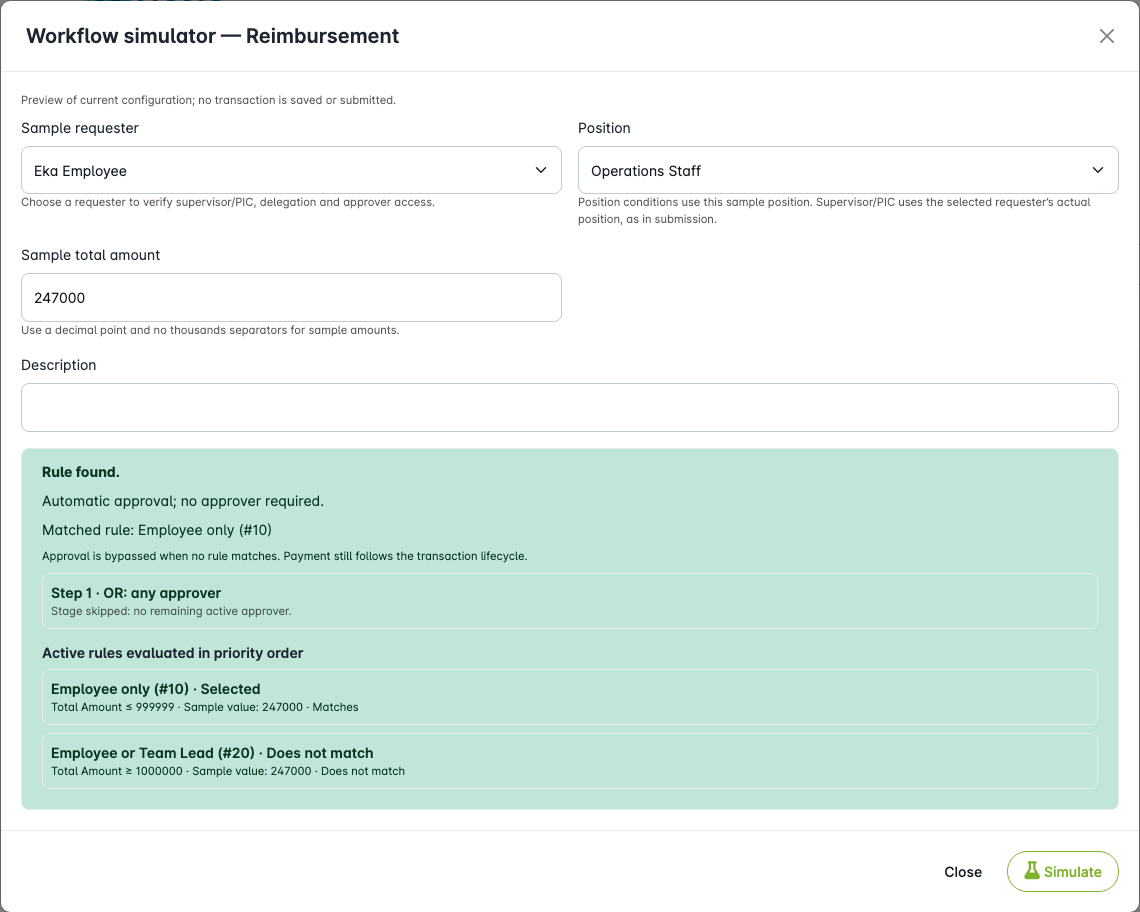
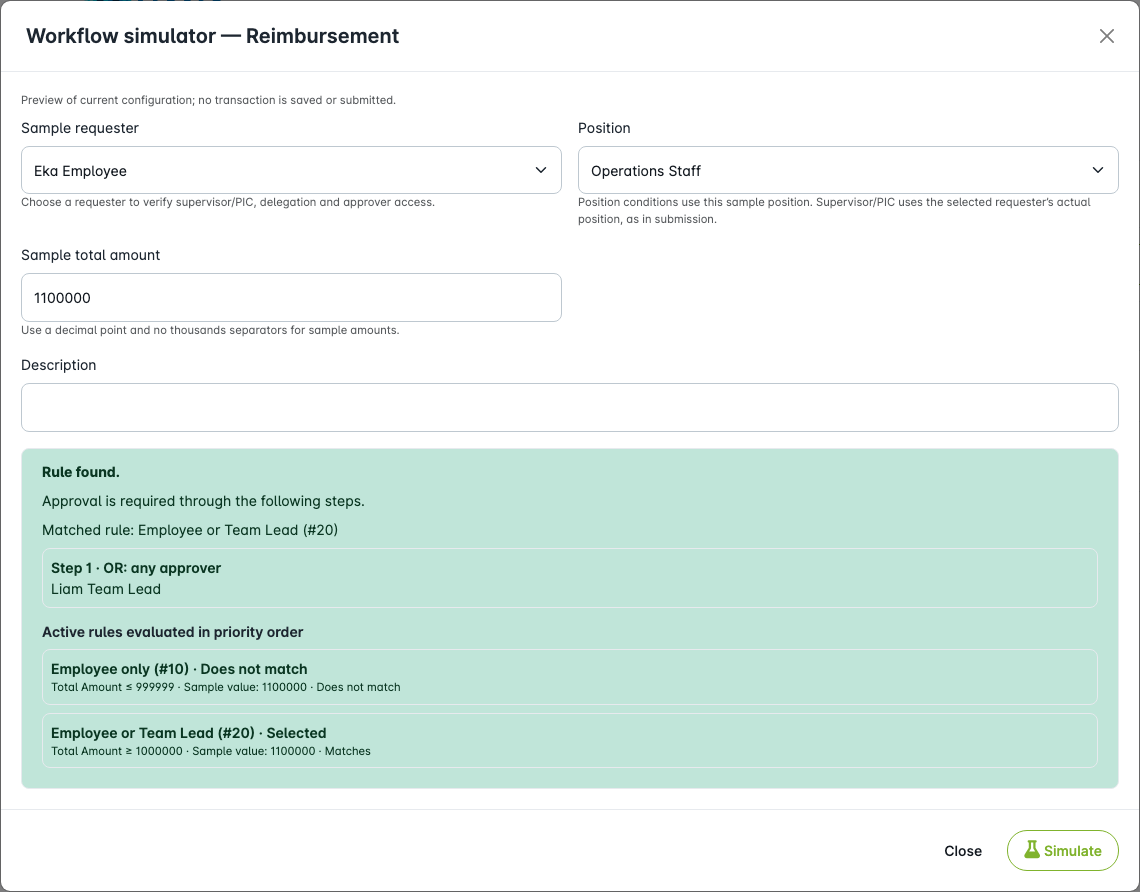
Test with the actual requester. These examples apply to Reimbursement, not the explicit self-approver validation in Cash Advance Configuration. The routing is calculated when submitting or resubmitting; it does not rewrite previous decisions or automatically rebuild existing pending assignments.
Being assigned does not grant approval access. A user without access remains Pending and may be notified, but cannot open or decide the approval until the appropriate permission is granted. Review all simulator notes before relying on the rule.
5. Example Approval Scenario
Here is a simple example policy, not a requirement imposed by Reimburse.id:
| Amount | Approval |
|---|---|
| Below Rp1,000,000 | No matching rule; automatic approval. |
| Rp1,000,000 or more | Supervisor, then PIC Top Position. |
Create an active rule named High Amount Claim with Amount → Minimum (>=) → 1000000. Add Supervisor as stage 1 and PIC Top Position as stage 2. Do not add an unconditional rule if the intended policy is automatic approval below the threshold.
With Eka Employee at Operations Staff, Supervisor resolves to Liam Team Lead at Operations Team Lead; the top position resolves to Jessica Andini. Check that both have approval access. For a requester who is also at the top, do not assume the same chain applies.
Test Workflow Before Using The Form
- Save the rule, then click Test Workflow.
- Select the actual intended requester and enter sample amount/description/custom values.
- Click Simulate and read the selected rule, condition results, stages, and warnings.
- Change the amount to test the boundary and an amount below it, then simulate again.
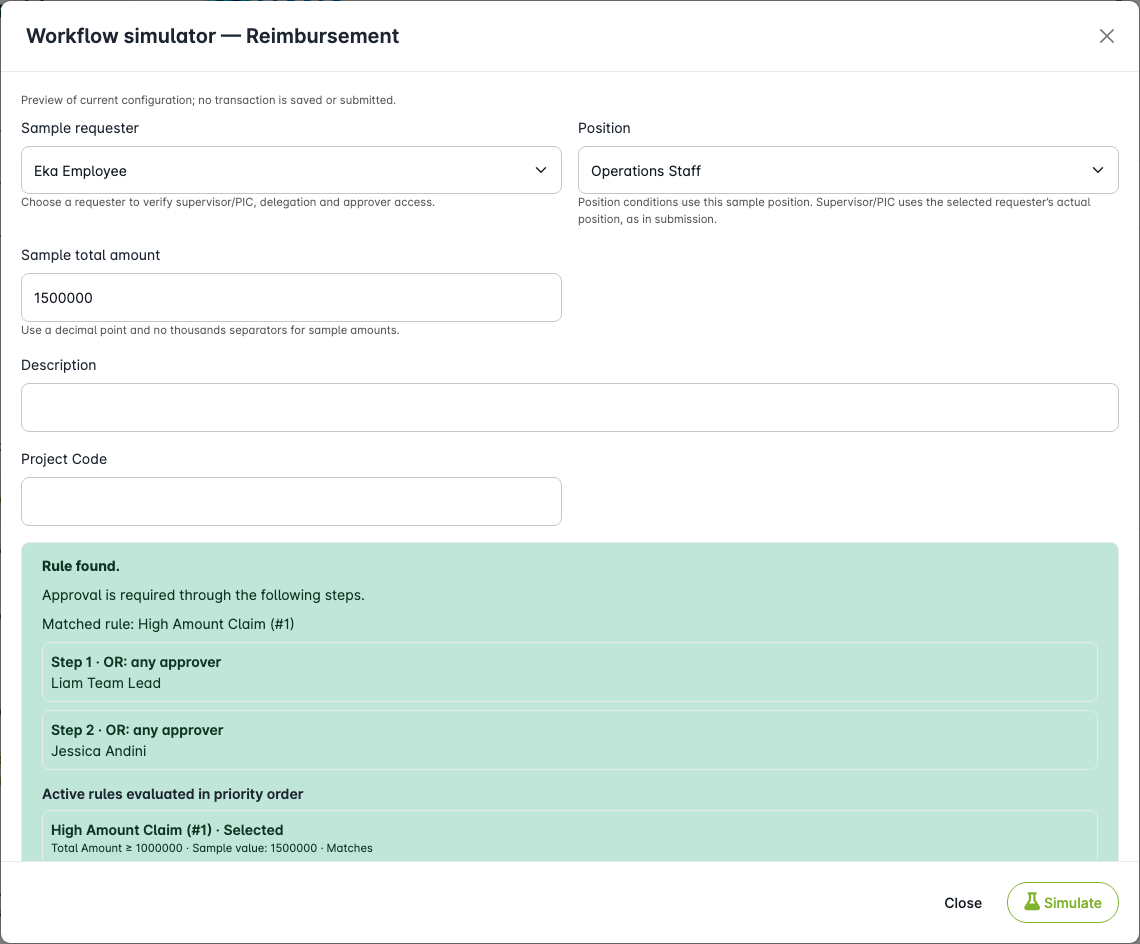
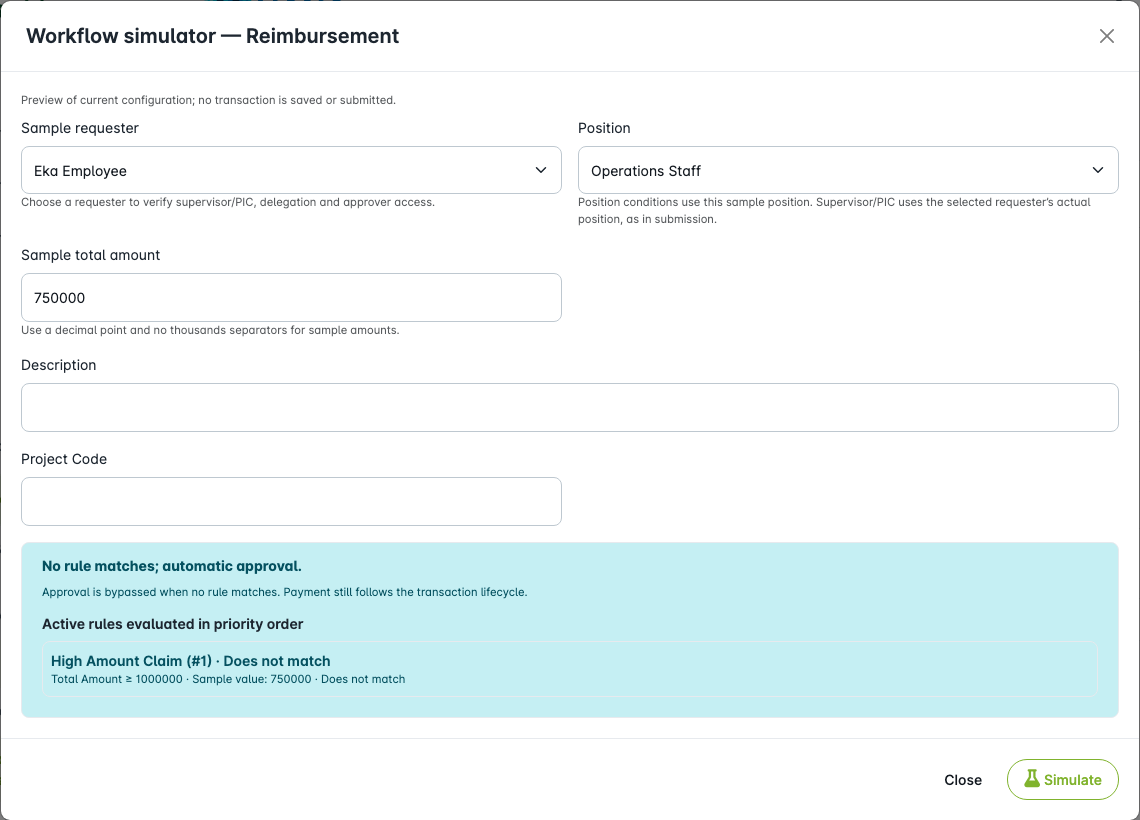
The sample Position affects position conditions; Supervisor/PIC still uses the selected requester's actual position. Simulation uses saved configuration, does not save or submit a claim, and does not send approval requests. A successful preview is not a completed real approval or payment.
6. Rule Priority
Rule priority controls routing, unlike form priority, which controls menu order. Use the rule's move actions and check the refreshed order. Put specific conditions first and an unconditional rule last only if company policy requires approval for the remaining cases.
| Priority Pattern | Result |
|---|---|
| Specific rule first, general rule last | The specific route wins when it matches; other claims use the general route. |
| General rule first | It matches every claim and prevents lower rules from being selected. |
| No active rule matches | Approval completes automatically; payment administration remains separate. |
If you prefer every amount to be reviewed, add a final empty-IF rule with the required approver. This changes the example policy above: low-value claims will now wait for approval too.
7. Active, Inactive, And Delete Behavior
Deactivate a form when it should no longer be offered for new claims. Historical documents remain. Deactivating a rule removes it from matching for new routing decisions; it is not a way to cancel an existing approval.
Use Delete only when the application permits it and there is no dependent history. If deletion is blocked, review the message and prefer deactivation rather than deleting related documents.
8. Recommended Checklist
- Form name, active status, and requester access are correct.
- Header/detail fields, required information, and Help Text match the policy.
- Numbering uses the intended company timezone and preview.
- Instructions are enabled when useful.
- IF boundaries, rule order, OR/AND choices, and no-match behavior are deliberate.
- The employee's actual position and every intended approver's permissions are correct.
- Test Workflow gives the intended result at, below, and above the boundary, without unresolved warnings.
Continue to the Reimbursement User Guide for submitting a claim. If needed, configure Cash Advance separately.
Optional Print Layout
Print Template Assignment
Open Print and select a compatible template, then save. Leave it empty to use the default reimbursement print layout.
Print Builder
Open Configuration → Templates & Exports → Reimbursement Print. Add/edit a template, arrange its sections, rows/columns, and blocks, preview it with a representative document, then save. Return to the form's Print tab to assign it.
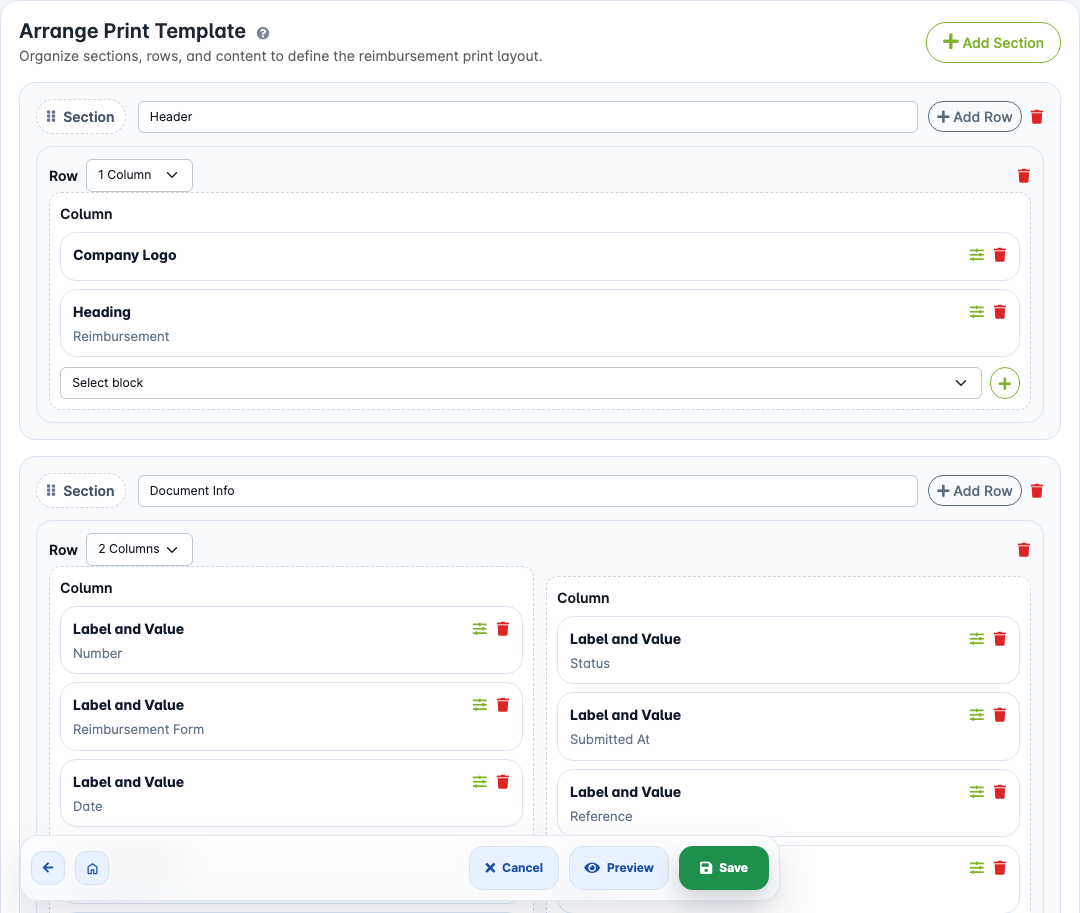
Blocks can show headings, paragraphs, Label & Value, expense details, attachments, approvals/signatures, and company branding. A custom layout is optional, not a prerequisite for the first submission.
What Label & Value Can Show
Map standard fields, header custom fields, requester profile fields, or date fields. A label can remain visible when the chosen document has no value for that field; check the mapping and data before changing the template.
Print-Specific Settings
Date fields can use print-specific formats. One template can serve several forms; editing it can affect their printed output. Choose an active compatible template and check a real document as well as preview.
Common Print Builder Problems
| Problem | What To Check |
|---|---|
| Empty value | Document data and field mapping. |
| Old/default layout | Template assignment on the form's Print tab. |
| Different preview | The sample document and assigned template may differ. |
| Template unavailable | Type, active status, and template-management access. |
Common Problems
| Problem | What To Check |
|---|---|
| Form not visible | Active status, requester-role selection, and create access. |
| Detail field missing | Attach it in Access & Fields, not just the header selection. |
| Wrong approver | Actual requester position, active membership, delegation, rule order, and approval access. |
| Claim approved without review | No rule matched, or no approvers remain in any stage after excluding the requester/repeated recipients or resolving dynamic selections with no candidate. Check Test Workflow and the intended policy. |
| Numbering blocked | Review company timezone/period and the warning; do not reset the counter to bypass it. |