
Reports And Audit
Use reports to review many documents, reconcile data, and prepare audit evidence. They do not replace the daily menus for submitting claims, approving work, recording payments, or managing Cash Advance funds.
How To Choose The Right Report
| Your Question | Open |
|---|---|
| What was claimed, with expense rows and custom fields? | Reports > Reimbursement Detail. |
| Which reimbursements are still waiting, and where? | Reports > Outstanding Queue. |
| How are payment batches progressing? | Reports > Batch Payment Report. |
| How long did reimbursement/batch approval steps take? | Reports > Approval Timeline. |
| Which Cash Advances need action, and what are their balances? | Reports > Cash Advance Report. |
| Can I download monthly reimbursement PDFs and attachments? | Reports > Audit Archive. |
| Who changed data or successfully accessed an account? | Activity And Login History, not a transaction report. |
Your role determines which menus and documents you can see. Start with the relevant report, choose the date basis and period, then apply filters before exporting. Compare amounts in the same currency; do not add different currencies as though they were one amount.
Reimbursement Detail Report
Open Reports > Reimbursement Detail.
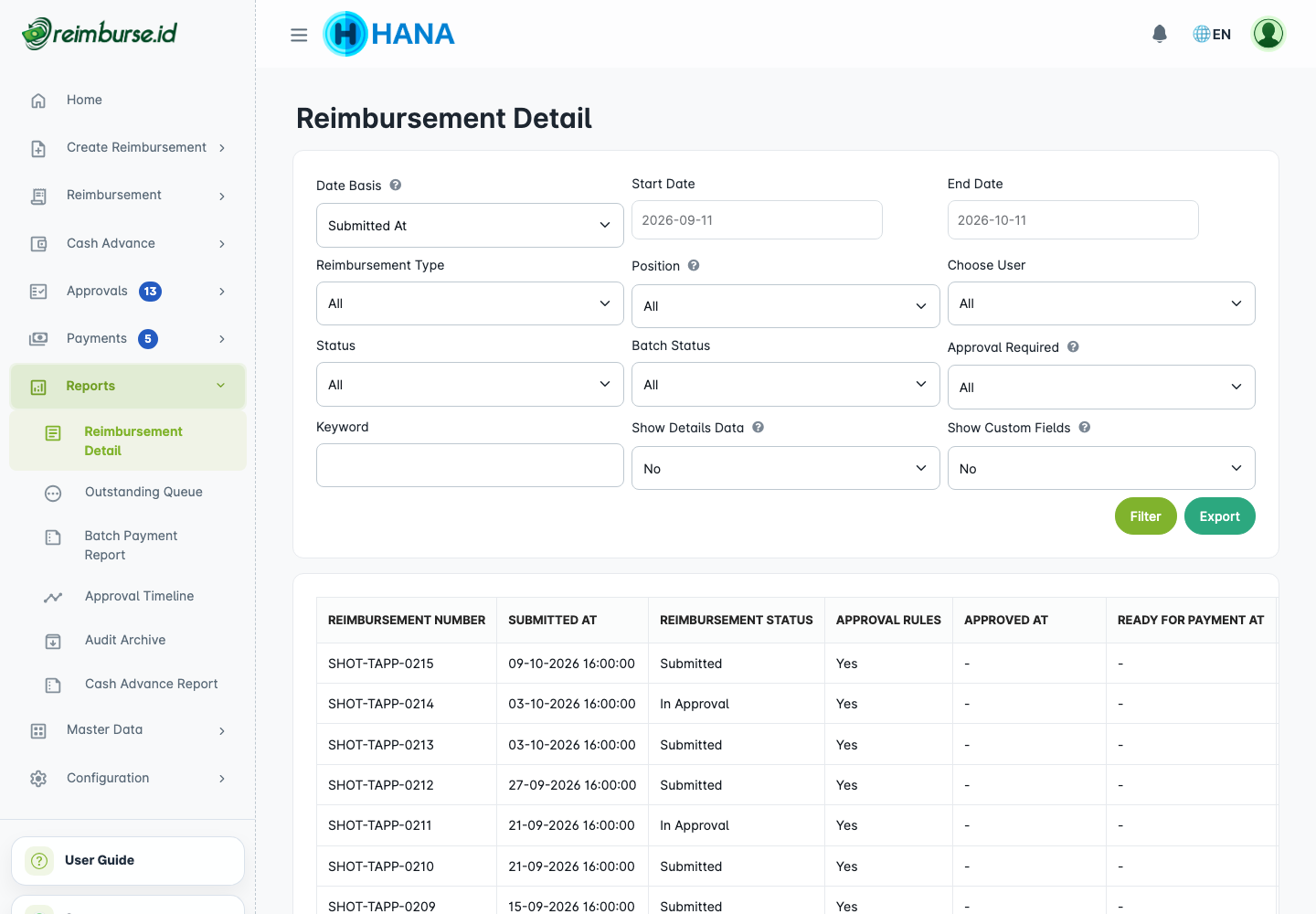
Use this report for claim-level information and, when needed, expense detail/custom field columns. Choose Date Basis first: submission, approval, payment readiness, payment, or last update. A range based on payment dates answers a different question from a range based on submission dates. With Draft status and submission-date basis, creation time is used so drafts can still be found.
Then select the period, position, user, reimbursement status, batch status, approval requirement, or keyword as needed. Enable Show Details Data to include expense rows and Show Custom Fields for additional fields. Repeat Document Columns controls repeating document information on detail rows.
Bank values can be historical document snapshots, not the user's latest profile values. This supports reconciliation with the actual document. For updating bank data before payment processing, see Payment Operations And Batch Payment.
Outstanding Queue Report
Open Reports > Outstanding Queue.
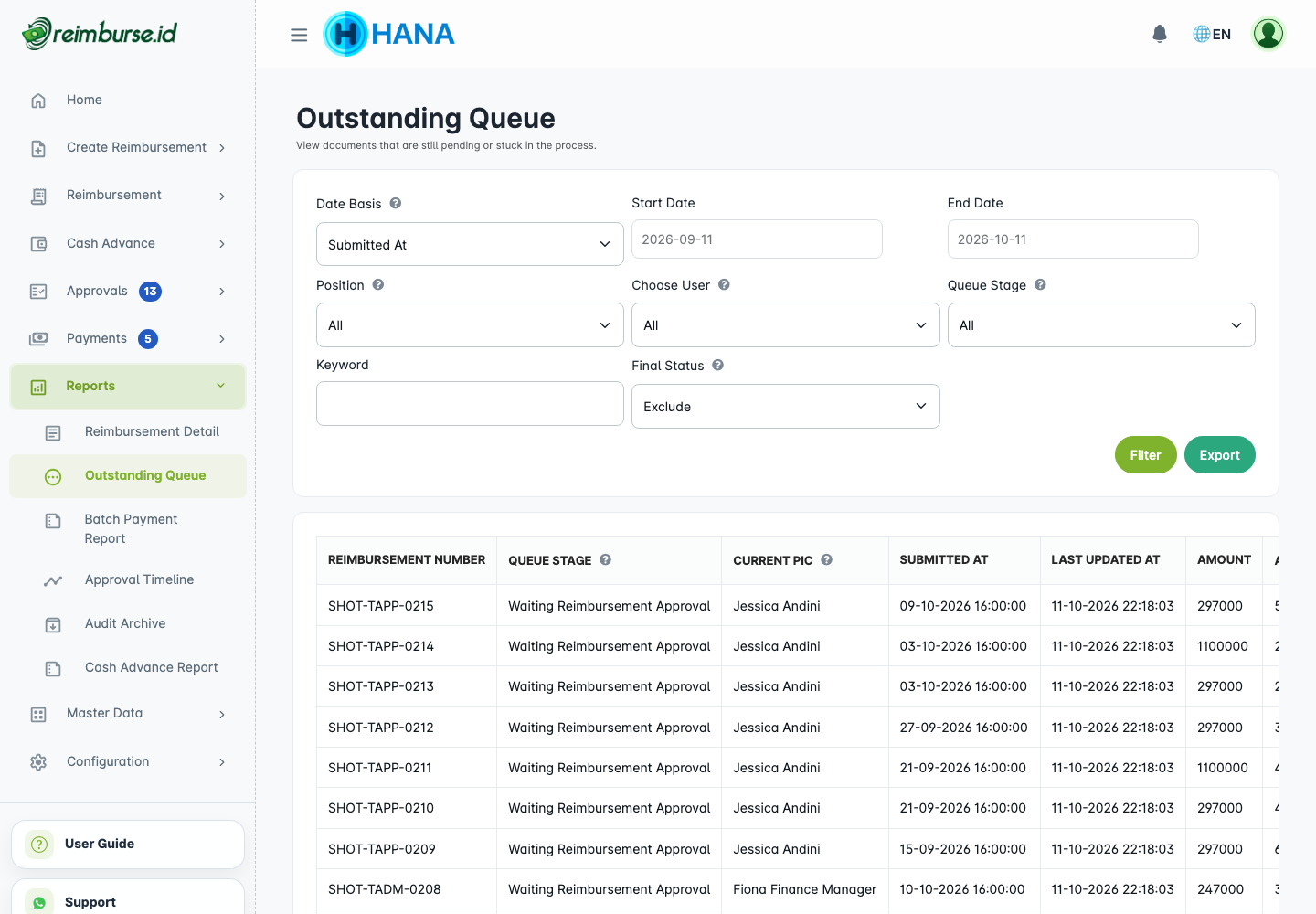
Use it for the question “Where are our reimbursements waiting now?” Filter by date basis, period, position, user, queue stage, and keyword. Check the final-status option before interpreting completed items.
A reimbursement can be waiting for approval, payment processing, or a batch's next action. Its queue stage explains the unfinished work; its overall status alone may not. Use daily transaction menus to act on the document, rather than expecting this report to move it forward.
Batch Payment Report
Open Reports > Batch Payment Report.
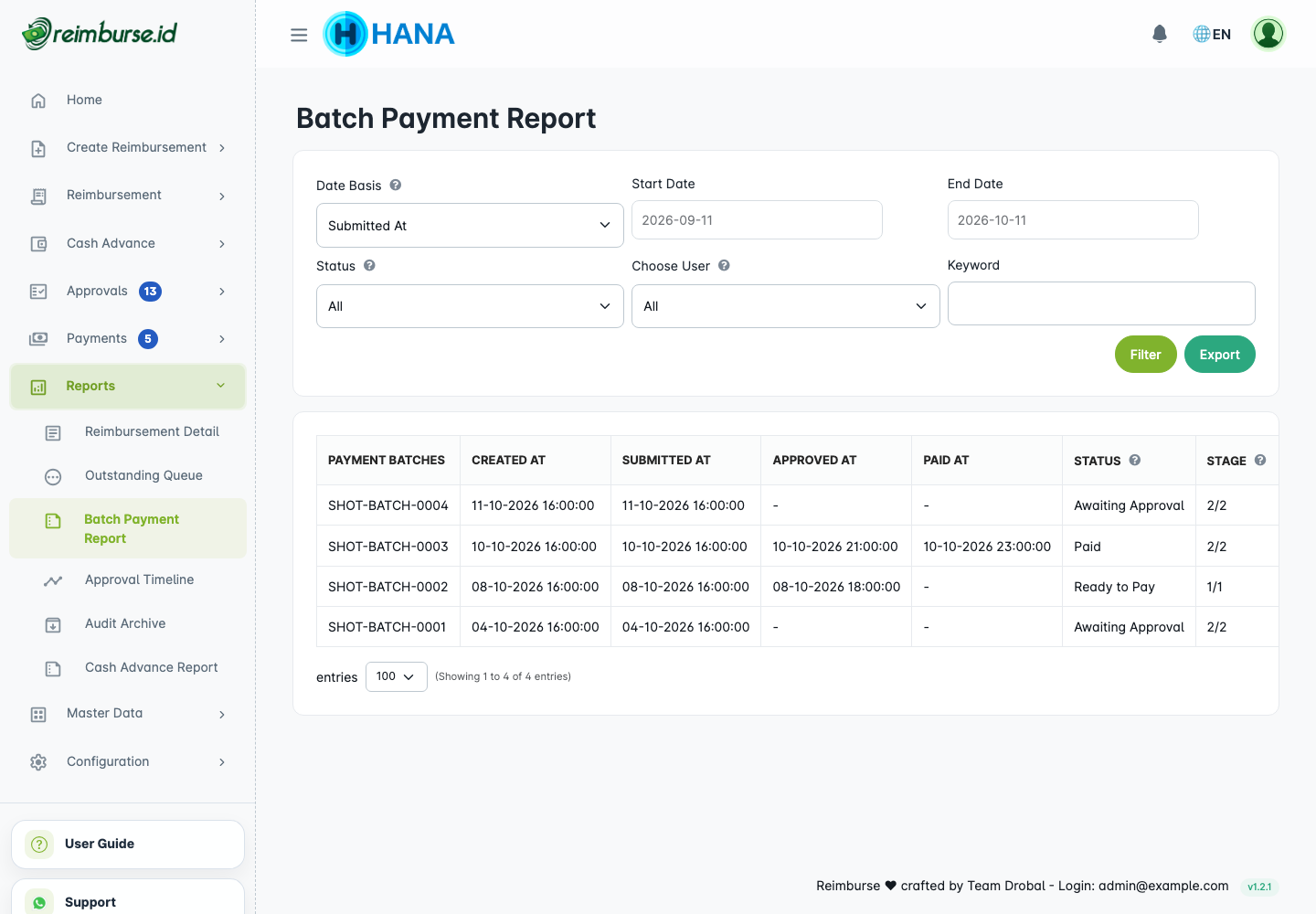
Use this report for batch documents, not one row per reimbursement expense. Select the date basis (creation, submission, approval, or payment), period, status, creator, and keyword as needed.
Review stage/current approval, key dates, reimbursement count, and batch amount. Paid reflects payment recorded in Reimburse.id after payment through the company's external channel; the report does not execute a transfer.
To create a batch, export its operational payment spreadsheet, or record payment, use Payment Operations And Batch Payment.
Approval Timeline Report
Open Reports > Approval Timeline.
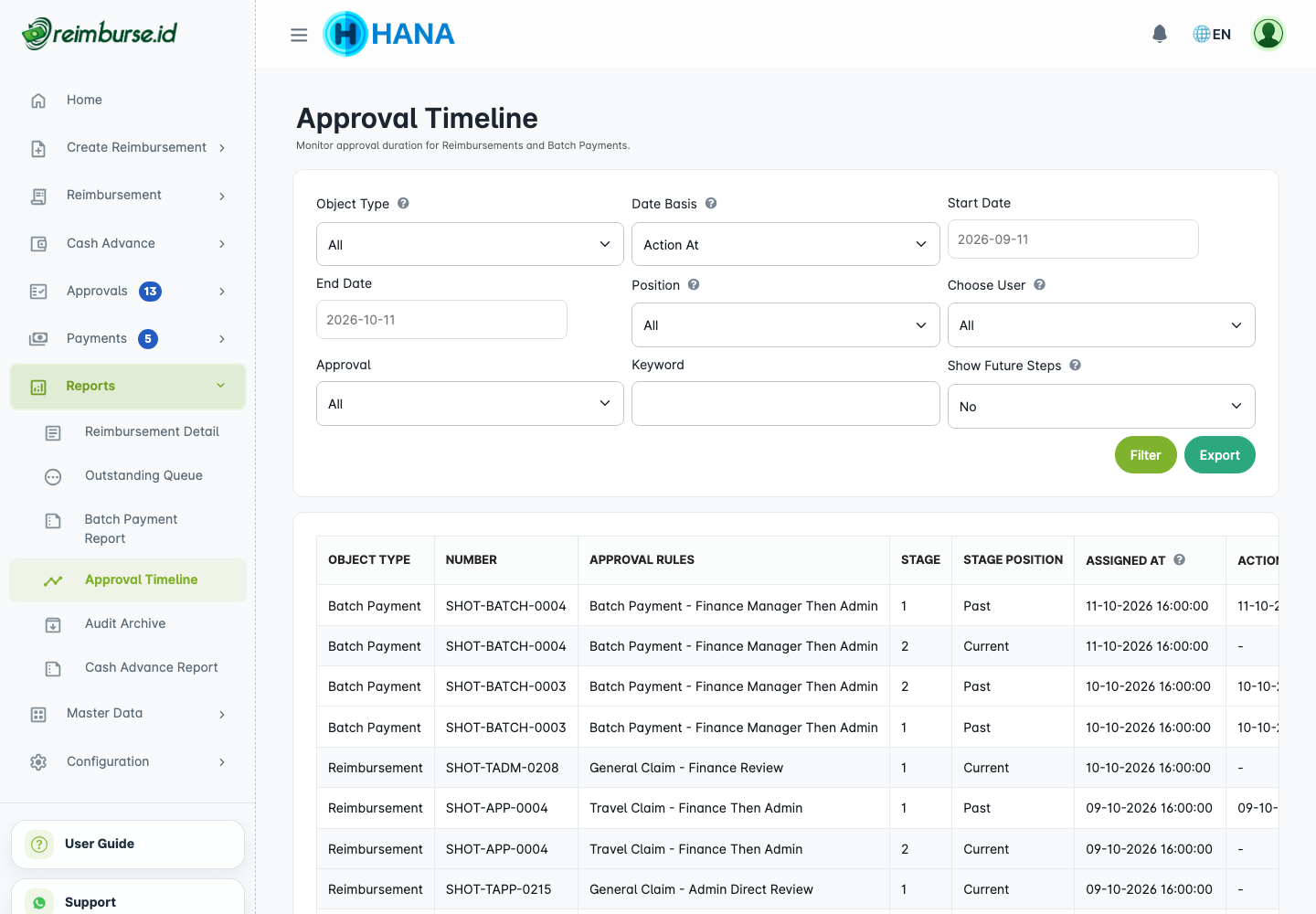
Use this report to compare approval timing for reimbursements and batch payments. Choose Object Type, Date Basis, period, position, user, approval, and keyword.
Assigned At uses the time the workflow-step record was created. It can be earlier than the time that step became active. Action At uses the time a decision was recorded. If no decision exists yet, the action-date filter uses the record's creation time, but the action-time column has no decision timestamp. Show Future Steps can include steps that have not started. These steps show 0.00 in Processing Hours and - in Duration Bucket; this does not mean they were completed instantly. A future step is not proof that someone already approved or rejected the document.
Processing hours are elapsed hours based on those recorded timestamps, not company working hours or the time a reviewer spent actively reviewing. Do not compare them directly with the working-hour age in Transaction Reminders.
The rows include assignment/action time, step, action, and SLA duration/bucket. Use this for process analysis; use Approval Guide for current review decisions. Cash Advance data has its own report and activity dataset below.
Cash Advance Report
Open Reports > Cash Advance Report.
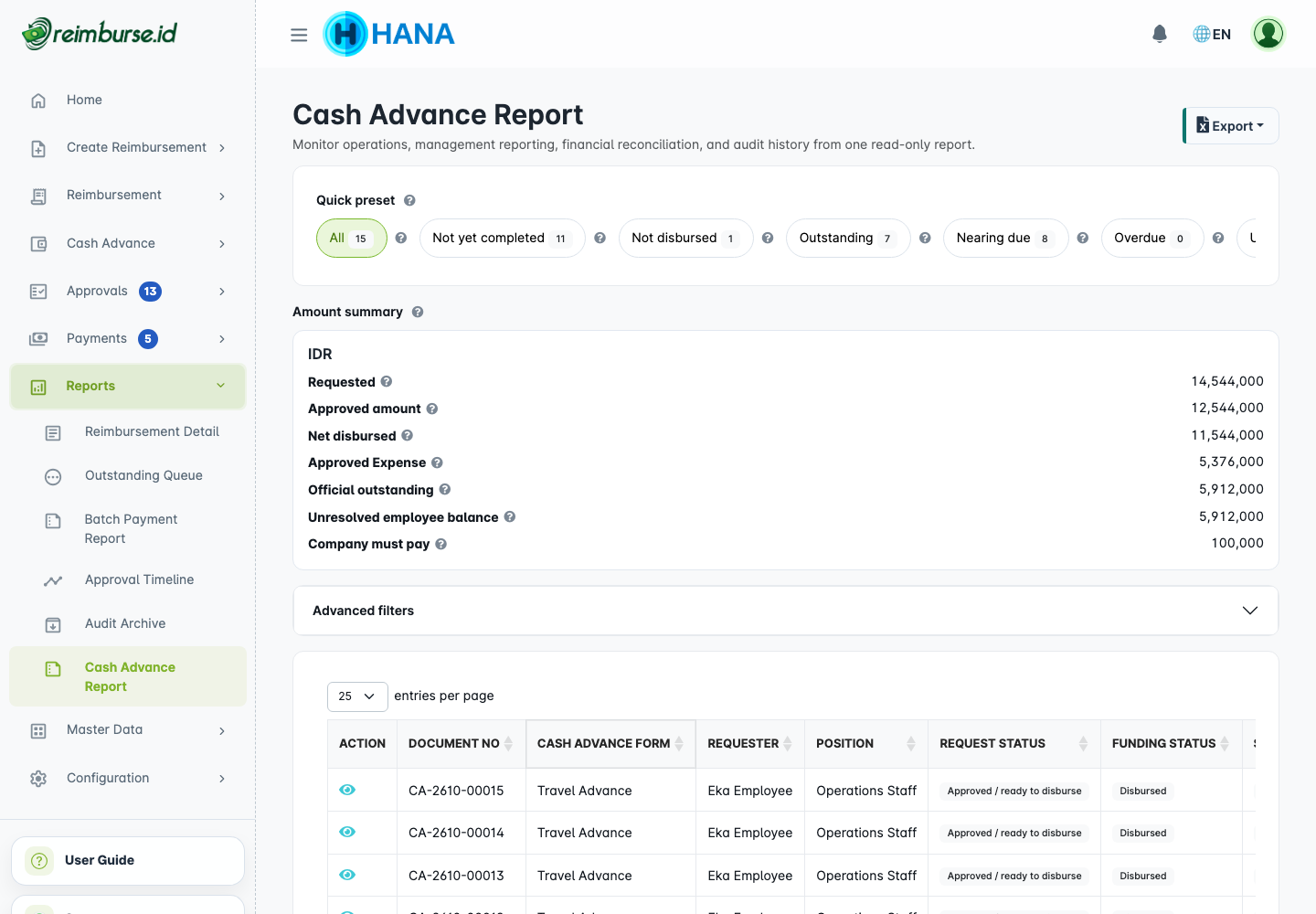
Start with a quick filter for work requiring action, not yet disbursed, outstanding, nearing due date, overdue, awaiting return verification, awaiting additional payment, or settled. Open the detailed filters when you need a specific period or document subset.
Choose Document scope for your own, team, or company documents where permitted. Scope never extends your access. Select the relevant date basis, status/phase, requester, position, or amount basis. A document's recorded position may differ from the requester's current position.
Read the per-currency summary carefully. Requested and approved amounts, net disbursed funds, approved expenses, official outstanding balance, employee amount due, and company amount due answer different questions. A projection from an unapproved settlement is not an official financial balance.
For the actual requester/fund-management steps, read Cash Advance User Guide and Cash Advance Fund Management.
Choose A Cash Advance Export Dataset
Open Export and select the template for the rows you need. Template names are set by the company and do not automatically change when you switch the interface language; use the dataset type to identify the layout.
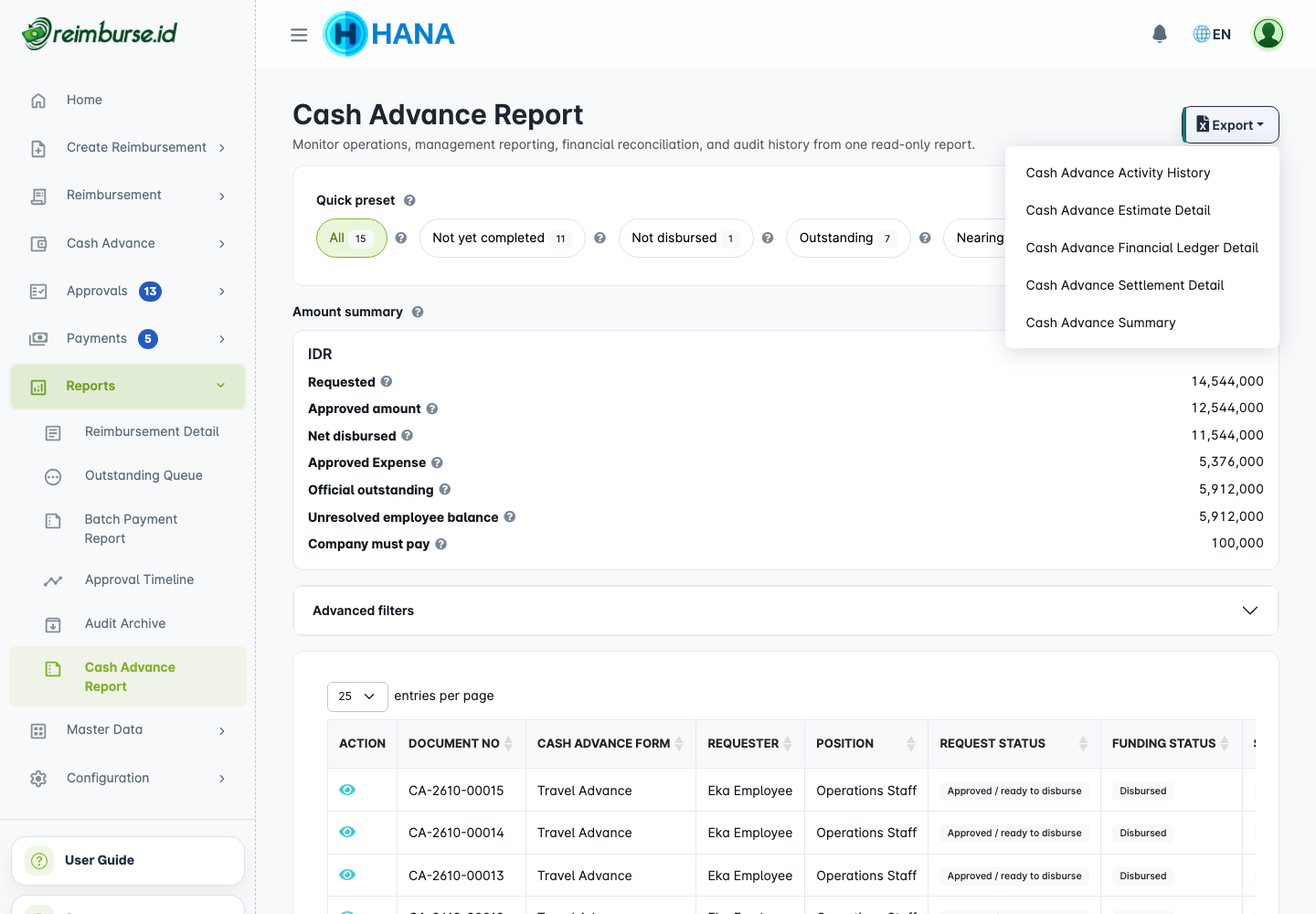
| Dataset | Row Meaning |
|---|---|
| Summary | One row per Cash Advance. |
| Estimate Detail | Request estimate lines. |
| Settlement Detail | Actual settlement expense lines. |
| Financial Ledger | Financial transactions, including the recorded fund movements. |
| Activity History | Recorded document activities. |
The datasets have different row counts by design. Apply the report filters first and choose the correct dataset; an activity-history export is not a field-by-field Change Log.
Export Behavior
Choose the export that matches the task:
| Export | Purpose |
|---|---|
| A report's export | Analyze that report's filtered data. |
| Reimbursement-list / Payment Batches-list report template | Produce XLSX report rows using a configured report layout. |
| Batch Payment Document export | Prepare an operational spreadsheet for one payment batch and an external payment channel. See Payment Operations And Batch Payment. |
| Audit Archive download | Download a monthly ZIP of reimbursement PDFs and attachments, not a spreadsheet report. |
An export does not grant more access and does not transfer money. Set filters first; narrow the period if a large export takes time. Different report/detail options produce different row counts.
Configure Report Templates
An authorized administrator can open Configuration > Templates & Exports > Reimbursement Report or Batch Payment Report for the XLSX templates used by the corresponding list's Export menu.
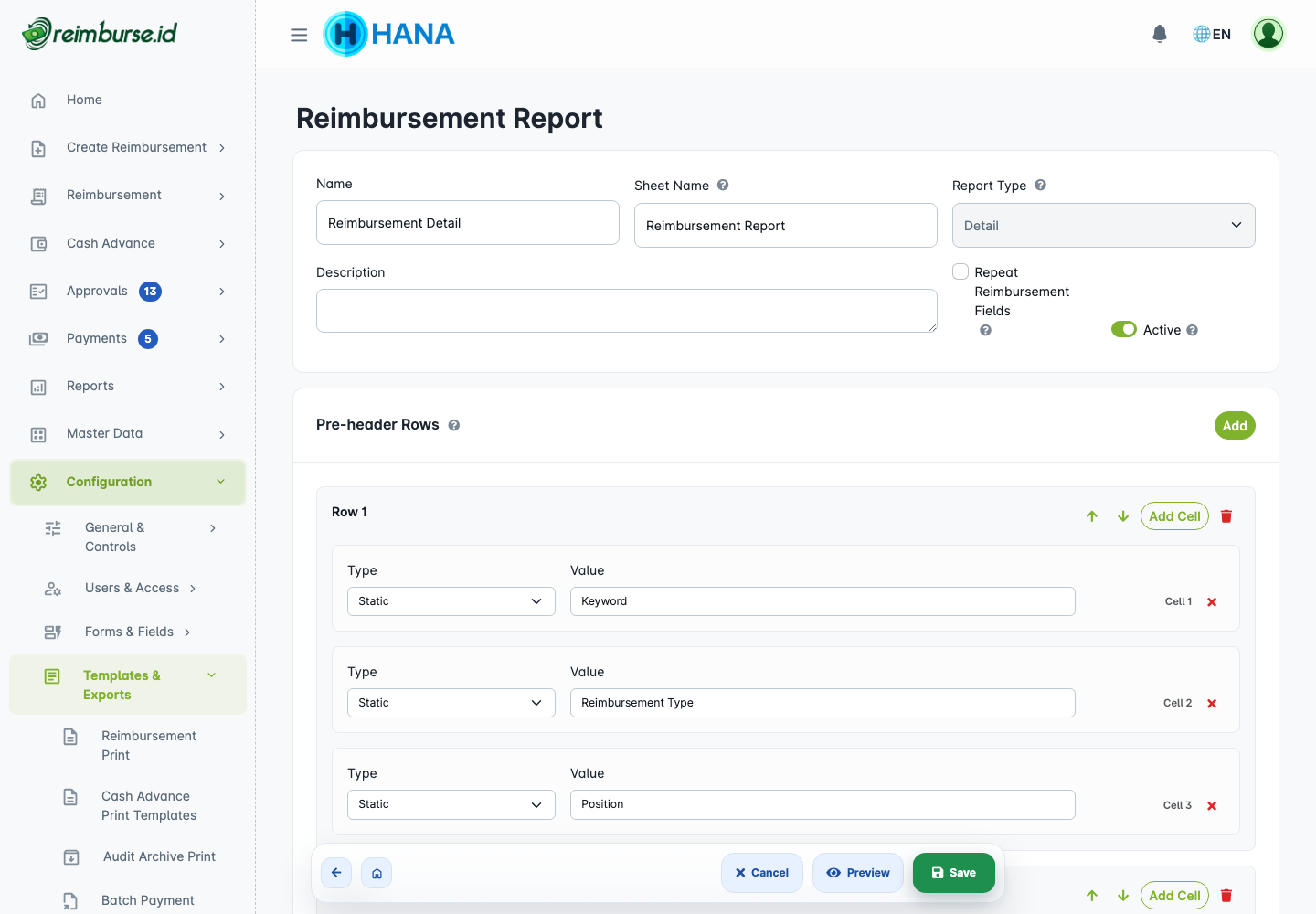
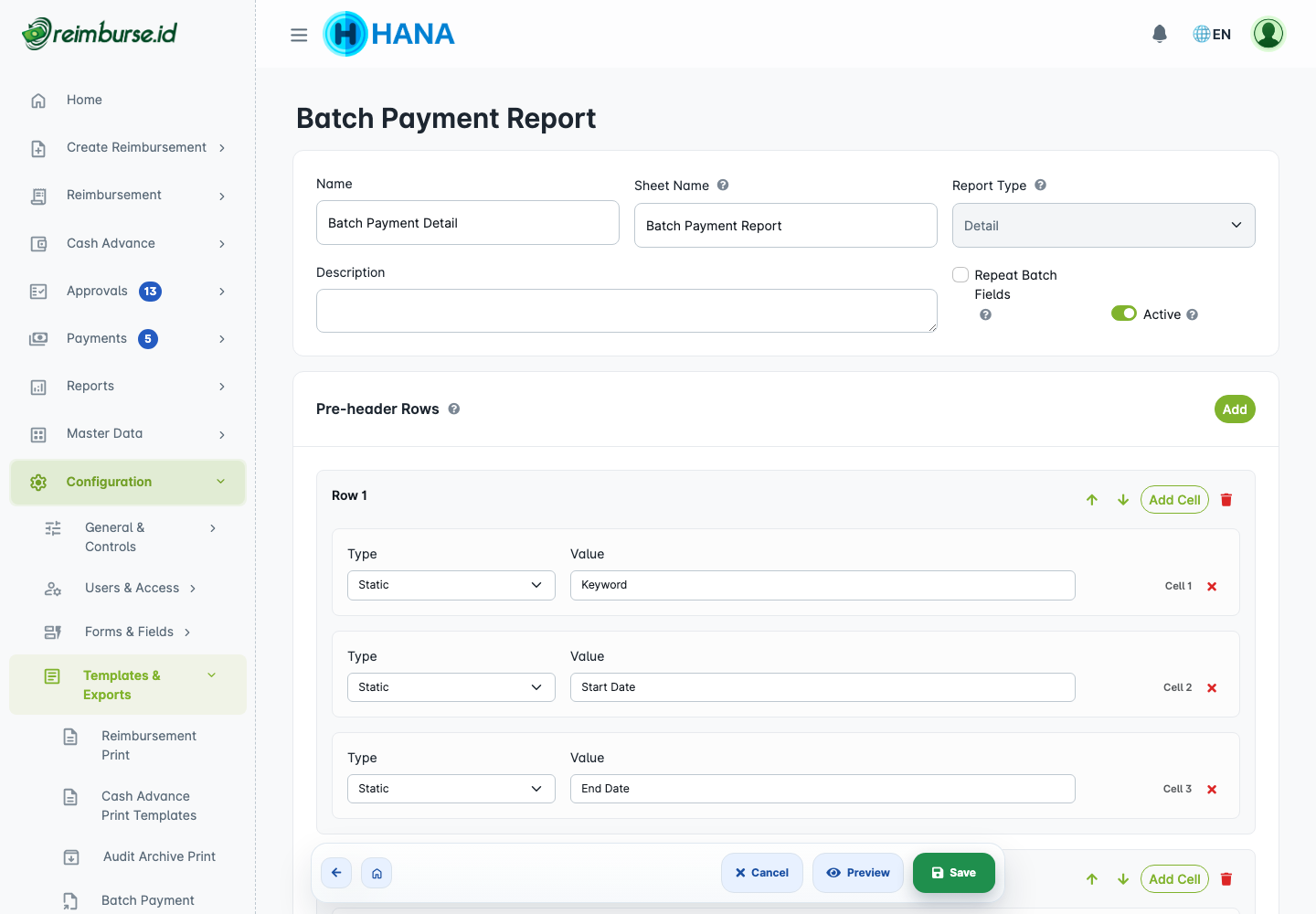
Choose the report type when creating a template; it is fixed when editing an existing template. Set the sheet name, pre-header rows, and columns. Review each column's field source, format, width, text handling, and padding before saving. Use the editor's preview to check the layout; make the template active when ready for use. A report template is different from the company's Batch Payment Document template used for operational payment files.
Cash Advance report templates are under Cash Advance Report Export Templates in the same configuration group. Their five dataset types correspond to the choices above.
Audit Archive
Open Reports > Audit Archive.
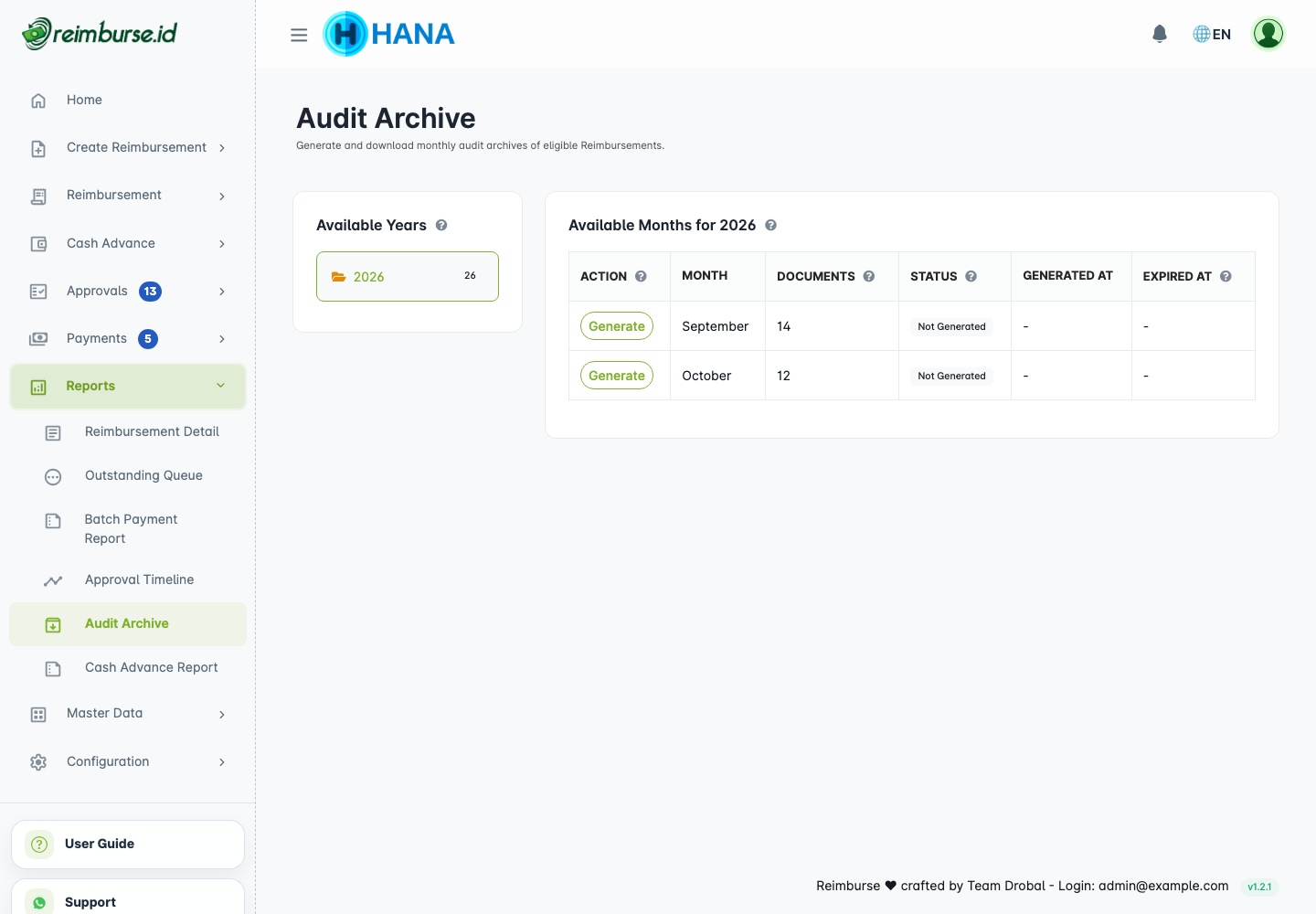
The archive covers eligible reimbursements, grouped by the month/year of the expense date. Draft, rejected, and void reimbursements are excluded. It is not a Cash Advance archive or a grouping by the date a batch was paid.
- Choose the year and an available month.
- Click Generate.
- Wait while the archive is Preparing; generation is asynchronous.
- Click Download when it is Ready.
- Return to this page for the current status/link if an earlier download link no longer works.
| Status | Meaning |
|---|---|
| Not Generated | A package has not been generated. |
| Preparing | Generation is in progress; do not repeatedly generate the same month. |
| Ready | The package is available to download. |
| Failed | Generation failed; ask the administrator to investigate persistent errors. |
| Stale | Related data changed; generate a fresh package. |
| Expired | Generate a fresh package before downloading. |
Prepared packages expire 48 hours after generation. Download and store an archive according to your company's retention policy; the downloadable package is not permanent storage.
Configure Audit Archive Print
Open Configuration > Templates & Exports > Audit Archive Print.
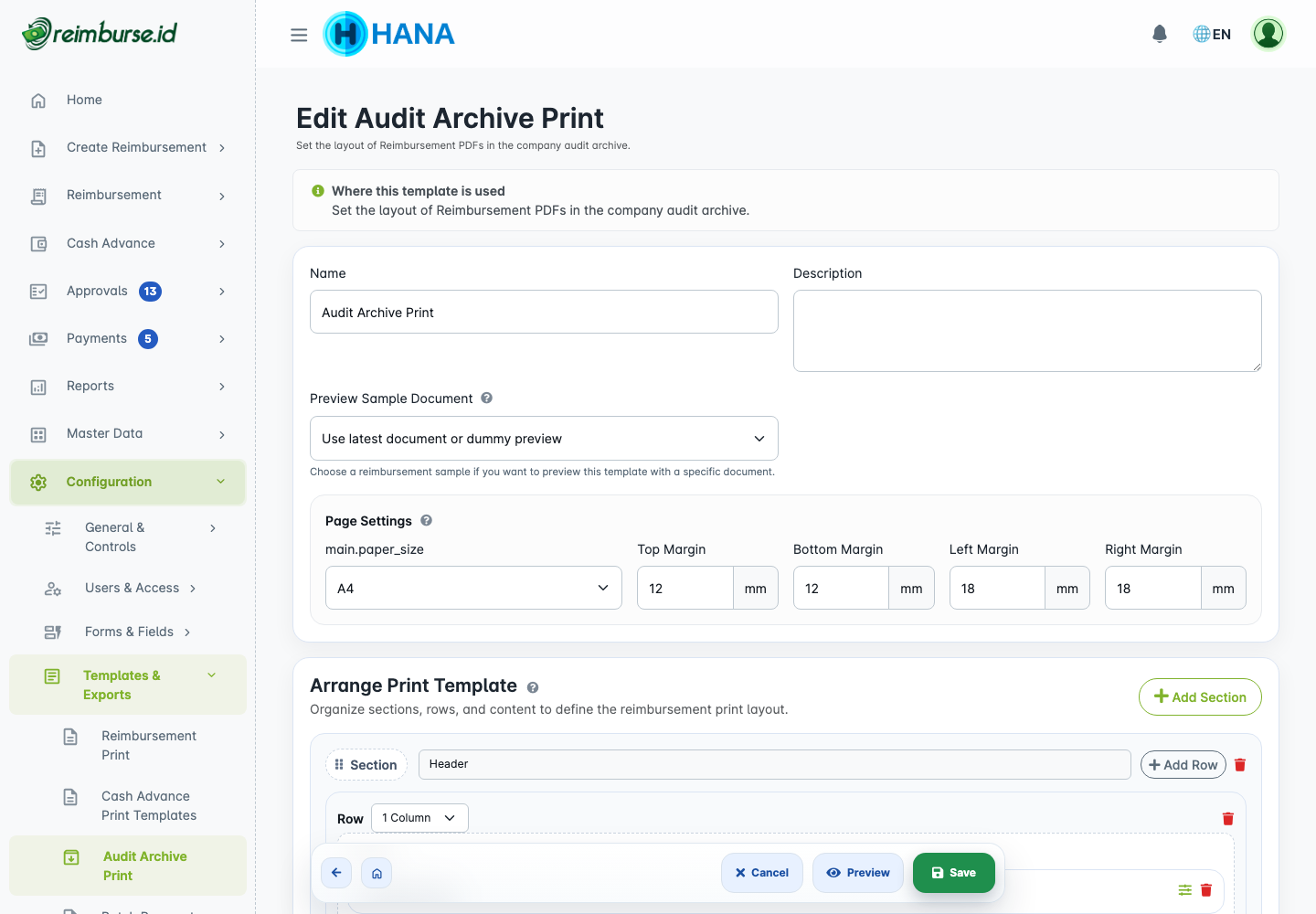
This opens the company's single archive-print template for the reimbursement PDFs inside the archive. Review its layout/preview and save when ready. It is separate from the print template assigned to a reimbursement form and from spreadsheet report templates.
Common Problems
| Problem | First Check |
|---|---|
| A menu is missing. | Ask the administrator to check role access. |
| Expected rows are missing. | Check date basis, period, scope, phase/status, and user/position filters. |
| Export has more rows than documents. | Detail, ledger, or activity datasets can have several rows per document. |
| Approval Timeline shows undecided steps. | Check Show Future Steps and date basis. |
| Archive month/package is missing. | Check expense dates and eligible reimbursement statuses, then generation/expiry. |
| A Cash Advance total looks unexpected. | Check currency and amount basis; distinguish projected values from official balances. |
For a symptom-based checklist, see Troubleshooting. For edits and account access, see Activity And Login History.