
Reimbursement User Guide
Use reimbursement to claim business expenses you have already paid. This chapter is for the person submitting a claim; you do not need to read the administrator's configuration chapters first. If you need company funds before spending, use Cash Advance User Guide instead.
Reimburse.id records the claim, approvals, and payment status. The company handles the actual transfer through its bank or payment channel.
Submit Your First Claim
- Open Create Reimbursement and choose the form that fits the expense.
- Read the instructions beside the form name, if available.
- Fill the claim information and required additional fields.
- Add each expense and attach readable receipts or invoices.
- Check the total, then use Submit. Use the draft action if you are not ready.
- Open My Reimbursements to follow the result. Saving a draft does not request approval.
The available forms depend on your role and company settings. Ask your administrator if a suitable form is missing; first check that you are in the correct company.
Reimbursement Menus
| Menu | Use It For |
|---|---|
| Create Reimbursement | Starting a claim with an available form. |
| My Reimbursements | Tracking your own claims. |
| Team Reimbursements | Reviewing claims within the team scope your role permits. |
| All Reimbursements | Company-wide access when your role permits it. |
Being able to view another person's claim does not automatically let you edit it or approve it. Approval decisions are covered in Approval Guide.
Choose A Reimbursement Form
Choose the form by business purpose, such as General Claim or Travel Claim. These are company-defined examples, not forms every company must use. A Reimbursement Form controls the overall claim; Expense Category classifies each expense line.
Create A Reimbursement
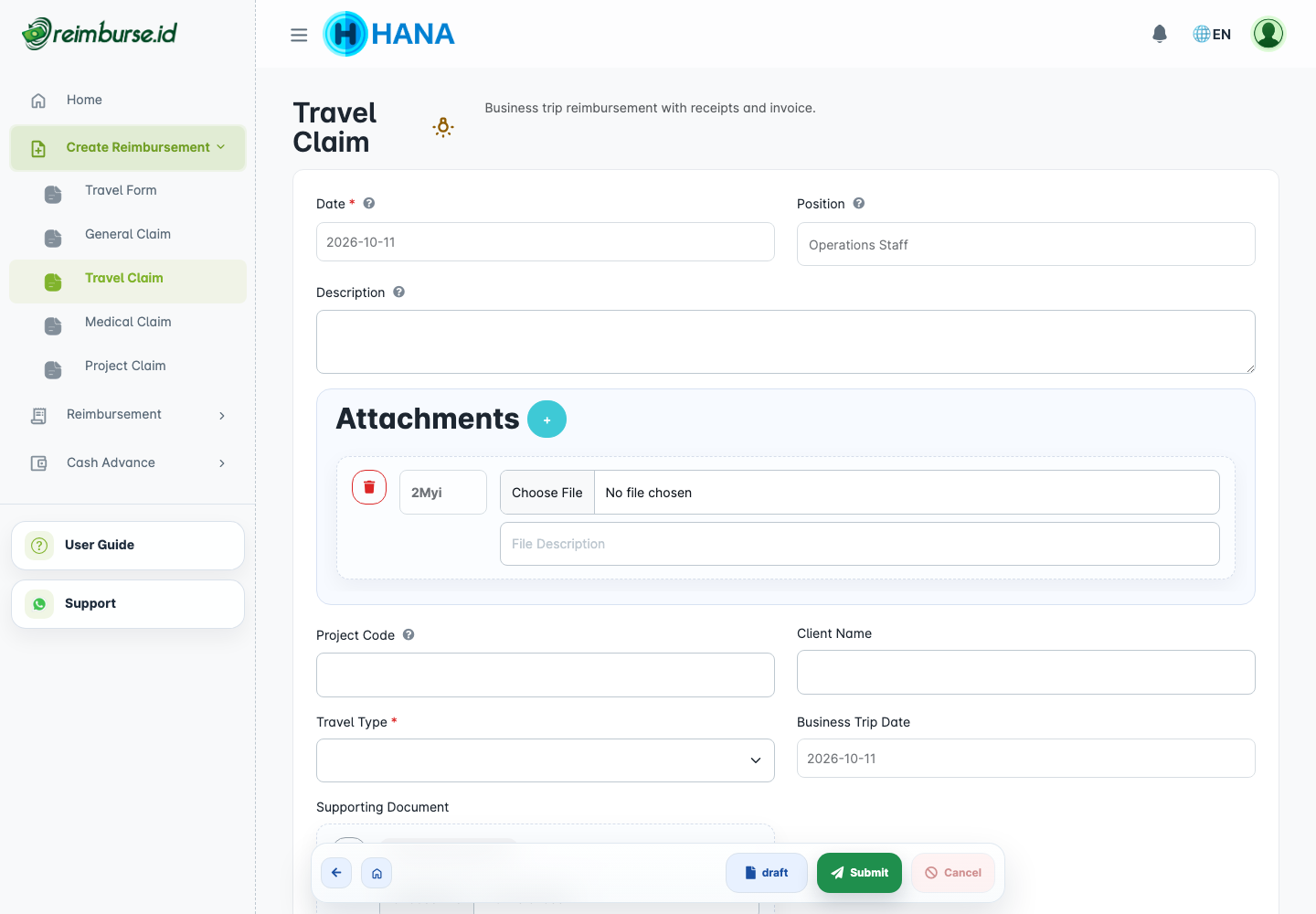
| Field / Area | What To Fill In |
|---|---|
| Date | The claim date. Check it before submitting; company period controls may restrict it. |
| Position | The position associated with the claim. A form can make this read-only. |
| Description | A clear business purpose, for example travel to a client meeting. |
| Custom Fields | Additional information requested by your company, such as Project Code. |
| Expense Details | The categories, amounts, and descriptions that make up your total. |
| Attachments | Receipts, invoices, and supporting files. |
Fields marked with an asterisk are required. A locked field is controlled by the form, not an error. Ask your administrator if a locked value is wrong; configuration details are in Reimbursement Configuration.
Field Help
Click the small help icon beside a field label to read its explanation. For custom fields, this guidance is written by your administrator. Follow the explanation for the particular field rather than guessing its meaning.
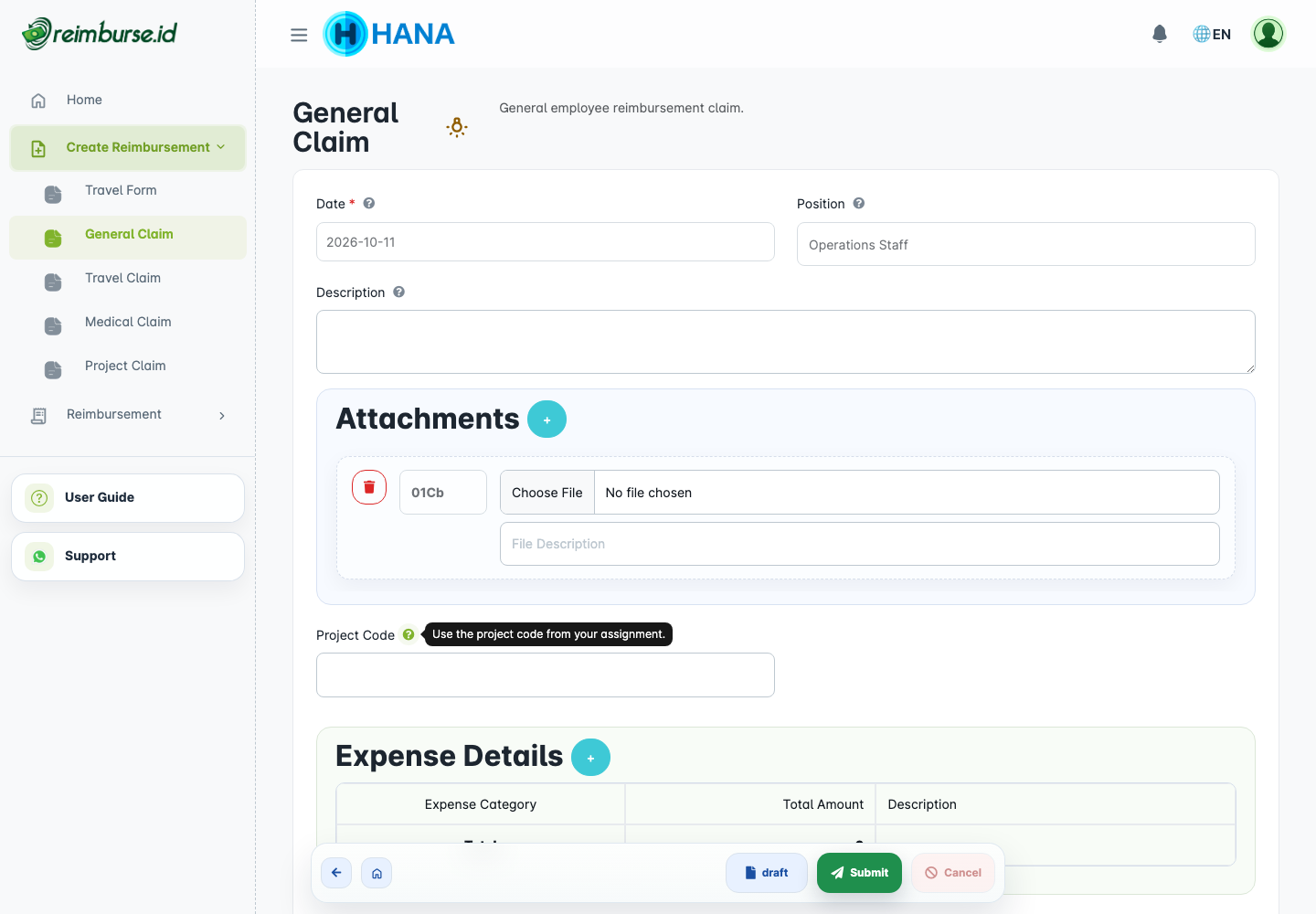
Read Form Instructions
Click the instruction icon beside the form name when it is shown. The instructions may explain required evidence, business purpose, or company submission policy. They are guidance, not an approval decision.

Add Expense Details
Use the add-expense control to enter a line. On a smaller screen, use the corresponding add button.
| Field | What It Means |
|---|---|
| Expense Category | The type of expense, such as transportation or meals. |
| Amount | The amount supported by the evidence for this line. |
| Qty and Price | When enabled, the application calculates the line amount from quantity multiplied by unit price. |
| Description | What the expense was for. |
| Detail Custom Fields | Additional information for this particular line, not the whole claim. |
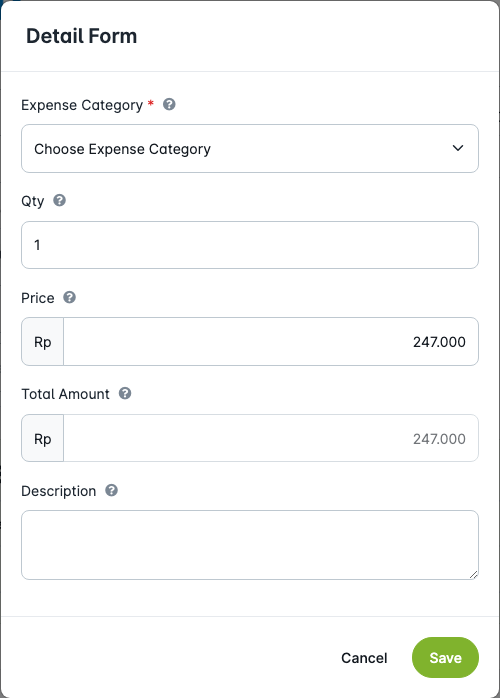
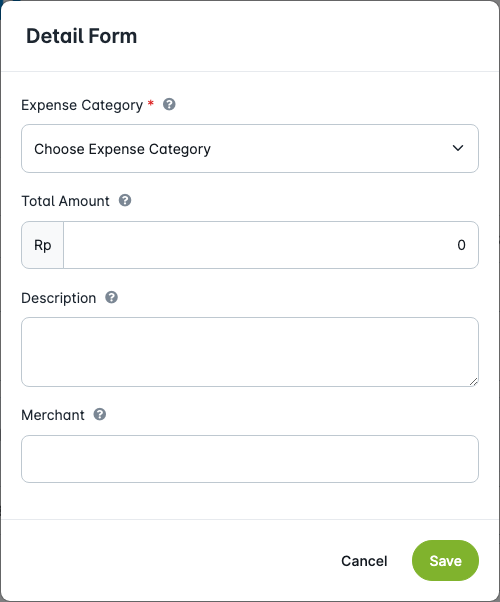
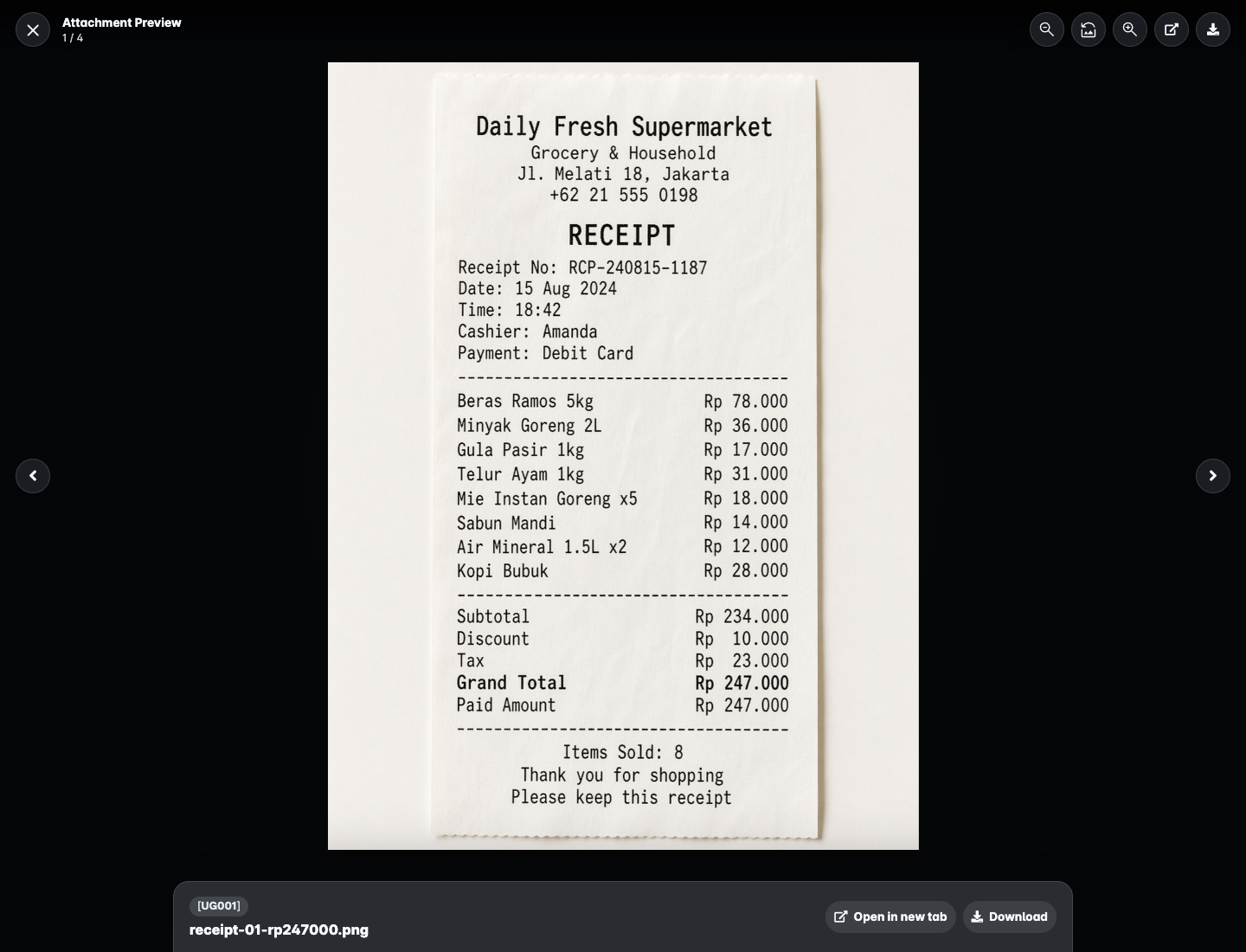
For example, receipts of Rp247,000 and Rp297,000 total Rp544,000. Enter the actual supported amounts, not an estimate. Review the total before submitting. If a category is missing, ask your administrator to check whether it is active and available.
Add Attachments
Use the attachment add control, choose a file, and add a description when it helps the reviewer. Keep images readable and check that the file belongs to this claim. Follow the file types and size limits shown by the application.
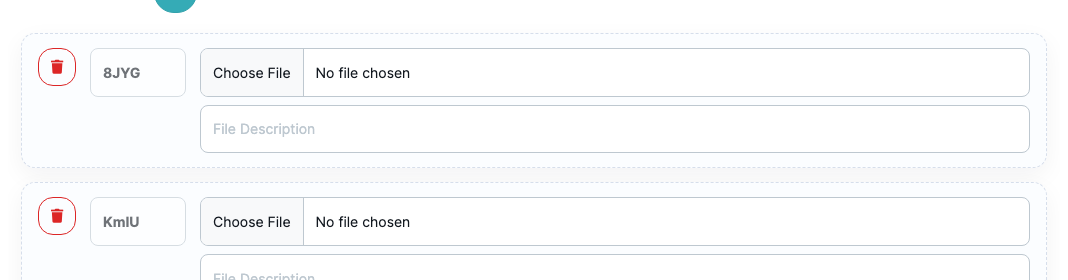
Attachment Codes And Review Checks
Where the attachment area displays a code, use it as a reference to identify that supporting file. If your company requires stricter receipt controls, follow its procedure for writing the displayed code on the receipt and photographing or uploading the marked receipt. Check the code and file together before submitting.
The code helps administrative review; it does not automatically prove a receipt is unique. The recent-claims information shown for a user can also help a reviewer notice similar amounts or repeated submissions. A similar amount is a reason to check the documents, not an automatic duplicate or rejection.
Save Draft Or Submit
A draft keeps the claim for completion later. Submit sends it through the configured approval process; a claim that needs no approval can become approved directly.
After submitting, check the detail page and My Reimbursements. Do not create a second claim just because approval is still pending. For a rejected claim, read the reason, correct the editable claim, and submit it again.
Track Your Reimbursements
Open your claim number to see the details, approval history, and current status. Menus, filters, and actions differ by access. All Reimbursements also has quick status filters for users with company-wide access; they are not a prerequisite for tracking your own claim.
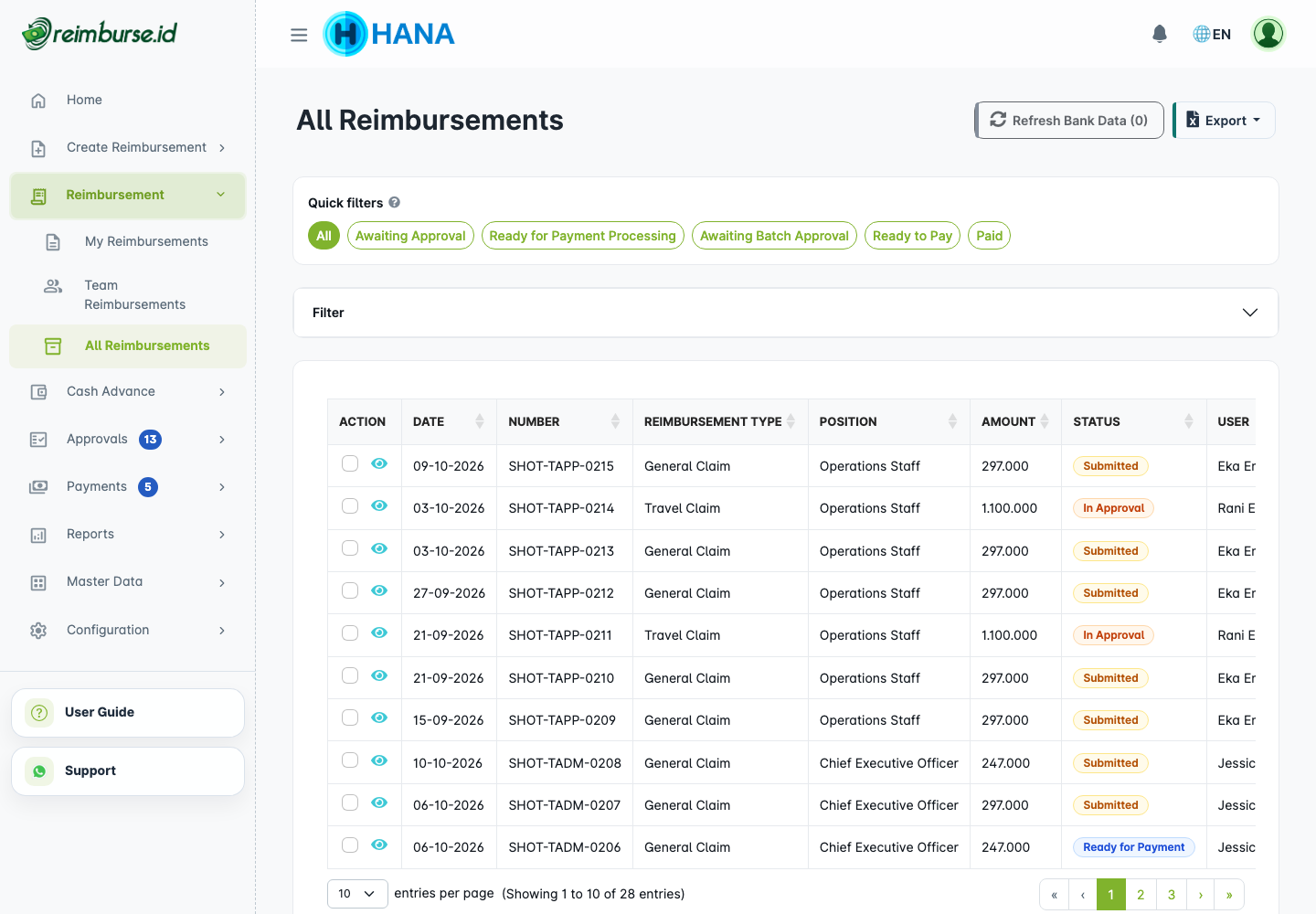
Reimbursement Statuses
| Status | What To Do Next |
|---|---|
| Draft | Finish and submit when ready. |
| Submitted | Wait for the current approval step. |
| In Approval | Some approval steps are complete; the process is not finished. |
| Ready for Payment | The claim can move to payment administration; this does not mean money has been transferred. |
| Payment in Progress | The claim is reserved for payment processing; open its batch for the current payment stage. |
| Payment Approval | The payment batch is awaiting approval. |
| Ready to Pay | The payment team can process the batch through the company's payment channel. |
| Paid | Payment has been recorded as completed. |
| Reject | Read the reason, correct the claim, and submit again if appropriate. |
| Void | The claim has been cancelled. |
The status describes the claim's progress. Approval and payment actions belong to the users assigned the corresponding access, not automatically to the claim owner.
Actions By Status
Use only actions available on the document. Draft or rejected claims can be edited with the required access; submitted or paid claims are not edited in the same way. Cancellation also depends on access and active references, such as a payment batch. If an action is unavailable, check the status and ask the responsible administrator rather than submitting a duplicate.
Preview Image And PDF Attachments
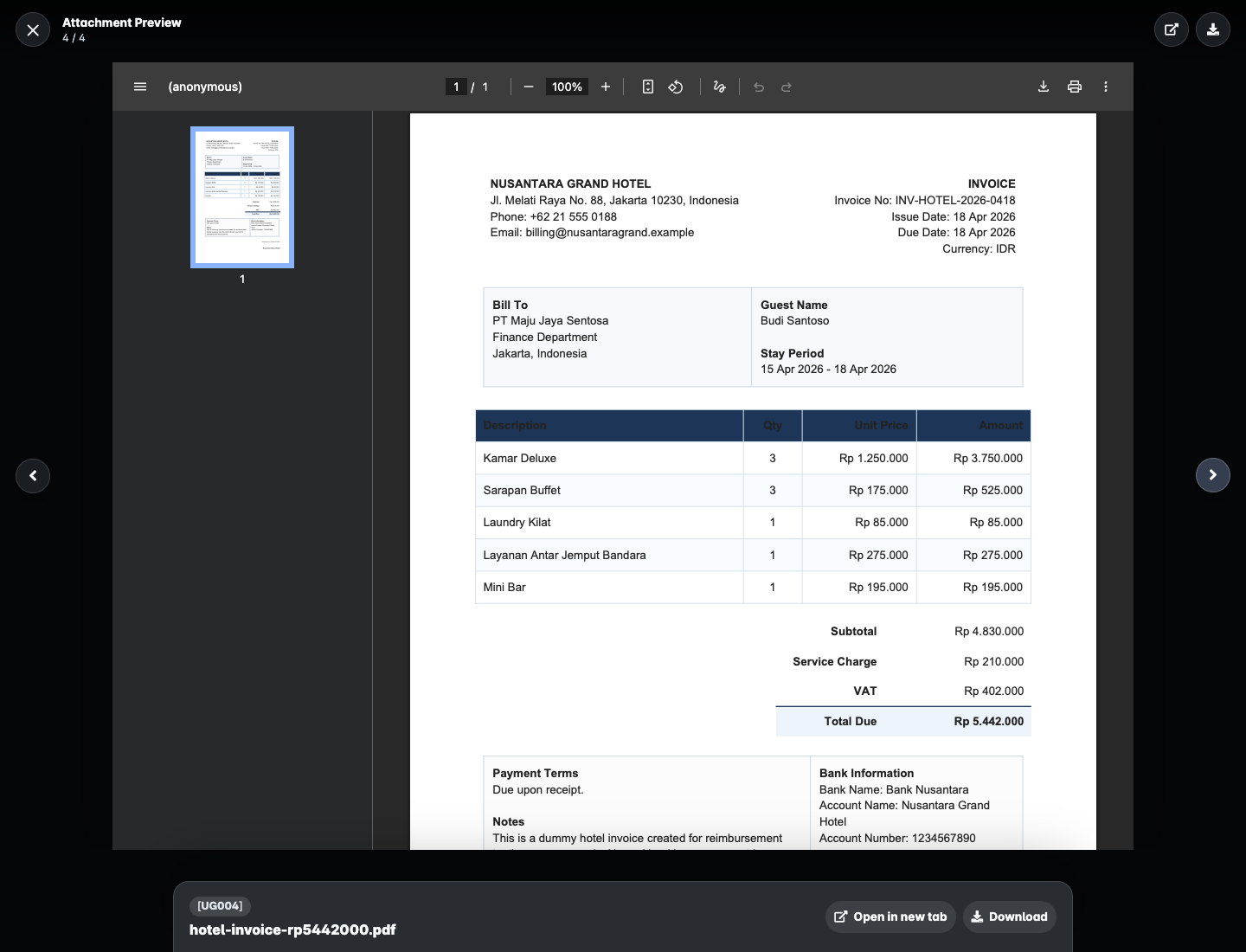
Open an attachment's preview action to inspect the evidence. Images and PDFs can be previewed; other supported files, such as spreadsheets, may need to be downloaded and opened separately. This does not make the file invalid.
Export The List
Use Export on a reimbursement list to choose an available report export template. Desktop uses a dropdown; smaller screens use a choice dialog. Set the filters first: the export follows the list context, filters, and your permitted data scope. It is a reporting file, not a payment instruction.
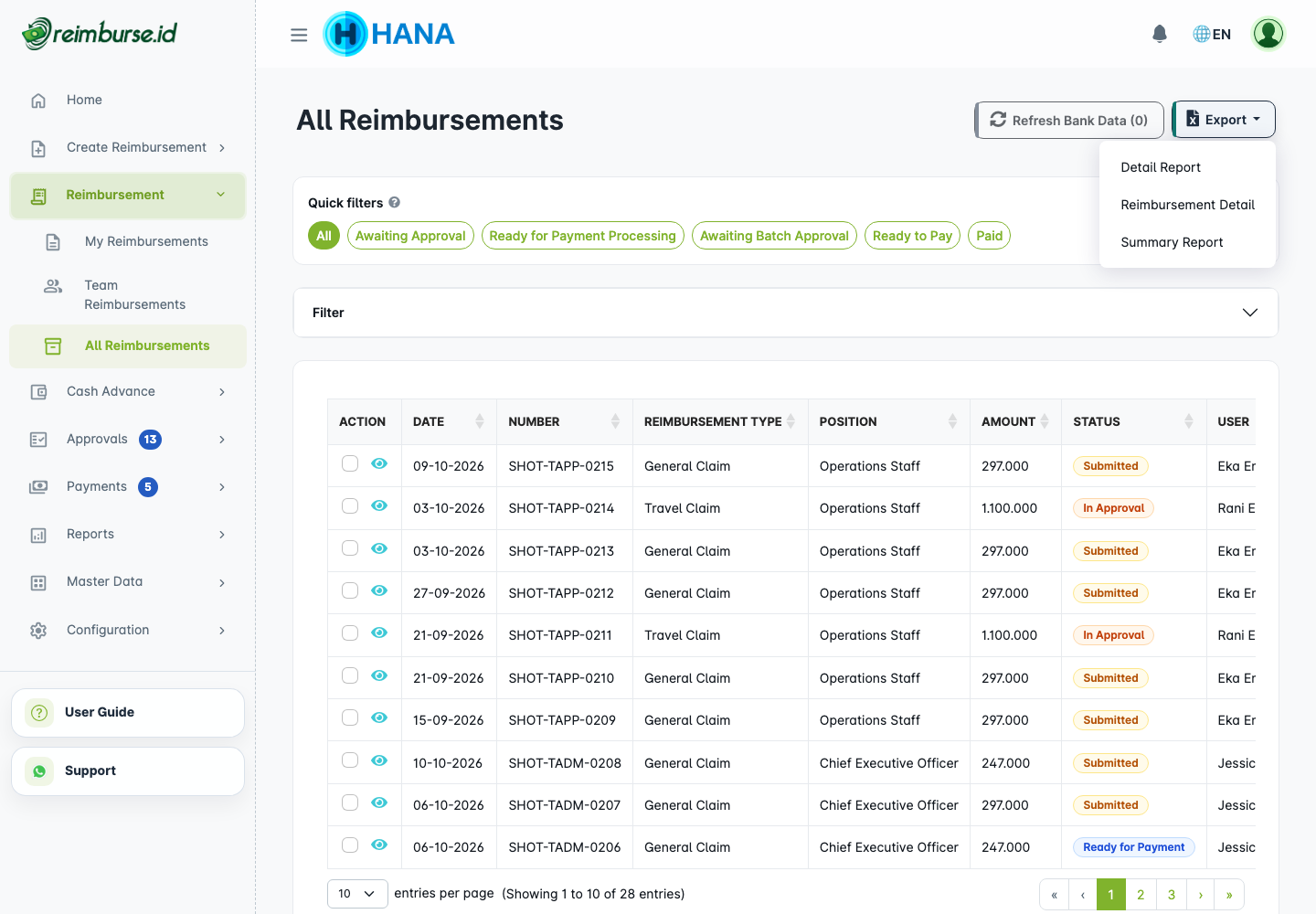
Ask your administrator if the expected template is missing. Template configuration belongs in Initial Setup; broader reporting is covered in Reports And Audit.
Print A Reimbursement
Open the claim and use its print action. The form can have a company print layout; otherwise the available application layout is used. Check the preview before printing or saving it through the browser's print options.
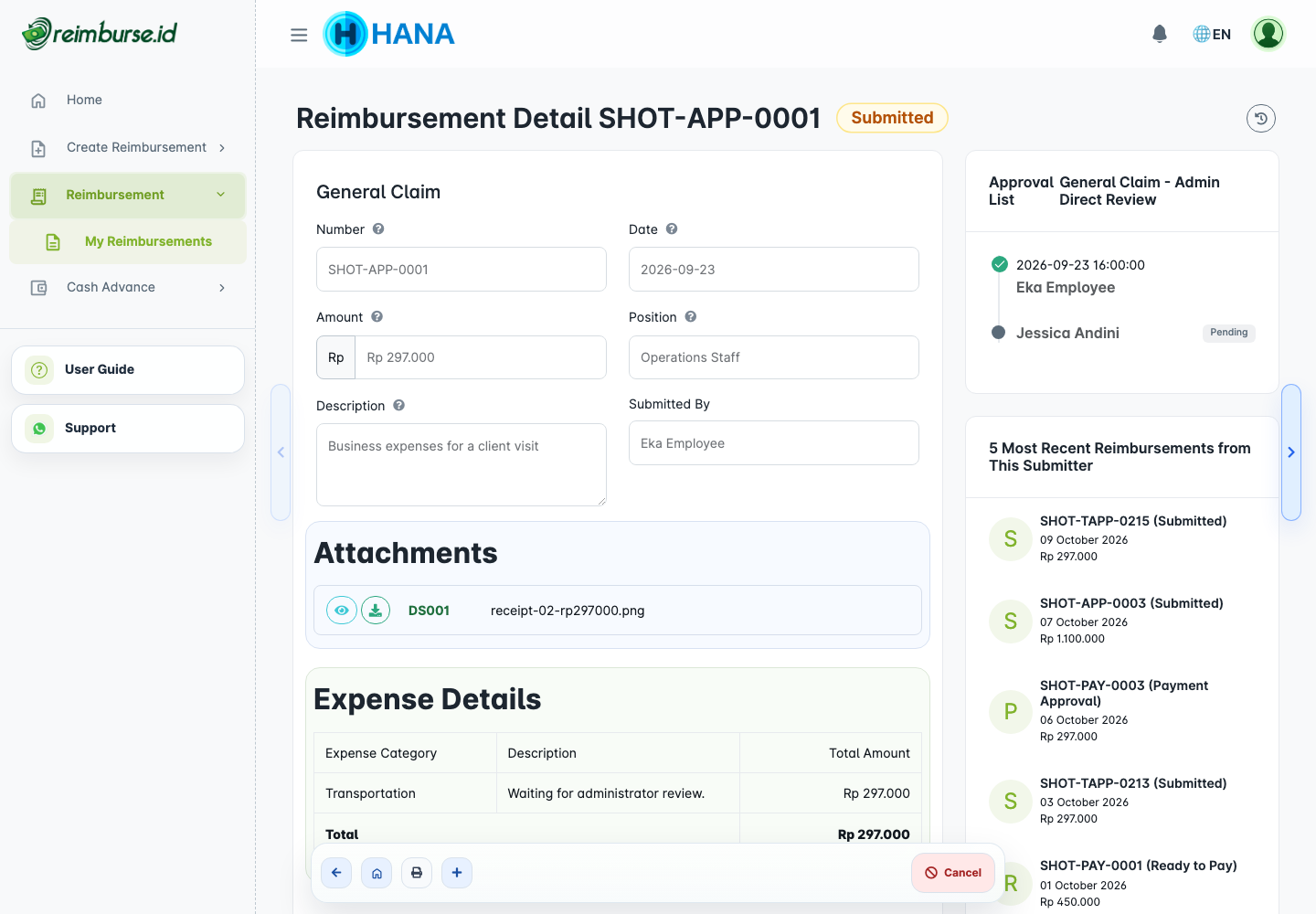
Printing a claim does not submit, approve, or pay it. The document's activity/history action helps you follow its changes. Change Log in the footer provides a separate change-history view when your account has access.
Common Problems
| Problem | What To Do |
|---|---|
| No suitable form or menu | Check the company and ask the administrator to review active forms and role access. |
| A required field or attachment is missing | Complete the indicated information, then retry the same claim. |
| Submission is blocked by a date or period | Check the date and ask the administrator about the company's close period. |
| A submitted claim needs correction | Follow the available workflow; do not assume it remains editable. |
| A claim is approved but unpaid | Approval and payment are separate. Contact the payment team with the claim number. |
| Bank details need correction | Update your profile and inform the payment team before payment; the saved claim may still contain an earlier bank snapshot. |
Next: use Approval Guide only if you also review approvals, or Payment Operations And Batch Payment if you administer reimbursement payments.