
Payment Operations And Batch Payment
This chapter is for the payment team: whoever administers reimbursement payments in your company, whether that team belongs to HR, operations, accounting, or another department. Batch Payment is for reimbursement claims; Cash Advance fund administration is covered separately in Cash Advance Fund Management.
How Payments Work In Reimburse.id
Reimburse.id brings payment administration and recording together. Prepare a batch, review accounts and totals, export the spreadsheet when needed, and keep status and evidence in one place. The company transfers funds through its own bank or payment channel outside Reimburse.id.
Neither approval nor spreadsheet export executes a transfer. Mark as Paid records a payment already completed externally.
Payment Menus
| Menu | Purpose |
|---|---|
| Payment Batches | Create, view, and manage reimbursement payment batches with the appropriate access. |
| Payments to Process | Work with batches ready for payment. |
| Payment Batch Approvals | Assigned approval decisions, described in Approval Guide. |
Read, create, update, approval, and paid actions are separate capabilities. Seeing a batch does not grant every operation.
Create Your First Payment Batch
- Open Payment Batches and use the create action.
- Fill the batch date, note, and any required fields.
- Select approved reimbursements available for payment.
- Review recipients, totals, bank information, and attachments.
- Save a draft to finish later or submit for approval.
- When Ready to Pay, process the payment externally and record completion as described below.
Payment Batches
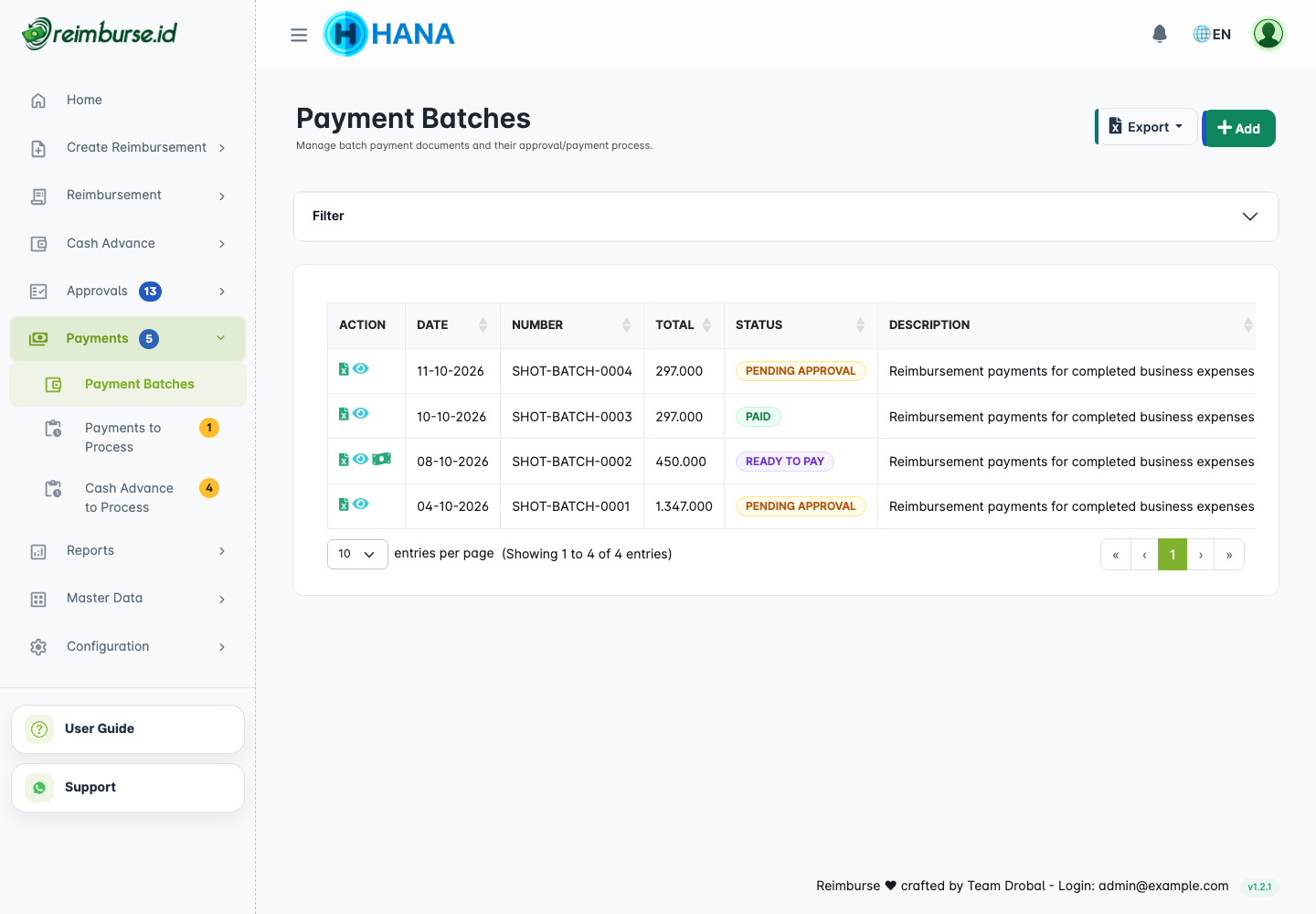
Use filters and document numbers to find the batch. Open its detail to check included reimbursements and history. The list Export action produces report data; exporting a particular batch's payment document is a separate operation.
Create A Batch Payment
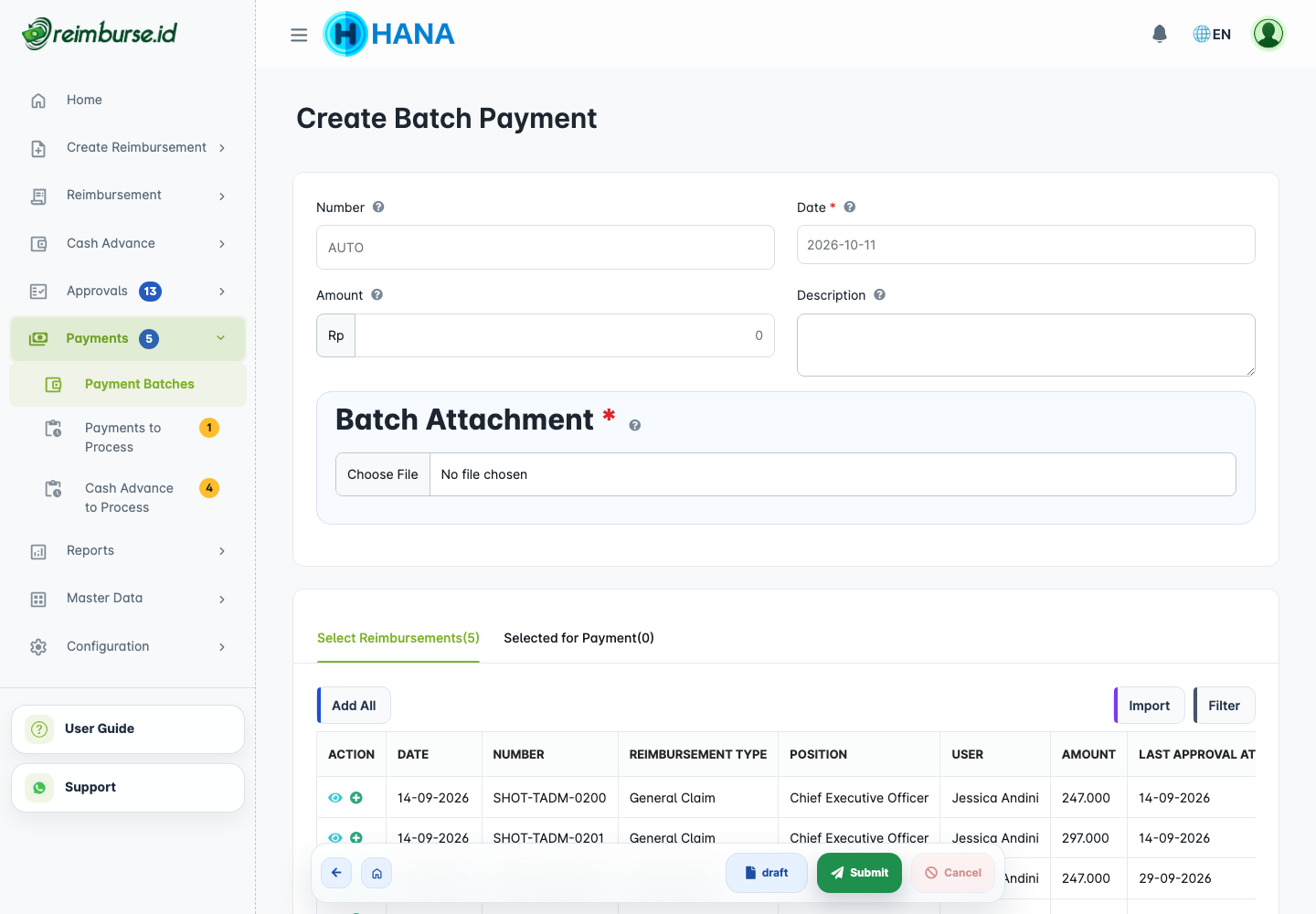
Enter the date used for the batch and a note that describes the payment purpose. Fill required custom fields and attachments if configured. Company date/close-period controls can restrict saving or submitting.
Select Reimbursements For Payment
Choose eligible approved reimbursements not already reserved in another active batch or paid. Use the available filters and selection controls, then verify the selected count and total.
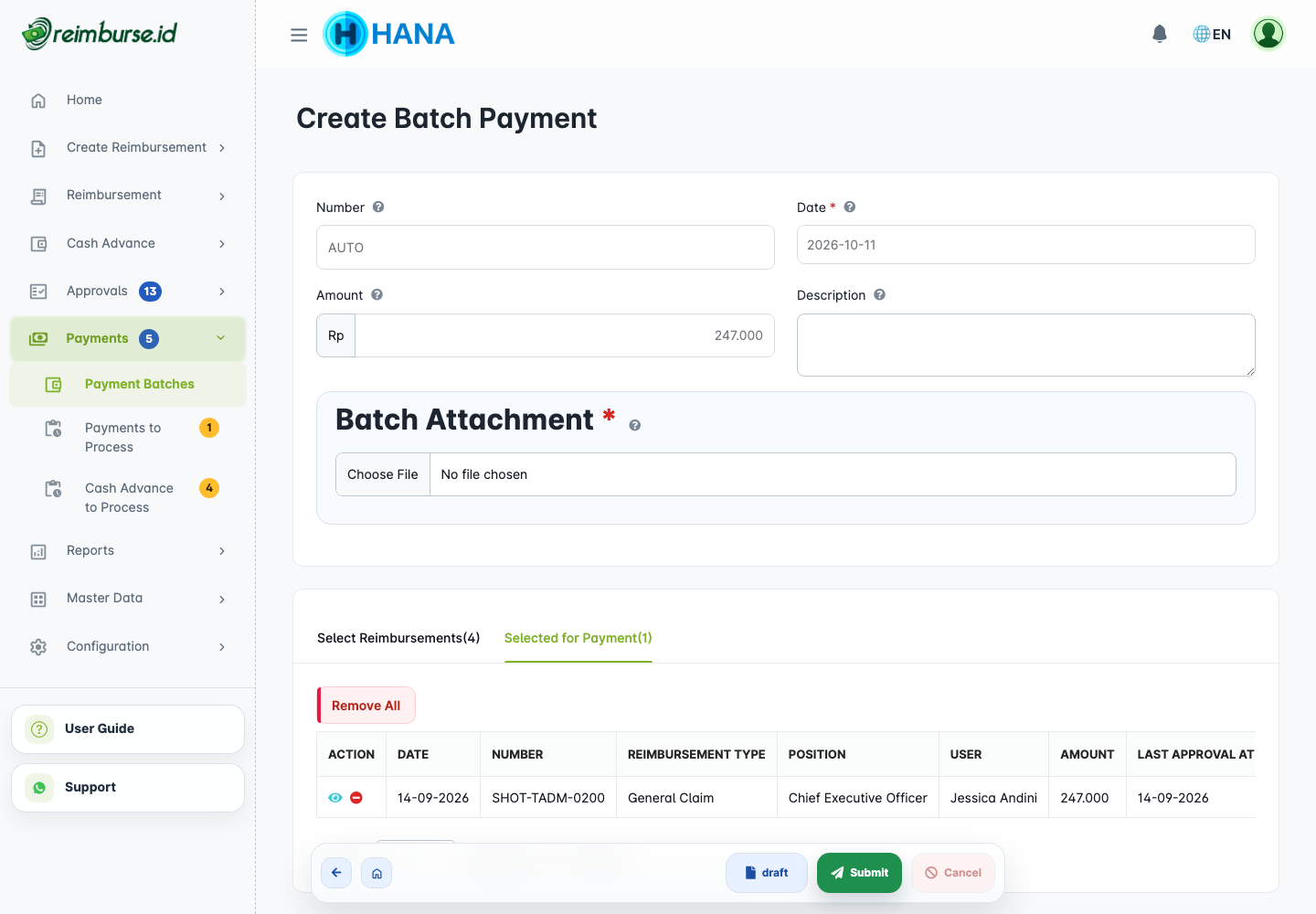
If an expected claim is missing, check approval status, current batch membership, payment status, and your access. Do not create a new reimbursement to bypass an unavailable selection.
Prepare A Larger Batch
A batch can contain many eligible reimbursements. Check both the selected document count and total amount, rather than counting only the rows currently visible. The example below contains 100 claims totaling Rp5,000,000; 100 is an example, not the application's maximum batch size.
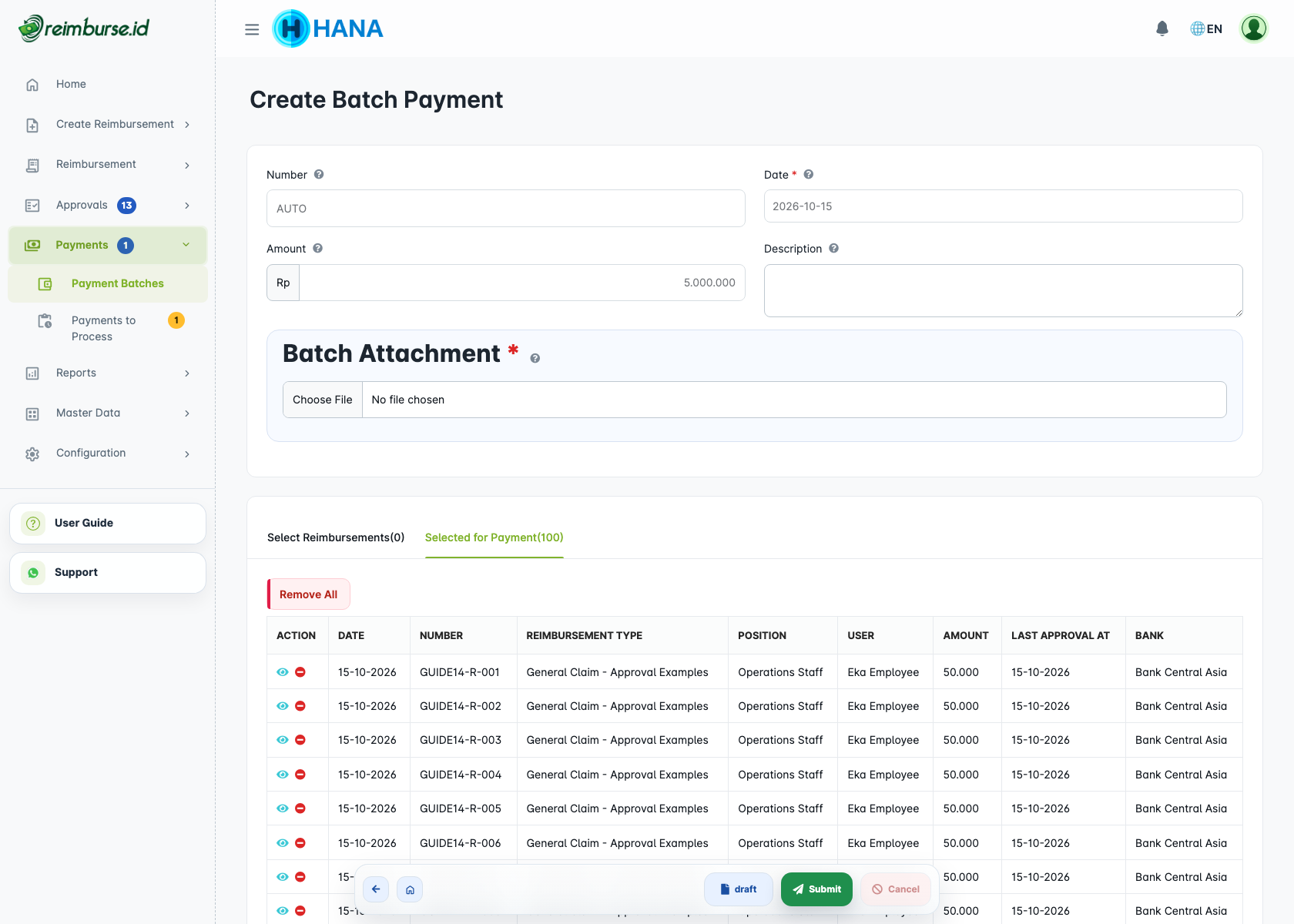
Applying a filter or changing the available-list page does not clear claims already selected. Use the explicit remove or clear action to change that selection, then check the count and total again. When reopening a saved batch, its selected claims and amounts are loaded even if they are outside the first page of available claims.
If the application says the selected list is too long, reduce the selection or split it into several batches. Do not create replacement reimbursement claims or manually alter the calculated total. Eligibility and the saved total are checked again by the application when saving or submitting.
Save Draft Or Submit A Batch
A draft preserves preparation without starting batch approval. Use the draft button to save preparation or Submit to start the configured approval flow. If no approval is required, the batch can become ready directly. A rejected batch can be corrected and resubmitted by an authorized user.
Read the indicated field when validation fails. Choose a valid payment date, select eligible reimbursements so a total is available, and use draft or Submit. If the total is missing or invalid, reload the selection and check it again rather than entering a replacement total.
Check the date and selection again after returning to the form. If your company's form makes the date read-only and the date error persists, ask the administrator to review the form setting.
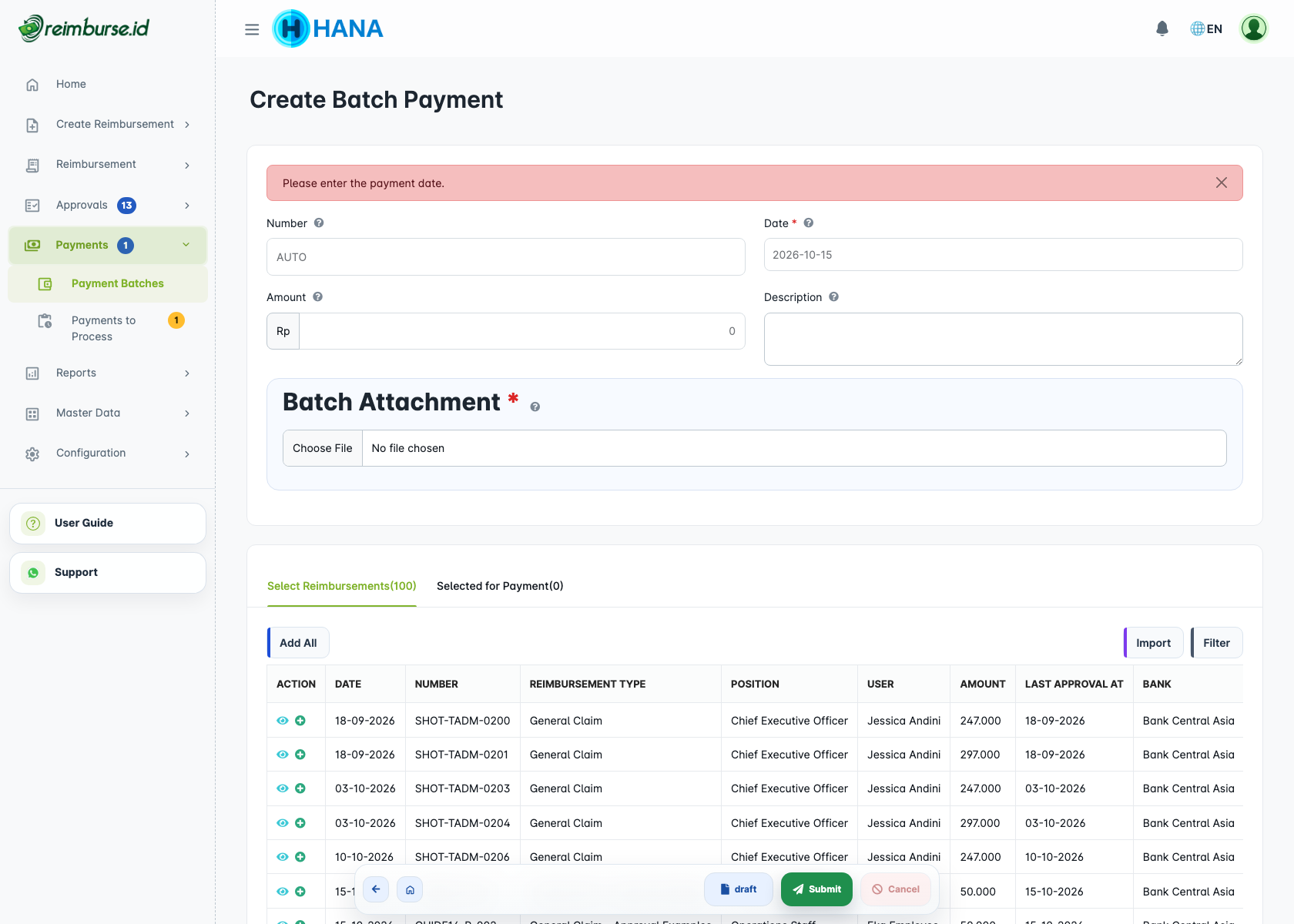
If saving fails with a reference, keep that reference and ask your administrator for help. Check the batch list or existing document before trying again, so you do not accidentally create a duplicate. A save error is not a request to repeat an external bank transfer.
Approval configuration belongs in Initial Setup; reviewers use Approval Guide.
Payments To Process
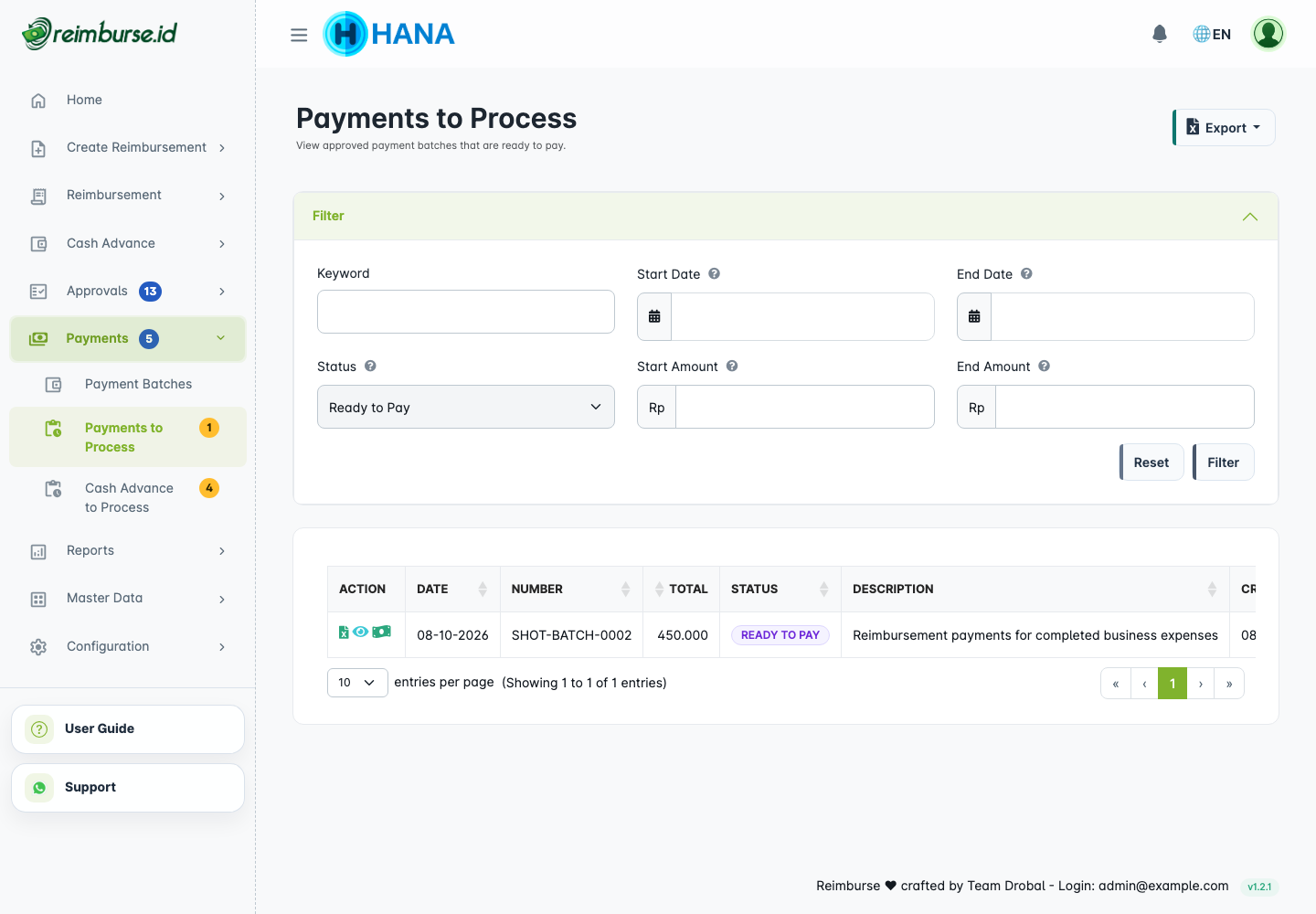
A draft, pending, rejected, paid, or void batch is not a ready-to-pay task. Open the ready batch to check recipients and total before transferring funds.
Review A Ready-To-Pay Batch
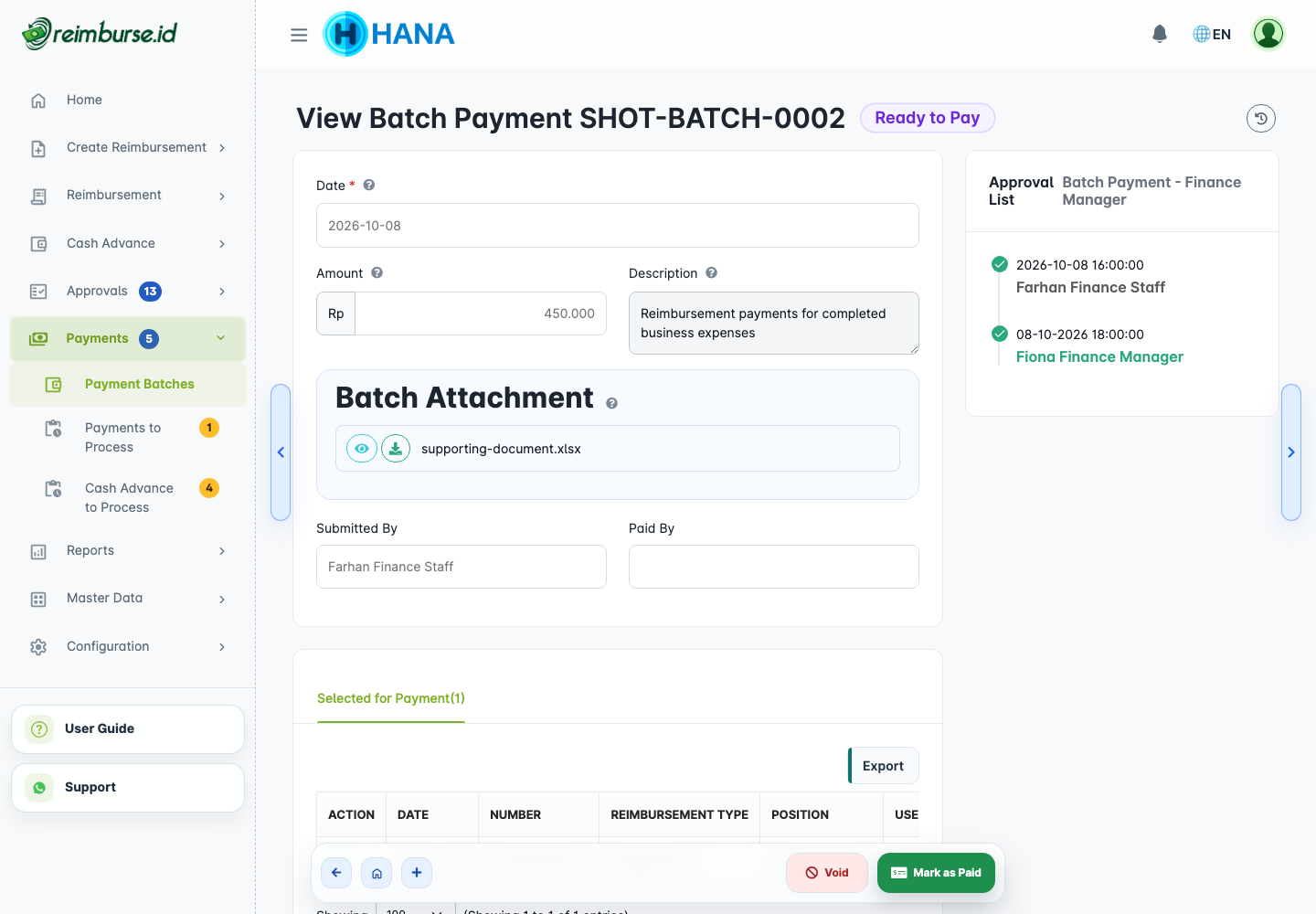
Confirm that each account belongs to the intended recipient, the supported claim amounts are correct, and the batch has completed any required approval. Resolve incorrect data before the external payment, not after recording it as paid.
Refresh Bank Data For Unpaid Reimbursements
Reimbursement documents retain a bank snapshot, so later profile edits do not silently replace previously saved bank information. Check the saved document as well as the user's current profile.
With the corresponding access, All Reimbursements or Team Reimbursements provides Refresh Bank Data for eligible unpaid claims, individually or in a selected group.
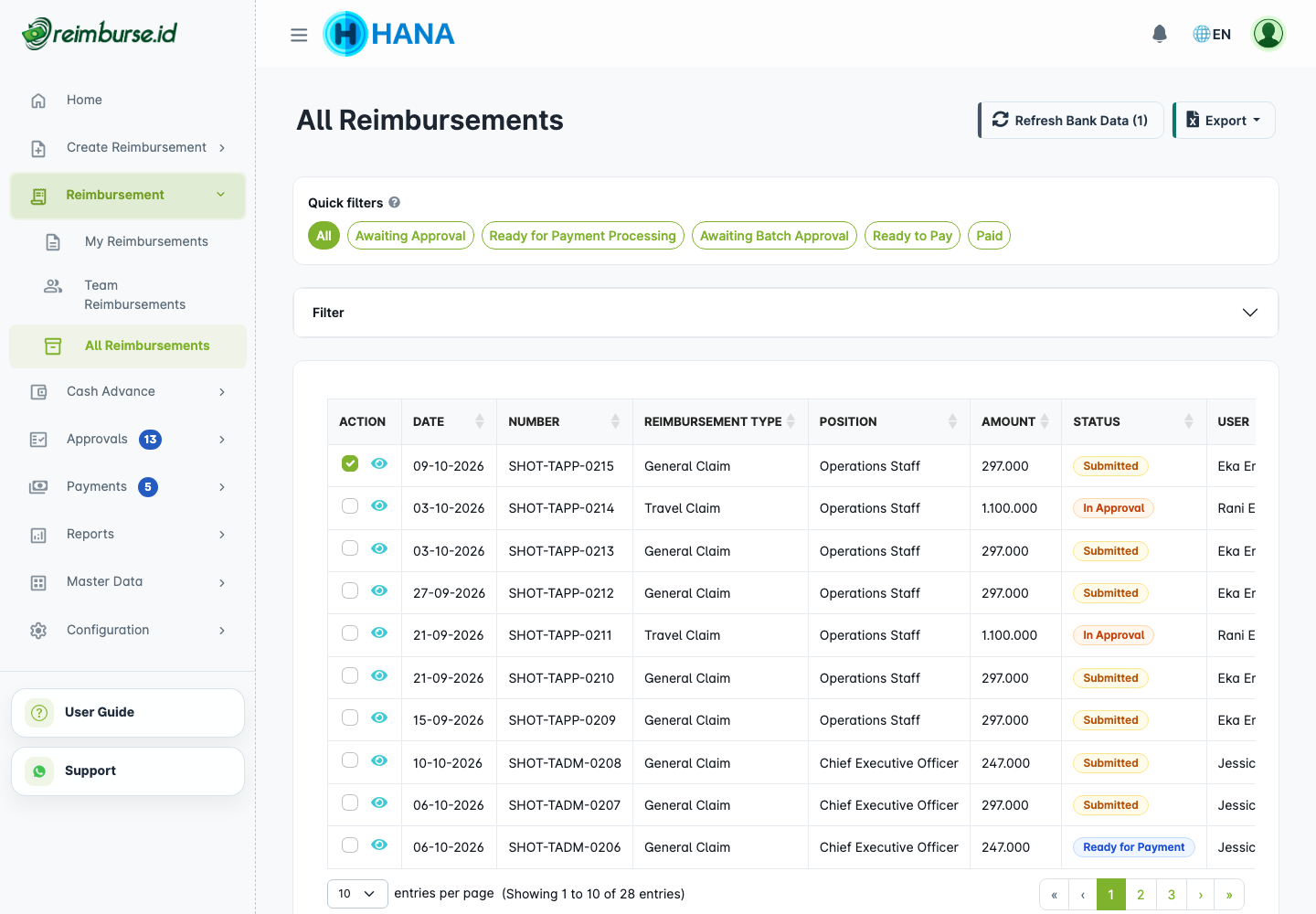
Refreshing follows the current profile. Claims in draft/rejected/pending batches can be refreshed when eligible; a Ready to Pay or Paid batch blocks refreshing its bank data. Read the result for processed/skipped rows. Refresh is not a transfer, approval, or guarantee that the account is correct; verify the details with the recipient.
Export A Batch Payment Spreadsheet
On the batch detail, use Export to generate the operational payment document. The company maintains one Batch Payment Document template under Configuration > Templates & Exports > Batch Payment Document. The Batch Payment Form links to its editor; it does not offer a list of default operational templates.
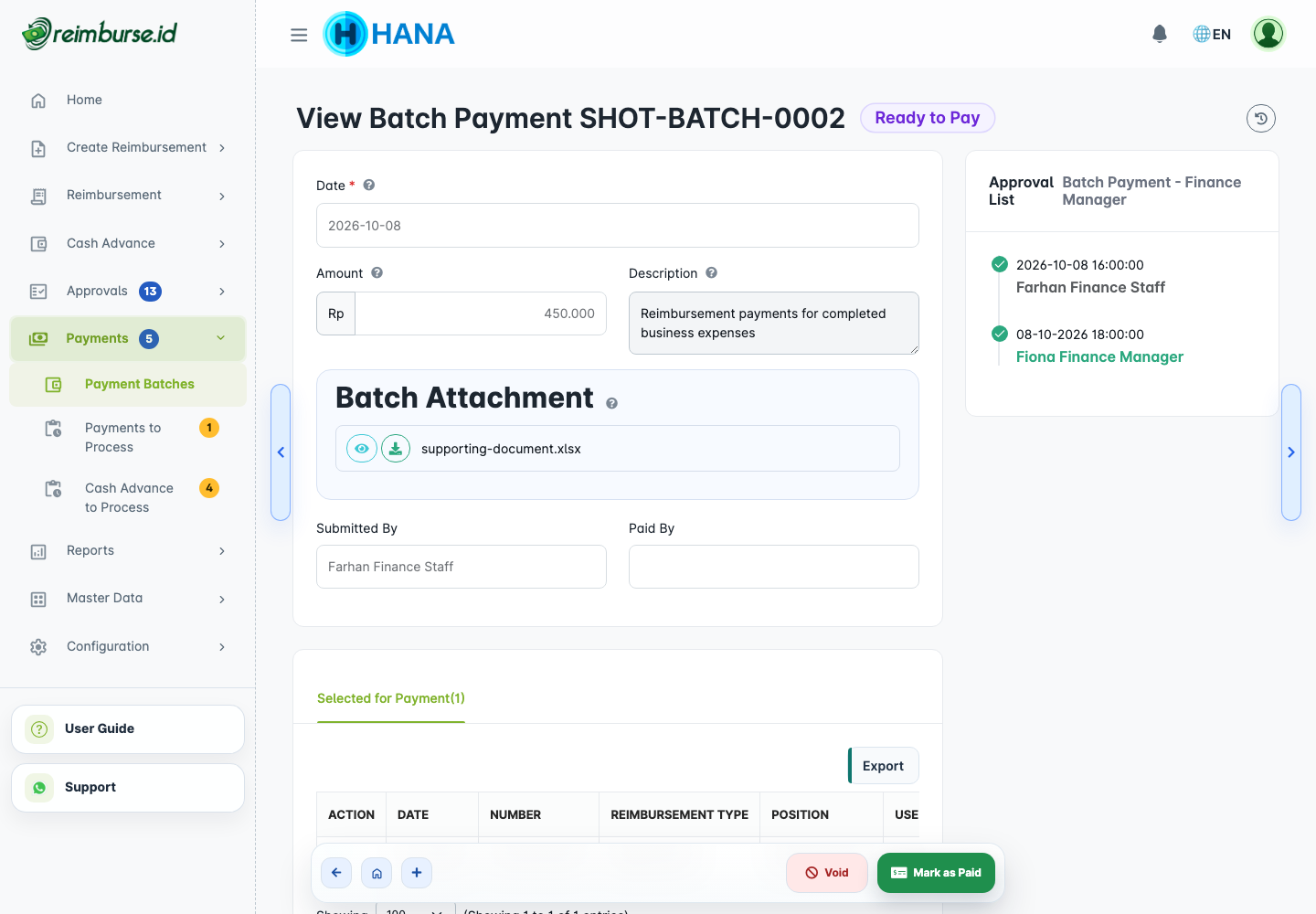
The template controls the sheet name, pre-header rows, columns, source fields, formatting, widths, text preservation, and zero padding. It helps prepare a spreadsheet for a bank/payment channel that supports spreadsheet import. Check the exported file against that channel's current requirements before uploading it there; export does not guarantee every bank's import format or execute payment.
After the external transfer succeeds, return to Reimburse.id to record completion. If the external channel reports a failure or incomplete payment, resolve it before marking the entire batch paid.
Export A Batch List Report
The Export dropdown on Payment Batches or Payments to Process selects an active report export template. These can provide summary or detail data according to their configuration and follow the list filters and your access.
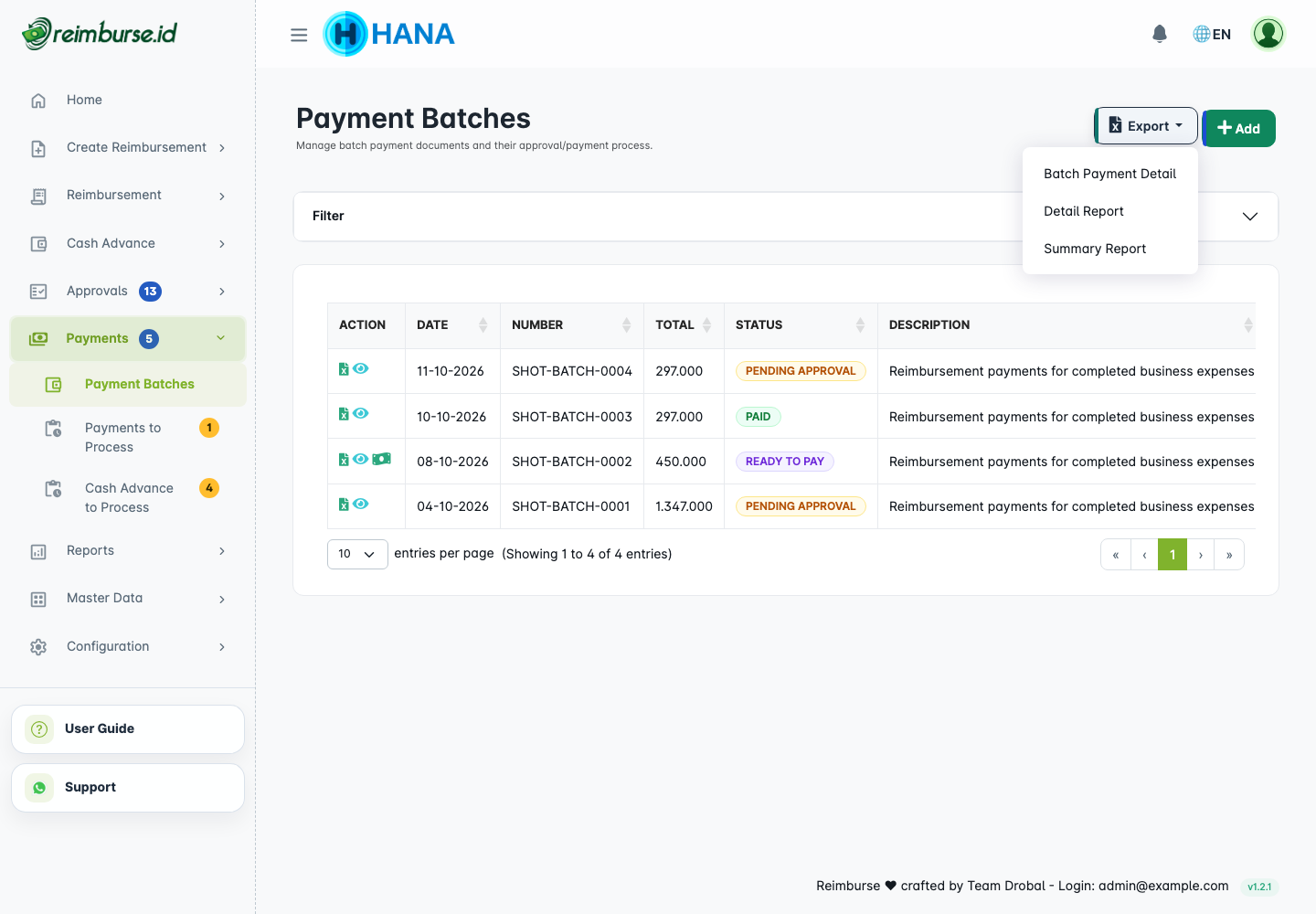
This is different from the operational spreadsheet for one batch. Use Reports And Audit for wider reporting and Initial Setup for template configuration.
Mark A Batch As Paid
Only use Mark as Paid after the transfer has been completed through the company's bank or payment channel.
- Open the Ready to Pay batch.
- Check the recipients, total, and external payment result.
- Choose Mark as Paid with the required paid-action access.
- Enter the Paid Date and upload the payment proof required by company settings.
- Confirm, then check the batch and included reimbursement statuses.
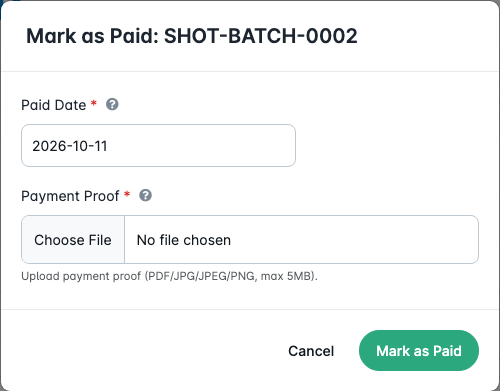
The application records the batch as Paid and updates its included claims. Keep evidence that explains the recorded payment; a paid record is not an instruction for the application to transfer funds later. Do not repeat the external transfer because you need to retry recording a status.
Batch Payment Statuses
| Status | Meaning |
|---|---|
| Draft | Preparation is saved; not submitted. |
| Awaiting Approval | Waiting for required batch approval. |
| Ready to Pay | Ready for the authorized team to process external payment. |
| Reject | Review the reason, correct, and resubmit when appropriate. |
| Paid | Completed payment has been recorded. |
| Void | Batch cancelled; this does not undo an external transfer. |
Import Reimbursement Numbers Into A Batch
This optional tool selects eligible reimbursements by their existing reimbursement numbers. It does not create new reimbursement claims.
Import replaces the current selection in the form with the eligible claims accepted from the file; it does not append to the previous selection. Include every claim you want in the file, or select missing claims again after importing. This changes the form's selection; the batch document changes when you save or submit.
For example, if claim A is selected and you import a file containing only claim B, the selected list becomes B, not A + B.
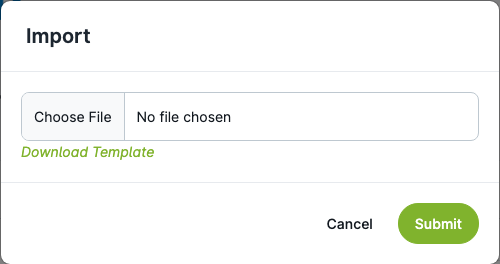
Download the provided template, enter existing claim numbers in its expected column, upload it through the batch import action, and inspect the result and selected total. Correct unknown, paid, unapproved, or already-batched numbers rather than assuming every spreadsheet row was accepted.
After importing, check the accepted/skipped results, selected claims, final count, and total, even when imported claims are not on the current available-list page. Changing a filter does not remove those selected claims; importing another file replaces the selection again.
Add Batch Attachments And Custom Fields
Attach supporting information and fill required company fields during preparation. Keep general batch attachments distinct from the payment proof recorded when marking the batch paid. Inspect receipt or PDF previews where available; download supported non-previewable files separately.
Batch Attachment Preview
The batch can provide access to its own attachments and the included reimbursement evidence according to your permissions. A preview is for review, not a payment action.
Use the document activity/history control to follow submission, decisions, and recorded payment. Change Log in the footer provides a separate change-history view with the corresponding access; it is not a bank transaction feed.
Common Problems
| Problem | What To Do |
|---|---|
| An approved claim cannot be selected | Check other active batch membership, payment status, and access. |
| No reimbursements selected | Select at least one eligible claim before saving or submitting. |
| Selected list is too long | Reduce the selection or split the payment preparation into several batches. |
| Date, total, or submission action fails validation | Check the date and current selection; reload missing/invalid totals and choose draft or Submit. |
| Earlier selections disappeared after importing | Import replaces the form's selection. Include all intended claim numbers in the file or select missing claims again, then check the count and total before saving. |
| Saving fails with a reference | Keep the reference, check whether the batch already exists, and contact the administrator before repeating the action. |
| Refresh Bank Data is blocked | Check whether the claim is in a ready or paid batch; resolve the allowed workflow with the administrator. |
| Export format is unsuitable for the bank | Ask the administrator to adjust the company document template and verify the resulting file externally. |
| Mark as Paid is unavailable | Check Ready to Pay status and your paid-action access. |
| Paid Date/proof fails validation | Check the indicated date, close period, file, and required settings; retry recording only. |
| A batch is ready but the recipient has no funds | Check external payment execution; Ready to Pay does not mean transferred. |
Next: use Reports And Audit to review payment data, or Cash Advance Fund Management for the separate Cash Advance workflow.