
Delegation And Reassign Approval
Use reassign to hand over a current pending approval. Use delegation when your future approval tasks should go to another person during a planned absence. Neither action approves the document or grants new role permissions.
Choose The Right Tool
| Need | Use |
|---|---|
| Move one urgent pending task | Single reassign in Reassign Approvals. |
| Move several selected pending tasks | Bulk reassign; check processed and skipped results. |
| Route new approval assignments during leave | A scheduled or active delegation in Profile. |
| Also hand over tasks already pending | Apply to Existing Pending Approvals on an active delegation. |
| Only remind someone about a task | A reminder; it does not change the assigned reviewer. |
Your role needs monitoring/reassign access to hand over other users' tasks. A delegation in your profile covers your own assignments, not every company approval. Approval decisions themselves are described in Approval Guide.
Reassign Approvals
Open Approvals > Reassign Approvals. The monitoring list combines current actionable pending assignments for reimbursements, payment batches, Cash Advance requests, and Cash Advance settlements.
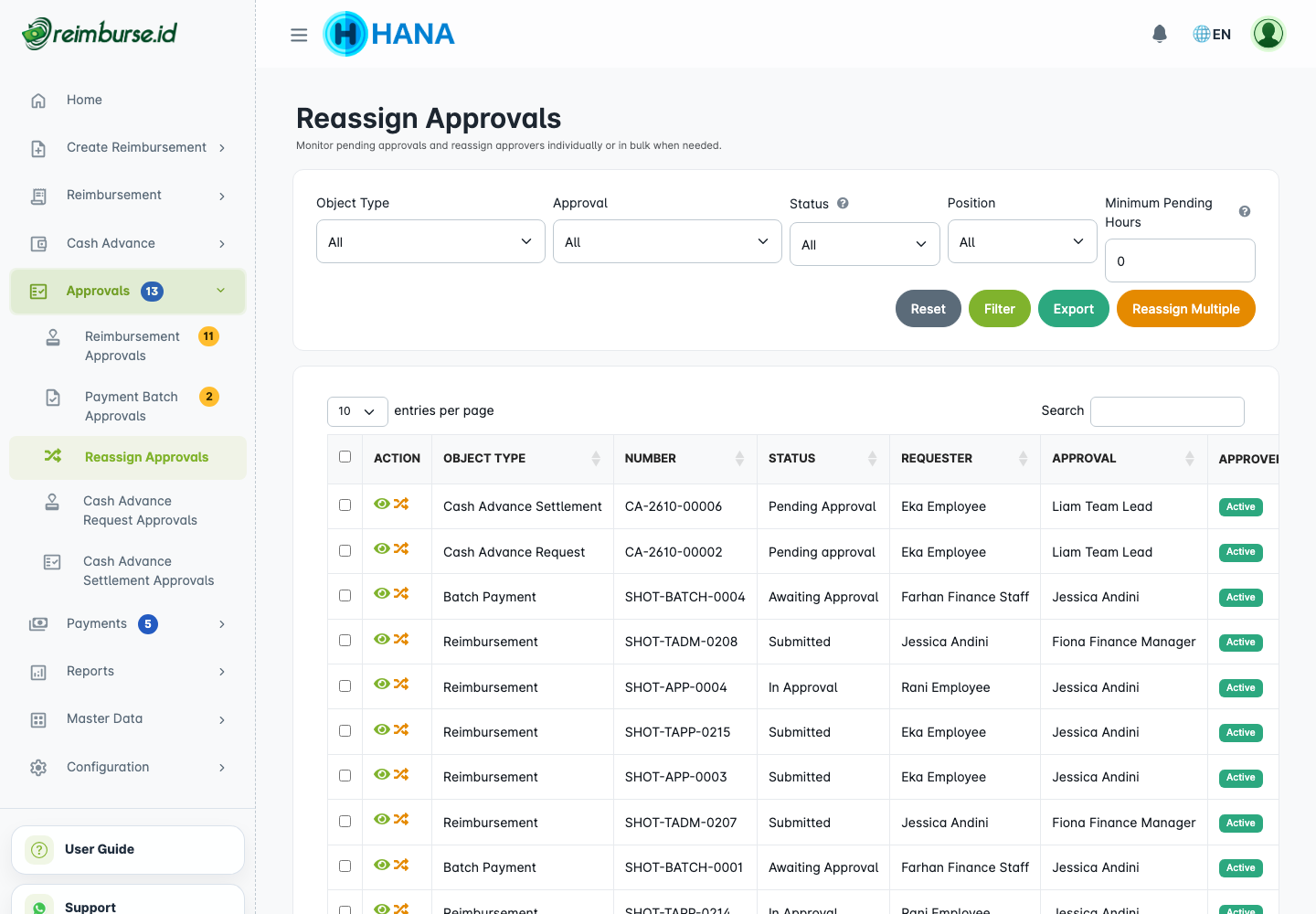
What The Monitoring List Shows
| Column | How To Read It |
|---|---|
| Object Type | The document type, including the request or settlement phase of Cash Advance. |
| Number / Requester | The document and the person who submitted it. |
| Status | The document or relevant phase status. |
| Approval / Approver Status | Current assigned reviewer and whether that account is active, inactive, or deleted. |
| Position | The position recorded on the reimbursement or Cash Advance document, not necessarily the user's current profile. Batch rows have no position and show a dash. |
| Assigned At / Pending Age | When the assignment was created and how long it has waited. |
| Action | Open the document or reassign the pending task, with the relevant access. |
A later planned step or completed approval is not an actionable pending assignment. Reassigning one task does not rebuild the document's entire approval sequence.
Filter And Export Pending Approvals
Use Object Type, Approval, approver Status, Position, and minimum pending-hours filters to narrow the queue. The approver-status filter is about the person, not the document status. A specific Position filter excludes batch rows because batches have no recorded position here.
Use search for the document/requester/reviewer, and Export with export access to share the monitoring result for follow-up. Exporting this list does not reassign or remind anyone automatically.
Reassign A Single Approval
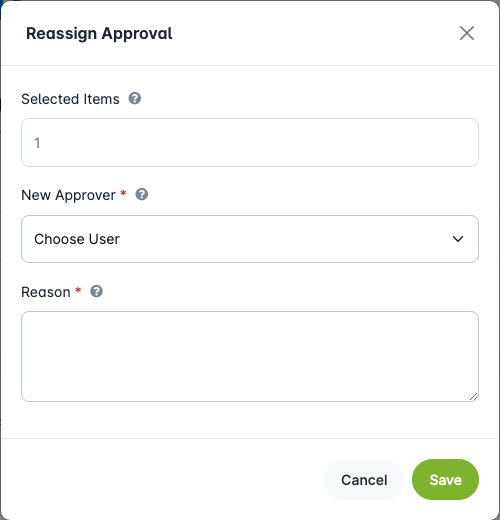
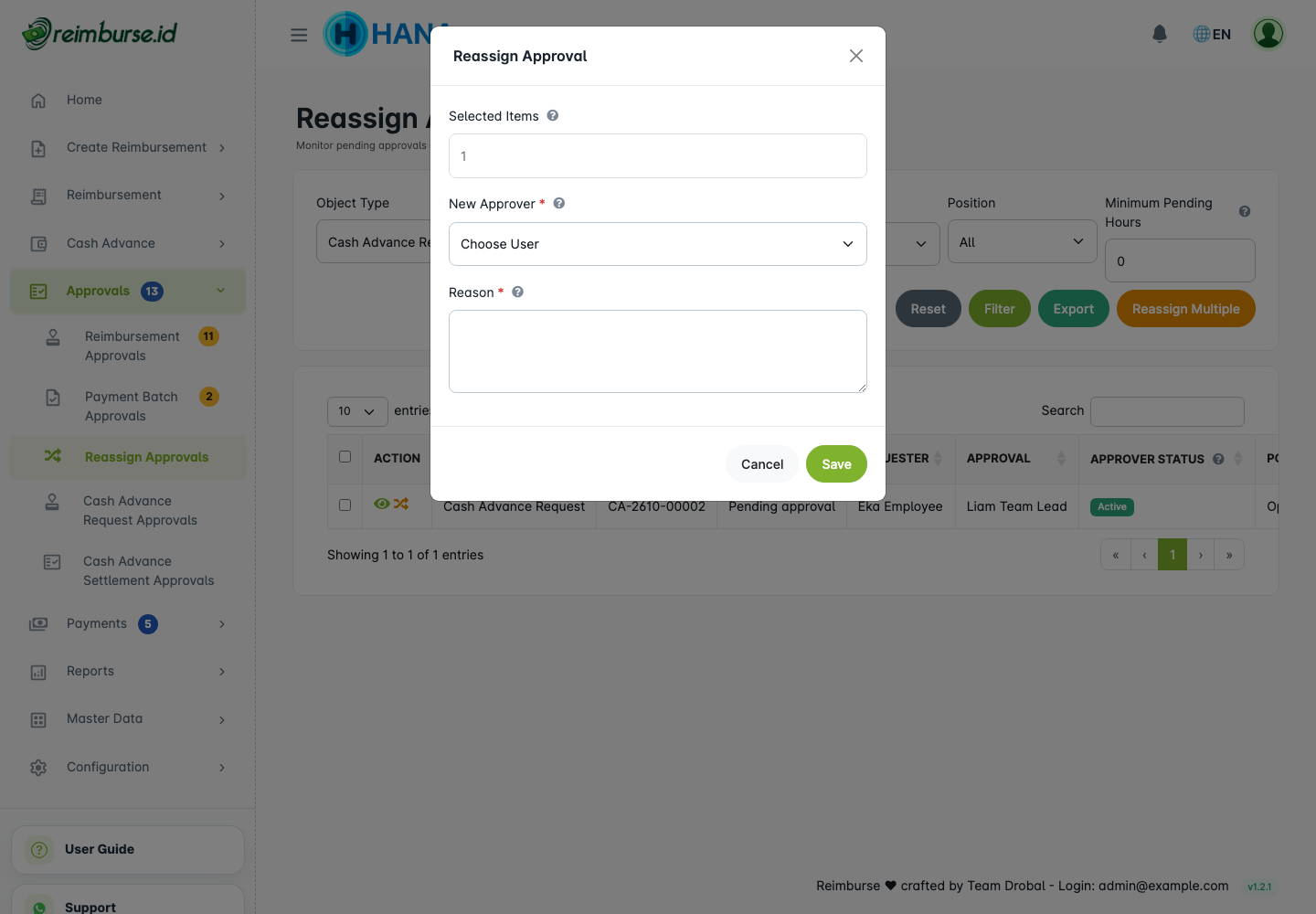
- Find the pending row and open its reassign action.
- Select an active replacement in the same company with access to this document's approval type.
- Enter a clear reason of at least three characters.
- Save, read the result, and check the updated assignment.
Reassign Multiple Approvals
Select the current pending rows, use the bulk reassign action, choose the replacement, enter the reason, and confirm. Check the reported processed and skipped counts; do not assume every selected row moved. A row can become ineligible while you review it, for example because someone already decided it.
For a selection containing multiple document types, the replacement needs approval access for every selected type. Split the selection or ask the administrator to grant the correct access if needed.
Choose The New Approver Carefully
Dropdown hints help identify missing approval access. Do not treat the hint as permission to proceed without access: reassignment checks the relevant approval type at save time. Cash Advance request and settlement approval are separate access capabilities.
Choose someone who can review the business purpose and is not the document's requester. The application also checks conflicting assignments and current eligibility. Neither a reassign nor a saved delegation creates new approval rights; the administrator manages those rights through Role access.
What Reassign Changes
A successful reassign changes the current pending task's owner and records the reason/history. The document stays in its existing approval process. It does not approve, reopen completed steps, change the form's rules, or permanently replace the original reviewer for future documents. Previous email links for the old assignment can become invalid; use the current queue.
Delegation / Out-of-Office
Open Profile > Delegation / Out-of-Office to plan a handover for your own future assignments.
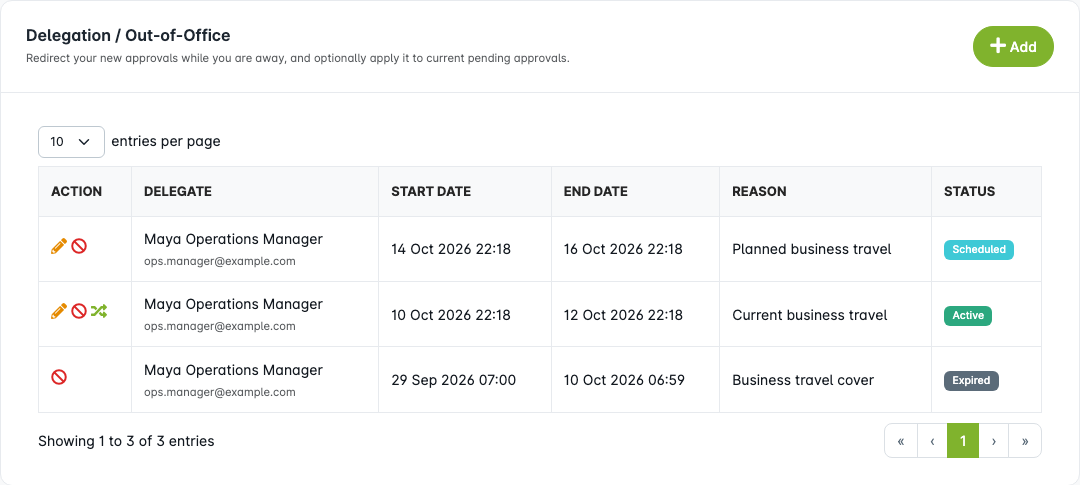
Create A Delegation Rule
- Click Add in the delegation section.
- Choose an active Delegate from the same company.
- Set the start and end date and time, including your expected return.
- Enter the reason and save.
- Check whether the rule is Scheduled or Active and verify the delegate's access for the tasks involved.
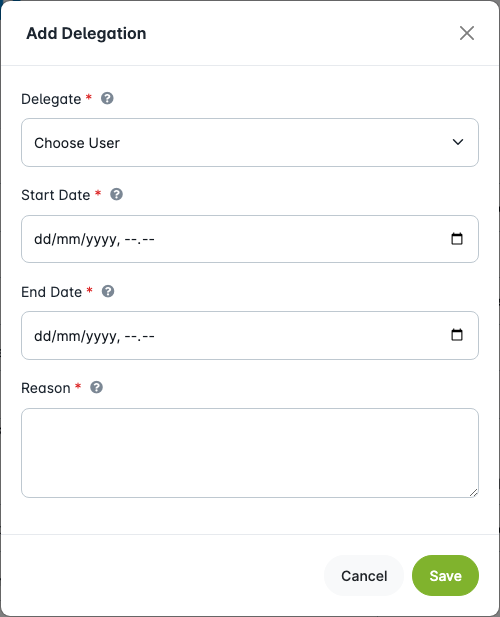
A saved rule changes routing when an eligible approval assignment is created during its active period. Existing pending tasks are not moved merely because you saved it. It does not let the delegate use your account or perform every action your role has.
Delegate Access Warning
Warnings can cover reimbursement, batch, and Cash Advance approval access. A delegation can be saved with an access warning, but routing is not authorization. The administrator must resolve the relevant access before the delegate can decide those tasks. Review both Cash Advance phases when the handover includes requests and settlements.
Delegation Statuses
| Status | Meaning |
|---|---|
| Scheduled | Start time has not been reached. |
| Active | Within the enabled delegation period. |
| Expired | End time has passed. |
| Inactive | Manually deactivated. |
Active or scheduled rules can be edited or deactivated using the available actions. Expired/inactive rules remain history. Deactivation stops future routing under the rule; it does not automatically hand already reassigned tasks back.
To edit an active or scheduled rule, click the pencil icon in its Action column, update the delegate, period, or reason, and save. The red circle-with-slash icon deactivates a rule; it does not edit its details.
Apply Delegation To Existing Pending Approvals
For an active delegation, use Apply to Existing Pending Approvals if you also need to hand over your current pending tasks. A scheduled rule does not qualify for this action yet.
The action considers your current actionable reimbursement, batch, Cash Advance request, and Cash Advance settlement assignments. It uses reassignment checks, including the delegate's relevant access, and reports processed/skipped results. Check the remaining queue and resolve skipped items rather than assuming all work was handed over.
This does not move another user's assignments, completed decisions, future steps, or an old inactive settlement revision. The document history retains the handover.
Delegation Rules And Validations
The delegate must be active, not deleted, in the same company, and not yourself. Start must be before end. Overlapping enabled periods for your own delegation and reciprocal overlapping delegation are rejected. Avoid creating unnecessary chains; a delegation is not a substitute for a clear company approval responsibility.
Common Problems
| Problem | What To Do |
|---|---|
| A pending document is missing | Check filters, current step, active revision, and whether a decision already completed. |
| Reassignment is rejected | Verify replacement access for all selected types, current assignment, and requester/conflict restrictions. |
| A rule is saved but tasks remain with you | Existing tasks need the apply-existing action on an active rule. |
| Some apply-existing rows are skipped | Review the latest assignment and delegate access; processed counts are not a guarantee for every row. |
| A delegated reviewer cannot open the task | Ask the administrator about the relevant approval access; delegation does not grant it. |
| You need only a follow-up message | Use the company's reminder workflow; do not reassign just to send a reminder. |
Next: review the handed-over task in Approval Guide, or return to Dashboard And Navigation to check your remaining queue.