
Registration And Login
This chapter explains how to create a company, choose a company URL, sign in, switch between companies, and recover your account if you forget your password.
Choose Where To Start
| Your Situation | What To Do |
|---|---|
| Your administrator has already created your account | Sign in to your company. You do not need to register another company. |
| You are setting up a new company | Start with Register A New Company. You will become its first administrator. |
| You already use Reimburse.id and want to create another company | Read Choose A Registration Mode and use your existing account credentials. |
| You cannot remember your password | Go to Reset Your Password. |
Understand Company URL And Subdomain
In reimburse.id, each company has its own login address. This address is called the company URL.
The company URL usually follows this format:
https://company-name.reimburse.idThe company-name part is called the subdomain.
Example:
https://hana.reimburse.id| Item | Example | Meaning |
|---|---|---|
| Subdomain | hana | The short company name used in the URL. |
| Main domain | reimburse.id | The main reimburse.id domain. |
| Company URL | https://hana.reimburse.id | The address users open to sign in to Hana. |
After registration, save the company URL and share it with employees who need access. Users must open the correct company URL to sign in to the correct company.
If a user opens the wrong company URL, they may not be able to sign in, or they may sign in to a different company account.
If you do not remember the company URL, you can also start from https://member.reimburse.id. After a successful sign-in, the system can redirect you to the company you can access.
Register A New Company
Use registration when your company does not have a reimburse.id company account yet. This step is usually done by the first administrator.
Open the registration page:
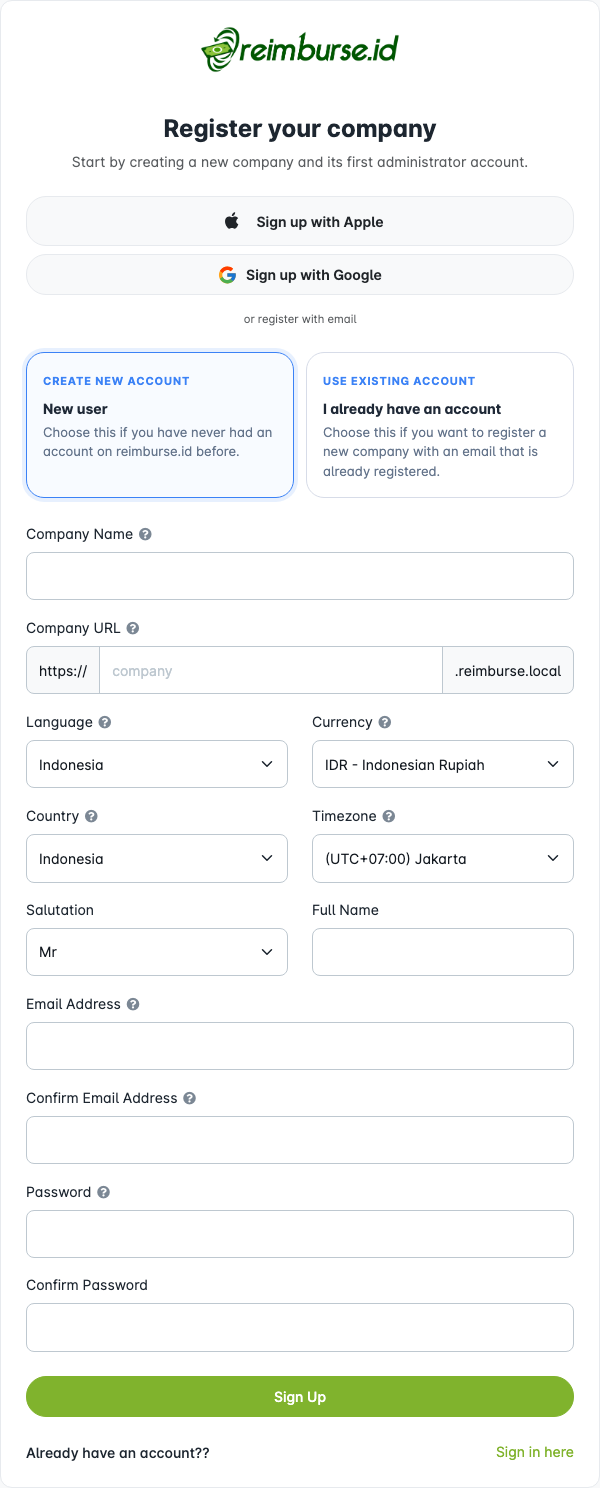
General steps:
- Open https://reimburse.id/register.
- Choose the registration mode.
- Fill in company information.
- Choose the company URL/subdomain.
- Fill in first administrator information.
- Submit the registration form.
- Verify your email if the application asks for verification.
- Continue to company onboarding.
After registration is complete:
- A new company account is created.
- The selected subdomain becomes the company login URL.
- The first user becomes the first administrator.
- The first administrator continues to onboarding.
Choose A Registration Mode
The registration page may show more than one registration mode.
| Mode | When To Use It |
|---|---|
| Create new account / New user | Use this if you are registering reimburse.id for the first time and do not have an account yet. |
| Use existing account / I already have an account | Use this if you already have a reimburse.id account and want to create another company using the same account. |
| Sign up with Google | Use this if you want to register with a Google account and the option is available. |
| Sign up with Apple | Use this if you want to register with an Apple account and the option is available. |
If you choose Use existing account, enter the same email and password that you already use in another reimburse.id company. This allows one user account to access more than one company.
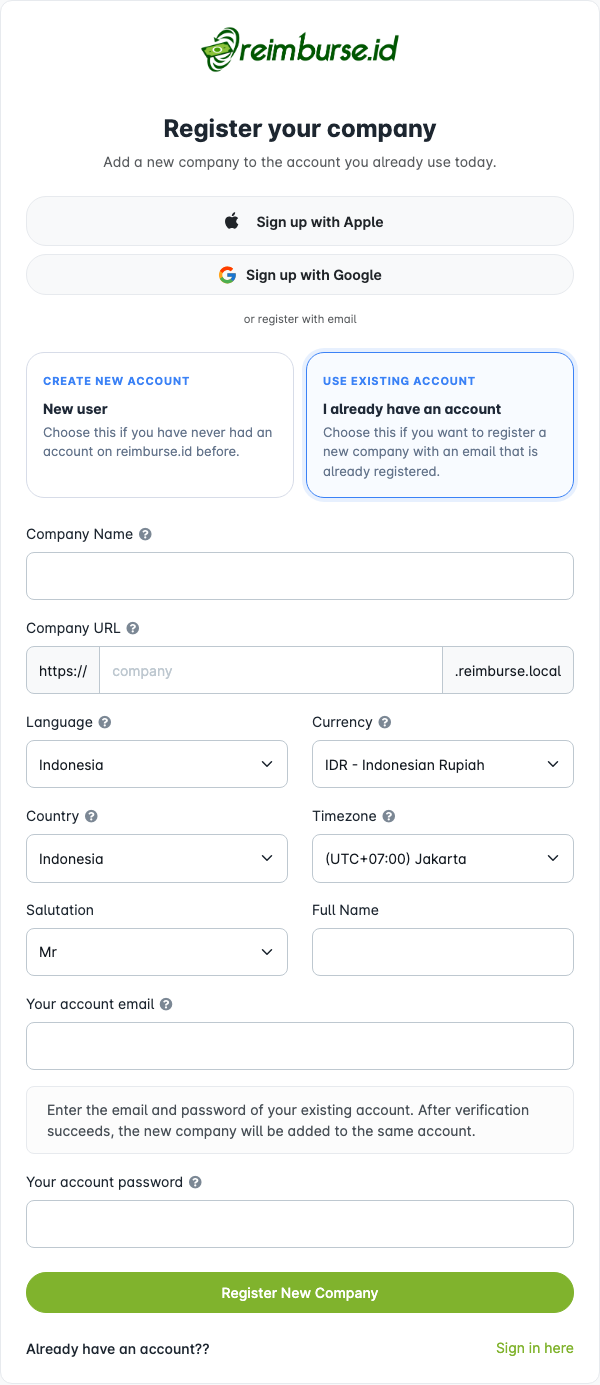
If you are not sure which mode to choose, use Create new account for your first company registration. Use Use existing account only when you already have a Reimburse.id account. Creating another company is different from joining an existing company: ask that company's administrator to add you if you only need access.
Fill Company And First Administrator Information
During registration, fill in the company information and the first administrator information.
| Field | What To Enter | Notes |
|---|---|---|
| Company Name | The company name. | This name appears in the application. |
| Company URL / Subdomain | A short company identifier. | Example: hana creates https://hana.reimburse.id. |
| Language | Default company language. | Users may still be able to change their display language. |
| Currency | Main company currency. | Example: IDR. |
| Country | Company country. | Used for company and regional context. |
| Timezone | Company timezone. | Important for dates, approval timing, and reports. |
| Salutation | Choose the title used for your name. | For example, Mr or Ms. |
| Full Name | Name of the first administrator. | This user manages the initial company setup. |
| Email Address | Email of the first administrator. | Used for login and notifications. |
| Password | Password for the first administrator. | Required for new account registration. For existing account registration, use your existing password. |
| Confirm Email Address / Confirm Password | Repeat the email and password when shown. | Make sure they match the original entries. |
For Google or Apple registration, some identity fields may be filled from your Google or Apple account.
Choose And Remember The Subdomain
The subdomain becomes the company's login address.
Example:
Company name: Hana Corp
Subdomain: hana
Company URL: https://hana.reimburse.id
The subdomain must:
- Contain 3–30 characters.
- Use letters, numbers, or hyphens (
-). Letters are stored in lowercase. - Start and end with a letter or number; do not use spaces or other symbols.
- Be available and not reserved for the service, such as
memberorapp.
Choose a short name employees can remember. The company name and subdomain do not have to be identical. Check the availability message before submitting; if the name is unavailable, choose another one.
After typing the subdomain, move to another field to check availability. Wait for the result before submitting the form.
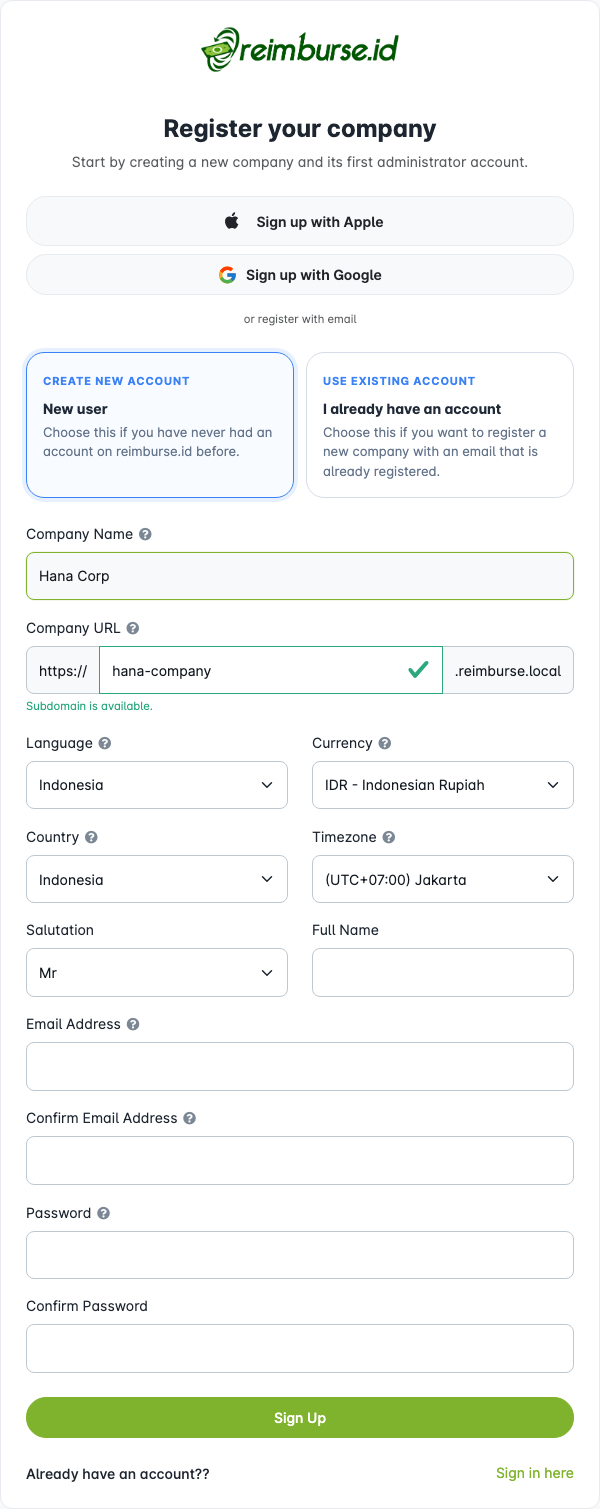
After registration, share the company URL with users who need access.
Verify Your Email
After registration, the application may ask the first administrator to verify the registered email address.
If the verification page appears, open the email sent to your registered address. You can complete verification in either of these ways:
| Method | What To Do |
|---|---|
| Email link | Open the verification link in the email. If you verified on another device, return to the verification page and click I've verified, continue. |
| OTP for the first administrator | Enter the six-digit code from the email on the verification page, then click Verify OTP. OTP means a short-lived verification code; its validity period is shown on the page. |
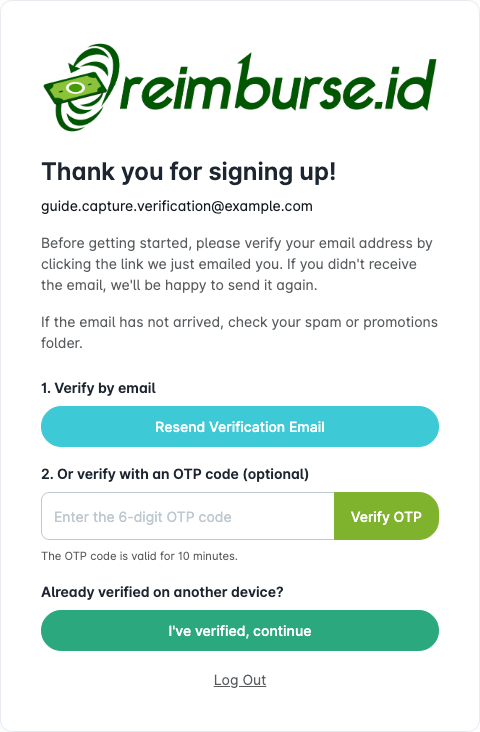
If the email is missing, check spam or promotions and confirm you are checking the registered mailbox. Click Resend Verification Email when it becomes available. The page shows a countdown if you must wait; a resend limit may require a longer wait. Use the latest verification email if an earlier code has expired.
If verification still fails, contact support or your email administrator. Do not share your password or OTP.
What Happens After Registration
After registration succeeds, the first administrator continues to company onboarding.
Onboarding helps the first administrator set up the first company structure and the first reimbursement form.
Continue with Company Onboarding to complete those first setup steps.
Sign In To Your Company
If your company account already exists, open your company login URL.
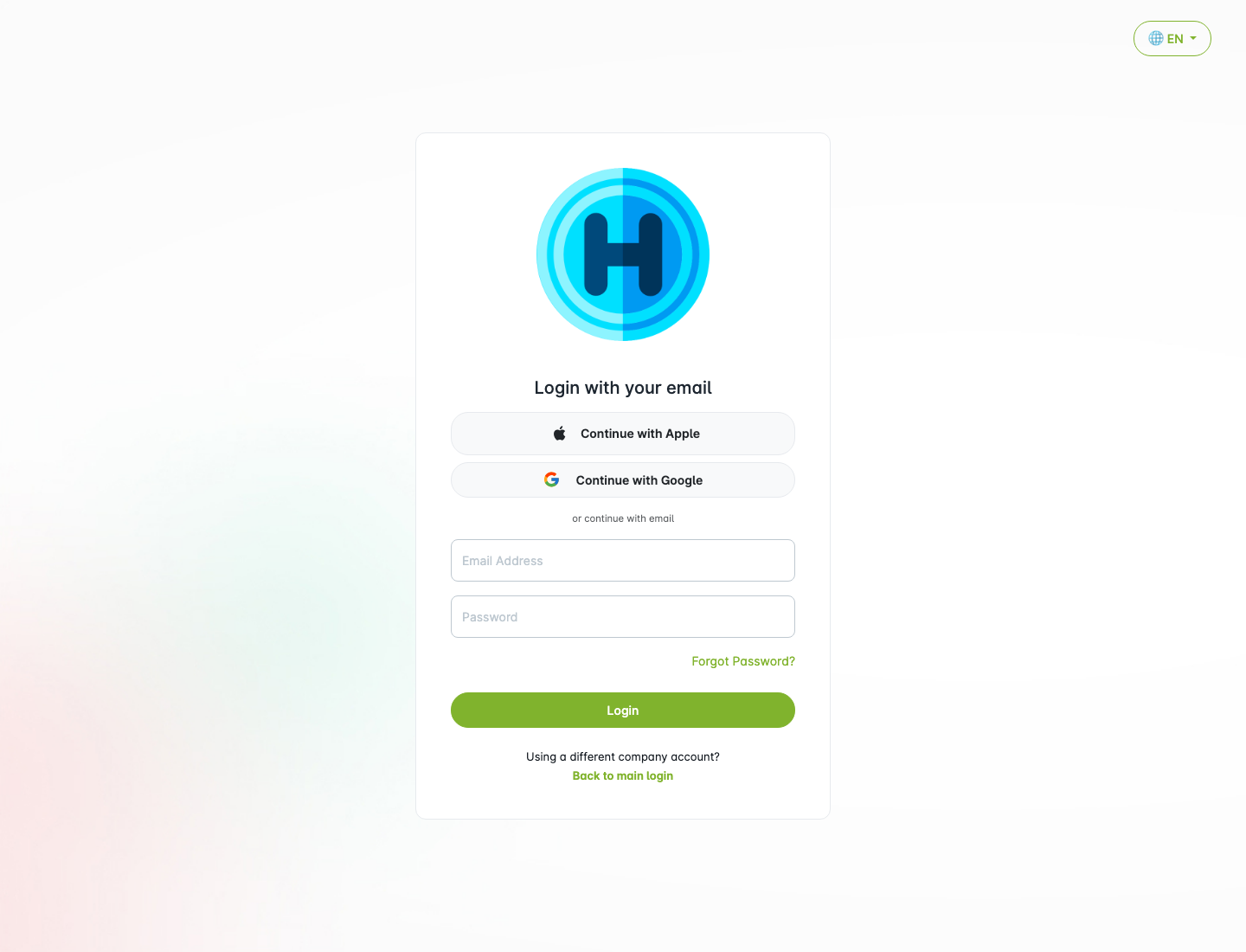
Then sign in with your account.
- Open your company login URL, for example
https://hana.reimburse.id. - Enter your registered email address.
- Enter your password.
- Click
Login. - After login succeeds, you will see the dashboard. If email verification is still required, complete it first. The first administrator of a company that has not finished setup continues to Company Onboarding instead.
If you do not know the company URL, sign in from https://member.reimburse.id. You will be directed to an eligible company or asked to choose one when needed.
For an explanation of the home page and menus, continue to Dashboard And Navigation. What you can see depends on your role and access permissions.
Login Page Overview
| Area | What It Does |
|---|---|
| Language selector | Changes the language shown on the login page. |
| Continue with Apple | Signs in with Apple when enabled. |
| Continue with Google | Signs in with Google when enabled. |
| Email Address | Your registered company email address. |
| Password | Your account password. |
| Forgot Password? | Starts the password reset process. |
| Login | Signs in with your email and password. |
| Back to main login | Returns to the main login page when you need another company account. |
Sign In With Google Or Apple
If Google or Apple sign-in is available, use the corresponding button on the login page.
Important notes:
- Your Google or Apple email must already be registered in the company.
- Social sign-in does not automatically create a normal employee account in every company.
- If your email is not registered, sign-in will be rejected.
- If your account is inactive, sign-in will be rejected.
- If the same email has access to more than one company, the application may ask you to choose a company.
If social sign-in does not work, you can use email/password login only if you have already set a Reimburse.id password. Registering with Google or Apple does not mean you have set one. Your Google or Apple password is not your Reimburse.id password. If you do not have a Reimburse.id password or still cannot sign in, contact your administrator.
Switch Company Account
A user can have access to more than one company. For example, one email may belong to both company-a.reimburse.id and company-b.reimburse.id.
There are three common ways to switch company.
Before Login: Use Back To Main Login
Use Back to main login when you are on the wrong company login page or when you need to choose another company account.
This is useful when:
- You work with more than one company.
- You opened the wrong company URL.
- You use your phone and need to switch company accounts.
- Your administrator asked you to access a different company.
After Login: Switch From The User Menu
After signing in, users who have access to more than one company can switch from the user/profile menu when the option is available.
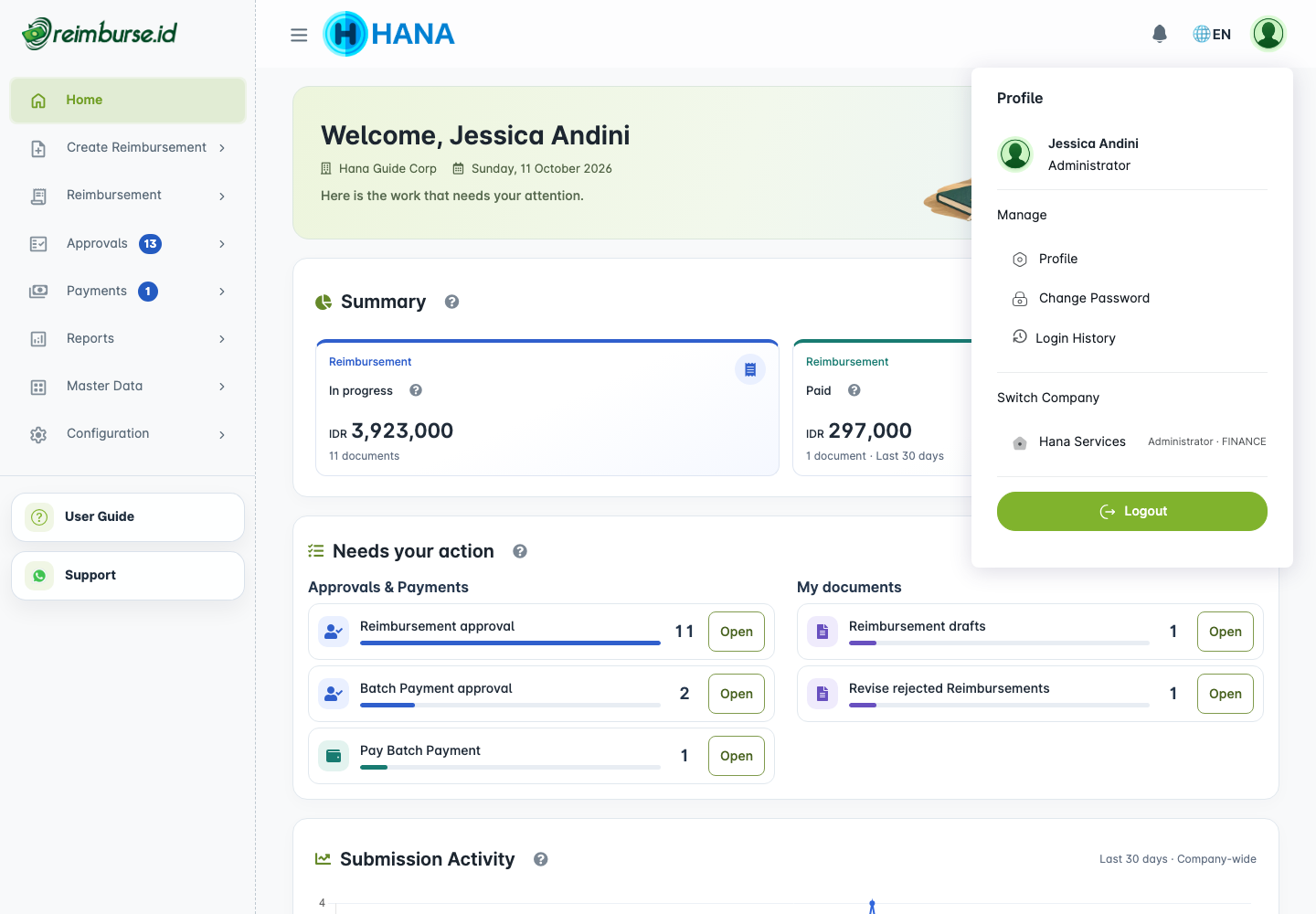
Use this when:
- You are already signed in.
- Your account is active in more than one company.
- You want to move to another company without manually typing another URL.
If the switch option is not visible, your account may only belong to one company or your administrator has not granted access to another company.
After Social Login: Select A Company
When signing in with Google or Apple, the application may ask you to choose a company if the same email is linked to more than one company.
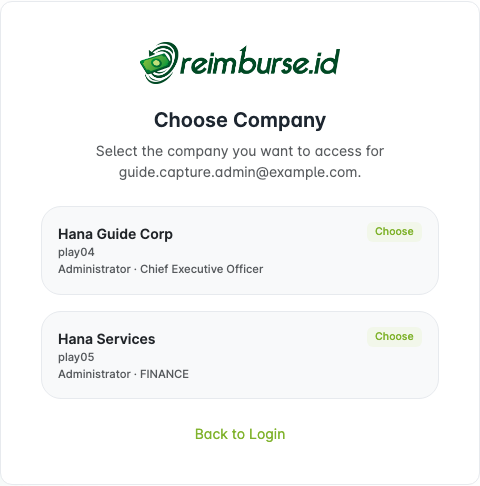
Choose the company you want to access. After selection, the application opens that company.
The same company selection can also appear after email/password sign-in from the main login page when your account can access more than one company.
If the company you need is not listed, contact the company administrator to check your user access.
Reset Your Password
Use this when you cannot remember your password for email/password login.
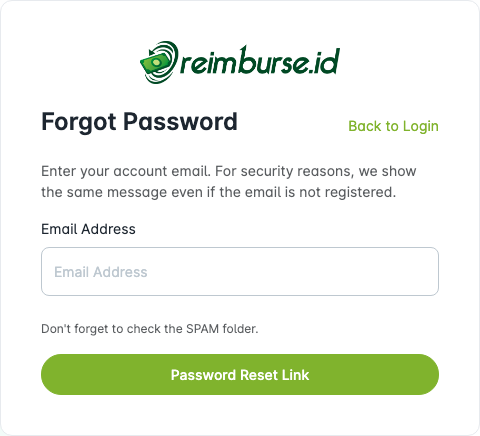
- Click
Forgot Password?on the login page. - Enter your registered email address.
- Open the password reset email from your inbox.
- Click the reset link in the email.
- Set a new password.
- Return to the login page and sign in again.
Your Google or Apple password is managed by that provider and is separate from your Reimburse.id password. Resetting a Reimburse.id password does not change your Google or Apple password. If you cannot access your Google or Apple account itself, use that provider's account recovery.
If you do not receive the reset email, check the email address, spam folder, and company email policy. If the email is still missing, contact your administrator.
Account Status
Your account must be active to use the application.
| Status | What Happens |
|---|---|
| Active | You can sign in and use the menu allowed by your role. |
| Inactive | You cannot sign in. If you are already signed in, you will be logged out on your next activity. |
| Deleted | You cannot sign in. |
If your account is inactive or deleted, contact your company administrator.
Check Your Login History
After signing in, open the user/profile menu and choose My Login History to review your recorded successful logins. This is your personal history, not a list of everyone in the company. See Activity And Login History for reading the records. If you see an unfamiliar login, contact your administrator and review your account security.
Common Problems
| Problem | What To Do |
|---|---|
| You forgot the company URL | Ask your administrator for the correct company URL/subdomain, or sign in from https://member.reimburse.id so the system can redirect you to the company you can access. |
| You cannot sign in | Check your email, password, company URL, and account status. |
| You cannot register a subdomain | Check the format and availability rules. The name may already be used or reserved. |
| You registered but cannot continue | Complete email verification, then continue to Company Onboarding. |
| Your verification code expired or no email arrived | Check spam and use Resend Verification Email after the countdown. Enter the code from the latest email. |
| Google or Apple login fails | Make sure the same email is registered in the company. |
| You cannot see another company | Ask that company's administrator to check your user access. |
| You opened the wrong company | Use Back to main login, then open or choose the correct company. |
| You forgot your password | Use Forgot Password? for your Reimburse.id password. If you cannot access your Google/Apple account itself, use that provider's account recovery. |
| You can log in but cannot see a menu | Ask your administrator to check your role access. |