
Cash Advance Configuration
Cash Advance is for company funds requested before an expense is paid. The requester later submits a settlement showing the actual expenses and any balance to return or difference payable by the company. It is a separate flow from reimbursement of expenses already paid by an employee.
Use this chapter if you administer that feature. Prepare positions, active users, permissions, expense categories, and any extra fields through Initial Setup. Actual transfers still take place through the company's external payment channel; Reimburse.id organizes approvals, fund records, evidence, and balances.
Prepare The Module In The Right Order
You can prepare forms while the module is disabled. Do not turn on intake until the requester and fund-management responsibilities are ready. One person can perform several tasks if their role has the appropriate permissions.
Understand The Two Company Controls
Open Configuration → General & Controls → Settings and find the Cash Advance controls.

| Control | What It Does |
|---|---|
| Enable Cash Advance module | Makes this feature available subject to the user's access. |
| Accept new Cash Advance requests | Allows new requests when the module is enabled and an eligible form exists. |
Leave both off while preparing the setup. To pause intake while completing existing work, keep the module enabled and turn acceptance off. Acceptance cannot be on while the module is off. Disabling the module can be blocked while unresolved documents remain, including drafts; do not disable it simply to hide work that still needs completion.
Enabling checks the active forms and reports incomplete configuration. Read each listed reason rather than assuming a saved form is ready. This check does not replace verifying staff permissions and your company policy.
Give Each Responsibility The Right Access
Open Configuration → Users & Access → Role.
| Responsibility | Access To Review |
|---|---|
| Requester | Own Cash Advance documents and creating requests through an eligible form. |
| Approver | Request approval and/or settlement approval for the assigned phase. |
| Fund-management team | Cash Advance processing and the permitted disbursement, return verification, additional-payment, or reversal actions. |
| Reviewer | Appropriate lists/reports, with only the needed scope. |
| Administrator | Settings and form configuration. |
A request approver is not automatically a settlement approver. Likewise, approving a request does not grant access to record a disbursement. Check every responsibility independently. HR, administration, or another team may handle the funds; the permission matters more than its department name.
Create Or Open A Form
Open Configuration → Forms & Fields → Cash Advance Forms. Click Add, complete the initial form details, and save; or use Edit on an existing form.
New forms are active after their first save. If the company is already accepting requests, pause acceptance in Settings before preparing an unfinished form; existing work can continue while the module remains enabled.
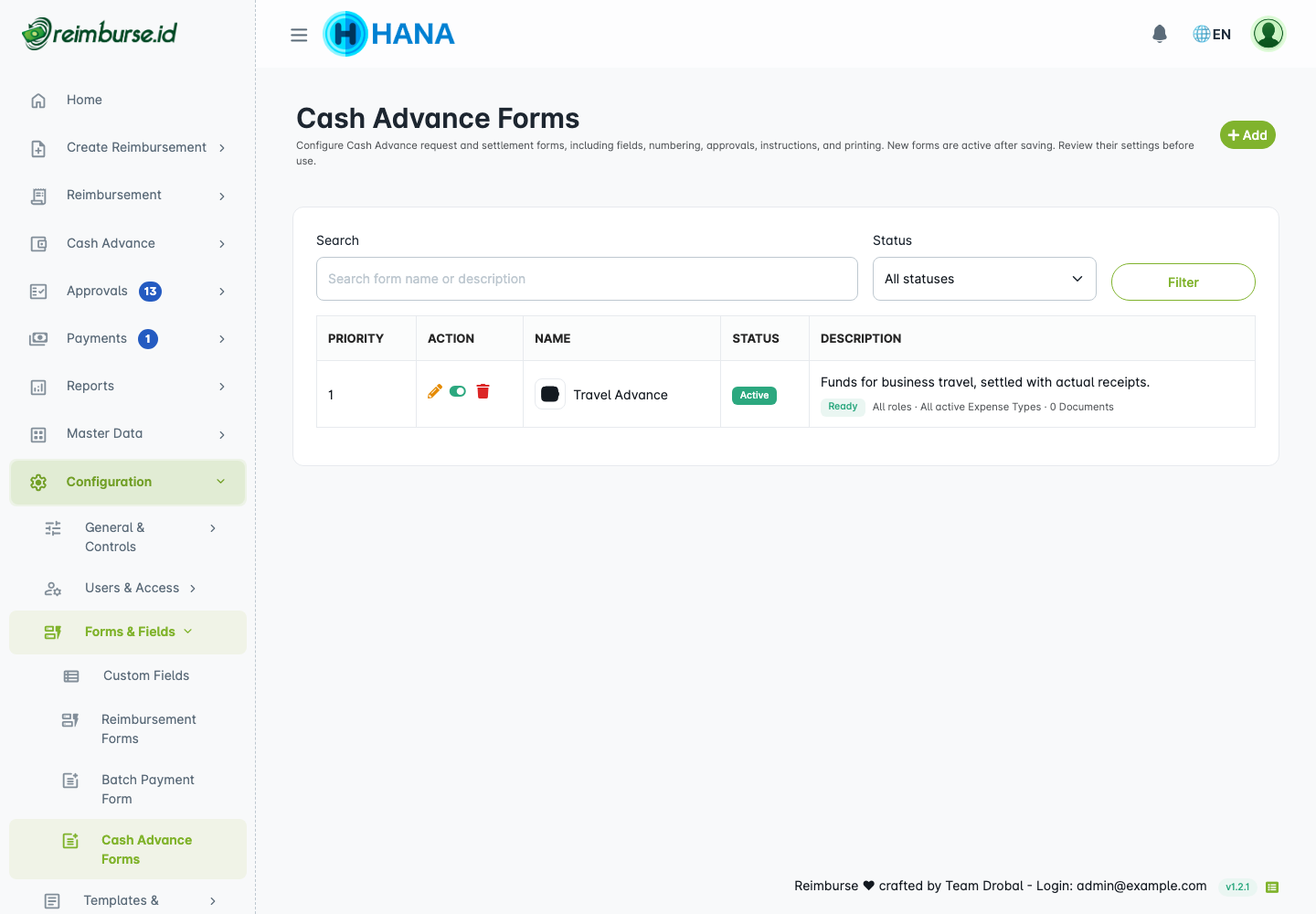
Use the move actions to change the create-menu order; successful moves are saved immediately. Use the active-status action to make a prepared form available. Users still need module/intake access and an eligible role; active status alone is not sufficient.
| Tab | Purpose |
|---|---|
| General | Form identity, numbering, required evidence, quantity/price, and settlement deadline. |
| Access & Fields | Requester roles, expense categories, and custom fields for each phase/context. |
| Request approval | Approval rules for asking for funds. |
| Settlement approval | Approval rules for reporting actual expenses. |
| Instructions | Practical guidance users can open. |
| Separate request and settlement layouts. |
The form editor saves the current section. After editing a tab, click Save before moving on; saving one section does not mean unsaved edits on every other tab are stored.
Set General Behavior And Numbering
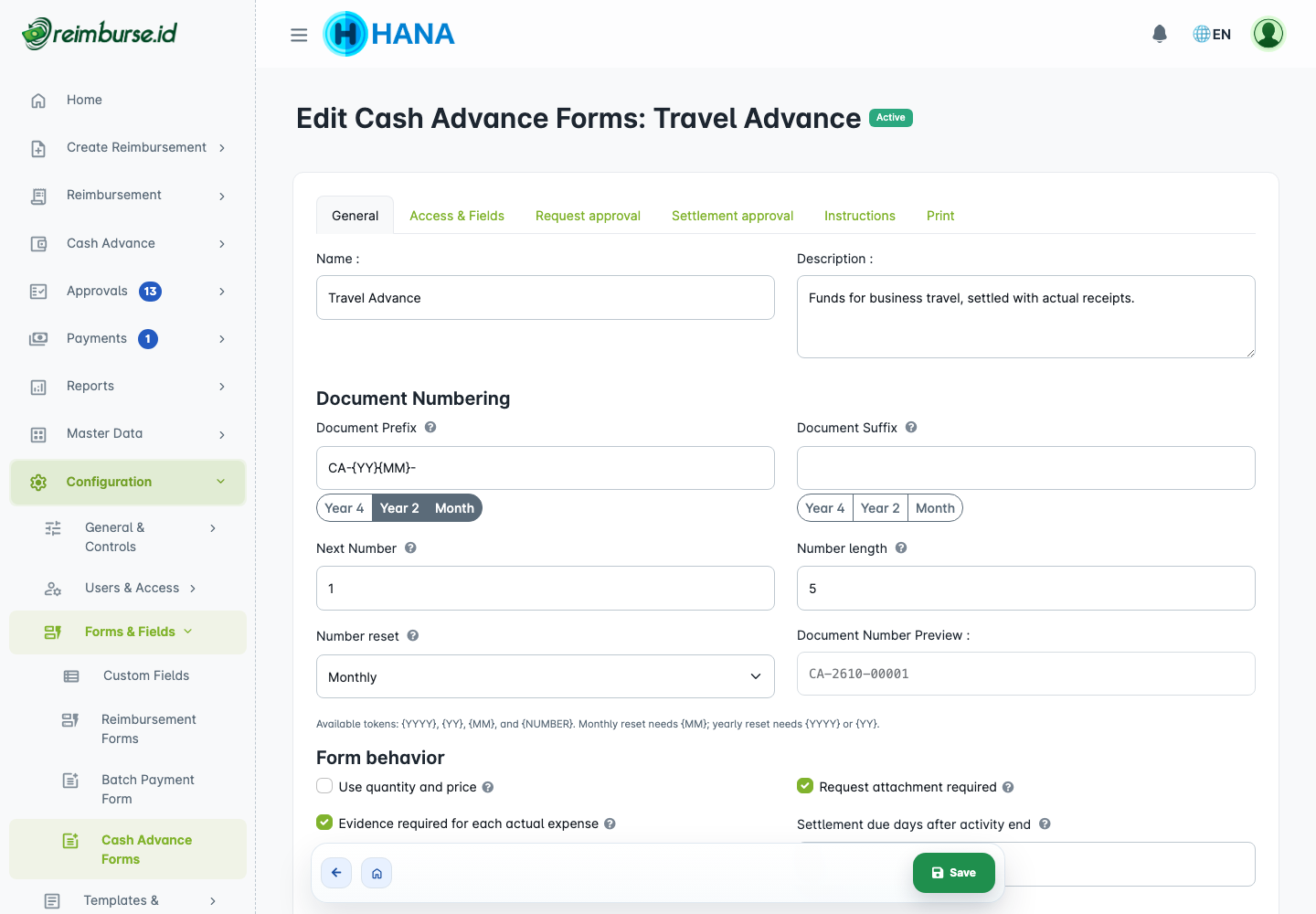
Choose a recognizable name and description. Check these controls:
| Setting | Meaning |
|---|---|
| Document prefix/suffix, next number, length, reset | Request numbering and preview. Use Cash Advance's date tokens: {YYYY}, {YY}, and {MM}. |
| Use quantity and price | Settlement expense rows use quantity × unit price. |
| Request attachment required | Supporting evidence is required before submitting a request for approval. |
| Evidence required for each actual expense | Each expense row needs evidence before submitting the settlement. |
| Settlement due days after activity end | Calendar days after the activity end date. For October 10 plus seven days, the deadline is October 17; zero makes it due on October 10. |
| Icon | A stock/uploaded identifier in the submission menu. |
Numbering uses the company timezone, not the request's activity date or device clock. Existing numbers are not rewritten when the configuration changes. The settlement deadline is for accounting for funds, not an automatic transfer date.
Choose Access, Categories, And Extra Fields
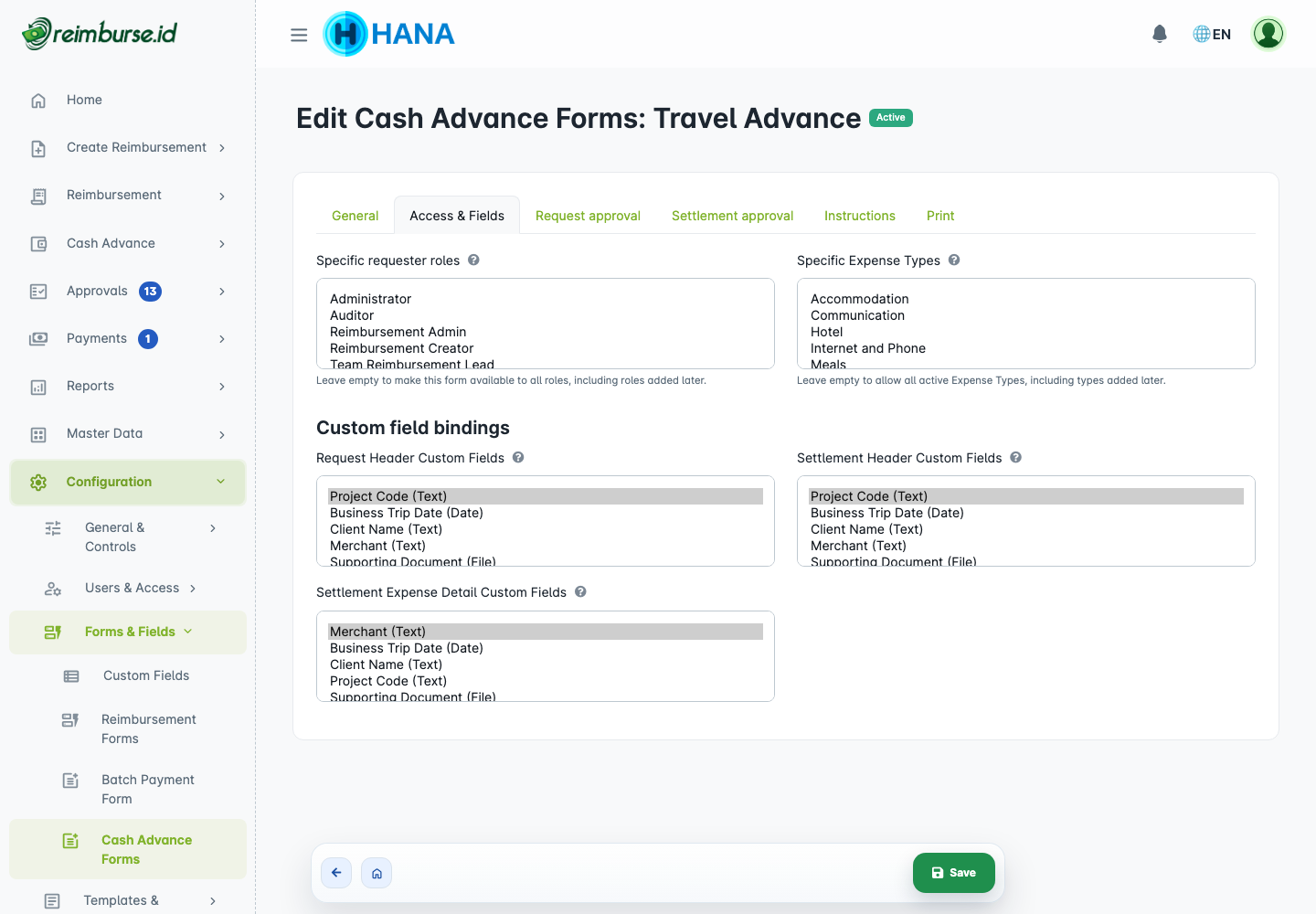
Specific requester roles limits the form to selected roles. Leave it empty to allow all roles, including roles added later; users still require their own create permission.
Specific Expense Types limits settlement expense categories. This UI label refers to the same expense-category master. Leave it empty to allow all active categories, including new ones added later. Replace or reactivate a selected category if configuration reports it inactive.
| Field Area | Filled By The User |
|---|---|
| Request Header Custom Fields | Once on the request, such as project code or activity reference. |
| Settlement Header Custom Fields | Once for the settlement, such as a completion note. |
| Settlement Expense Detail Custom Fields | On each actual expense line, such as merchant or receipt reference. |
Pick existing active fields with suitable types, required status, and Help Text. The selection order is stored separately for each area; the last selected field appears at the bottom. One field may be reused in more than one area, but its values serve those separate contexts.
Configure The Two Approval Phases
Request approval decides whether the funds may proceed to disbursement. Settlement approval reviews actual expenses after funds have been used. Configure them independently.
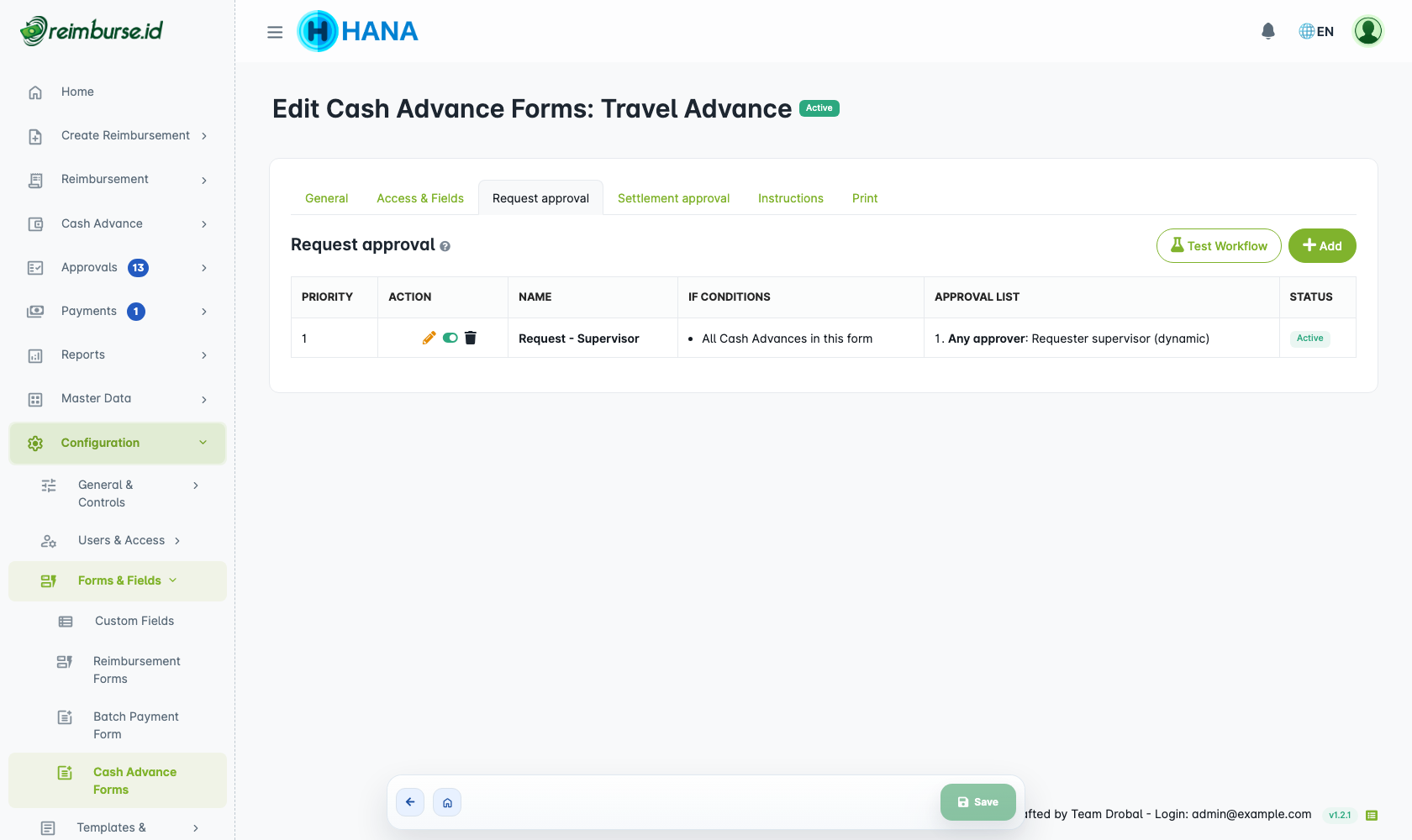
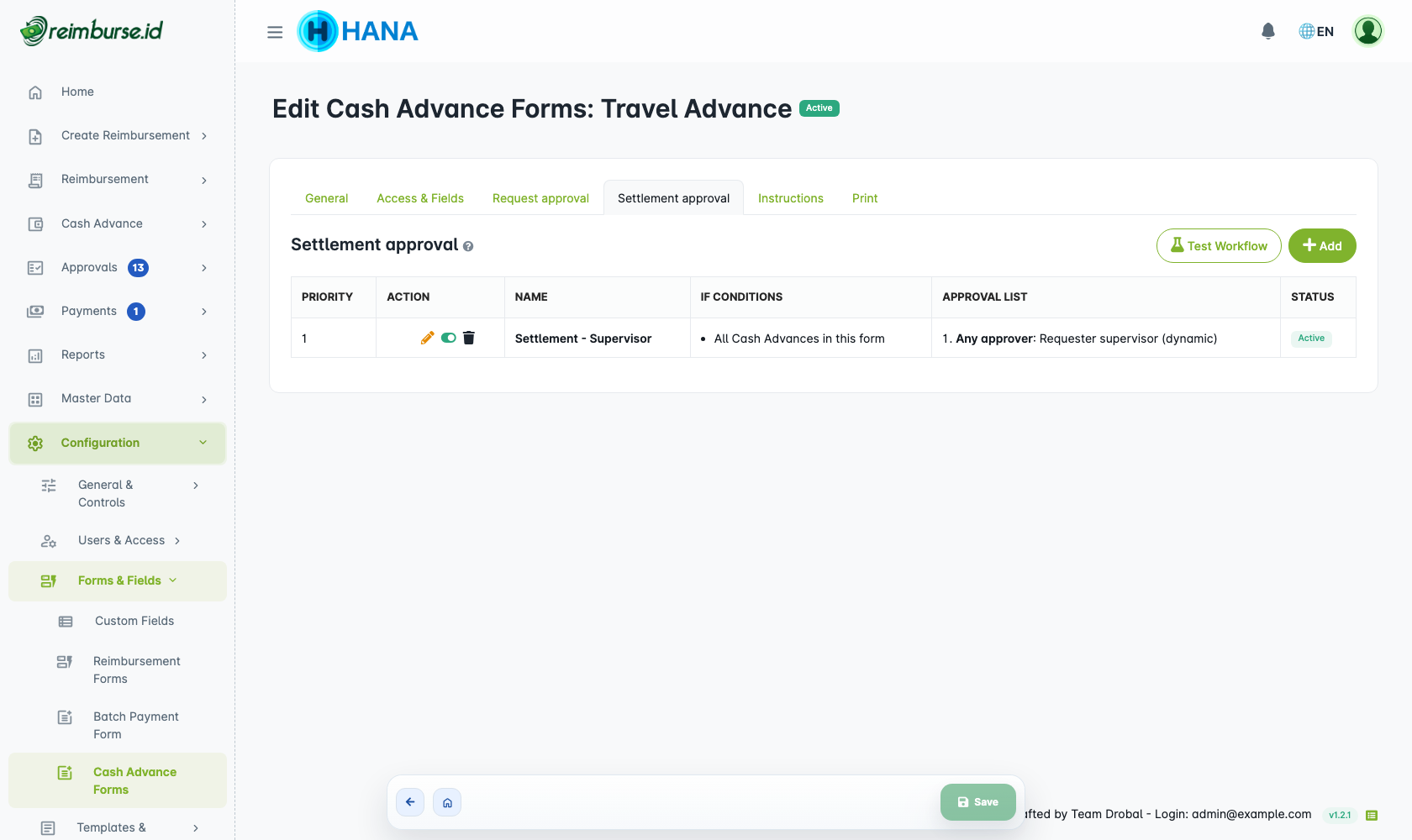
In each phase, add a named rule. Fill IF conditions and THEN stages, save it, and inspect priority/active status. All IF conditions in a rule must match. Active rules are checked by priority and only the first matching rule is selected. An empty IF covers all transactions for that form/phase. The editor allows only one saved empty-IF rule per phase, including inactive rules. To change that general route, edit the existing rule; deactivating it does not allow you to create a second one. An inactive rule is not evaluated.
| Phase | Useful Conditions |
|---|---|
| Request | Requested amount, position, description, activity dates, and request header fields. |
| Settlement | Expense amount, absolute difference, expense categories, and settlement header fields. |
Absolute difference is the size of the difference between settlement expenses and net disbursed funds. It is not the same as “amount the employee must return”: a higher or lower settlement can have the same absolute difference.
For a THEN stage, choose specific users, Requester supervisor (dynamic), or Position PIC (dynamic), and whether one (OR) or all (AND) must approve. These are the Cash Advance selector labels: the first dynamic choice uses the Supervisor resolver; the second uses the PIC Top Position resolver described in THEN Approvers. Later stages follow earlier stages. The position hierarchy and approval-access checks are shared; there is no separate PIC field on positions.
Cash Advance handles explicit self-approvers differently from Reimbursement. In both request and settlement approval, explicitly choosing the requester as an approver is a configuration error. A delegation that resolves another approver back to the requester is also rejected. Choose another eligible approver; do not expect these choices to be skipped or treated as automatic approval. Dynamic selections can still resolve with no remaining candidate, which is a different situation.
If no rule matches, that approval phase completes automatically. Request approval can therefore finish without an approver, but funds still need a separately recorded disbursement. Settlement approval can finish automatically, but return verification or additional payment may still be required. Do not treat automatic approval as automatic payment or a substitute for expense evidence.
Test Both Workflows
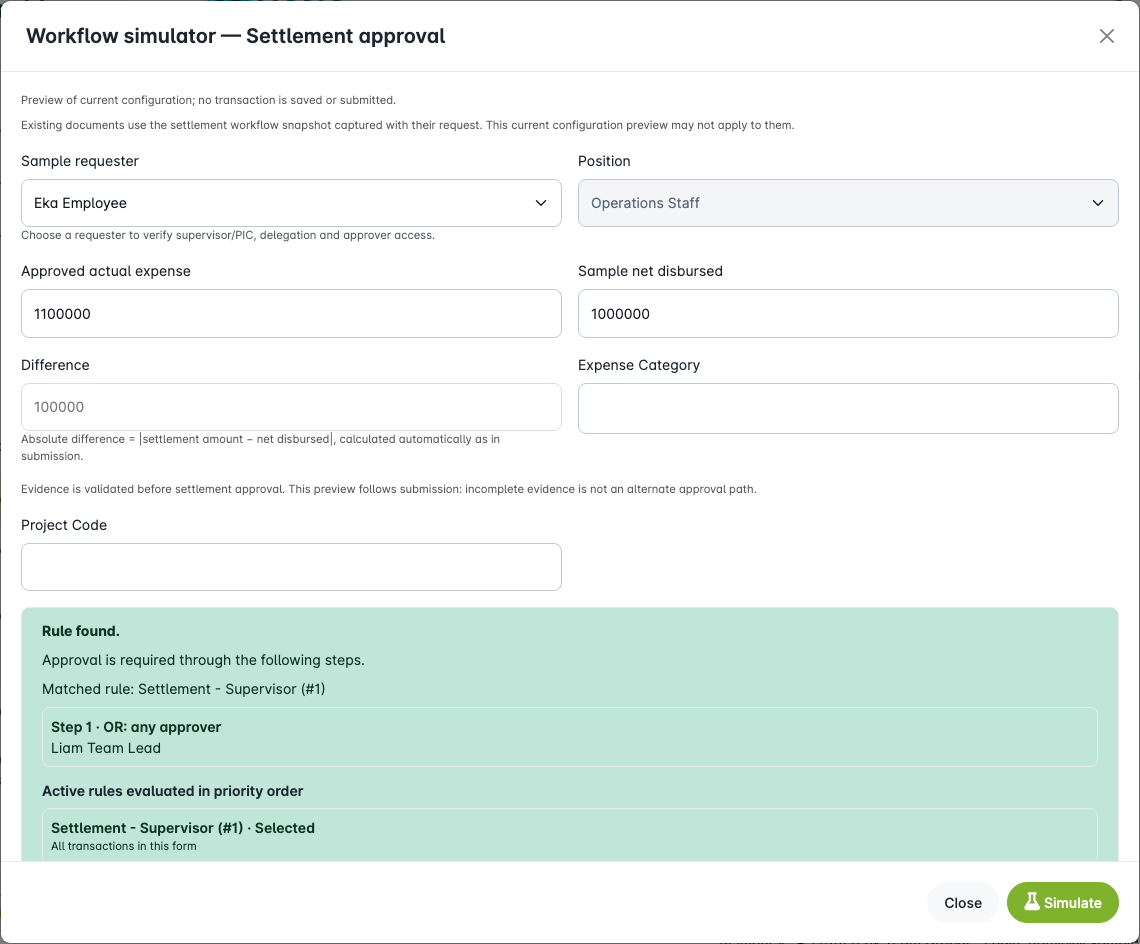
- Save the phase's rules and click Test Workflow in that phase.
- Select the intended requester.
- For a request, enter its sample requested amount and relevant values.
- For a settlement, enter sample expense amount and Sample net disbursed. The absolute difference is calculated automatically.
- Click Simulate and inspect the selected rule, conditions, stages, delegation, and permission warnings.
- Repeat for boundary values and a no-match case where your policy allows it.
Simulation does not create, submit, approve, or pay a transaction. Missing approval access can leave the assigned user Pending rather than silently replacing them. Empty dynamic stages may be skipped; review that outcome before enabling intake. Actual settlement submission still validates its evidence.
Add Instructions And Optional Print Layouts
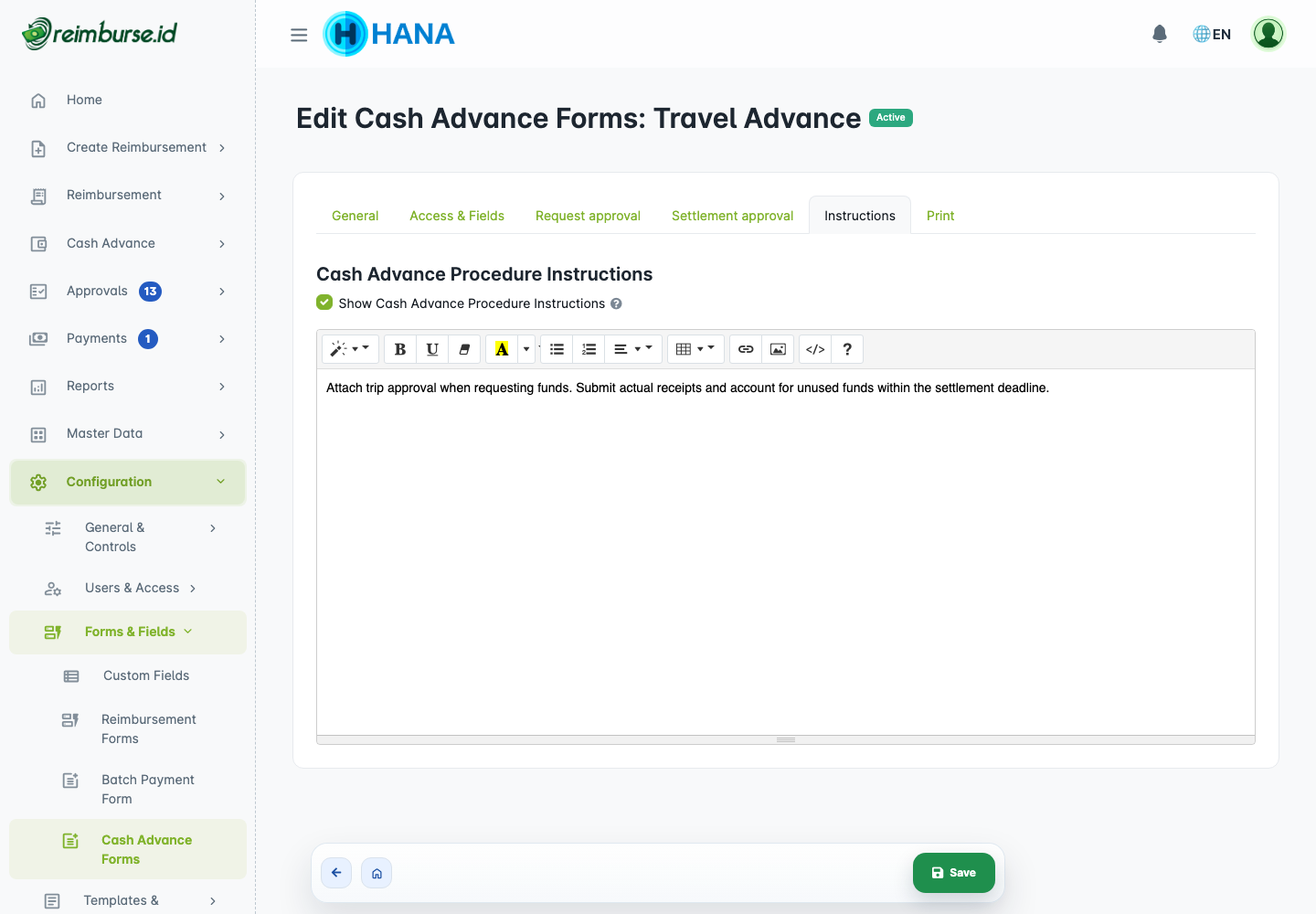
On Instructions, enable procedure guidance, write short directions, and save. For example, state which request evidence is needed and how employees should account for unused funds. Users open guidance through the document's instruction icon. Reopened pages use the latest instructions, including existing documents.
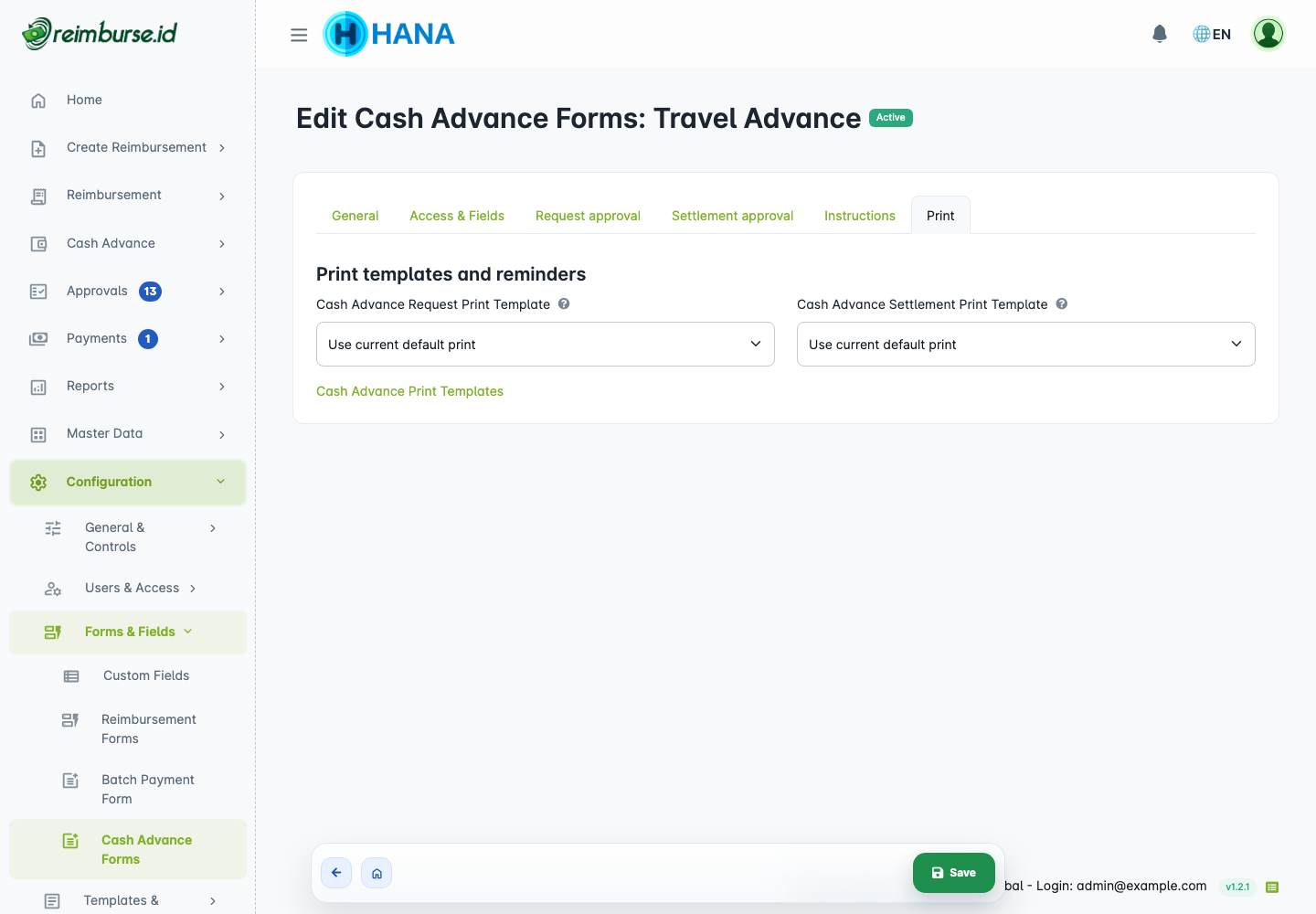
On Print, choose a compatible request template and settlement template independently, or leave them empty for the default layouts. Manage the appropriate Cash Advance print templates through Configuration → Templates & Exports → Cash Advance Print Templates. Custom print layouts are optional; they do not determine approval access.
Understand What Changes Affect Existing Documents
Saving a draft does not freeze the form configuration. Draft editing and submission use the current form, so changes made by the administrator can affect a draft that has not yet been submitted.
When the request is submitted, Reimburse.id captures a configuration snapshot, including relevant behavior, field bindings, workflow rules, and print-template information. Submitting a corrected request again after rejection refreshes that snapshot from the current form and rebuilds its request approval route. Review the current requirements before submitting or resubmitting.
After request approval, settlement uses the snapshot captured at the request's latest submission. Later form edits do not replace that settlement configuration merely because the administrator saves the form. The simulator previews today's form, so its settlement result may differ from that of an already-approved request.
Instructions are an important exception: their latest content is shown when pages are reopened. Live permissions, account status, and delegation also require review; a snapshot is not a permanent grant of access.
Final Readiness Checklist
- At least one form is active and its configuration checks are clear.
- Requester roles and active expense categories are available.
- Required fields/evidence and deadlines match company policy.
- Request and settlement rules were separately simulated, including no-match and boundary behavior.
- Every selected approver has the appropriate phase's approval access.
- The fund-management team has the required actions and knows transfers occur externally.
- Enable the module in Settings, save, then allow new requests when the company is ready.
The requester can then choose an eligible form in the submission menu. Follow the company's agreed process for recording disbursements, submitting settlements, and resolving any remaining balance.
Common Problems
| Problem | What To Check |
|---|---|
| Form absent from the submission menu | Module, acceptance, form active status, requester role, and create access. |
| Module cannot be enabled | Read the incomplete-configuration reasons for active forms. |
| Module cannot be disabled | Unresolved documents may remain; pause new intake instead when appropriate. |
| A selected approver cannot act | Correct phase access, active account, delegation, and hierarchy. |
| An older settlement routes differently from preview | It can use the original request's configuration snapshot. |
| Automatic approval did not disburse funds | Approval and recording external disbursement are separate actions. |