
Cash Advance User Guide
A Cash Advance provides company funds before you incur business expenses. After the activity, you report the actual expenses and account for any difference. If you already paid with your own funds and only need reimbursement, use Reimbursement User Guide.
This chapter is for the requester. The company must enable Cash Advance and give your role the necessary access. Fund transfers happen through the company's bank or payment channel; Reimburse.id manages the request, settlement, evidence, and records.
Request Your First Cash Advance
- Open Cash Advance > Create Cash Advance and choose an available form.
- Read the instructions beside the form name when shown.
- Enter the activity dates and business purpose.
- Add estimated expenses and any required request attachments or custom fields.
- Check the requested total. Save a draft to finish later, or submit the request.
- Track the document under My Cash Advances.
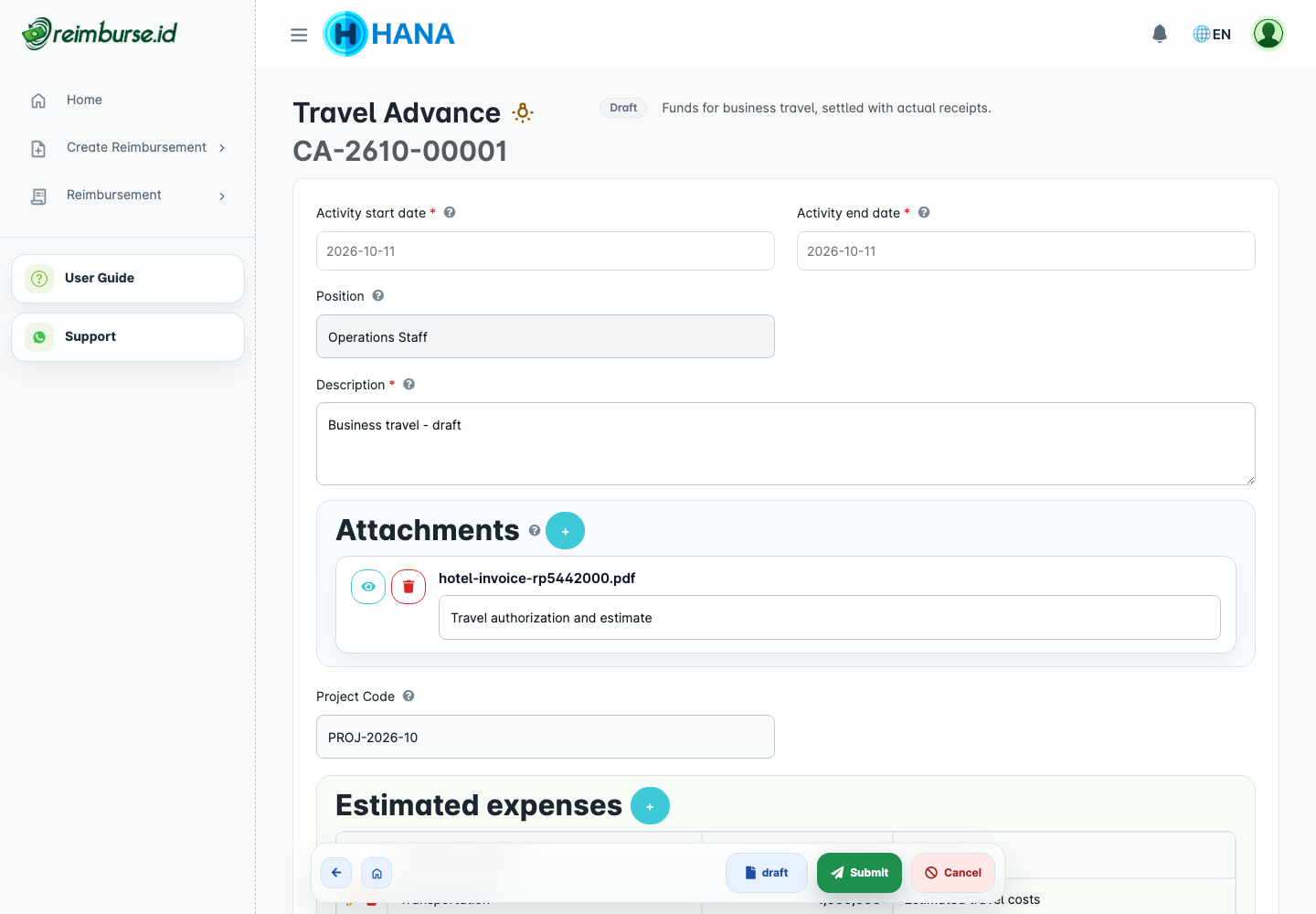
A saved draft already has a document number, but it has not started approval. Required request attachments are checked when submitting. A form can be unavailable because the module or new requests are paused, the form is inactive, or your role lacks access; ask your administrator rather than using a different company.
Fill The Request Information
| Field / Area | What To Enter |
|---|---|
| Activity start date / Activity end date | The period of the business activity. The end must not be before the start. |
| Position | Your company position; the request follows your position. |
| Description | Why the company funds are needed. |
| Estimated expenses | Expense Category, amount, and purpose for each estimate; quantity and price if enabled. |
| Attachments | Supporting information required for the request. |
| Custom Fields | Additional information requested by the form. |
Estimates are planned costs, not actual receipts. Enter realistic amounts and use the field help icons when you need guidance. Company date, precision, and period controls still apply.
Submit And Track Approval
After submitting, open the document to check Request status, Funding status, and Settlement status. These describe different parts of the process.
Depending on your company's approval rules, a submitted request may be approved directly without waiting for a reviewer. This completes request approval only; the company still needs to process and record the disbursement separately.
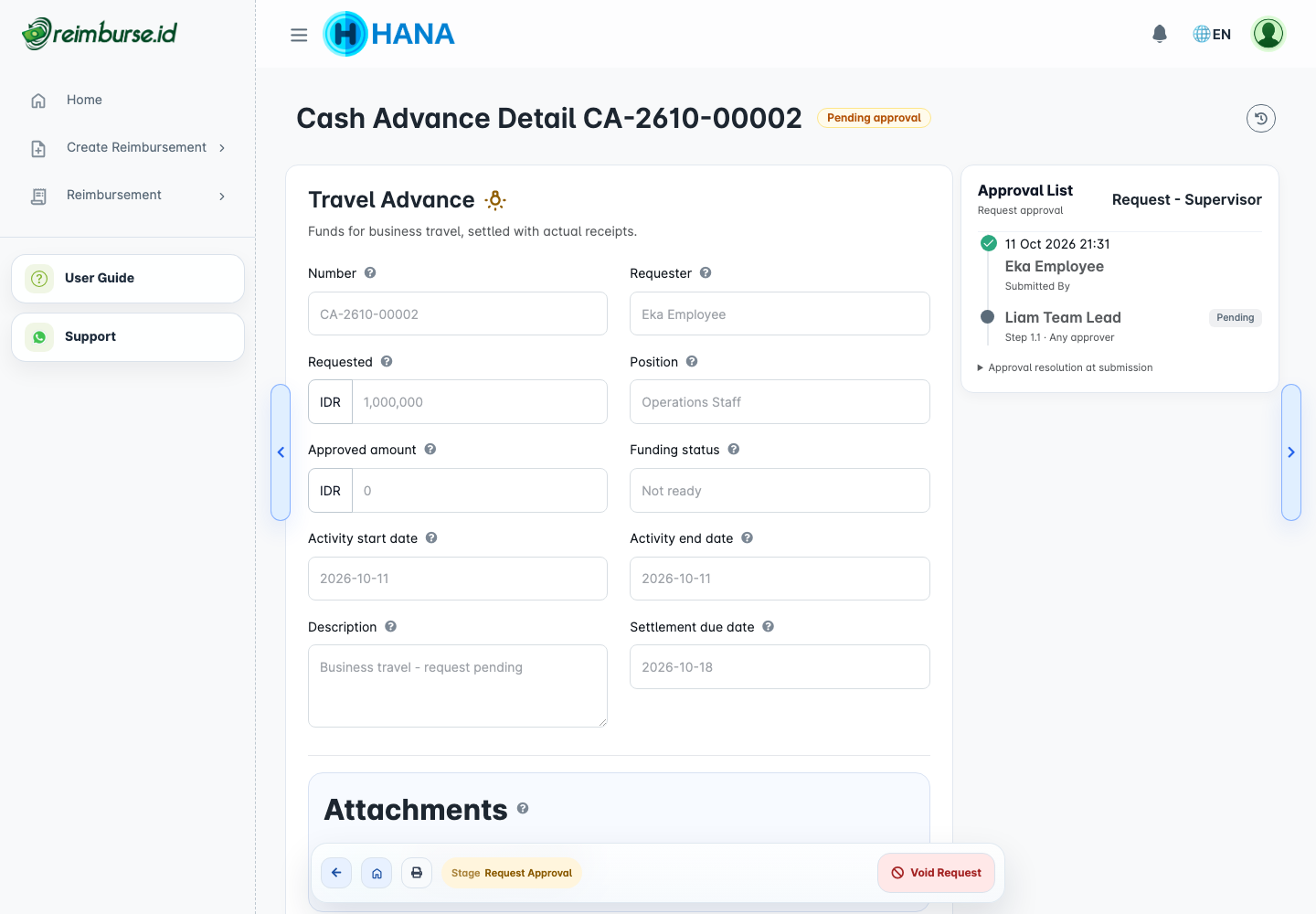
| Stage | Meaning |
|---|---|
| Draft | You can finish the request without starting approval. |
| Pending approval | The current assigned reviewer must decide. |
| Approved / ready to disburse | Request approval is complete; the company still needs to process and record the disbursement. |
| Rejected / revision required | Read the rejection reason, edit, and resubmit the request. |
| Void | The request was cancelled. |
Do not submit another request to replace one that is merely waiting for approval. Decisions are explained in Approval Guide.
Receive The Funds And Check The Deadline
Approval alone does not transfer funds. The fund-management team processes the transfer externally and records the disbursement. Check the recipient account with your company if it is wrong or incomplete.
When funding is Disbursed, you can start settlement. Note the Settlement due date: it is calculated from the activity end date and the form's configured number of calendar days. Follow the deadline shown on your document, not a different form's current settings.
The form's relevant configuration is captured when the request is submitted; resubmitting a rejected request refreshes that snapshot. Later form changes do not simply rewrite an already approved request's settlement requirements. Instructions and field guidance can still be updated by the administrator.
Record Actual Expenses
- Open your disbursed request under My Cash Advances.
- Choose Start Settlement.
- Complete the settlement header fields.
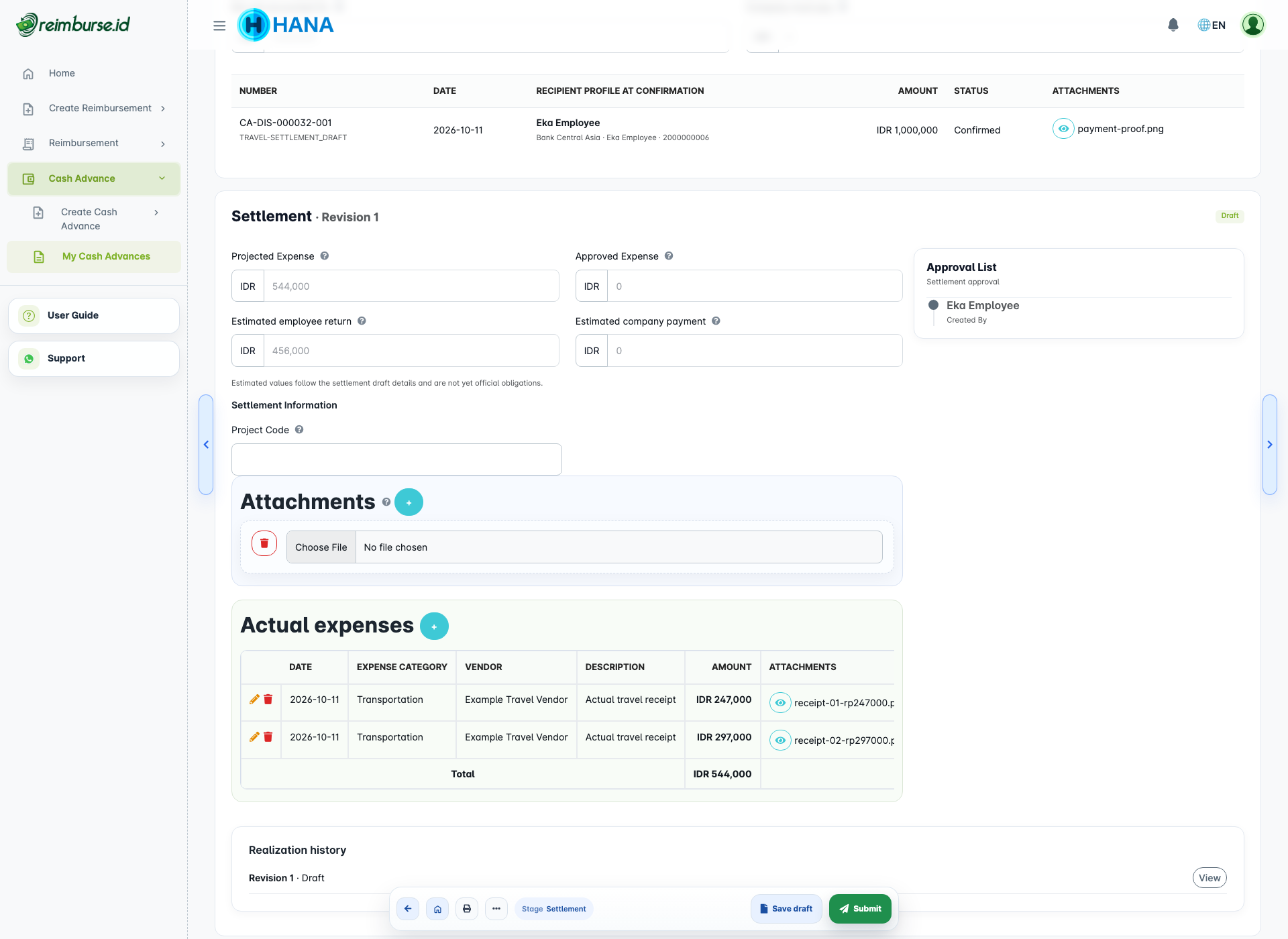
- Use the add-expense control to record each actual expense.
- Add receipts and any required detail fields for each expense.
- Save the settlement draft while collecting evidence; submit only when complete.
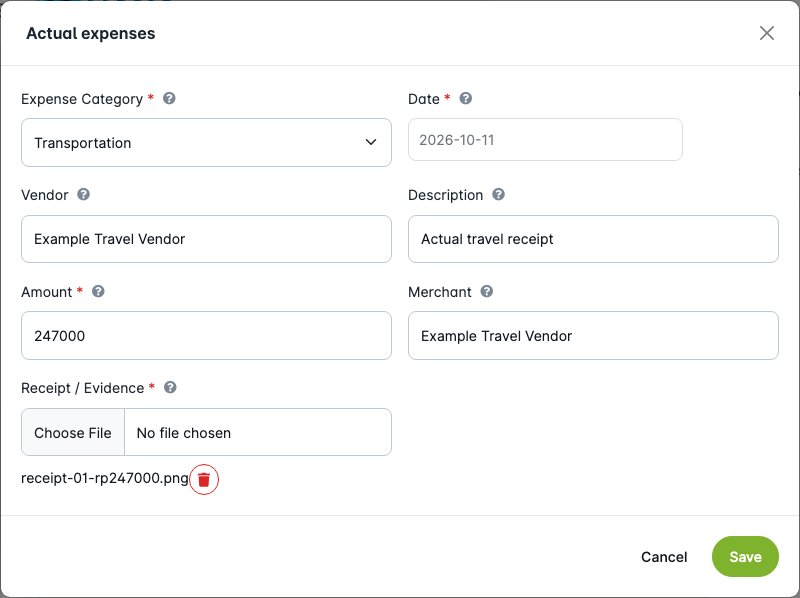
| Expense Field | What To Enter |
|---|---|
| Expense Category | The category available for this submitted form. |
| Date | When the expense occurred. |
| Vendor | The merchant or service provider. |
| Description | The business purpose of this expense. |
| Amount / Quantity and Price | The actual supported cost, not the original estimate. |
| Receipt and additional fields | Readable evidence and information required for this expense. |
For example, receipts of Rp247,000 and Rp297,000 give actual expenses of Rp544,000. A receipt belongs to the actual expense; a general settlement attachment does not replace per-expense evidence required by the form.
Submit Settlement And Read The Result
Review the expense total and evidence, then choose Submit Settlement. The settlement has its own approval process; request approval does not automatically approve actual expenses.
Settlement approval follows its own rules and may also complete directly without waiting for a reviewer. Required expense evidence still applies. Check the resulting status and balances: an employee return or additional company payment may still be needed.
While the settlement is draft, rejected, or pending approval, Projected Expense and estimated return/payment figures help you review it. They are not yet official obligations. After approval, Approved Expense, Employee must return, and Company must pay identify the confirmed outcome.
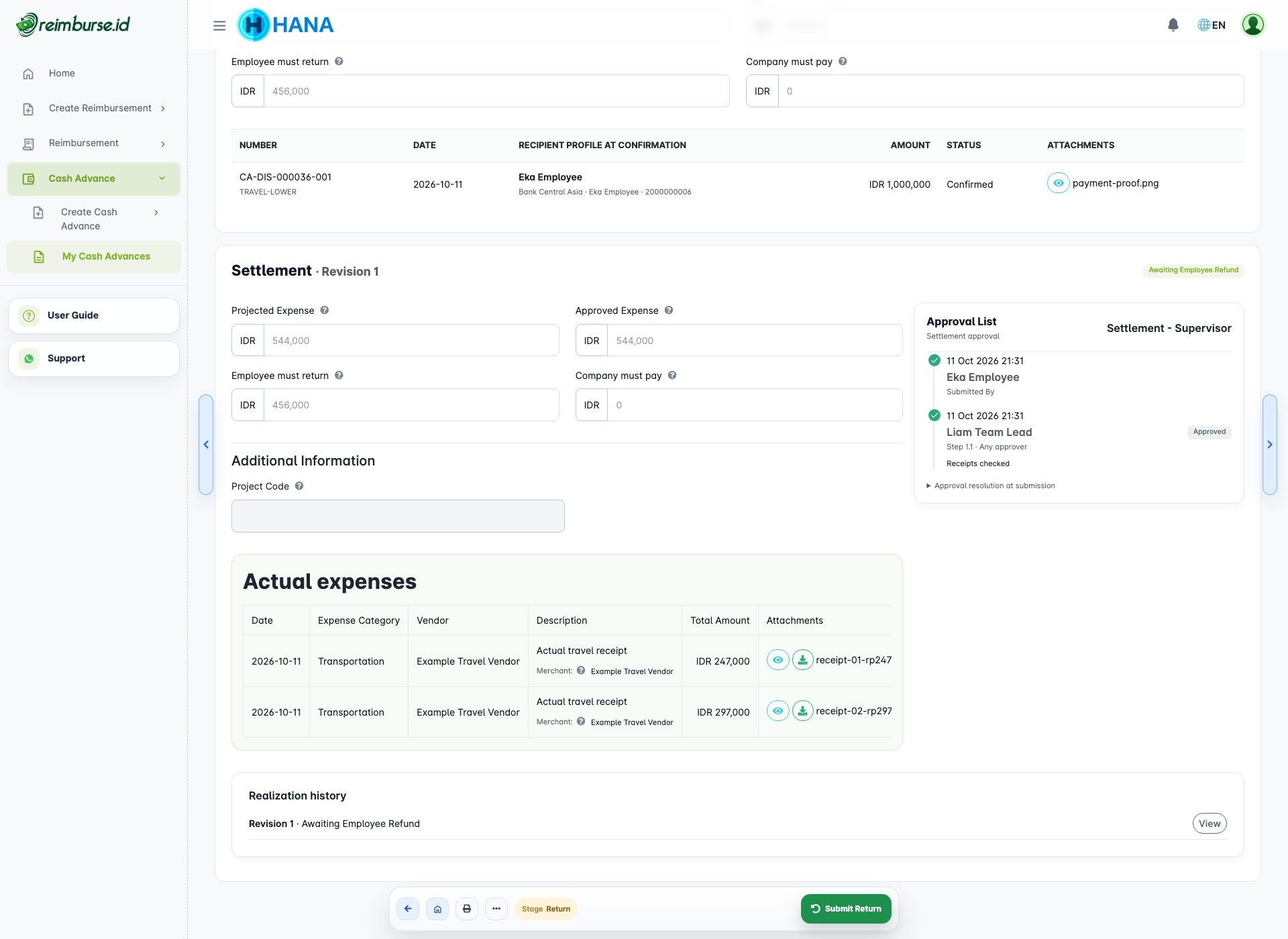
| Result | Example | Next Step |
|---|---|---|
| Expenses equal net disbursement | Rp544,000 disbursed and Rp544,000 approved expenses. | No difference remains; the settlement can become Settled. |
| Expenses below net disbursement | Rp1,000,000 disbursed and Rp544,000 approved expenses. | Return Rp456,000 through the company's agreed channel and submit proof. |
| Expenses above net disbursement | Rp1,000,000 disbursed and Rp1,100,000 approved expenses. | The company processes and records the Rp100,000 additional payment. |
These examples assume no prior returns, additional payments, or reversals. Always use the balances shown on the actual document.
Return Unused Funds
When the approved settlement is Awaiting Employee Refund:
- Arrange the return through the company's agreed bank or payment channel.
- Open the request and choose Submit Return.
- Enter the amount, effective date, and reference number if available.
- Upload proof and submit the return record.
- Wait for the fund-management team to verify it.
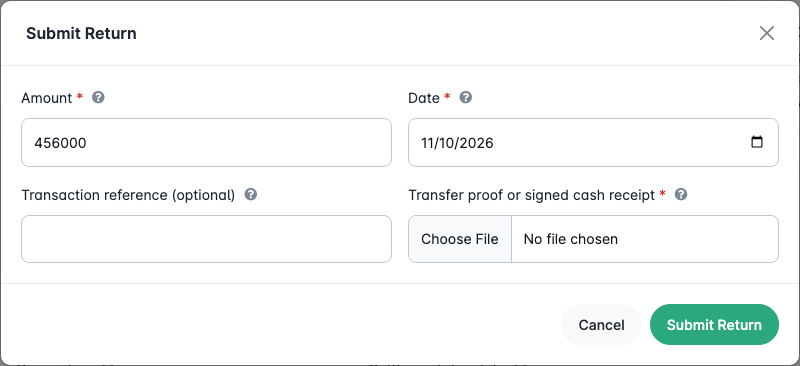
Submitting proof creates a pending return record; it does not yet reduce the official outstanding balance. Confirmation by the authorized team does. A partial confirmed return leaves the remaining amount due. If a pending record is wrong, use the available withdrawal/void action with a reason and submit the correct evidence; do not duplicate a pending return.
The team's verification and additional-payment steps are in Cash Advance Fund Management.
Correct A Rejected Or Voided Settlement
For Rejected, read the reason, edit the active settlement, correct the expenses or evidence, and resubmit it. A rejection is not the same as creating a new revision.
A Void Settlement action is a separate cancellation, requiring access and a reason. Once the settlement is void and funding remains disbursed, Start Settlement creates a new revision. Previous revisions remain in history and are not edited as if they were the active one.
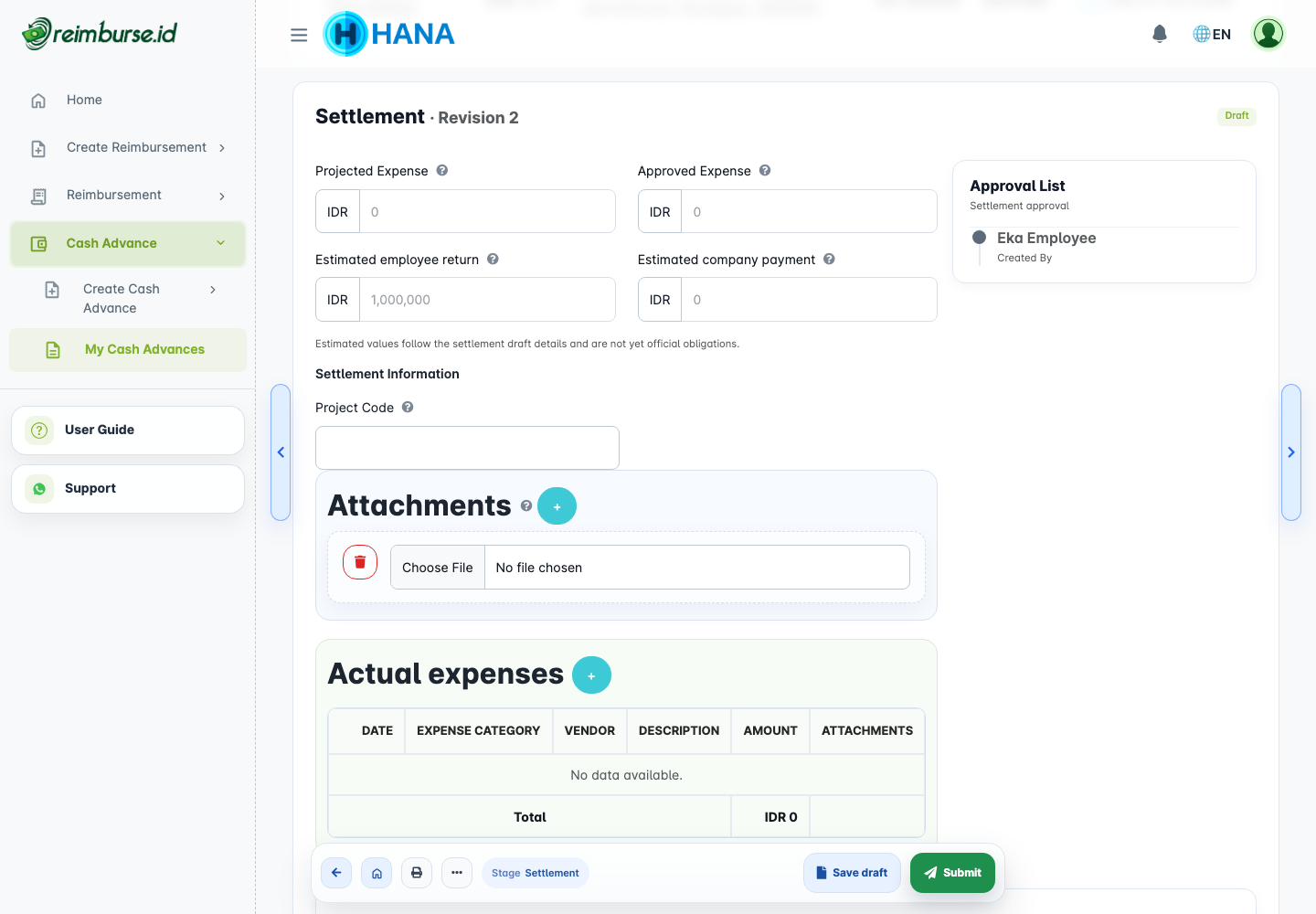
The application may block cancellation while returns, additional payments, or other active references remain. Do not use cancellation as a shortcut to remove a completed financial record.
Print And View History
Use the print control on the detail page to choose Print request or Print settlement when available. Settlement print is available after a settlement exists. The company can configure separate layouts for each document; printing does not change status or transfer funds.
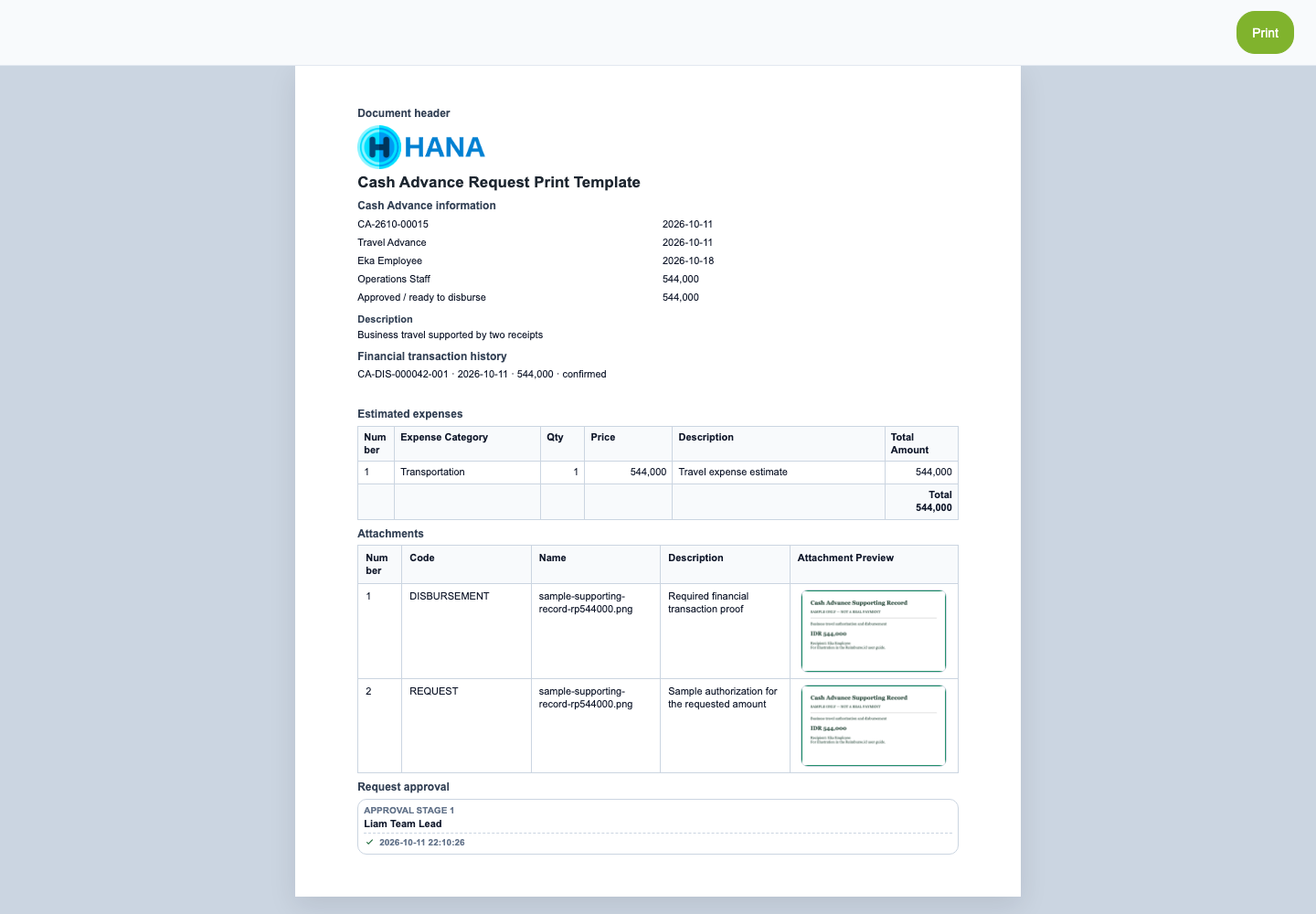
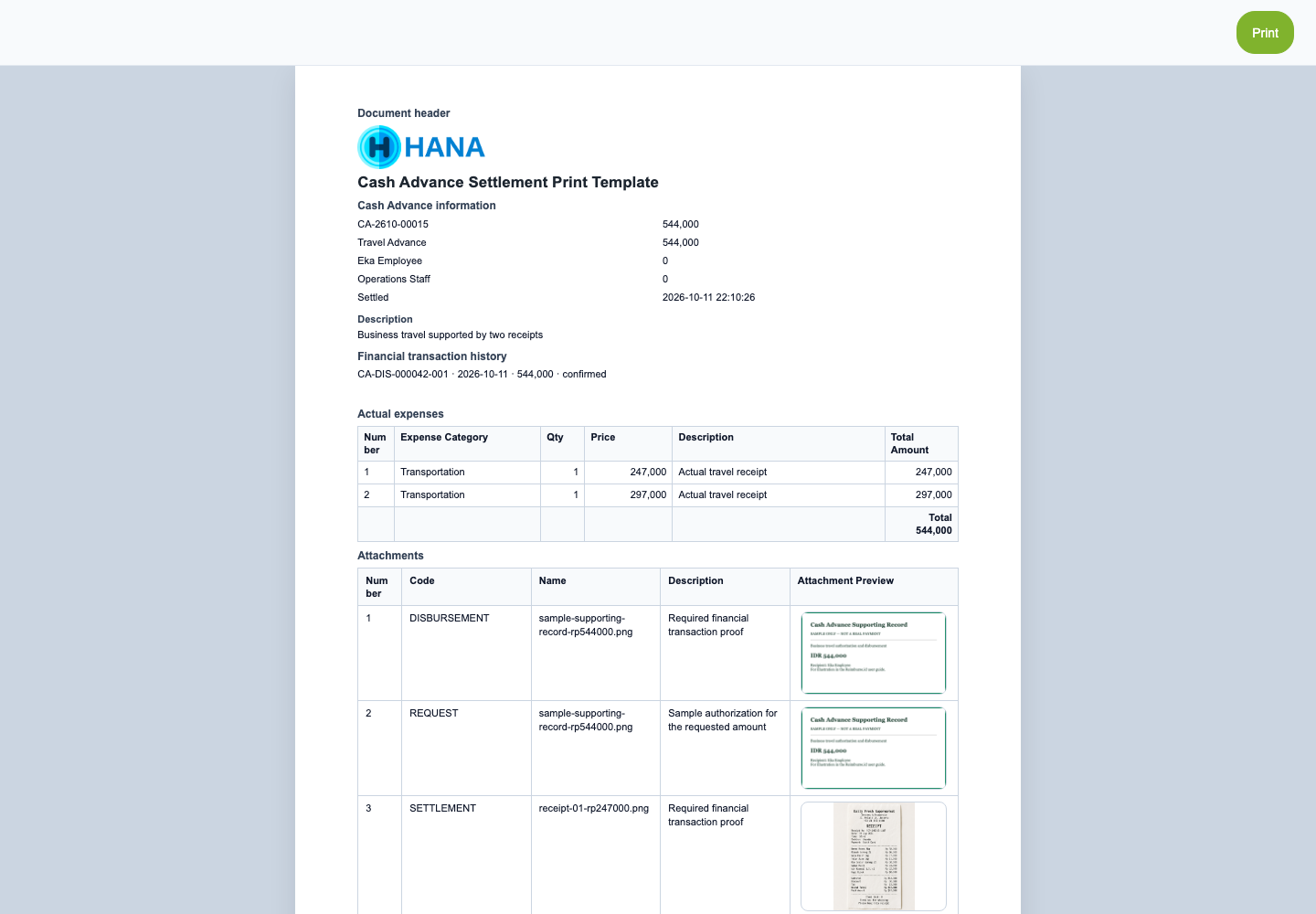
Check the document's activity/history action for submissions, decisions, and financial actions. Use settlement history to inspect earlier revisions.
Cancel A Request Safely
Void Request requires the appropriate own/team/company access and a reason. An active settlement or financial transaction with remaining effect can block it. Cancellation does not reverse an external transfer. Ask the responsible team to resolve references in the appropriate order before attempting cancellation.
Common Problems
| Problem | What To Do |
|---|---|
| Create Cash Advance is unavailable | Ask the administrator to check the module, new-request setting, active forms, and role access. |
| The request is approved but settlement cannot start | Check whether the company has recorded the disbursement. |
| A required receipt is missing | Attach evidence to the actual expense that needs it. |
| A return was submitted but the balance is unchanged | Check whether it is still awaiting verification. |
| Save says the document changed | Refresh, review the latest data, and retry only the action still needed. |
| A revision or cancellation is blocked | Read the active-reference message and contact the authorized team. |
Next: track your own documents here; use Approval Guide for approval duties or Cash Advance Fund Management for fund administration.