
Cash Advance Fund Management
Use this chapter if your company assigns you to record Cash Advance disbursements, verify employee returns, or record additional payments. This may be a payment, HR, operations, or accounting task; the role's specific access determines what you can do.
Cash Advance is not paid through reimbursement Payment Batches. The company transfers or receives funds through its bank or payment channel outside Reimburse.id. The application keeps the administrative records, evidence, recipient snapshots, and balances.
The requester uses Cash Advance User Guide; approval decisions belong in Approval Guide.
Request and settlement approval follow separate company rules. Either phase may complete directly without a reviewer; check the document's current status before acting. Automatic approval does not transfer funds or confirm an employee return.
Open Cash Advance To Process
Open Payments > Cash Advance to Process. The queue shows current fund-management tasks your access allows, such as disbursement, return verification, or additional payment. It is a work queue, not the full history of all requests.
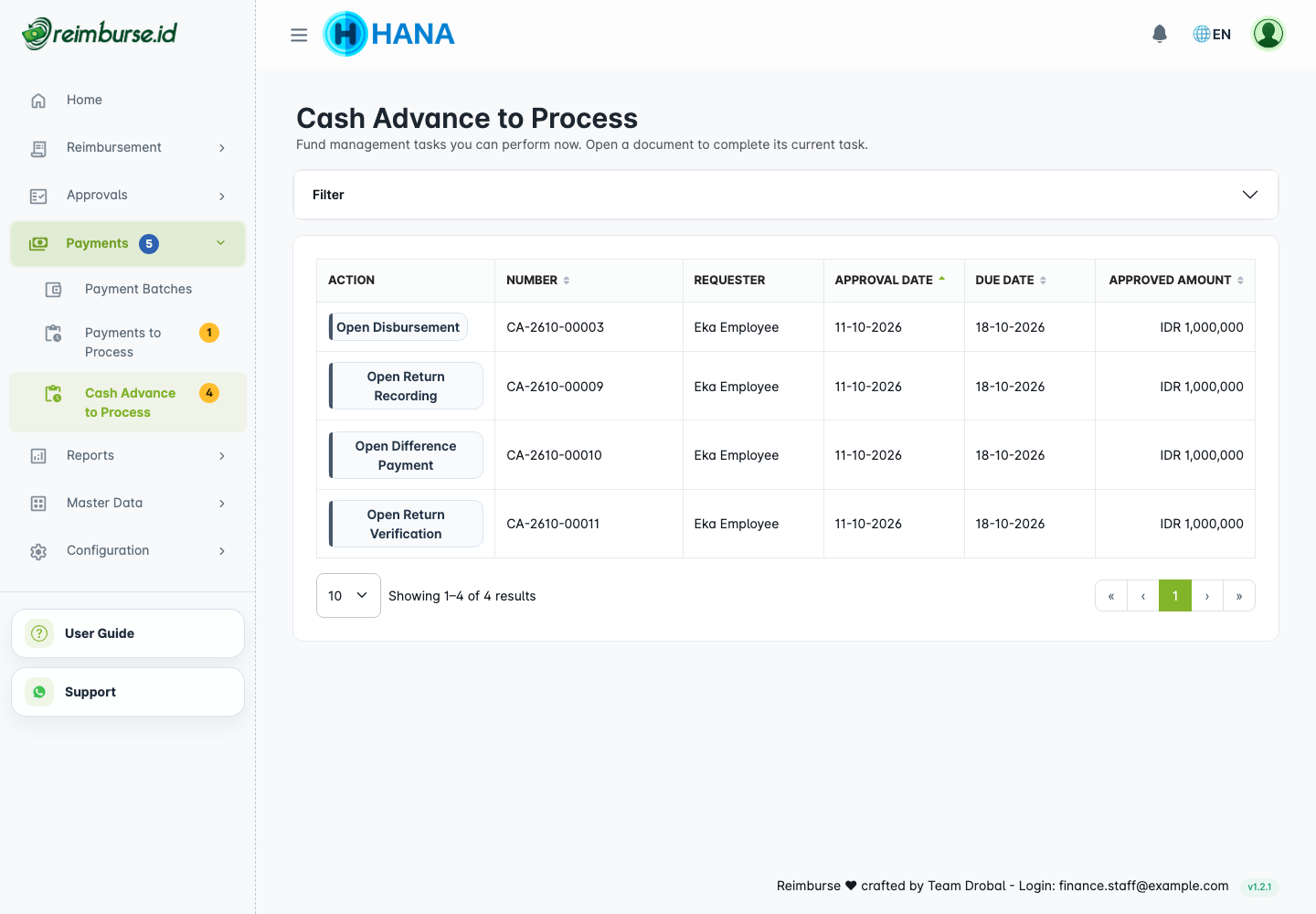
Use the filters to find a document and its task, then open the row action. A request still awaiting approval is not ready to disburse. Completed tasks can leave the queue; find the document through an accessible Cash Advance list or report when reviewing history.
Access to the queue does not grant every financial action. Disbursement, return verification, additional payment, and their reversal capabilities are separately controlled.
Record A Disbursement
- Open an approved request ready for disbursement.
- Check the requester, approved amount, currency, and current recipient bank profile.
- Process the funds through the company's agreed payment channel.
- Choose Disburse on the document to record that completed transaction.
- Enter the effective Date, optional transaction reference, and required Transfer proof or signed cash receipt.
- Confirm and inspect the recorded transaction and Funding status.
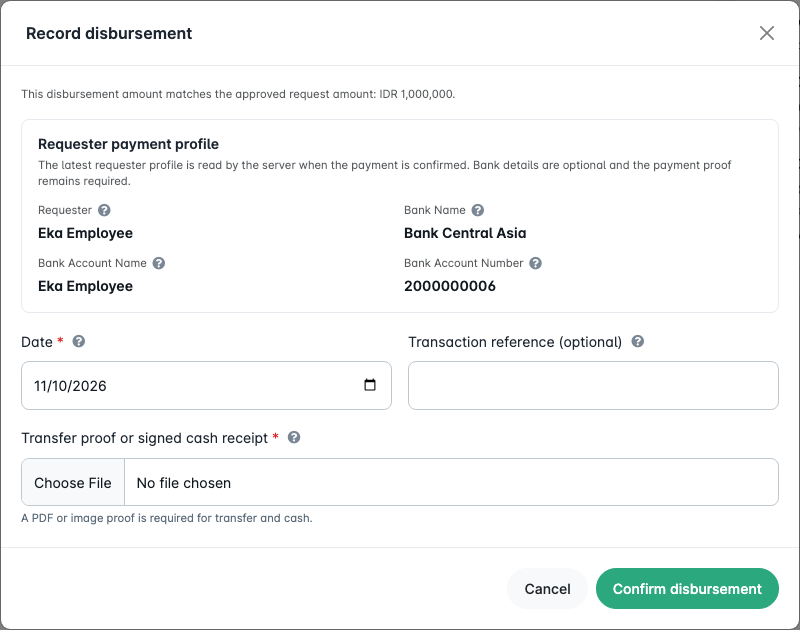
The initial disbursement must equal the approved request amount. The application retains the requester's bank-profile snapshot in that transaction. Correct an incomplete or wrong profile before the external transfer and recording; a later profile change does not silently rewrite an earlier recorded recipient.
The action records funds; it does not instruct Reimburse.id to send them. A recorded disbursement lets the requester start settlement. A replacement Disburse Again is available only after the previous disbursement's effect is fully reversed and the document remains eligible.
Understand Official And Projected Balances
| Figure | How To Read It |
|---|---|
| Net disbursed | Confirmed disbursements less confirmed disbursement reversals. |
| Projected Expense | Current settlement expenses while being prepared or reviewed; not yet an official approved expense. |
| Approved Expense | Expenses in the approved active settlement. |
| Employee must return | Remaining confirmed employee obligation after approved expenses and confirmed returns. |
| Company must pay | Remaining approved difference after net disbursement and confirmed additional payments. |
A draft, rejected, or pending settlement can show estimated return/payment figures. Use them for preparation, not as final collection/payment instructions. A submitted employee return remains pending until verification and is not yet deducted from the official balance.
Resolve The Three Settlement Outcomes
| Approved Result | Required Follow-up |
|---|---|
| Actual expenses equal net disbursement | Check that the settlement is Settled and no difference remains. |
| Actual expenses are lower | Verify the employee's returned funds and proof, or record a confirmed return with authorized access. |
| Actual expenses are higher | Pay the approved difference externally, then record it with proof. |
For example, Rp1,000,000 disbursed and Rp544,000 approved expenses leave Rp456,000 to return. Rp1,100,000 approved expenses against the same disbursement leave Rp100,000 for the company to pay. Prior confirmed transactions and reversals also affect the balances; use the current document, not these examples, for the final amount.
Verify An Employee Return
The requester returns funds externally and uses Submit Return with evidence. When the record is pending:
- Open the task from Cash Advance to Process or the document.
- Compare amount, date, reference, and proof with the funds actually received.
- Use the available Verify action for the pending return and confirm it.
- Check the confirmed record and remaining balance.
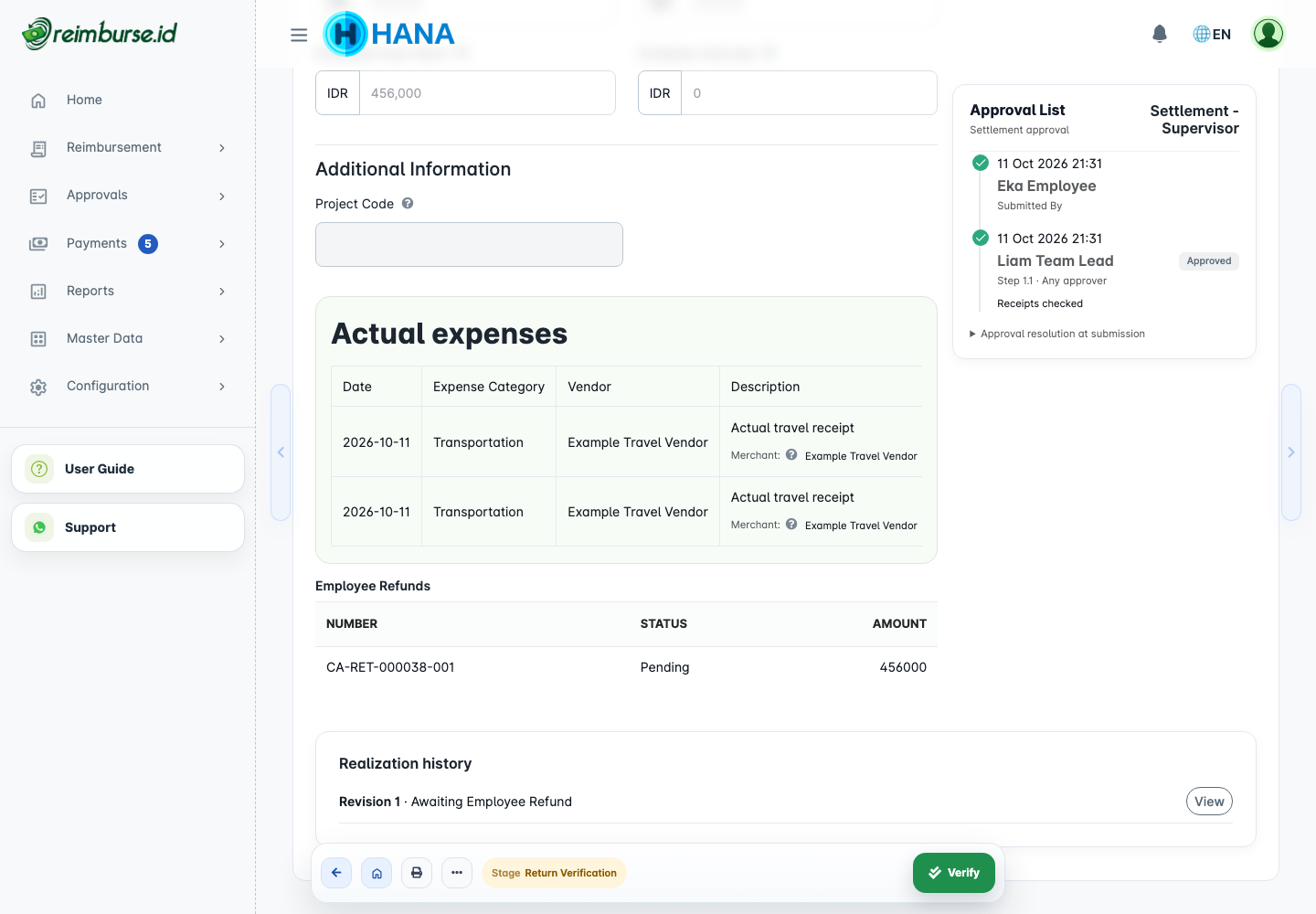
Verification reduces the official employee balance. A partial verified return leaves the rest due. Do not verify unreadable or incorrect evidence; use the available Void Return action with a reason to reject the pending record, then request corrected evidence. That void cancels the administrative proposal, not a bank receipt.
With return-verification access, a non-requester can use Record Return to record and confirm a return already received. Resolve any existing pending return first. The requester still uses the pending submission route even if they hold broader financial access; do not use two records for one external return.
Record An Additional Payment
When the settlement is Awaiting Additional Payment:
- Check the approved expense and Company must pay balance.
- Review the current recipient profile and process the payment externally.
- Choose Pay Difference.
- Enter the actual amount, effective date, optional reference, and required proof.
- Confirm and check the new balance/status.
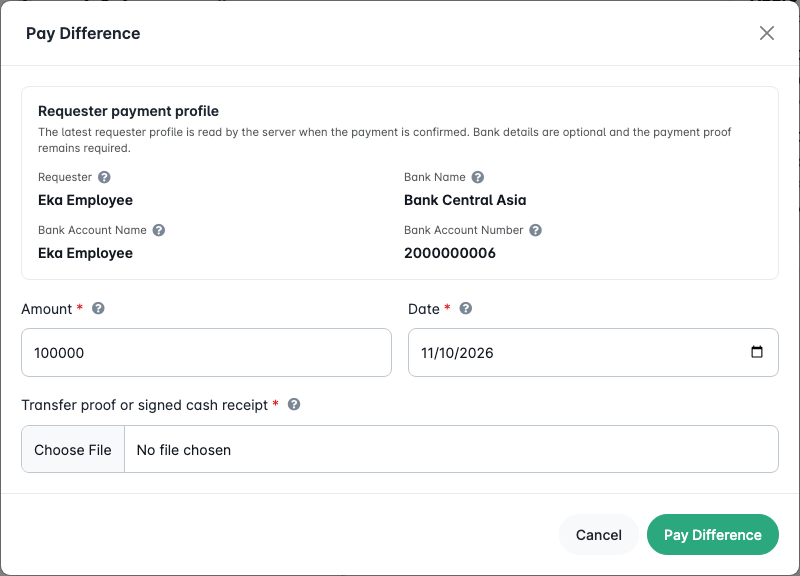
The amount must not exceed the outstanding company balance. A partial payment leaves the remaining amount due; a fully resolved balance can become Settled. Recording a payment is not a second transfer.
Check Completion And History
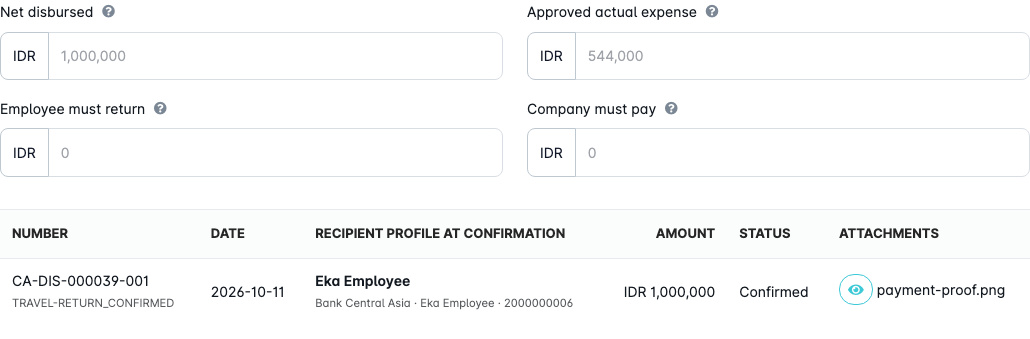
Check the active settlement status and both outstanding balances, plus disbursement, return, and additional-payment records. Use the document's activity/history action and earlier settlement revisions to understand corrections. Printing or exporting is not a financial action; Reports And Audit covers wider reporting.
Correct A Financial Record With Reversal
A reversal records a correction to a confirmed financial transaction without deleting its history. It does not reverse a bank transfer automatically.
Open More and choose the eligible Reverse Disbursement, Reverse Return, or Reverse Additional Payment action. Enter a positive amount within the remaining reversible effect, an effective date, a reason, and required evidence.
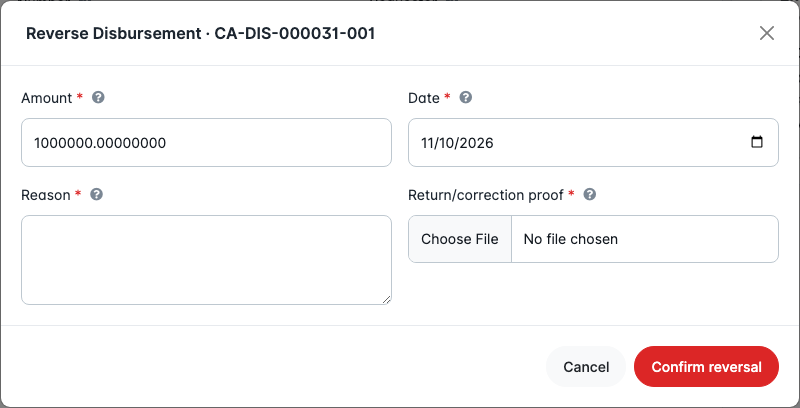
Use the separate reversal access for that transaction type. A disbursement cannot be reversed while a non-void active settlement is in progress; resolve the settlement/reference restrictions first. Other reversals also recheck current status, balance, and company date/close-period controls. Never create a reversal merely to make an inconvenient balance disappear; confirm the actual correction with the responsible team.
Cancellation And Active References
Void Settlement and Void Request require the appropriate document access and a reason. Active references and financial records with a remaining effect can block them. Resolve the latest dependent transaction first; do not remove or duplicate history to bypass a blocker.
Voiding an eligible settlement preserves its revision history. If the request is still approved and disbursed, the requester can start a new settlement revision. Cancelling the request does not refund the employee or undo an external transfer.
Common Problems
| Problem | What To Do |
|---|---|
| A request is absent from the queue | Check the current stage and whether your role has both queue and relevant financial access. |
| The account on an old transaction differs from the profile | The transaction retains its recipient snapshot; compare the actual transfer evidence. |
| Return proof exists but balance is unchanged | Check whether the return is still pending verification. |
| An amount is rejected | Compare it with the approved disbursement or remaining balance and the document's precision. |
| A correction is blocked | Read the active-reference, status, date, or close-period message and resolve it through an authorized workflow. |
| Save says the document changed | Refresh and review current records before retrying; do not repeat the external payment. |
Next: coordinate with the requester using Cash Advance User Guide, or review data through Reports And Audit.