
Transaction Reminders
Use transaction reminders to help the right people follow up work that still needs attention. Reimburse.id combines eligible work into an email for each recipient on a scheduled working day. A reminder does not approve a document, transfer money, or change who must act.
For moving approval assignments, use Delegation And Reassign Approval. For daily decisions, see Approval Guide, Payment Operations And Batch Payment, or Cash Advance Fund Management.
Before You Enable Reminders
Ask an administrator with access to Transaction Reminders to check:
- the company timezone, working days, working hours, and holidays,
- which pending work needs a reminder and when,
- who should receive it and whether their account is active,
- whether those users can read the documents and have email notifications enabled.
Calendar setup is explained in Initial Setup. Receiving an email does not grant document access or approval rights.
Set The Schedule
Open Configuration > General & Controls > Transaction Reminders and select Settings & Schedule.
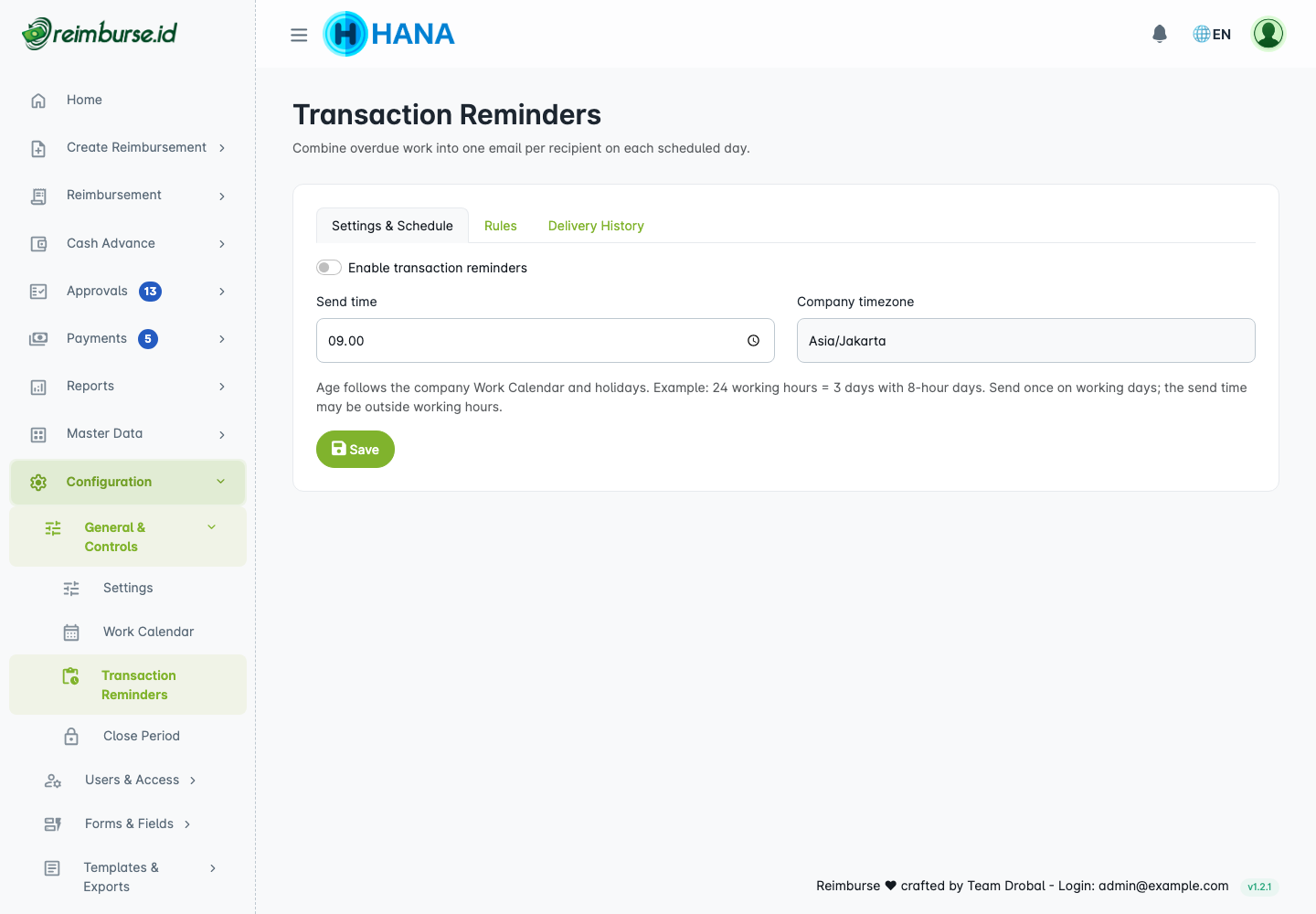
- Check Company timezone. The schedule uses this timezone, not your device timezone.
- Set Send time.
- Review the rules using Preview before enabling Enable transaction reminders.
- Save when the schedule and recipients are ready.
The module switch controls whether emails may be sent. Each rule also has its own Active setting. An active rule alone does not enable delivery; the module and an eligible rule must both be enabled. Default rules may already be active: review them before enabling the module. Only users with update access can save settings or rules.
Delivery is scheduled once per recipient on a working day. The send time may be outside working hours, but the age of pending work is still counted using company working hours. For example, 24 working hours means three eight-hour working days, not one calendar day. Weekends or company holidays that are not working days do not add working hours.
Create A Reminder Rule
Open Rules, then Add Rule, or open an existing rule using View / Edit.
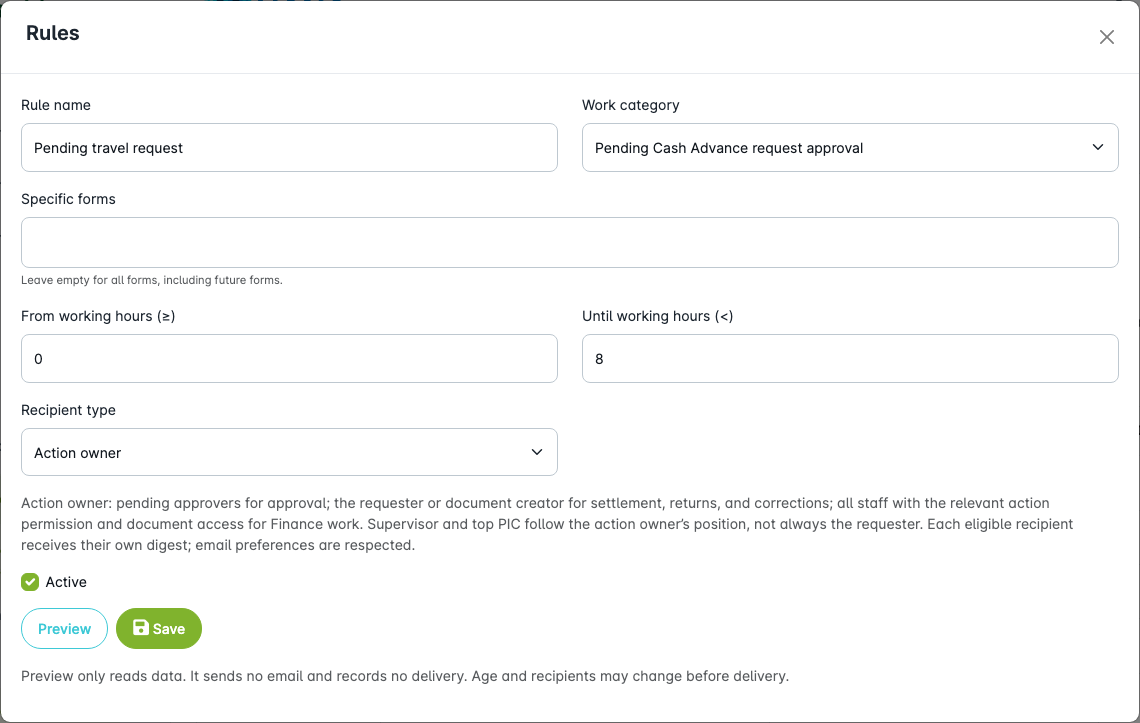
| Field | How To Fill It |
|---|---|
| Rule name | Use a recognizable name, such as “Pending travel request”. |
| Work category | Select the work that needs attention. |
| Specific forms | Select forms to limit the rule. Leave empty for all applicable forms, including forms created later. |
| From working hours (≥) | Enter the minimum pending age in whole working hours. This boundary is included. |
| Until working hours (<) | Enter a higher upper limit, or leave empty for no upper limit. This boundary is excluded. |
| Recipient type | Choose how recipients are found; see the next section. |
| Selected user | Required when the recipient type is Selected user. |
| Active | Enable the rule when ready. |
For example, a range from 24 until 56 includes work aged 24 hours, but not work aged 56 hours. Use a second rule from 56 hours for a later follow-up if needed.
Work categories cover pending reimbursement/batch approvals, reimbursement payment processing, unpaid batches, and Cash Advance request approval, disbursement, settlement submission, overdue settlement, settlement approval, return proof, return verification, additional payment, and corrections after rejection. Select the category for the actual unfinished action, not just the document's overall status.
Reminder rules are not first-match approval rules. Several matching reminder rules can apply together. Overlapping rules do not disable one another. Eligible items are combined for each recipient, and the same work item is not listed repeatedly just because several rules matched.
Choose Recipients
| Recipient Type | Who Is Considered |
|---|---|
| Action owner | People who must perform the current action: pending approvers, the requester/document creator for settlement, returns or corrections, or staff with the relevant action permission and document access for payment work. |
| Action owner’s supervisor | Eligible users at the direct parent of the action owner's position. |
| Top-position PIC | The top-position PIC resolved from the action owner's position. |
| Selected user | The specific active company user selected in the rule. |
The supervisor/PIC is therefore not always the requester's supervisor/PIC. Each recipient must still be eligible to read the document and receive email. An inactive account, missing document access, disabled email notifications, or an invalid email address can prevent inclusion.
Reminder supervisor routing checks the direct parent position; it does not continue to a higher position when that parent has no eligible recipient. This differs from the upward search used by workflow approval resolution. Use Preview to check the actual recipients for each rule.
For the position hierarchy and dynamic approval roles, see Reimbursement Configuration. A reminder to a supervisor does not reassign the action to that supervisor.
Preview Before Saving
Click Preview in the rule editor. Review document numbers, pending working hours, action owners, actual recipients, and any skip reason.
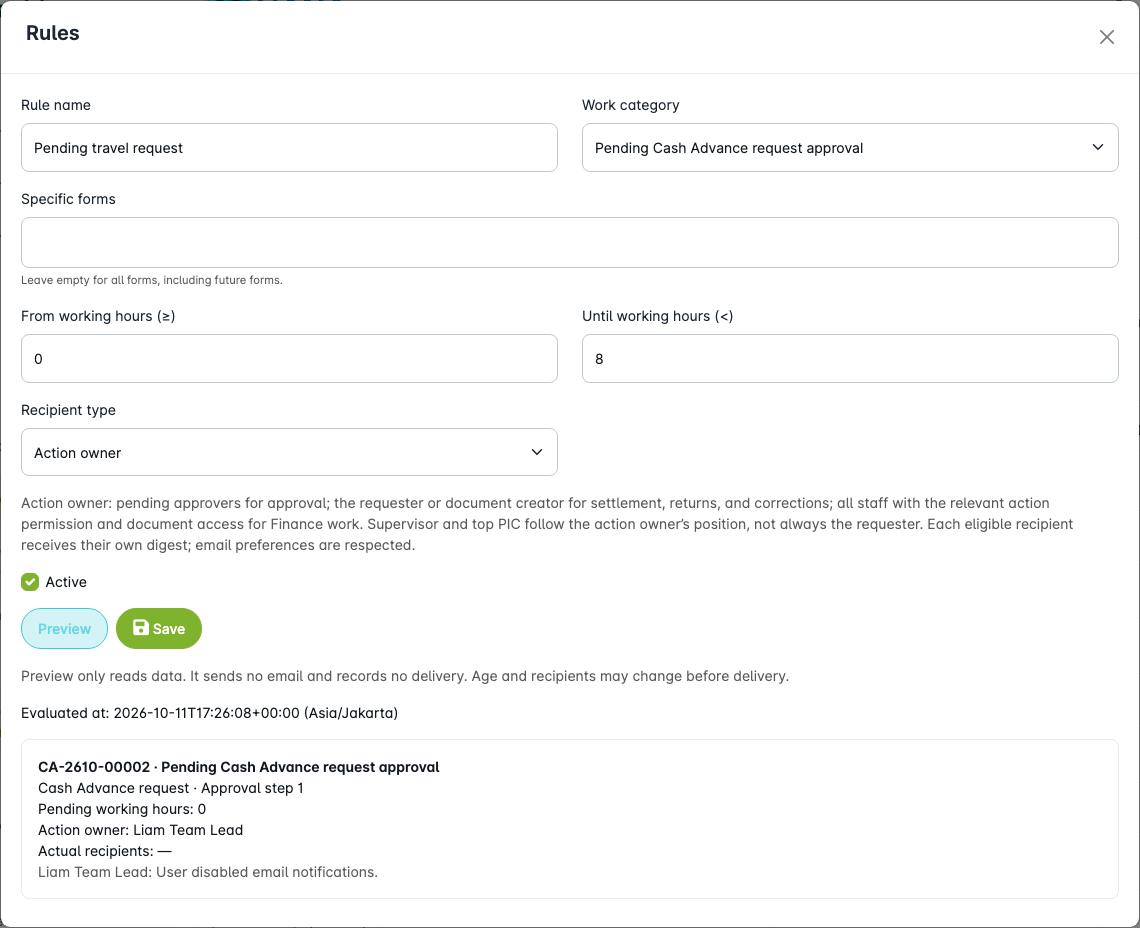
Preview reads current data only: it does not send an email, record a delivery, or save the rule. It can also evaluate the draft rule before you save it. Documents with unknown start times or ages outside the range may be skipped.
A preview is a snapshot, not a promise of later delivery. Age, document status, recipients, access, and email preferences are checked again during delivery. Save the rule separately when the result matches your intended follow-up policy.
Read The Reminder Email
The email groups eligible work and shows document numbers, stages, owners, pending working hours, and amounts. Open a document link and sign in to review the current state before acting.
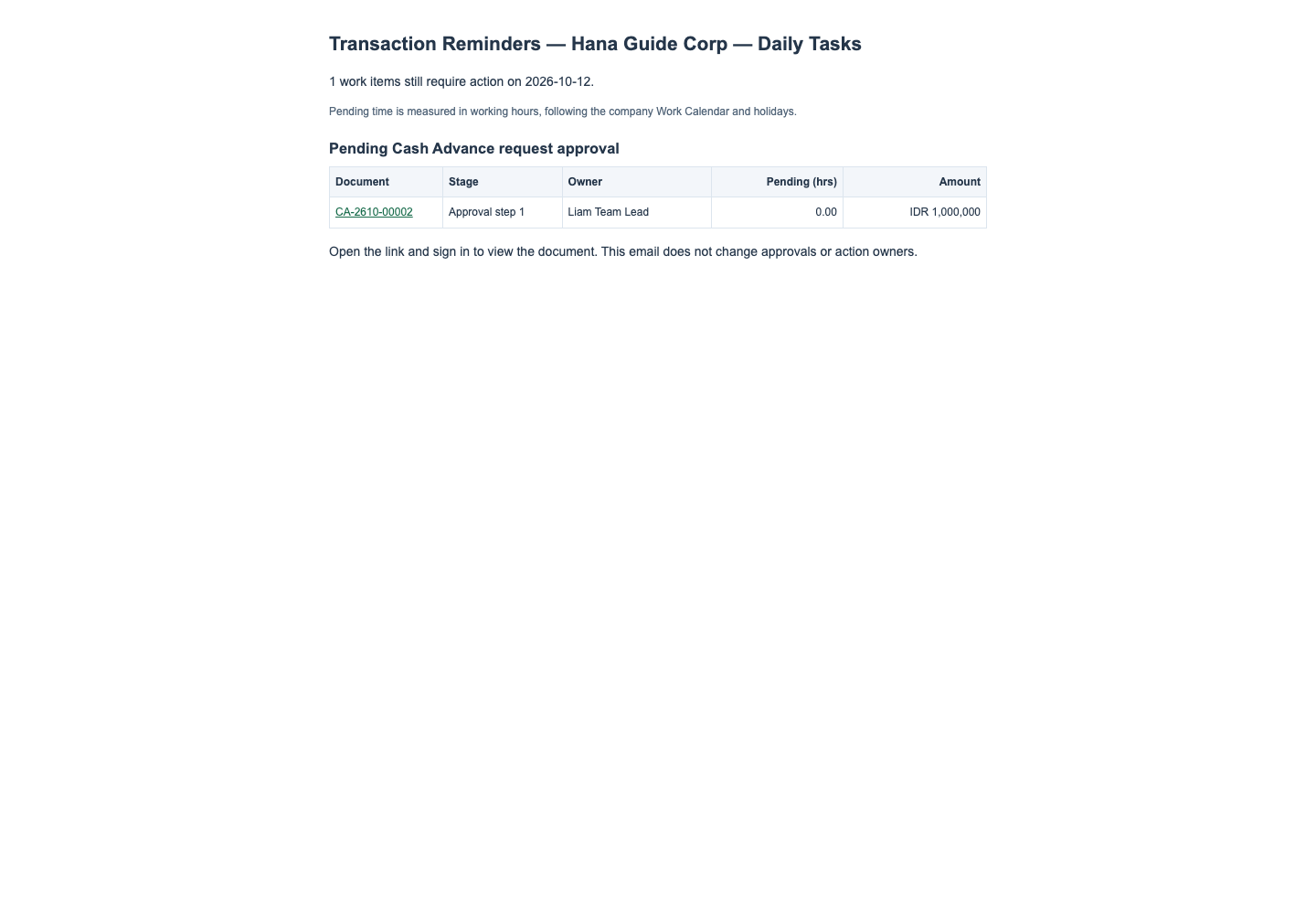
Each recipient receives their own eligible-work digest, rather than one email per matching rule. Large digests show up to 100 work items and direct the recipient to accessible transaction lists for the remainder. If the task has already been completed, no further action is needed just because an earlier reminder exists.
Check Delivery History
Open Delivery History.
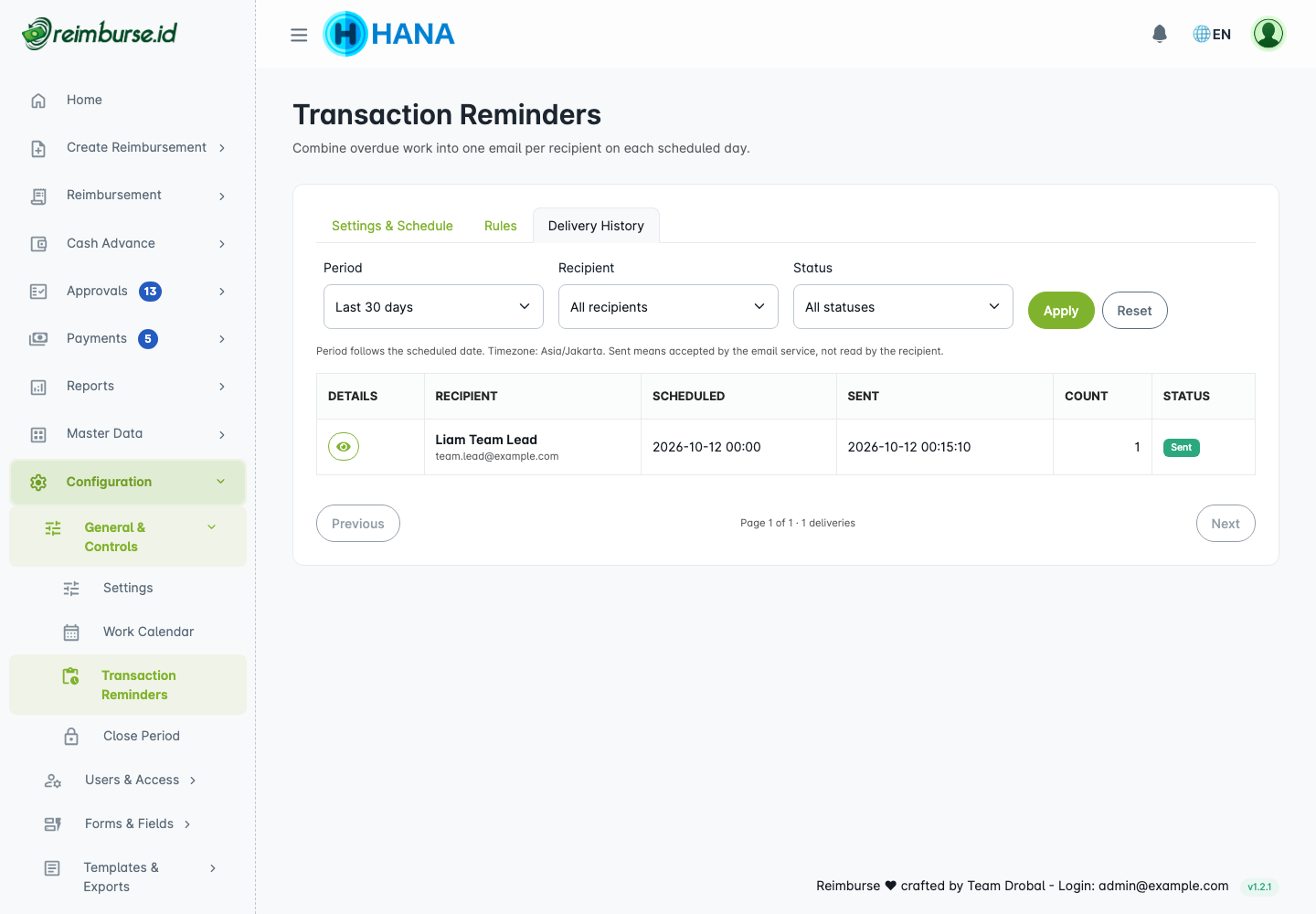
Use Period, Recipient, and Status, then Apply. The default period is the last 30 days. A date range follows the scheduled date in the company timezone; it is not a filter on the time the email was actually sent.
Open Details for the delivery's work items. Only documents you can still access are shown, up to 100. Recipient name/email may reflect the recorded delivery identity; older records without a stored email show the user's current email with a note.
| Status | Meaning And Next Step |
|---|---|
| Pending | Waiting to be processed. |
| Processing | A worker has started processing the delivery. |
| Sent | Accepted by the email service. This does not prove inbox delivery or that the recipient read it. |
| Skipped | Delivery or all included work was no longer eligible. Check the reason and current settings/status. |
| Failed | Processing failed before email transport. The system can retry the same delivery within its retry limit. Ask the administrator to inspect repeated failures. |
| Delivery result uncertain | Transport started, but its result could not be confirmed. There is no automatic resend to avoid duplicate email. Ask the administrator to investigate before resending outside the system. |
If A Reminder Is Missing
Check the module switch, rule's active setting, category, form filter, working-hour range, calendar, timezone, and send time. Then use Preview to check recipients and skip reasons. Ask the recipient to review their email notification preference and email address.
Do not change approval rules merely to make a reminder appear. If the work owner needs changing, use Delegation And Reassign Approval. For persistent problems, see Troubleshooting.