
Dashboard And Navigation
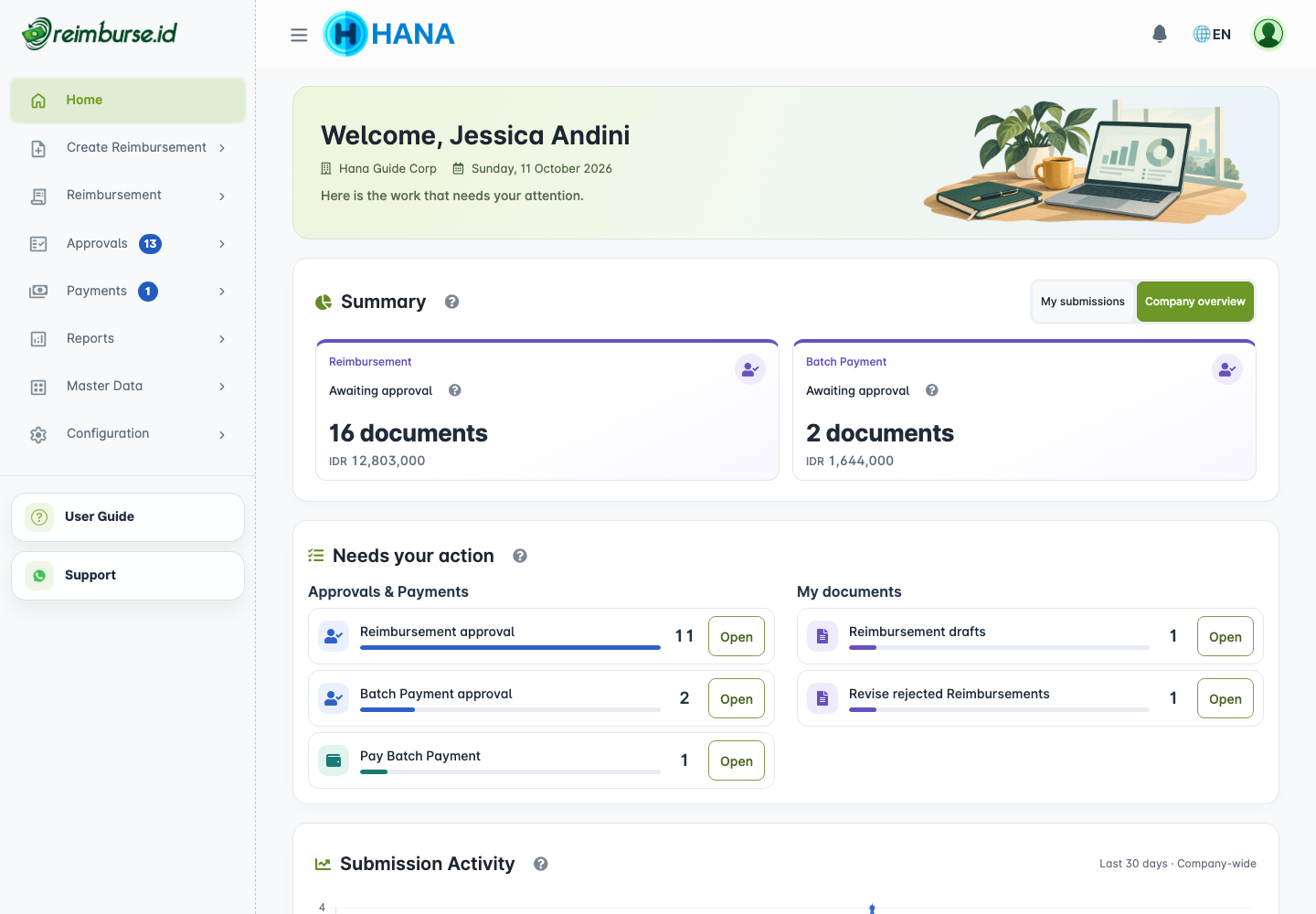
The dashboard is your starting point after signing in. It helps you see your current workload, find work that needs attention, and open the right document without searching through every menu.
Open Home to return here. The sections and actions you see depend on your access and the features your company uses. Your dashboard may therefore differ from another person's dashboard.
Start With The Task You Need To Complete
- Check Needs your action for work you can act on.
- Click Open beside the relevant queue, such as Reimbursement drafts or Reimbursement approval.
- Review the filtered list and open the document you want to work on.
- Complete the action on that document's page. Opening a dashboard link does not submit, approve, or pay a document.
For example, an employee can continue a draft, an approver can review an assigned claim, and a payment team member can open a batch ready for payment.
Read The Summary
Summary shows document totals and balances. If available, use My submissions for your own documents or Company overview for company-level figures. Switching this summary does not change your permissions or automatically change the scope of other dashboard sections.
Read each card's label, unit, and information icon before comparing its value with a report:
| Card | What It Means | Period |
|---|---|---|
| Reimbursement — In progress | Total amount of your claims still being processed. Drafts and rejected claims are excluded. | Current snapshot across all dates. |
| Reimbursement — Paid | Your reimbursements recorded as paid. | Last 30 calendar days, including today, based on payment date in the company timezone. |
| Reimbursement / Batch Payment — Awaiting approval | Company documents awaiting approval. These can include documents assigned to other approvers, not just you. | Current snapshot across all dates. |
| Cash Advance — Unresolved balance | Official balance not yet settled. Draft settlement expenses do not reduce this value. It is not necessarily the amount you must return. | Current snapshot across all dates. |
| Cash Advance — Difference payable | Remaining amount payable by the company after settlement approval. Draft expenses are excluded. | Current snapshot across all dates. |
Amounts in different currencies remain separate. A summary total and a task count can differ because they answer different questions: the company's current balances versus documents you can act on now.
Use Your Task Queues
Needs your action groups work into Approvals & Payments and My documents, according to the tasks available to you.
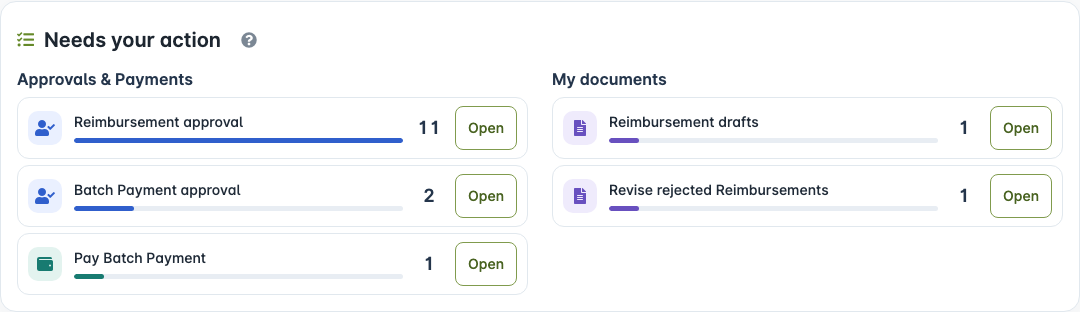
The number is the number of documents in that queue. The colored bar compares this count with the largest visible queue; it is not a completion percentage. Do not add every queue together to calculate a company-wide document total.
Tasks may include reviewing approvals, revising a rejected claim, continuing a draft, or recording a payment. Cash Advance tasks may also appear when that module is enabled and you have access.
If there are no tasks, that means there is no work in these actionable queues. It does not mean the company has no documents.
Open Priority Documents
Priority documents lists up to five documents that most need your attention. Read the document number, status, Needs attention reason, and Next step before choosing the action.
A Cash Advance settlement that is overdue or due within seven days may be highlighted. The deadline is for accounting for the use of funds; it is not an automatic payment date. Some submission dates appear behind an information icon.
Use Browse queues to choose another task queue. The priority list is a shortcut, not a complete list of all outstanding company documents. For assigned approvals, continue to the Approval Guide.
Understand Submission Activity
Submission Activity shows the number of documents submitted, not monetary amounts, in the last 30 days.
- The chart uses the latest submission date. A resubmitted document is counted once.
- Cash Advance requests and active settlements are separate series.
- Check the scope shown for each series: your submissions, your team, or company-wide. Different series can have different scopes.
- Use the legend to show or hide a series without changing the underlying documents.
An empty chart means there are no submissions in that period and scope, not that you have no drafts or older documents.
Read Spending Insights
Spending Insights compares approved spending in the last 30 days, including today, with the preceding 30 days. It follows your read access for each module; the legend shows the scope.
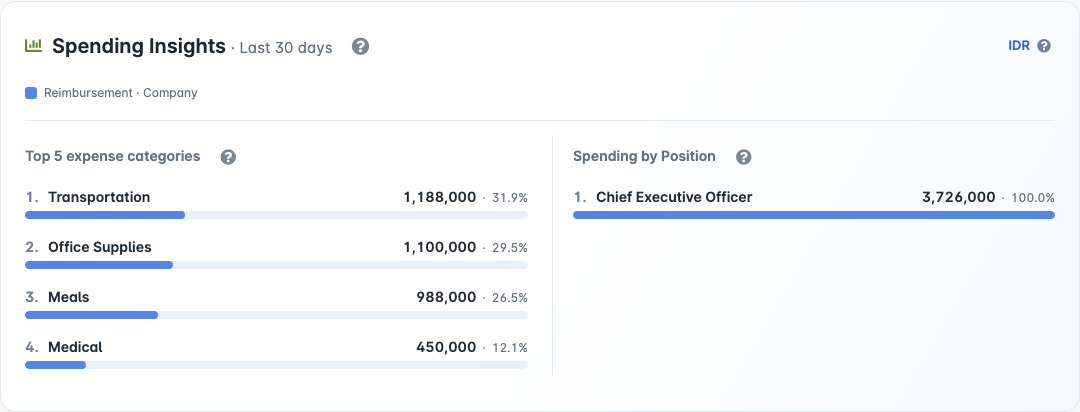
The figures use the final approval date, not the payment date. They combine reimbursement expense details and active, approved Cash Advance settlement expenses. Cash Advance requests and payments are not counted again as spending. Drafts, void documents, and records without an approval date are excluded.
| Area | How To Read It |
|---|---|
| Top 5 expense categories | The largest categories in that currency. Percentages use all approved spending, including categories outside the top five. Colors show each module's contribution. |
| Spending by Position | Documents are grouped under the highest parent position using the current position hierarchy, including its descendants. |
| Currency information icon | Shows current and previous totals and the change between the two periods. Currencies are not combined. |
| Category or position details | Hover, focus, or tap a row to inspect the contribution of each module. |
| Unclassified | A category is missing, or reimbursement detail amounts are missing or do not match the document total. It is not a finding of wrongdoing. |
For detailed filters, exports, or audit records, use Reports And Audit. Dashboard charts are a quick overview rather than a replacement for those reports.
Find Menus And Read Their Badges
On desktop, use the sidebar to choose a document list, an approval queue, payments, reports, master data, or configuration. Expand a group to see the menus inside it.
A numbered badge beside a task menu is a shortcut to work within your access. A blue badge on a parent menu totals its visible task queues; child badges show the individual queues. These are not totals of every document in the company.
Administrator settings are grouped under Configuration:
| Group | What You Find There |
|---|---|
| General & Controls | Company settings, work calendar, transaction reminders, and close period. |
| Users & Access | Users, positions, roles, user custom fields, and company login history. |
| Forms & Fields | Custom fields and document form settings. |
| Templates & Exports | Print and spreadsheet template settings. |
Only permitted menus are visible. Ask your administrator if a menu needed for your task is missing. See Initial Setup for company preparation and Reimbursement Configuration for form settings.
Navigate On A Phone
On a narrow screen, use the menu button to open the sidebar. The bottom navigation offers task shortcuts when available:
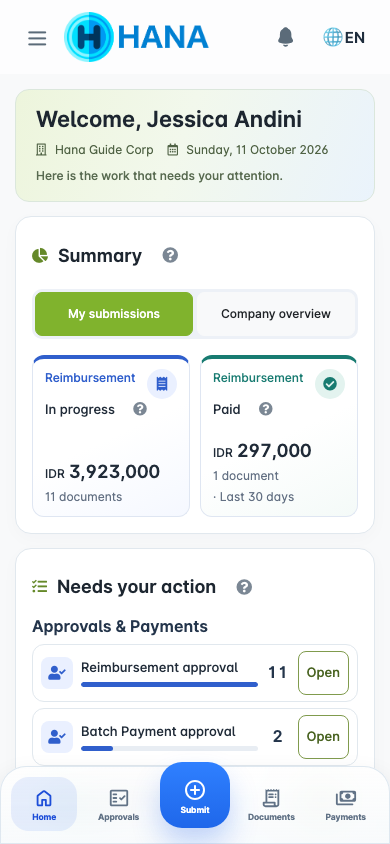
| Shortcut | Purpose |
|---|---|
| Home | Return to the dashboard. |
| Approvals | Choose an approval queue you can access. |
| Submit | Choose an available request form. |
| Documents | Open a document list. |
| Payments | Open payment work you can access. |
Some shortcuts offer a choice of pages rather than opening a single page directly. The available shortcuts depend on your access, and document pages may offer actions suited to that page. This is the responsive website; you can use it in your phone's browser.
Change Language Or Company
Use the language control in the header to change the application's display language. This does not change a document's amount, status, or company.
Open the user/profile menu for your profile and My Login History. See Activity And Login History for reading these records. If your account belongs to several companies, you can also choose another company there. Follow Switch Company Account for the full steps.
What To Do Next
Choose the guide for your task: submit a reimbursement, review an approval, or prepare and record a payment.
If a dashboard section cannot load, use Try again when shown or reload the page. If the problem continues, see Troubleshooting or contact your administrator.