
Initial Setup
Use this chapter if you administer a company after Company Onboarding. You do not need to configure every optional feature before employees can submit their first reimbursement. Employees who only submit claims can go directly to the Reimbursement User Guide.
Recommended Setup Order
| Start With | Where To Open It | Result |
|---|---|---|
| Positions | Configuration → Users & Access → Position | A clear hierarchy for users and approval routing. |
| Expense categories and banks | Master Data → Expense Category / Bank | Categories for expense lines and bank references for user accounts. |
| Roles and users | Configuration → Users & Access → Role / User | Active accounts with the permissions needed for their tasks. |
| Company settings | Configuration → General & Controls → Settings | Correct company information, timezone, and amount/date formats. |
| The first reimbursement form | Configuration → Forms & Fields → Reimbursement Forms | A usable form with appropriate access, fields, and approval rules. |
Then complete Reimbursement Configuration and confirm that an employee can use the form and its approval routing. Set up Cash Advance only if your company uses funds requested before spending; see Cash Advance Configuration.
Optional or policy-dependent: custom fields, special print/export layouts, work calendars, reminders, and closed periods. Decide which your company needs instead of treating every setting as a prerequisite.
1. Master Data
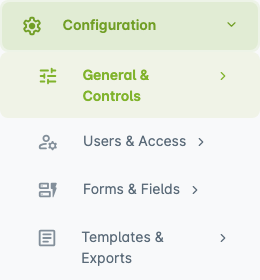
Master Data contains Expense Category and Bank. Position is now under Configuration → Users & Access. An expense category classifies an expense line; a reimbursement form is the document employees choose when starting a claim.
Position
Open Configuration → Users & Access → Position.
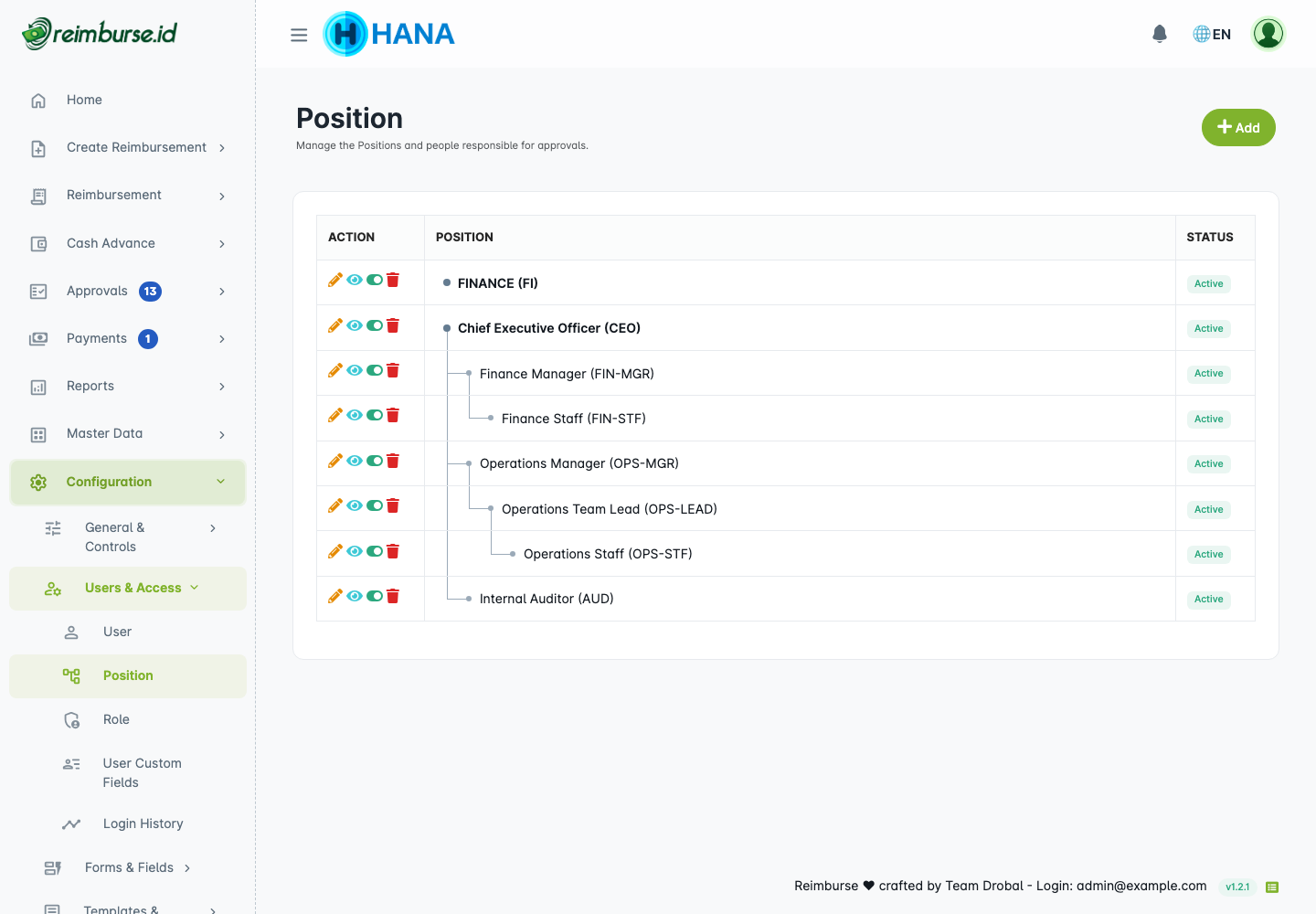
Create parents before their children. This example provides three levels for supervisor-based approvals:
- Click Add and enter Name.
- Check Alias, which initially follows the name. It must be unique in this company; you can change it to an internal identifier.
- Choose Parent, or leave it empty for a top-level position.
- Click Save. Repeat for the next level.
- Use the row's actions to edit or change its active status. Prefer deactivation when the position has history; review assigned users before changing the hierarchy.
The editor does not have a PIC assignment field. Users are assigned through their own Position field. Supervisor searches upwards to the first ancestor position with active users other than the requester. PIC Top Position uses active users at the highest ancestor position. More than one user can be found; approval access is still required. The full routing explanation is in THEN Approvers.
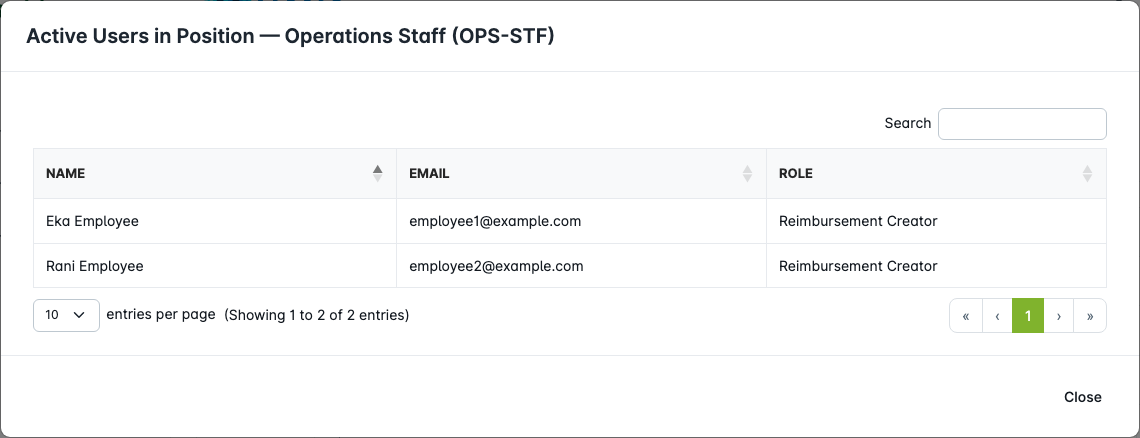
Use the position's active-user action to see who is currently assigned there, without searching the whole user list.
Expense Category
Open Master Data → Expense Category.
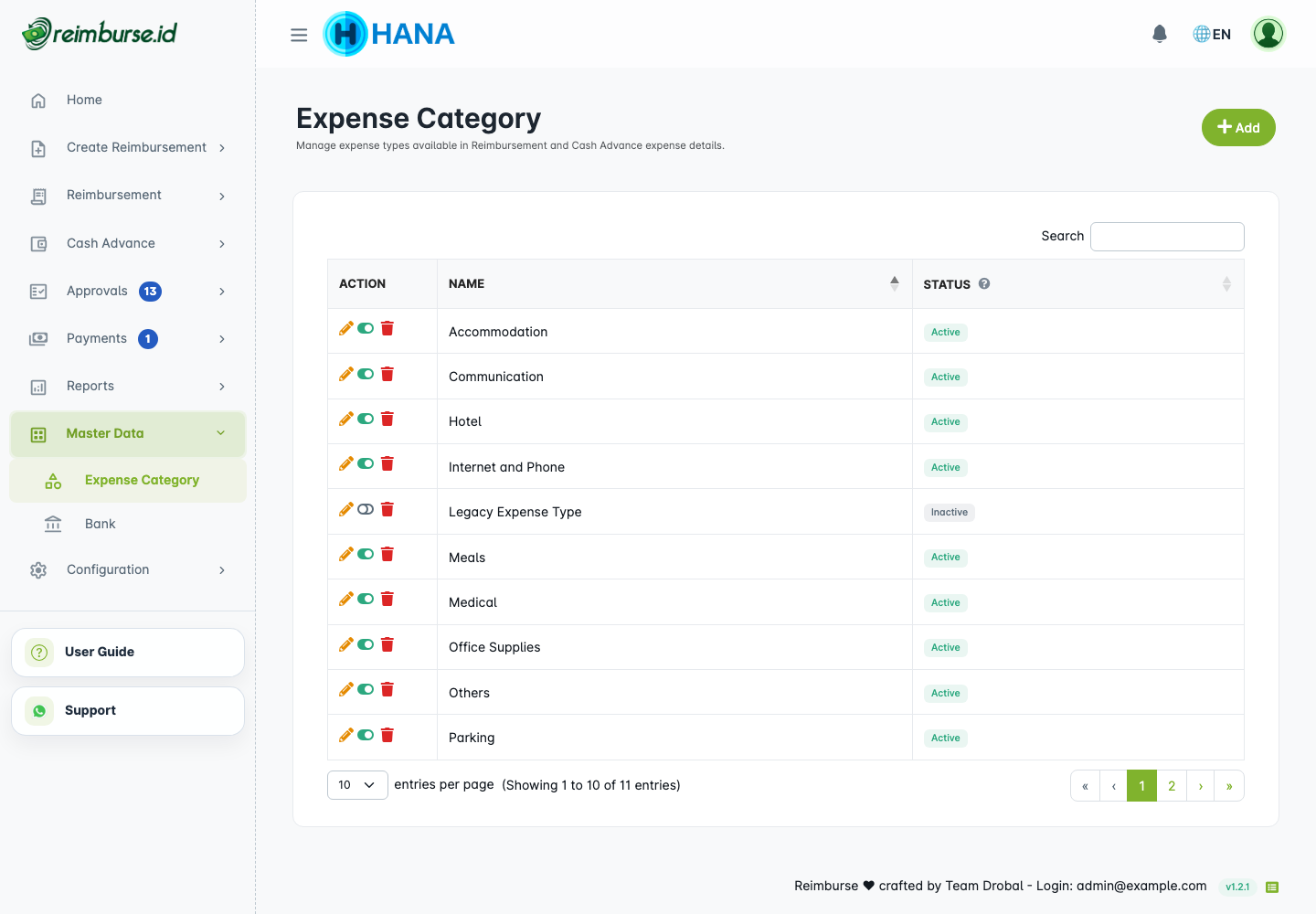
Add short, recognizable names such as Transportation, Accommodation, and Meals. Employees select these on expense detail lines. Use Edit to correct a name and the active-status action to retire an old category. If deletion is blocked because the category is used, keep its history and deactivate it instead.
Bank
Open Master Data → Bank.
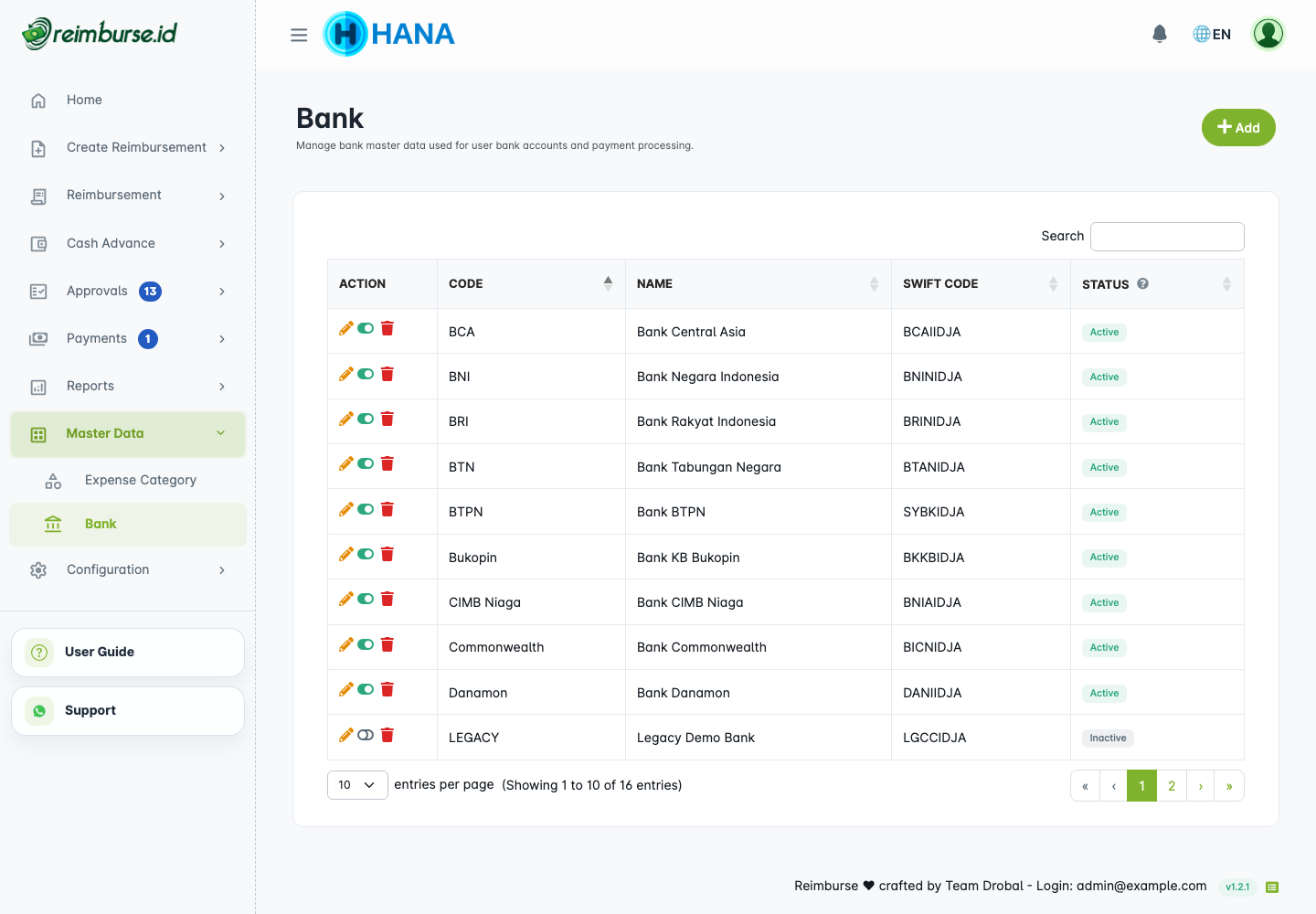
Add the banks employees use, including the bank code and other references required by your company. Users select a bank when entering their account information. Keep account names and numbers accurate before preparing payments.
Bank data supports reports, payment records, and batch spreadsheets. Reimburse.id manages payment administration and recording; actual transfers take place through the company's bank or external payment channel. A bank entry does not initiate an automatic transfer.
2. User Management
Open Configuration → Users & Access. A position describes where someone belongs in the organization; a role describes what that person may do in the application. One does not replace the other.
Role
Open Configuration → Users & Access → Role.
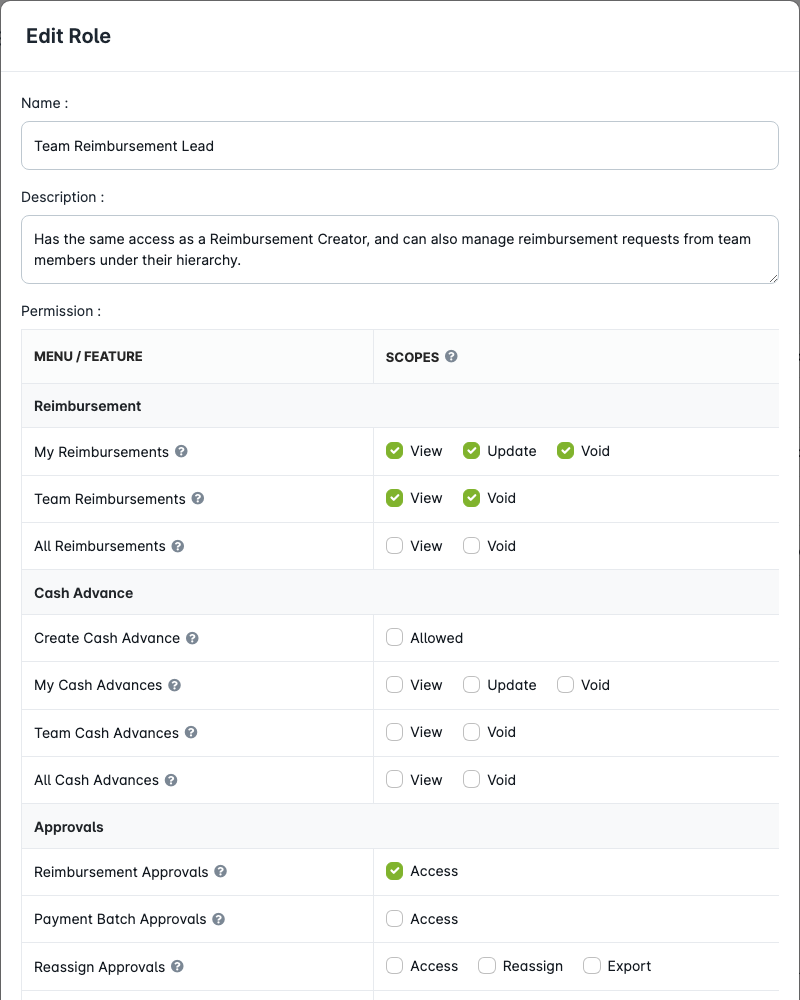
Review the provided roles before adding another. Common starting roles include Reimbursement Creator, Team Reimbursement Lead, and Reimbursement Admin. These names are starting points, not guarantees that a particular person has every approval or payment permission.
- Select a role to inspect its menus and actions.
- Enable only the access needed for its responsibilities: for example, reading documents, creating claims, exporting, approving, or recording payments.
- Save the changes.
- Assign the role to a user and check that the expected menus/actions are available.
The first administrator has special company-administration access. Other users need a role. Being selected by an approval rule does not grant permission to approve; check the relevant approval menu access separately.
User
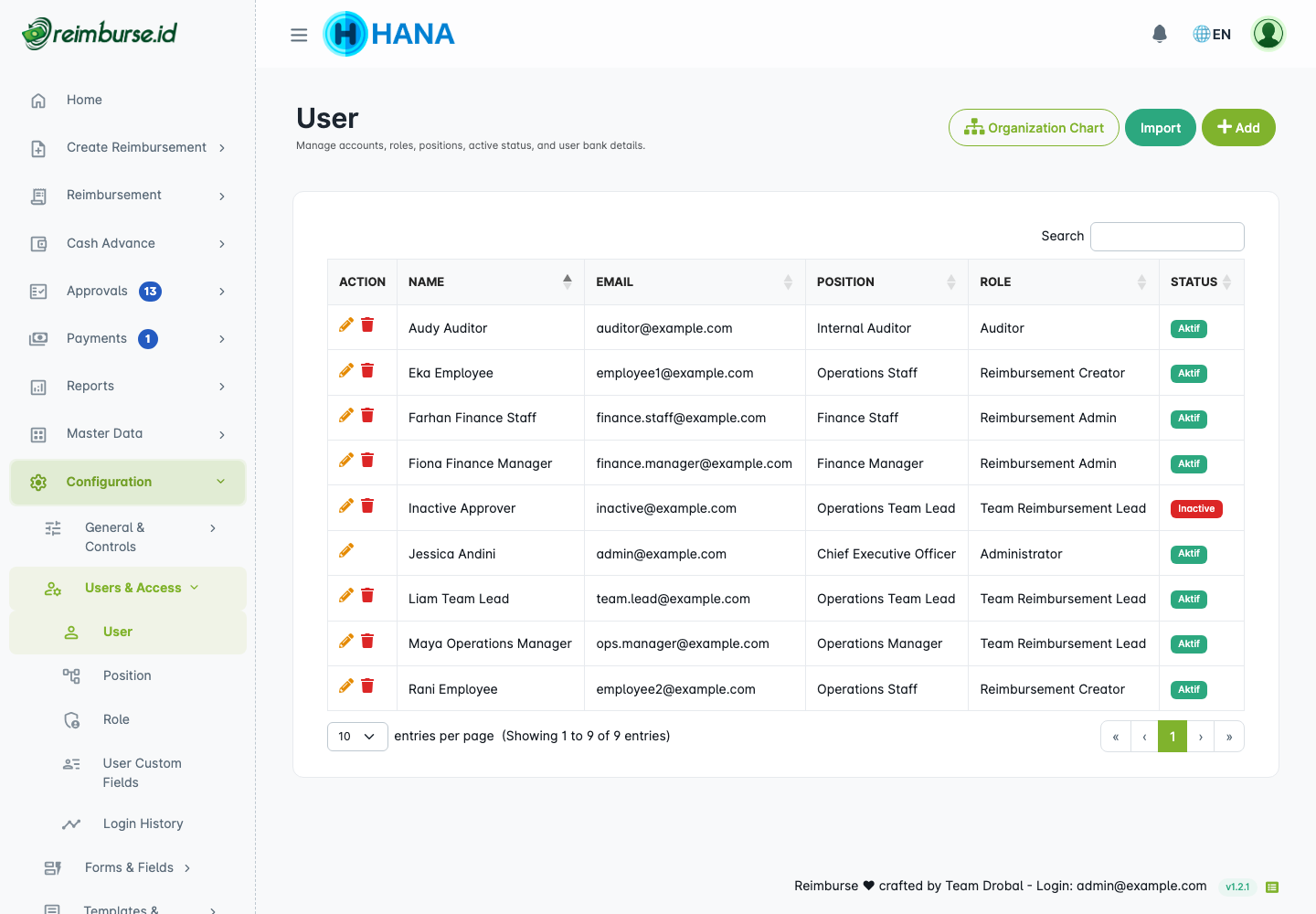
Open Configuration → Users & Access → User, click Add, complete the account information, and save.
| Field | What To Check |
|---|---|
| Name and email | Correct identity and reachable address for login/notifications. |
| Role | Permissions for the person's actual tasks. |
| Position | Correct place in the hierarchy used by routing and team views. |
| Bank, account name, and account number | Payment information for external payment preparation and records. |
| Active | Whether this person can sign in. |
| User custom fields | Extra profile information configured by the company, if any. |
A stable example allocation is:
| Person | Position | Responsibility |
|---|---|---|
| Jessica Andini | Chief Executive Officer | First administrator; company setup and top-position approvals when assigned. |
| Fiona Finance Manager | Finance Manager | Payment administration and batch review, with the required permissions. |
| Farhan Finance Staff | Finance Staff | Prepare batch/payment records. |
| Maya Operations Manager | Operations Manager | Team review and approvals. |
| Liam Team Lead | Operations Team Lead | Direct supervisor review for Operations Staff. |
| Eka Employee / Rani Employee | Operations Staff | Submit claims. |
| Audy Auditor | Internal Auditor | Read permitted reports. |
This is an example, not a required department structure. HR or another team can handle payments. Grant the relevant actions to each role rather than relying on job titles.
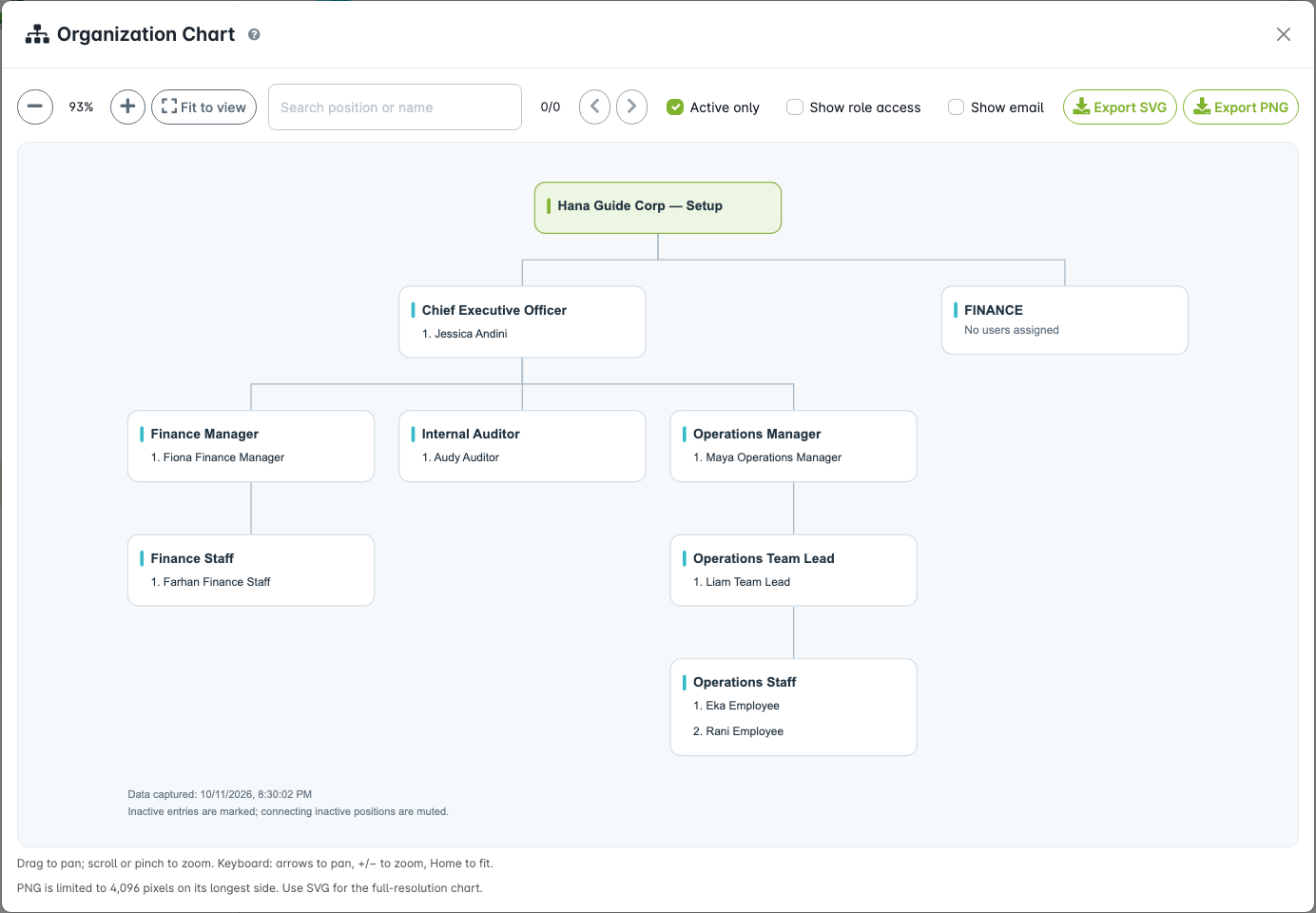
Use Organization Chart on the user page to review positions and their users together. Check the chart after moving users or changing parents. Set departing users to inactive to preserve their history.
Import User
- Open Configuration → Users & Access → User and click Import.
- Download the current template from that dialog.
- Complete the required columns. Use the template's dropdowns for salutation, role, position, and bank. Position uses
alias - name; bank usescode - name, not the name alone. Keep the values supplied by the template. - Upload the file and review the reported validation errors.
- Check the resulting accounts, roles, positions, and active status before sharing access.
Import at most 100 users per file, using the template's 100 data rows. Split larger lists into separate files; rows beyond this limit are not processed.
An import can succeed for some rows and fail for others. Read the success/failure counts and row messages, correct the failed rows, and retry only those rows in a new template. Do not upload successful rows again: their email addresses now belong to existing accounts. Check position/bank values against the dropdowns and correct duplicate email addresses before retrying. Import creates accounts rather than updating existing ones; use Edit for an existing user.
3. Configuration
Choose the appropriate group under Configuration. Start with settings and your first form; the remaining sections can be configured when needed.
Company Settings
Open Configuration → General & Controls → Settings.
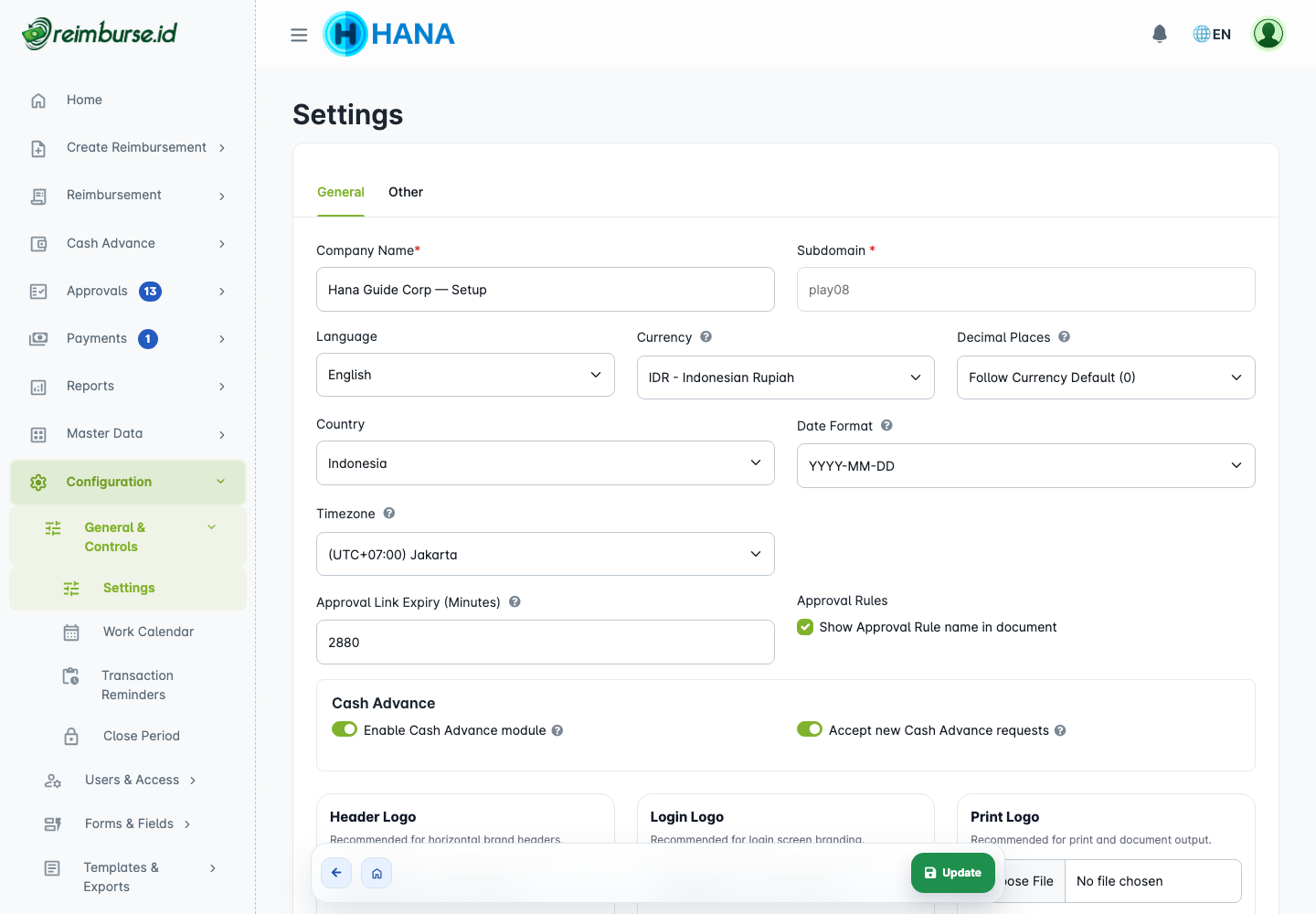
Check the company name, contact information, currency, Timezone, default language, and header/login logos. The timezone affects document numbering periods, timestamps, and reporting boundaries; choose the actual company timezone, not just a convenient display preference.
Decimal Places controls amount precision. Leave the default when appropriate. A reduction can be rejected if existing transactions contain fractions incompatible with the lower precision; do not round or delete historical transactions just to bypass that message.
Date Format
Date Format in Settings controls date-only display and input, such as YYYY-MM-DD. It does not rewrite historical dates or change the company timezone. Check it before entering dates or using date fields in a template.
Custom Fields
Open Configuration → Forms & Fields → Custom Fields.
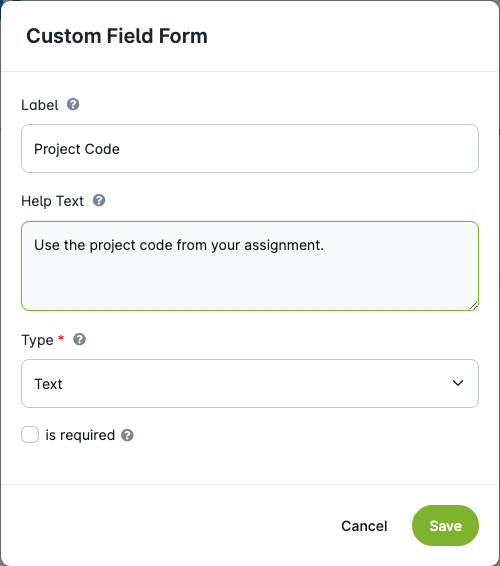
Create a field only when standard fields do not cover your need. Choose Label, Type, options when applicable, and the required-field checkbox. Supported types include text, textarea, number, date, dropdown, radio, checkbox, and file.
Help Text explains what users should enter, for example “Use the project code from your assignment.” Users can open this guidance through the field's information icon. Help text is not a default value or an approval condition.
After saving the field, attach it to the appropriate form or profile setting. Creating it in the library alone does not make it appear on every document. Selection order controls the display order in the form. Review usage before deactivating or deleting a field.
User Custom Fields
Open Configuration → Users & Access → User Custom Fields. Select existing fields from the library for profile information such as employee code or branch. This differs from a project code filled separately on each claim. These values can also be mapped as requester fields in print templates.
Reimbursement Forms
Open Configuration → Forms & Fields → Reimbursement Forms.
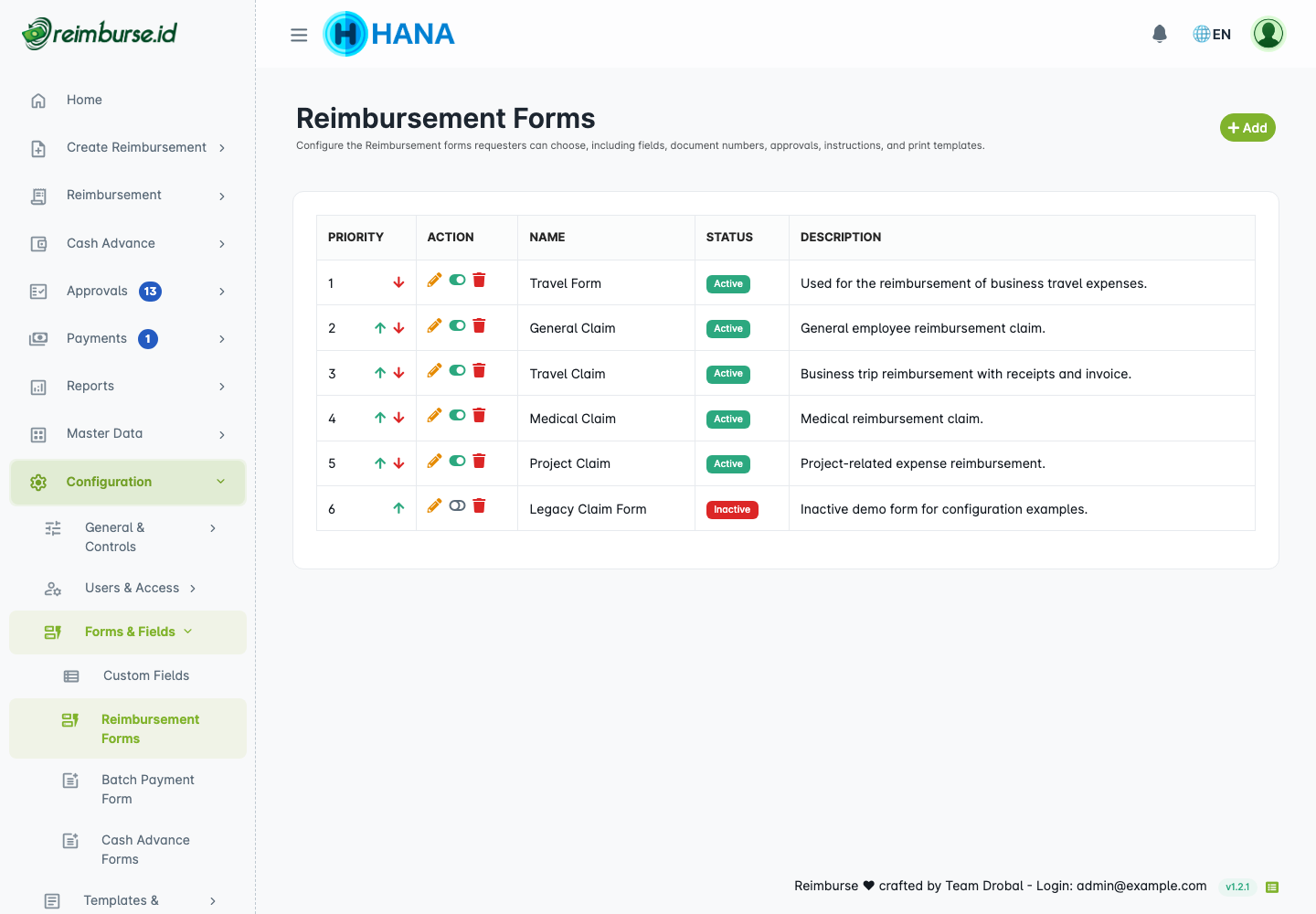
Edit the first form created during onboarding or add another. Configure access, required information, numbering, instructions, and routing in Reimbursement Configuration. Detailed flags such as Readonly Date are explained there rather than duplicated here.
Print Templates
Open Configuration → Templates & Exports and select the appropriate menu, such as Reimbursement Print. A print layout is optional; the default layout remains available. See Print Builder for reimbursement-specific steps.
Export Templates
Open Configuration → Templates & Exports → Batch Payment Document.
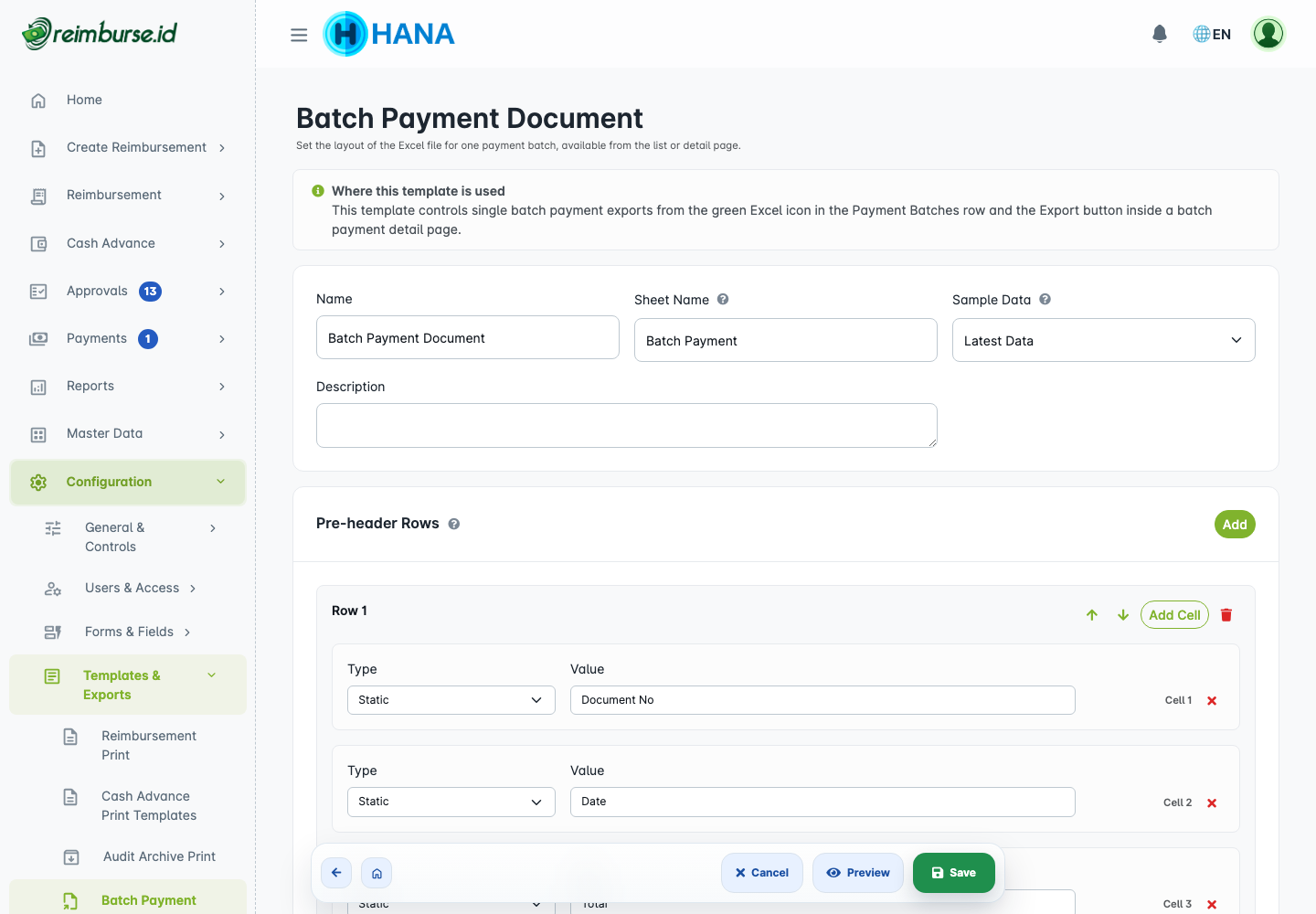
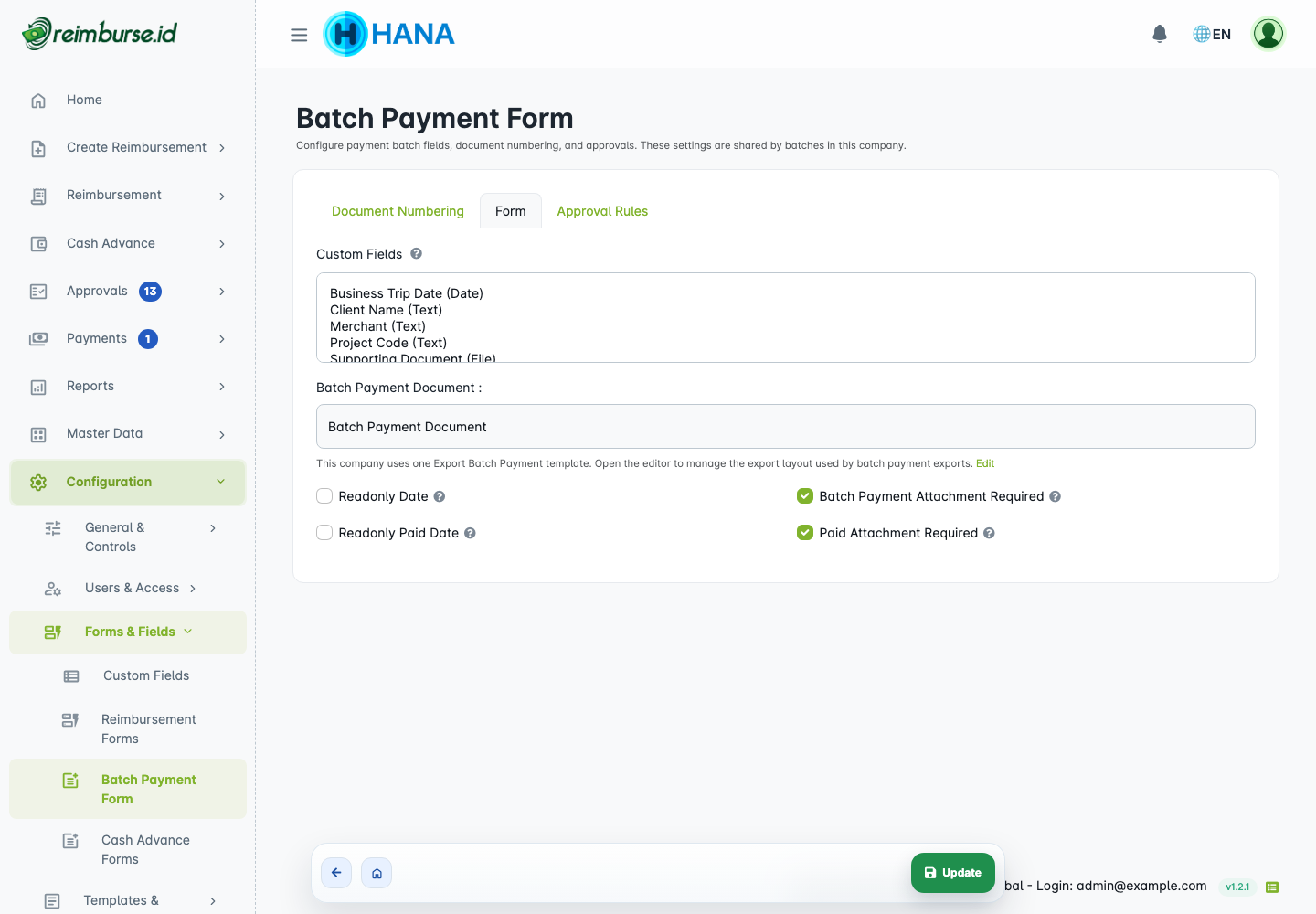
This opens the single operational batch export template for the company, not a list of templates to choose separately for each form. Configure worksheet name, pre-header rows, columns/field sources, formatting, widths, Force Text, and Zero Padding, then preview and save.
Use text formatting for account identifiers when required; check the actual spreadsheet against the receiving channel's specifications. It helps prepare an external payment import but does not itself transfer funds. Report export templates are separate layouts for reporting datasets, not the operational payment file.
Batch Payment Form
Open Configuration → Forms & Fields → Batch Payment Form.
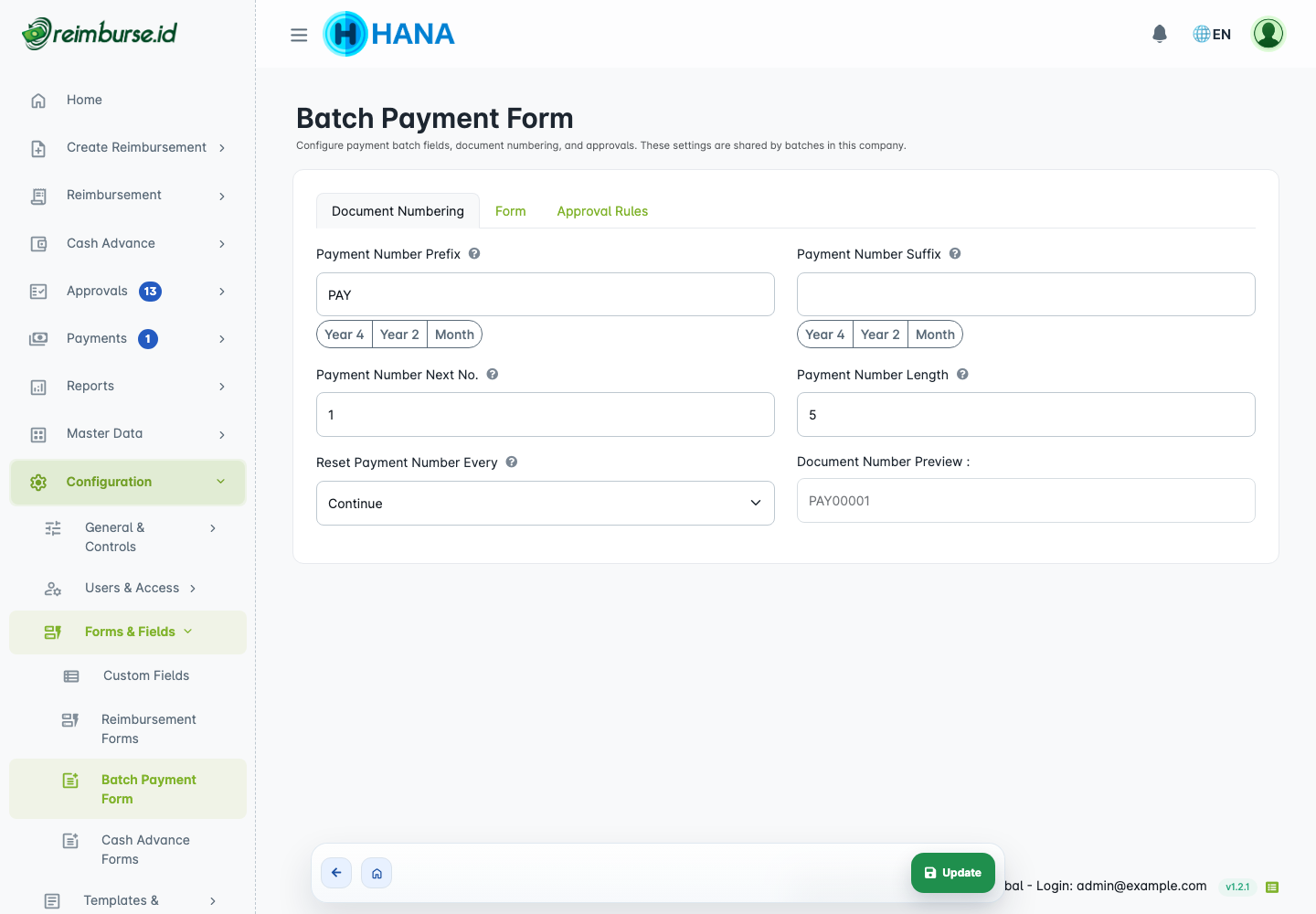
Configure batch numbering, custom fields, instructions, and approval rules. Its export section links to the company's operational spreadsheet editor; it no longer selects a default template from a template list. For creating a batch, importing reimbursement numbers, and recording an external payment, see Payment Operations And Batch Payment.
Work Calendar
Open Configuration → General & Controls → Work Calendar.
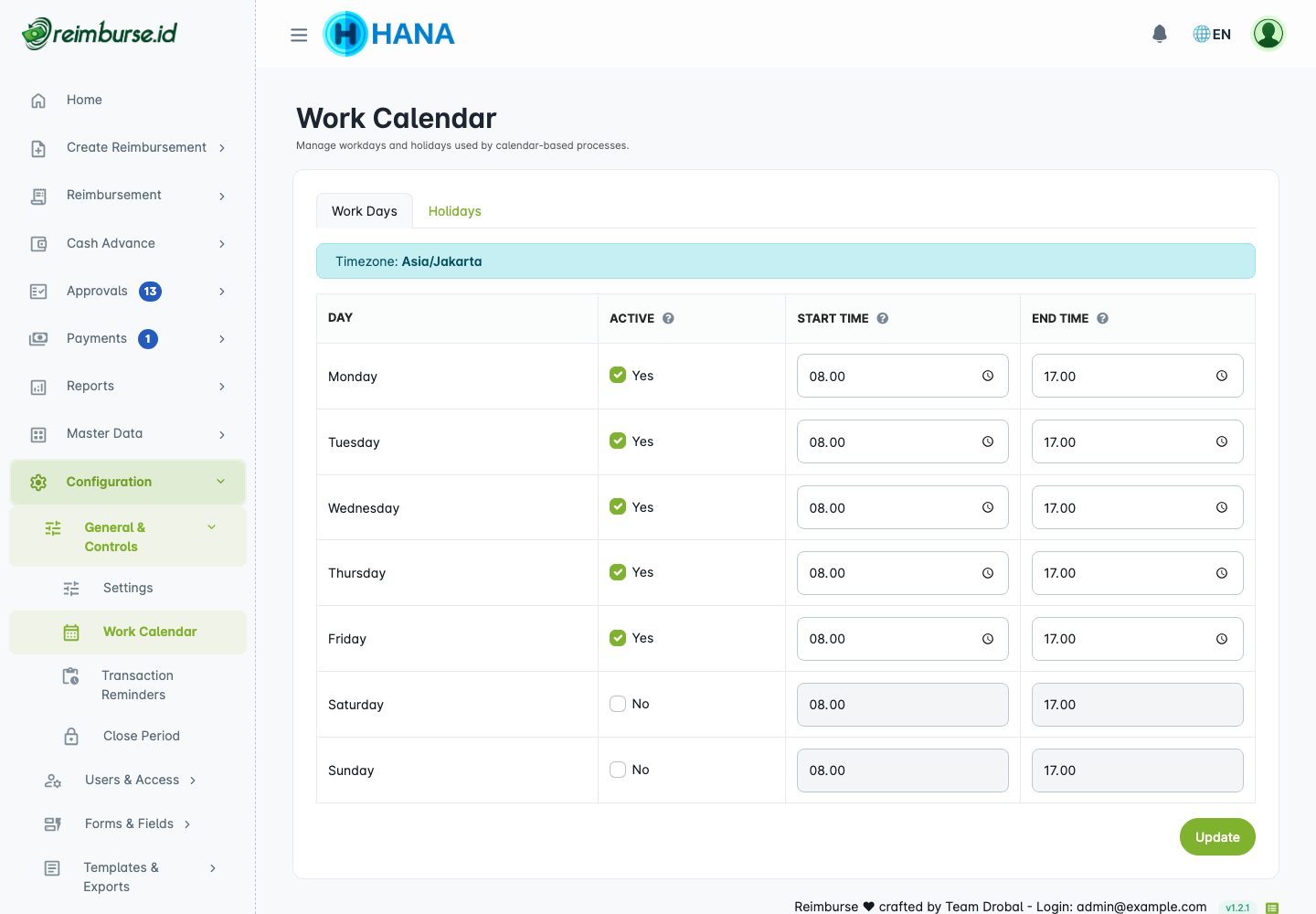
Set working days and their start/end times, then save. Calendars support scheduling features such as transaction reminders; they do not automatically approve a claim or transfer funds.
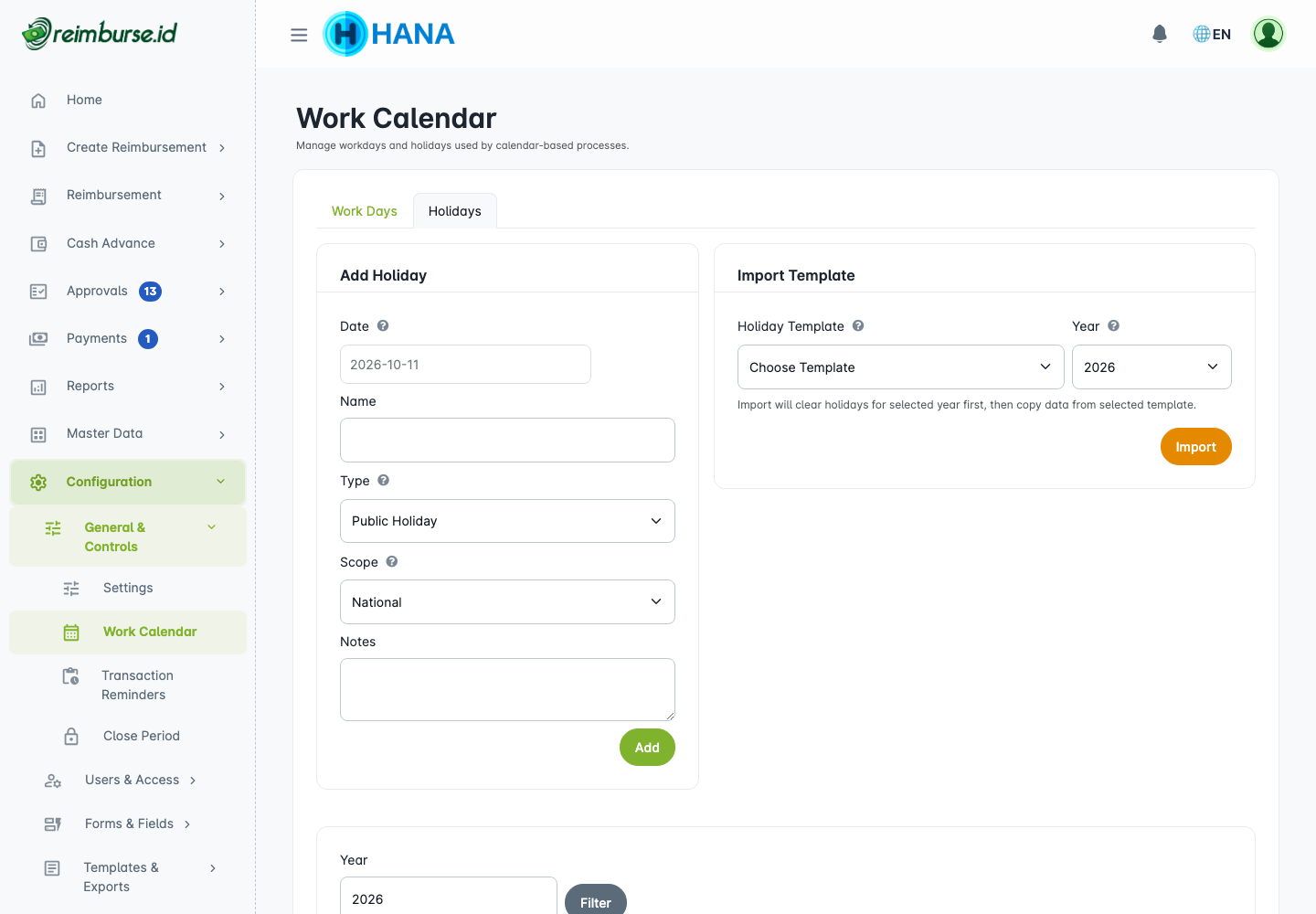
For a holiday, enter its date, name, type, scope, and optional notes, then save. Alternatively choose a supplied holiday template and year, then import. Import clears the selected year's holiday data first: review the confirmation and preserve any company-specific dates before continuing. Add those dates back if needed. This screen uses its built-in template selector; do not assume it accepts an arbitrary Excel upload.
Close Period
Open Configuration → General & Controls → Close Period, select the year, review each month and stage, then click Update.
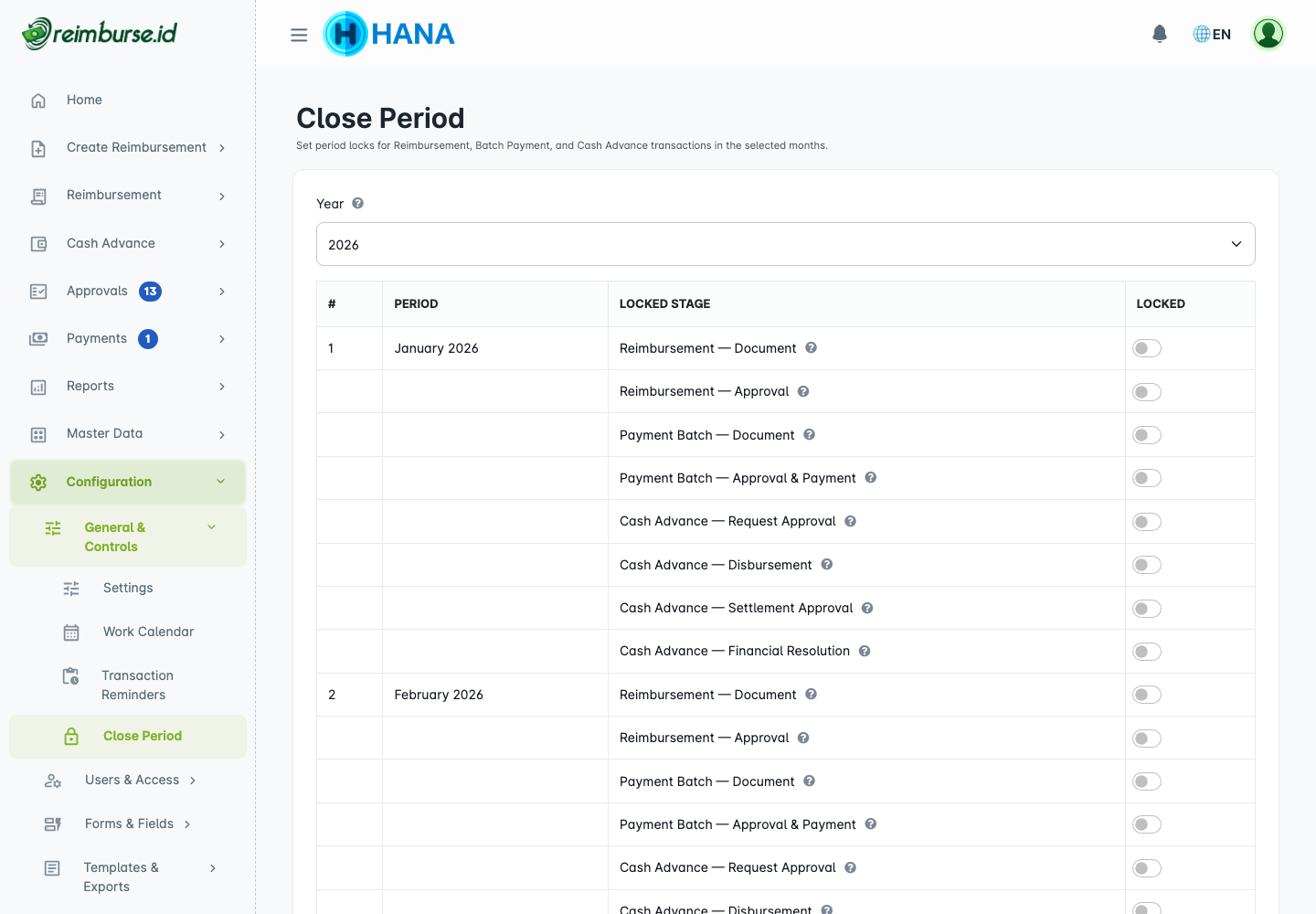
A checked Locked stage restricts the affected operations for that period; it does not lock every feature or automatically finish outstanding documents. The stages are:
- Reimbursement document operations.
- Reimbursement approval.
- Batch Payment document operations.
- Batch Payment approval and payment.
- Cash Advance request approval.
- Cash Advance disbursement.
- Cash Advance settlement approval.
- Cash Advance financial resolution (returns/additional payments).
Close periods only after reviewing pending work. If a legitimate action is blocked, ask an authorized administrator to review the relevant stage/month; do not change a document date just to avoid the lock.
4. Verify The Setup
- Confirm the employee's account is active, at the correct position, and has submission access.
- Open the intended form and check its visibility, fields, and numbering preview.
- Use Test Workflow with that employee as requester to check routing, including amounts on either side of your threshold.
- Confirm the selected approvers have approval access, not just an active account.
- Check that bank data and payment-team permissions are ready before processing a payment.
Continue to Reimbursement Configuration. If enabled by company policy, configure Cash Advance separately. A simulator preview does not replace checking an actual submission through your company's agreed process.
Common Problems
| Problem | What To Check |
|---|---|
| Position is not under Master Data | Open Configuration → Users & Access → Position. |
| A field does not appear | Attach the active library field to the correct form/header/detail or user setting. |
| Approval is assigned but cannot be opened | Grant the relevant approval access; selection alone does not grant authority. |
| An export-template list does not appear | Operational Batch Payment export now opens the company's single editor. |
| A period blocks an action | Check the matching stage/month in Close Period. |
| A decimal reduction is rejected | Existing fractional values may require the current precision. |